1. Introducció
Thank you for choosing the Qulose Wireless Bluetooth Keyboard. This keyboard is specifically designed to enhance your experience with Microsoft Surface Pro 8, Surface Pro 9, Surface Pro X, and Surface Pro 11 devices. It features a magnetic detachable design, a responsive multi-touch trackpad, and a long-lasting rechargeable battery, providing a seamless and efficient typing experience.
Si us plau, llegiu atentament aquest manual abans d'utilitzar el producte per garantir-ne el funcionament correcte i maximitzar-ne la vida útil.

Image 1.1: Qulose Wireless Bluetooth Keyboard
2. Compatibilitat del producte
This keyboard is engineered for specific Microsoft Surface Pro models. Ensure your device is compatible before attempting to connect.
- Models compatibles: Microsoft Surface Pro 8, Surface Pro 9, Surface Pro X, Surface Pro 11 (13-inch tablets).
- NO compatible amb: Surface Pro 7+, Surface Pro 7, Surface Pro 6, Surface Pro 5, Surface Pro 4, Surface Pro 3, or any other Surface models not listed as supported.

Image 2.1: Compatible and Incompatible Surface Pro Models
3. Configuració i connexió
3.1 Càrrega del teclat
Before first use, fully charge the keyboard. The keyboard has a built-in 250 mAh rechargeable lithium-ion battery.
- Localitza el port de càrrega USB-C al teclat.
- Connect the included USB-C cable to the keyboard's charging port and the other end to a USB power source (e.g., computer USB port, wall adapter).
- El llum indicador de càrrega s'il·luminarà. Un cop completament carregat, el llum pot canviar de color o apagar-se, segons el model.
A full charge provides over 25 hours of working time and over 180 days of standby time.

Image 3.1: Keyboard Charging Port and Battery Capacity
3.2 Vinculació Bluetooth
The Qulose keyboard connects to your Surface Pro via Bluetooth, offering a stable and reliable wireless connection.
- Assegureu-vos que el teclat estigui carregat i encès.
- On your Microsoft Surface Pro, go to Configuració > Bluetooth i dispositius.
- Activa el Bluetooth.
- On the Qulose keyboard, press the Fn clau i la C key simultaneously to enter pairing mode. The Bluetooth indicator light on the keyboard will blink.
- On your Surface Pro, select Afegeix un dispositiu > Bluetooth.
- Select "Qulose Keyboard" (or similar name) from the list of available devices.
- Seguiu les instruccions que apareixen a la pantalla per completar el procés d'emparellament. El llum indicador Bluetooth del teclat deixarà de parpellejar un cop s'hagi emparellat correctament.
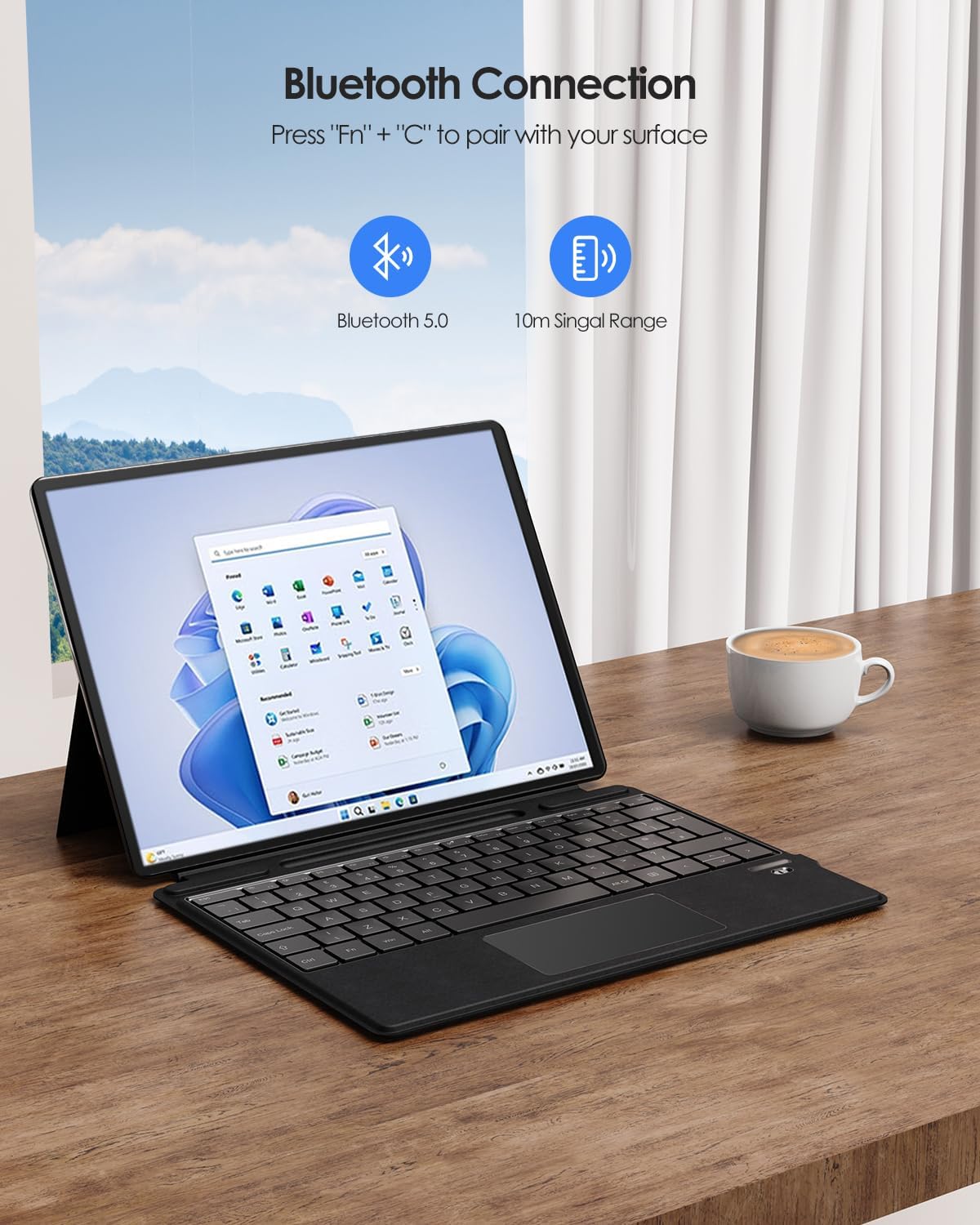
Image 3.2: Bluetooth Connection Instructions
4. Funcionament del teclat
4.1 Fixació magnètica
The keyboard features a powerful magnetic attachment strip, allowing you to easily connect and detach it from your Surface Pro. This design enables quick transitions between tablet and laptop modes and provides multiple typing angles for comfort and productivity.

Image 4.1: Multiple Angles with Magnetic Attachment
4.2 Multi-Touch Trackpad
The integrated multi-touch trackpad allows for easy navigation and precise control, enhancing your workflow. It supports various gestures for a smoother interaction with your Surface Pro.
Funció de rebuig de la palma: To prevent accidental inputs, the trackpad is equipped with a palm rejection feature. You can lock or unlock the trackpad by pressing Fn + F7.
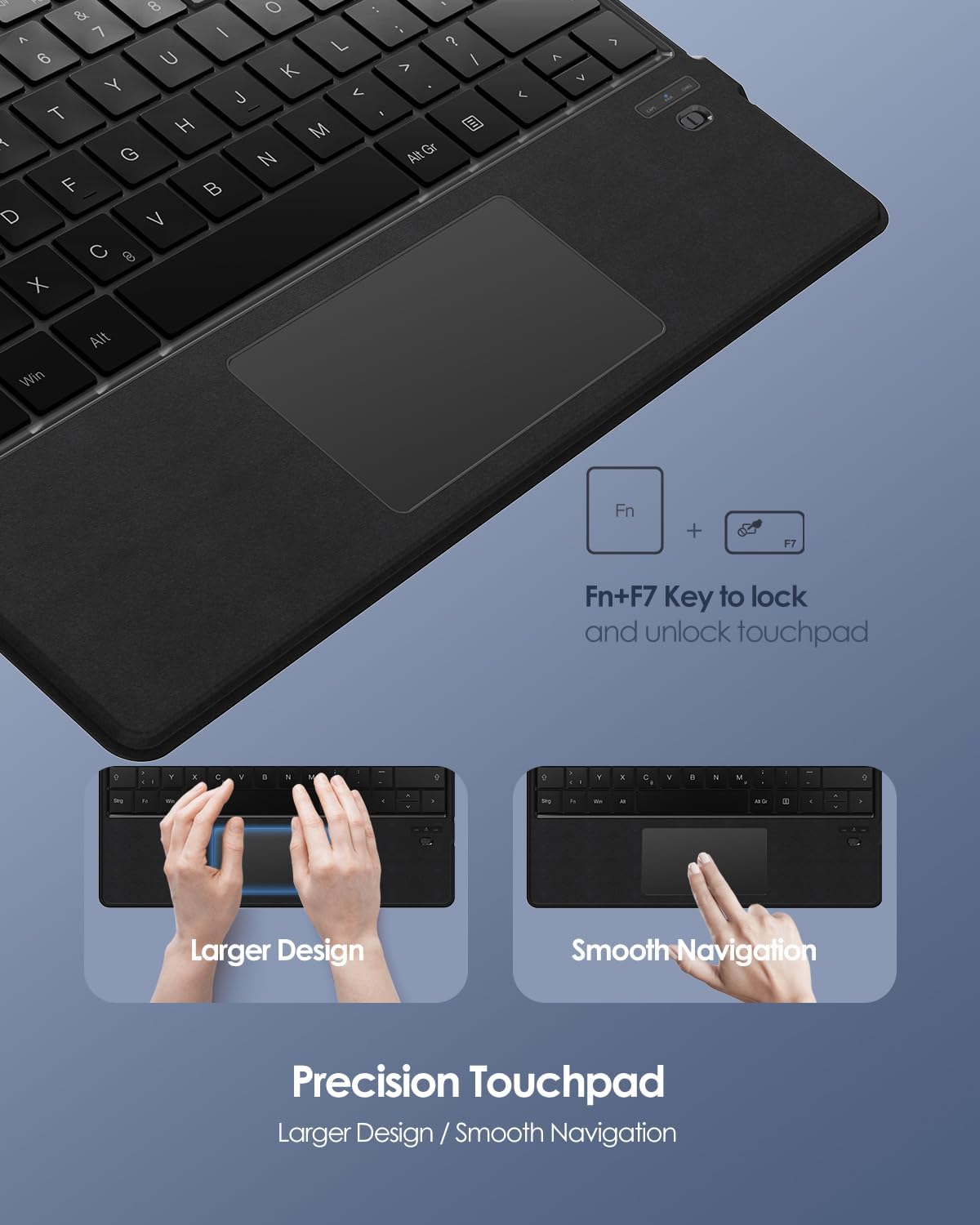
Image 4.2: Precision Touchpad and Palm Rejection
4.3 tecles de drecera
The keyboard includes 12 shortcut keys for quick access to common functions, improving efficiency and convenience.
4.4 Integrated Pen Holder
A convenient integrated pen holder is included to keep your stylus easily accessible. Please note that this holder is for storage only and does not provide charging capabilities for your pen.
5. Manteniment
Proper care and maintenance will ensure the longevity and optimal performance of your keyboard.
- Neteja: Utilitzeu un drap suau i sense pelusa lleugerament dampNetegeu la superfície del teclat amb aigua o una solució de neteja suau. Eviteu productes químics agressius o materials abrasius.
- Cura de la bateria: To preserve battery life, avoid fully discharging the battery frequently. Charge the keyboard using only the provided USB-C cable. Do not expose the keyboard to extreme temperatures (hot or cold) as this can affect battery performance.
- Emmagatzematge: Quan no l'utilitzeu durant períodes prolongats, guardeu el teclat en un lloc fresc i sec.
6. Solució De Problemes
If you encounter any issues with your Qulose keyboard, please refer to the following common troubleshooting steps:
- El teclat no es connecta/s'emparella:
- Assegureu-vos que el teclat estigui completament carregat.
- Make sure Bluetooth is enabled on your Surface Pro.
- Re-enter pairing mode on the keyboard (Fn + C) and try pairing again.
- Forget the device on your Surface Pro's Bluetooth settings and attempt to pair from scratch.
- Restart both your Surface Pro and the keyboard.
- Trackpad Not Responding:
- Check if the trackpad is locked. Press Fn + F7 to toggle the trackpad lock.
- Assegureu-vos que les vostres mans estiguin netes i seques.
- Restart the keyboard and your Surface Pro.
- Les tecles no responen:
- Assegureu-vos que el teclat estigui connectat correctament mitjançant Bluetooth.
- Comproveu el nivell de la bateria i carregueu-la si és baixa.
- Clean any debris that might be under the keys.
- Problemes de càrrega:
- Ensure the USB-C cable is securely connected to both the keyboard and the power source.
- Proveu un cable USB-C o un adaptador d'alimentació diferent.
- Assegureu-vos que la font d'alimentació sigui funcional.
If the issue persists after trying these steps, please contact Qulose customer support for further assistance.
7. Especificacions
| Característica | Descripció |
|---|---|
| Marca | Qulose |
| Número de model | QUSFKBPRO8BL-UK |
| Dispositius compatibles | Microsoft Surface Pro 8, Surface Pro 9, Surface Pro X, Surface Pro 11 |
| Tecnologia de connectivitat | Bluetooth |
| Característica especial | Rechargeable, Multi-touch Trackpad, Magnetic Attachment, Integrated Pen Holder |
| Tipus de bateria | Ió de liti |
| Capacitat de la bateria | 250 mAh |
| Temps de treball | Més de 25 hores (després de la càrrega completa) |
| Temps d'espera | 180+ dies |
| Dimensions (L x A x A) | 28.9 cm x 22.6 cm x 0.6 cm |
| Material | Plàstic |
| Disposició del teclat | Disseny del Regne Unit |
8. Garantia i Suport
Specific warranty information for this product is not available in this manual. Please refer to the product listing on the retailer's website or the official Qulose weblloc web per obtenir informació detallada sobre els termes i condicions de la garantia.
For technical support, troubleshooting assistance beyond what is provided in this manual, or inquiries regarding product defects, please contact Qulose customer support through their official channels. Keep your purchase receipt or order number handy as it may be required for warranty claims.


