Introducció
This manual provides instructions for setting up, operating, maintaining, and troubleshooting your MERCUSYS Halo H1500X AX1500 WiFi 6 Mesh System. Please read this manual carefully to ensure proper use and optimal performance of your device.

Image: The MERCUSYS Halo H1500X AX1500 WiFi 6 Mesh System, showing two white cube-shaped units and their retail packaging.
Configuració
Setting up your Halo H1500X Mesh System is designed to be straightforward using the MERCUSYS application.
1. Desembalatge i col·locació
- Unpack all components: Halo units, power adapters, and Ethernet cable.
- Place the primary Halo unit near your existing modem or router.
- Place the secondary Halo unit(s) in areas requiring extended Wi-Fi coverage, ensuring they are within range of another Halo unit for optimal mesh connectivity.
2. Connexió de maquinari
- Connect the Primary Halo Unit:
- Connect one end of the provided Ethernet cable to a LAN port on your existing modem/router.
- Connect the other end of the Ethernet cable to any Gigabit port on the primary Halo unit.
- Connect the power adapter to the primary Halo unit and plug it into a power outlet.
- Espereu que l'indicador LED de la unitat Halo s'encengui en blau fix, cosa que indica que està a punt per a la configuració.
- Connect Secondary Halo Unit(s):
- Connect the power adapter to each secondary Halo unit and plug them into power outlets.
- Place them in desired locations. They will automatically connect to the mesh network once the primary unit is configured.
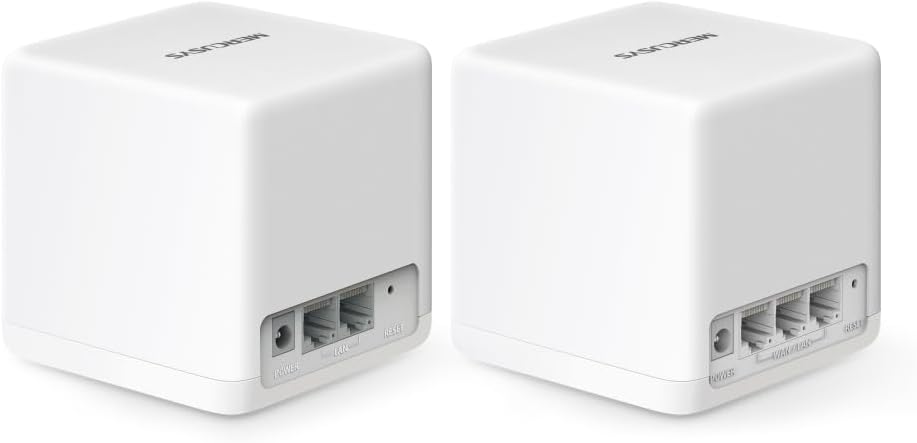
Imatge: Part posterior view of two Halo H1500X units, highlighting the power input and three Gigabit Ethernet ports on each device.
3. App-Guided Configuration
- Download the MERCUSYS app from your mobile device's app store.
- Open the app and follow the on-screen instructions to create a MERCUSYS ID or log in.
- Select your Halo model and follow the step-by-step guide to configure your mesh network, including setting up your Wi-Fi name (SSID) and password.
Funcionament del vostre sistema de malla
The MERCUSYS Halo H1500X system provides seamless whole-home Wi-Fi coverage with advanced features.
Whole-Home Wi-Fi Coverage
The Halo H1500X (2-pack) is designed to cover up to 350 m² (approximately 3767 sq ft), eliminating Wi-Fi dead zones. Devices automatically switch to the strongest signal as you move around your home, ensuring a continuous connection with a single network name and password.

Image: A diagram showing two Halo units providing seamless Wi-Fi coverage throughout a house, indicating extended range and elimination of dead zones.
High-Speed Wi-Fi 6 Performance
Leveraging Wi-Fi 6 technology, the system delivers speeds up to 1500 Mbps (1201 Mbps on 5 GHz and 574 Mbps on 2.4 GHz). This enables responsive gaming, smooth 8K video streaming, and efficient data handling for over 150 connected devices simultaneously.

Image: Icons illustrating key Wi-Fi 6 features: 4x Longer OFDM Symbol for increased coverage and speed, MU-MIMO for simultaneous device connections, OFDMA for greater network capacity, 1024-QAM for boosted raw speeds, and BSS Color for reduced network congestion.
Ports Gigabit Ethernet
Each Halo unit is equipped with three Gigabit Ethernet ports, allowing for high-speed wired connections to devices such as smart TVs, gaming consoles, and desktop computers.
Network Security and Management
- Xifratge WPA3: Secures your network with the latest Wi-Fi security protocol.
- Controls parentals: Manage internet access for children's devices.
- Qualitat de servei (QoS): Prioritize network traffic for specific devices or applications to ensure optimal performance for critical tasks.
- Antivirus: Provides an additional layer of protection for your network.
- MERCUSYS App: Use the app for remote management and control of your network settings.
Manteniment
Regular maintenance helps ensure the longevity and optimal performance of your MERCUSYS Halo H1500X system.
Actualitzacions de firmware
- Check for and install firmware updates regularly via the MERCUSYS app. Updates often include performance improvements, security patches, and new features.
Neteja
- Gently wipe the exterior of the Halo units with a soft, dry cloth.
- Eviteu utilitzar netejadors líquids o materials abrasius.
- Ensure ventilation openings are clear of dust to prevent overheating.
Reiniciant el sistema
- Periodically restarting your Halo units (e.g., once a month) can help clear temporary issues and improve network stability. Unplug the power adapter, wait 10 seconds, and then plug it back in.
Resolució de problemes
This section addresses common issues you might encounter with your MERCUSYS Halo H1500X system.
Sense connexió a Internet
- Comproveu els cables: Ensure the Ethernet cable from your modem/router is securely connected to the primary Halo unit's Gigabit port.
- Modem/Router Status: Verify that your modem or existing router is working correctly and has an active internet connection.
- Reinicieu els dispositius: Power cycle your modem/router, then the primary Halo unit, and finally any secondary Halo units.
- App Check: Use the MERCUSYS app to check the status of your network and follow any suggested troubleshooting steps.
Secondary Halo Unit Not Connecting
- Proximitat: Ensure the secondary unit is placed within a reasonable range of another active Halo unit.
- Potència: Confirm the secondary unit is powered on and its LED indicator is behaving as expected (e.g., pulsing blue during connection, solid blue when connected).
- Restablir: If a secondary unit fails to connect, try resetting it to factory defaults (refer to the app or quick start guide for specific instructions) and re-add it through the MERCUSYS app.
Senyal Wi-Fi deficient o velocitats lentes
- Col·locació: Adjust the placement of your Halo units to minimize obstructions (thick walls, large appliances) and ensure optimal signal distribution.
- Interferència: Keep Halo units away from devices that emit strong electromagnetic interference (e.g., microwaves, cordless phones).
- Device Roaming: If devices are not seamlessly switching between Halo units, ensure your device's Wi-Fi adapter supports fast roaming protocols. Sometimes, temporarily disconnecting and reconnecting Wi-Fi on your device can force it to connect to the closer Halo unit.
- Wired Backhaul: For critical areas or larger homes, consider using an Ethernet cable to connect Halo units (wired backhaul) for a more stable and faster connection between them.
Difficulty with Specific Devices (e.g., Sonos)
- Compatibilitat de xarxa: Some older or specialized devices may have specific network requirements. Check the device's manual for recommended Wi-Fi settings.
- 2.4 GHz vs. 5 GHz: If a device struggles to connect, try temporarily disabling one of the Wi-Fi bands on the Halo system (if the app allows) to force the device onto the other band, then re-enable both.
- Firmware: Ensure both your Halo system and the problematic device have the latest firmware.
Especificacions
| Característica | Detall |
|---|---|
| Marca | MERCUSI |
| Nom del model | Halo H1500X (paquet de 2) |
| Wi-Fi estàndard | 802.11ax (Wi-Fi 6) |
| Classe de banda de freqüència | Doble banda (2.4 GHz i 5 GHz) |
| Velocitat màxima de Wi-Fi | AX1500 Mbps (1201 Mbps on 5 GHz, 574 Mbps on 2.4 GHz) |
| Ports Ethernet | 3 x Gigabit ports per unit |
| Coverage (2-pack) | Up to 350 m² (approx. 3767 sq ft) |
| Màxim dispositius connectats | Up to 150+ devices |
| Característiques especials | QoS, Parental Controls, Antivirus, WPA3 Encryption |
| Sistema operatiu | Linux |
| Dispositius compatibles | Game Console, Personal Computer, Laptop, Smartphone, Tablet |
| Color | Blanc |
| Fabricant | TP-Link |
| País d'origen | Xina |
Informació de la garantia
The MERCUSYS Halo H1500X AX1500 WiFi 6 Mesh System comes with a 2 any de garantia. Please retain your proof of purchase for warranty claims. For detailed warranty terms and conditions, refer to the official MERCUSYS weblloc o contacteu amb el servei d'atenció al client.
Suport
For further assistance, technical support, or to access the latest resources, please refer to the following:
- MERCUSYS App: The app provides guided setup, network management, and access to support resources.
- Official MERCUSYS Weblloc: Visit the official MERCUSYS website for FAQs, updated manuals, firmware downloads, and contact information for customer support.


