1. Introducció
This manual provides detailed instructions for the setup, operation, and maintenance of your KTC 32-Inch 2K QHD IPS Monitor, model H32T13. Please read this manual thoroughly before using the monitor to ensure proper functionality and to prevent damage.
The KTC H32T13 monitor features a 32-inch IPS panel with 2K QHD (2560x1440) resolution, a 100Hz refresh rate, and support for FreeSync/G-Sync technologies. It is designed for both office productivity and gaming, offering vibrant colors, wide viewing angles, and eye-care features.
2. Què hi ha a la caixa
Verifiqueu que tots els components siguin presents al paquet:
- KTC 32-Inch 2K QHD IPS Monitor (H32T13)
- Suport de monitor (base i coll)
- Cable HDMI
- Cable d'alimentació
- Adaptador d'alimentació
- Tornavís
- Manual d'usuari (aquest document)

Image: Contents of the KTC H32T13 monitor package.
3. Producte acabatview
The KTC H32T13 monitor is designed for a superior visual experience. Key features include:
- 32-inch QHD (2560x1440) IPS Panel: Delivers crisp, detailed images with accurate colors and wide viewangles d'ajust.
- Freqüència de refresc de 100 Hz: Provides smoother motion for gaming and fast-paced content.
- FreeSync/G-Sync Compatibility: Redueix el tearing i el stuttering de la pantalla per a una experiència de joc fluida.
- Suport HDR: Enhances contrast and color for more realistic visuals.
- Tecnologia per a la cura dels ulls: Features Flicker-Free and Low Blue Light modes to reduce eye strain during prolonged use.
- Connectivitat versàtil: Equipped with multiple HDMI 2.0 and DisplayPort 1.4 inputs.
- Disseny ergonòmic: Offers tilt adjustment and VESA mount compatibility for flexible positioning.
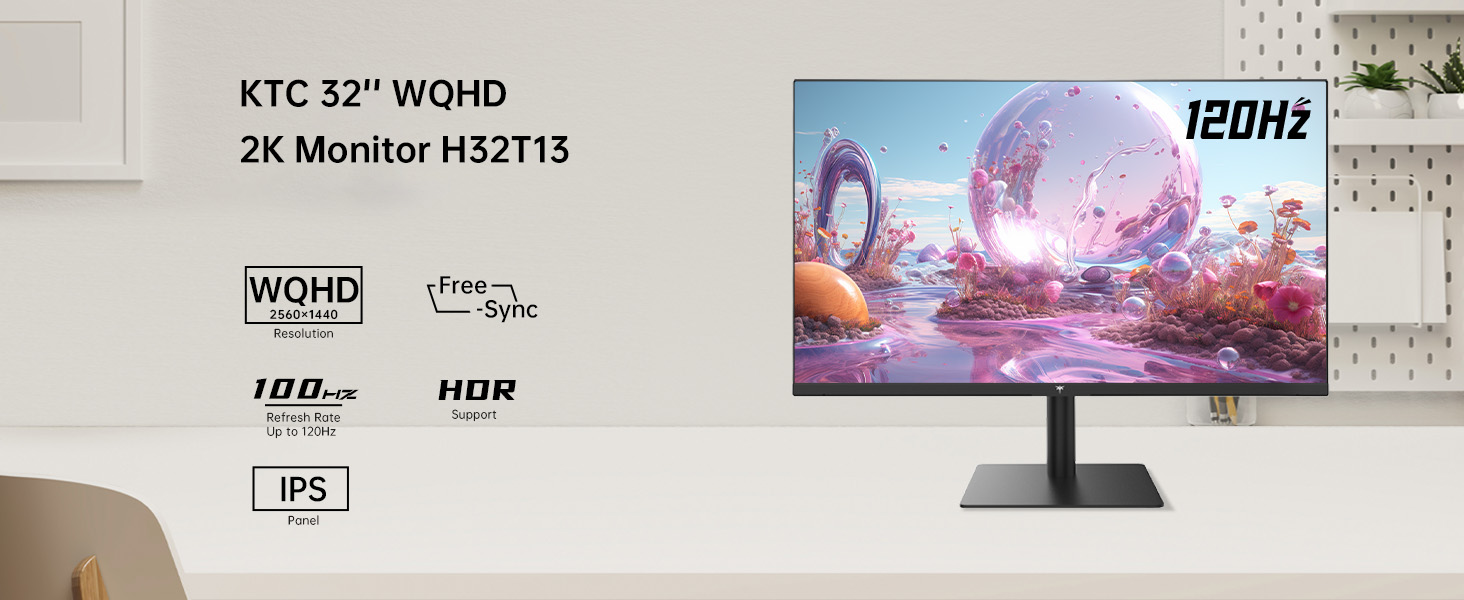
Image: KTC H32T13 monitor showcasing its key display technologies.

Image: The 32-inch screen size of the KTC H32T13 monitor.
4. Configuració
4.1 Muntatge del suport
- Traieu amb cura els components del monitor i del suport de l'embalatge.
- Attach the stand neck to the monitor panel using the provided screws and screwdriver.
- Fixeu la base del suport al coll del suport.
- Col·loqueu el monitor muntat sobre una superfície plana i estable.
4.2 Muntatge VESA (opcional)
The monitor supports VESA 100mm x 100mm mounting. If you wish to use a VESA-compatible arm or wall mount (not included), remove the stand and attach the VESA mount according to its instructions.

Imatge: Part posterior view of the monitor with VESA 100x100mm mounting points.
4.3 Connexió a un ordinador
- Assegureu-vos que tant el monitor com l'ordinador estiguin apagats.
- Connect one end of the provided HDMI cable to an HDMI port on your computer's graphics card.
- Connect the other end of the HDMI cable to one of the HDMI 2.0 ports on the monitor. Alternatively, use a DisplayPort cable to connect to a DP 1.4 port for higher refresh rates and FreeSync/G-Sync functionality.
- Connect the power adapter to the monitor's DC input and then plug the power cord into a power outlet.
- Engegueu l'ordinador i després engegueu el monitor.

Image: Monitor connectivity ports (DC, HDMI 1, HDMI 2, DP 1).
5. Instruccions de funcionament
5.1 Encès/Apagat
Premeu el botó d'engegada que es troba al monitor per engegar-lo o apagar-lo. L'indicador lluminós d'engegada s'il·luminarà quan el monitor estigui encès.
5.2 Selecció de la font d'entrada
Use the OSD (On-Screen Display) menu buttons to navigate and select your desired input source (HDMI 1, HDMI 2, or DisplayPort).
5.3 Adjusting Display Settings (OSD Menu)
The OSD menu allows you to customize various display settings. Typically, buttons are located on the back or bottom of the monitor. Refer to the quick start guide for specific button functions.
- Brillantor/Contrast: Ajusta la luminància general i la relació de contrast.
- Configuració de color: Modify color temperature, gamma, and individual RGB levels. The monitor supports 1.07 billion colors and 103% sRGB.
- Mode d'imatge: Select from preset modes optimized for different content (e.g., Standard, Game, Movie, Text).
- Freqüència d'actualització: The monitor supports up to 100Hz. Ensure your graphics card settings are configured to match.
- Sync lliure/Sync G: Enable this feature in the OSD menu and your graphics card control panel for adaptive synchronization.
- Eye Care Modes: Activate Flicker-Free and Low Blue Light modes to reduce eye strain.
- HDR: Enable HDR for compatible content and devices.

Image: Monitor displaying enhanced colors and brightness with HDR enabled.

Image: Visual comparison of FreeSync/G-Sync enabled and disabled, demonstrating smoother gameplay.

Image: IPS panel advantages in brightness and color over VA panels.
5.4 Ajustaments físics
The monitor stand allows for tilt adjustment from -5° to 15° to optimize your viewangle de ing.

Image: Monitor tilt adjustment range and eye care features.
Vídeo: Acabatview of the KTC 2K IPS Office Monitor, highlighting its features and suitability for office use. This video demonstrates the monitor's visual quality and design.
6. Manteniment
6.1 Neteja del monitor
- Apagueu sempre el monitor i desconnecteu el cable d'alimentació abans de netejar-lo.
- Utilitzeu un drap suau i sense pelusa dampesbandida amb aigua o un netejador de pantalles suau i no abrasiu.
- Wipe the screen gently to remove dust and smudges. Avoid applying direct pressure to the screen.
- No utilitzeu alcohol, netejadors amb amoníac ni materials abrasius, ja que poden danyar la superfície de la pantalla.
- Clean the monitor casinamb un drap suau i sec.
6.2 Emmagatzematge
Si guardeu el monitor durant un període prolongat, assegureu-vos que estigui apagat, desendollat i guardeu-lo en un lloc fresc i sec, allunyat de la llum solar directa i de temperatures extremes. Feu servir l'embalatge original si en teniu per a una millor protecció.
7. Solució De Problemes
| Problema | Causa possible | Solució |
|---|---|---|
| No hi ha imatge a la pantalla | Monitor not powered on; Incorrect input source; Loose video cable; Computer in sleep mode. | Ensure power is connected and monitor is on. Select correct input source. Check video cable connections. Wake up computer. |
| La imatge és borrosa o distorsionada | Incorrect resolution; Faulty video cable; Graphics driver issues. | Set display resolution to 2560x1440. Try a different video cable. Update graphics drivers. |
| Parpelleig o esquinçament de la pantalla | Refresh rate mismatch; FreeSync/G-Sync not enabled or incompatible. | Ensure refresh rate is set to 100Hz. Enable FreeSync/G-Sync in monitor OSD and graphics card settings. Use DisplayPort for FreeSync/G-Sync. |
| No hi ha so dels auriculars | Headphones not connected properly; Audio output not set to monitor. | Check headphone connection. Set monitor as default audio output in your computer's sound settings. |
| Els botons no responen | Bloqueig d'OSD activat; Error temporal de programari. | Check if OSD lock is active (refer to quick start guide). Power cycle the monitor. |
8. Especificacions
| Característica | Detall |
|---|---|
| Número de model | H32T13 |
| Mida de la pantalla | 32 polzades |
| Tipus de panell | IPS |
| Resolució | 2560 x 1440 (QHD panoràmic 1440p) |
| Relació d'aspecte | 16:9 |
| Freqüència d'actualització | 100 Hz |
| Brillantor | 350 Candela (typ.) |
| Gamma de colors | 103% sRGB |
| Profunditat de color | 1.07 mil milions de colors |
| Suport HDR | Sí |
| Sincronització adaptativa | FreeSync/G-Sync Compatible |
| Connectivitat | 2x HDMI 2.0, 1x DisplayPort 1.4 |
| Ajust d'inclinació | -5° a 15° |
| Muntatge VESA | 100 mm x 100 mm |
| Característiques de la cura dels ulls | Flicker-Free, Eye Protection Mode (Low Blue Light) |
| Dimensions del producte | 5.31 x 32.48 x 21.2 polzades |
| Pes de l'article | 18.81 lliures |
9. Garantia i Suport
9.1 Informació de la garantia
KTC products are covered by a limited warranty. Please refer to the warranty card included in your product packaging or visit the official KTC weblloc web per obtenir informació detallada sobre els termes i condicions de la garantia. Conserveu el comprovant de compra per a reclamacions de garantia.
9.2 Atenció al client
For technical assistance, troubleshooting not covered in this manual, or warranty inquiries, please contact KTC customer support through the following channels:
- Assistència en línia: Visit the KTC official website for FAQs, driver downloads, and support contact forms.
- Suport per correu electrònic: Refer to your warranty card or the KTC weblloc web per obtenir l'adreça de correu electrònic d'assistència adequada.
- Suport d'Amazon: If purchased via Amazon, you can contact the seller directly through your Amazon order history for assistance.
Image: Steps to contact KTC customer support via Amazon.


