Introducció
This manual provides detailed instructions for the setup, operation, maintenance, and troubleshooting of your Xiaomi Smart Camera C500 Pro. Please read this manual thoroughly before using the device to ensure proper functionality and safety.
The Xiaomi Smart Camera C500 Pro is an advanced indoor security camera featuring 5MP resolution, HDR capabilities, pet detection, and a physical lens shield for enhanced privacy. It is designed to provide clear surveillance and monitoring for your home environment.
Contingut del paquet
Abans de continuar amb la instal·lació, comproveu que tots els elements siguin presents al paquet:
- Xiaomi Smart Camera C500 Pro unit
- Power Adapter (USB cable included, power brick may vary by region or not be included)
- Mounting Accessories (if applicable, e.g., wall mount base, screws)
- Manual d'usuari (aquest document)
Producte acabatview

Figura 1: Frontal View of Xiaomi Smart Camera C500 Pro
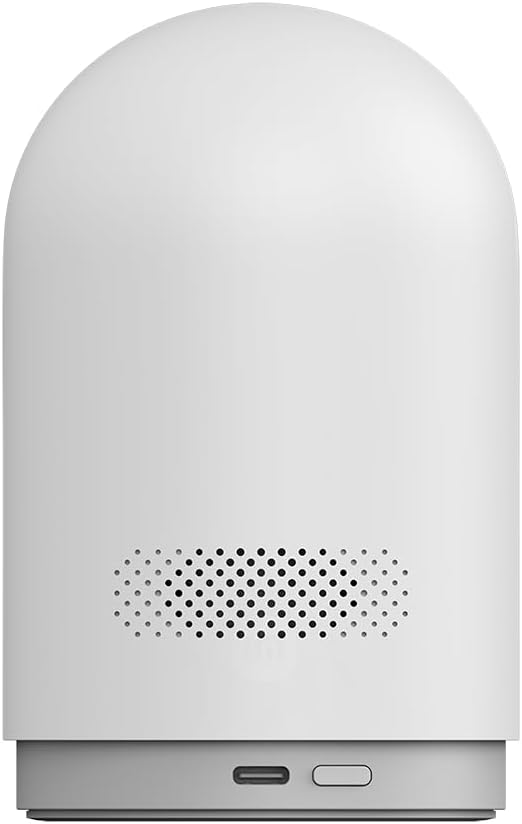
Figura 2: Esquena View of Xiaomi Smart Camera C500 Pro with USB-C Port

Figura 3: lateral View of Xiaomi Smart Camera C500 Pro

Figura 4: superior View of Xiaomi Smart Camera C500 Pro
The camera features a pan-and-tilt mechanism, allowing for a wide viewing angle. The physical lens shield can be activated via the app for privacy. The back of the camera houses the power input and a speaker grille.
Configuració
1. Encès
- Connect the provided USB power cable to the camera's power port (located at the back).
- Plug the other end of the USB cable into a compatible USB power adapter (5V, 1A or higher recommended).
- Plug the power adapter into a wall outlet. The camera will power on and initiate its self-check sequence.
- Wait for the indicator light to flash, indicating it is ready for connection.
2. App Installation and Account Setup
- Download the "Mi Home" or "Xiaomi Home" app from your device's app store (Google Play Store for Android, Apple App Store for iOS).
- Open the app and follow the on-screen instructions to create a new Xiaomi account or log in with an existing one.
3. Afegir la càmera a l'aplicació
- Ensure your mobile device is connected to a 2.4GHz or 5GHz Wi-Fi network. The camera supports both.
- In the Mi Home/Xiaomi Home app, tap the "+" icon in the top right corner to add a new device.
- Select "Add device" or scan for nearby devices. If not found automatically, search for "Xiaomi Smart Camera C500 Pro" or "C500 Pro".
- Follow the app's instructions to connect the camera to your Wi-Fi network. This typically involves scanning a QR code displayed on your phone with the camera's lens.
- Un cop connectada, podeu anomenar la càmera i assignar-la a una habitació específica.
4. Muntatge de la càmera (opcional)
The camera can be placed on a flat surface or mounted on a wall or ceiling. If mounting, use the provided mounting base and screws. Ensure the mounting surface is stable and can support the camera's weight.
- Col·locació de la taula: Col·loqueu la càmera sobre una superfície estable i plana amb una pantalla clara view de la zona que voleu controlar.
- Muntatge a paret/sostre:
- Attach the mounting base to the desired location using the provided screws.
- Align the camera with the mounting base and twist to secure it.
- Adjust the camera's orientation in the app after mounting.
Funcionament de la càmera
Viu View i Control
Once connected, open the Mi Home/Xiaomi Home app and select your camera to access the live view. From here, you can:
- View Feed en directe: See real-time video from the camera.
- Pan i inclinació: Use the on-screen joystick or swipe gestures to remotely adjust the camera's viewing angle (360-degree horizontal, vertical movement).
- Àudio bidireccional: Speak through the camera and hear audio from its surroundings.
- Record Video/Take Photos: Manually capture video clips or still images.
- Reproducció: Accés gravat footage stored on a microSD card (if installed) or cloud storage (if subscribed).
Característiques clau
- 5MP HD Resolution: Provides clear and detailed 3K images (2960 x 1666 pixels).
- Physical Lens Shield: Activate this feature via the app to physically cover the camera lens, ensuring privacy when the camera is not in use.
- Ultra-Low Light Color Mode: Extends the camera's ability to capture full-color images even in very dim lighting conditions.
- HDR (alt rang dinàmic): Ensures clear images even in challenging lighting, such as strong backlight or glare, by retaining more detail in both bright and dark areas.
- Detecció d'animals de companyia: Configurable alerts that notify you when the camera detects a pet within its field of view.
- Detecció de moviment: Receive alerts and record video when motion is detected. Sensitivity and detection zones can be customized in the app.
- Visió nocturna: The camera automatically switches to infrared night vision in low light, providing clear black and white images in complete darkness.
Opcions d'emmagatzematge
The Xiaomi Smart Camera C500 Pro supports multiple storage methods:
- Targeta MicroSD: Insert a microSD card (up to 256GB, Class 10 or higher recommended) into the camera's slot for local storage of recorded video. The slot is typically accessible by gently pushing the camera lens upwards to reveal it.
- Emmagatzematge al núvol: Xiaomi offers optional cloud storage services for continuous recording or event-triggered recordings. Refer to the Mi Home/Xiaomi Home app for subscription details.
- Emmagatzematge NAS: The camera supports network-attached storage (NAS) for saving recordings directly to your home network storage device. Configuration details are available within the Mi Home/Xiaomi Home app settings.
Manteniment
Neteja
- Assegureu-vos que la càmera estigui apagada abans de netejar-la.
- Feu servir un drap suau i sec per netejar el cos de la càmera.
- For the lens, use a microfiber cloth specifically designed for optics. Do not use harsh chemicals or abrasive materials.
Actualitzacions de firmware
Regularly check for firmware updates via the Mi Home/Xiaomi Home app. Updates often include performance improvements, new features, and security enhancements. Ensure the camera has a stable power supply and internet connection during updates.
Restabliment de la càmera
If you encounter persistent issues or wish to reconfigure the camera, you may need to perform a factory reset. Locate the reset pinhole (refer to the camera's physical diagram or app instructions for exact location, often near the microSD slot) and use a pin to press and hold the reset button for approximately 5-10 seconds until the indicator light changes or you hear a voice prompt.
Resolució de problemes
| Problema | Causa possible | Solució |
|---|---|---|
| La càmera no es connecta a la Wi-Fi. | Incorrect Wi-Fi password, camera too far from router, 5GHz/2.4GHz band conflict, network issues. |
|
| No en directe view or offline status in app. | Internet connection issue, camera powered off, app glitch. |
|
| Poca qualitat de vídeo. | Insufficient bandwidth, dirty lens, low light conditions. |
|
| Les alertes de detecció de moviment són massa freqüents o no funcionen. | Sensitivity settings, detection zone configuration, environmental factors. |
|
Especificacions
| Característica | Detall |
|---|---|
| Nom del model | C500 Pro |
| Marca | Xiaomi |
| Resolució de vídeo efectiva | 5 MP (2960 x 1666) |
| Tecnologia de connectivitat | Wi-Fi (2.4 GHz i 5 GHz) |
| Entrada de potència | 5V (Wired via USB) |
| Wattage | 5 watts |
| Ús interior/exterior | Interior |
| Dimensions (L x A x A) | 4.88 x 3.07 x 3.07 polzades (12.4 x 7.8 x 7.8 cm) |
| Pes de l'article | 301 grams (10.6 unces) |
| Temperatura de funcionament | Fins a 45 graus centígrads |
| Classificació de protecció internacional | IP40 |
| Emmagatzematge | MicroSD card (up to 256GB), Cloud Storage, NAS |
| Característiques especials | Night Vision, HDR, Pet Detection, Physical Lens Shield, Ultra-Low Light Color Mode |
Garantia i Suport
Xiaomi products typically come with a limited warranty. For specific warranty terms and conditions, please refer to the warranty card included with your product or visit the official Xiaomi weblloc.
For technical support, troubleshooting assistance, or to inquire about repairs, please contact Xiaomi Customer Service through their official website or the Mi Home/Xiaomi Home app. You may also find helpful resources and FAQs on the Xiaomi support pages.
Recursos en línia:
- Xiaomi oficial Weblloc: www.mi.com
- Secció de suport de l'aplicació Mi Home/Xiaomi Home


