Introducció
This manual provides comprehensive instructions for the installation, operation, and maintenance of the Ruckus H550 Series Wi-Fi 6 Wall-Mounted Indoor Access Point. The H550 is an advanced all-in-one solution designed to deliver high-performance Wi-Fi 6 connectivity, integrated IoT capabilities (BLE, Zigbee), and wired Ethernet ports, making it ideal for hospitality, multi-dwelling units, and other indoor environments requiring robust and versatile network access.
Producte acabatview
The Ruckus H550 is a compact, wall-mounted access point that combines Wi-Fi, wired, and IoT technologies into a single device. It is engineered to provide superior wireless coverage and capacity while simplifying network deployment and management.
Característiques clau
- Compatibilitat amb Wi-Fi 6 (802.11ax): Delivers higher throughput and efficiency, especially in dense environments.
- Integrated IoT: Built-in Bluetooth Low Energy (BLE) and Zigbee for smart device connectivity and automation.
- Commutador Ethernet Gigabit de 4 ports: Provides wired connectivity for devices such as VoIP phones, IPTV, and personal computers.
- Patented BeamFlex+ Technology: Enhances Wi-Fi coverage and mitigates interference using adaptive antenna patterns.
- ChannelFly Dynamic Channel Technology: Utilizes machine learning to automatically select the least congested Wi-Fi channels for optimal performance.
- Dual-Band Concurrent Radios: Supports simultaneous operation on 2.4 GHz and 5 GHz frequencies.
- Multiple Management Options: Can be managed via cloud, on-premises physical/virtual appliances, or in a controller-less setup.
Components i ports

Figura 1: Davant view of the Ruckus H550 Access Point, showing the sleek white casing and Ruckus branding.

Figura 2: A baix view of the H550, highlighting the four Gigabit Ethernet LAN ports (LAN1, LAN2, LAN3, LAN4/PoE Out) and a USB port. LAN4 supports Power over Ethernet (PoE) output.

Figura 3: De dalt a baix view of the H550, showing the Ruckus logo and port labels.
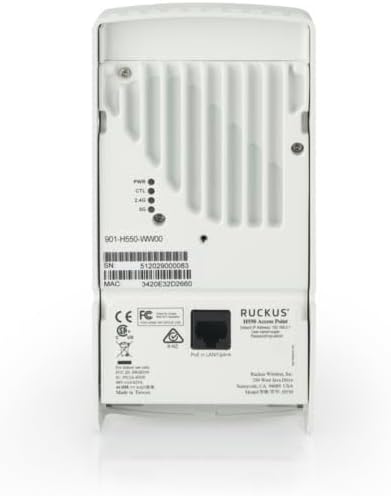
Figura 4: posterior view of the H550, displaying the product label with model number, serial number, MAC address, and regulatory compliance markings. Also visible are the mounting points and LED indicators for Power, Control, 2.4 GHz, and 5 GHz.

Figura 5: lateral view of the H550, showing ventilation grilles for heat dissipation.

Figura 6: Diagram illustrating the H550's versatile connectivity, showing its role in connecting various devices like laptops, smartphones, IoT devices, VoIP phones, IPTV, printers, and in-room IP devices to the cloud network.
Configuració
Proper installation ensures optimal performance and reliability of your Ruckus H550 Access Point. Follow these steps carefully.
1. Muntatge del punt d'accés
The H550 is designed for wall-mounting, typically over a standard electrical junction box. An optional bracket for offset and wall mount is included.
- Tria la ubicació: Select a central location on a wall, free from obstructions, to ensure optimal Wi-Fi coverage.
- Prepara la paret: If mounting over a junction box, ensure wiring is accessible. If direct wall mounting, use appropriate anchors and screws (not included) for the wall material.
- Fixeu el suport (si escau): Secure the optional mounting bracket to the wall or junction box using screws.
- Mount H550: Align the H550 with the mounting points on the bracket or wall and slide it into place until it clicks securely.
2. Cables de connexió
The H550 can be powered via Power over Ethernet (PoE) or an optional DC power adapter (not included).
- Ethernet Connection (PoE): Connect an Ethernet cable from a PoE-enabled switch or injector to the LAN1 port on the H550. This port provides both data and power.
- Alimentació CC opcional: If not using PoE, connect a compatible 12V DC power adapter (not included) to the DC power jack on the H550.
- Wired Device Connections: Connect wired devices (e.g., VoIP phone, PC, IPTV) to the remaining LAN2, LAN3, and LAN4 ports. LAN4 also supports PoE output for powering a single compatible device.
- Connexió USB: The USB port can be used for future expansion or specific applications as defined by Ruckus.
3. Engegada i configuració inicials
Once powered, the H550 will begin its boot sequence. The LEDs on the back of the unit will indicate its status.
- Observe LEDs:
- PWR (potència): El verd fix indica que l'alimentació està connectada.
- CTL (Control): Indicates connection to a controller or management system.
- 2.4G / 5G: Indicate activity on the respective Wi-Fi bands.
- Integració de xarxa: The H550 will attempt to connect to a Ruckus controller (e.g., SmartZone, Unleashed, Cloud) for centralized management and configuration. Refer to your Ruckus network management system's documentation for specific configuration steps.
- Controller-less Setup (Unleashed): If using Unleashed firmware, the H550 can operate as a master AP, managing other Unleashed APs without a dedicated controller.
Instruccions de funcionament
The Ruckus H550 operates primarily as a network access point, providing wireless and wired connectivity. Its advanced features are largely managed through a central controller or its built-in web interface (for Unleashed mode).
Funcionament bàsic
- Connectivitat Wi-Fi: Once configured, the H550 will broadcast one or more Wi-Fi networks (SSIDs). Users can connect to these networks using their wireless devices (smartphones, laptops, tablets).
- Connectivitat per cable: Devices connected to the LAN ports will receive network access. The LAN4 port can provide PoE to a connected device, such as an IP phone.
- IoT Services: Integrated BLE and Zigbee radios enable connectivity for compatible IoT devices, facilitating smart room features or asset tracking.
Advanced Features and Management
Accessing and configuring advanced features typically requires logging into the Ruckus network management system (e.g., SmartZone, Unleashed web interface, Ruckus Cloud). Refer to the specific documentation for your chosen management platform.
- SSID Configuration: Create multiple SSIDs for different user groups (e.g., guest, staff, IoT), each with unique security settings and VLAN assignments.
- Configuració de seguretat: Configure WPA2/WPA3 encryption, MAC filtering, and other security protocols.
- VLAN Taggingeig: Assign VLANs to SSIDs and wired ports to segment network traffic.
- QoS (Qualitat de servei): Prioritize critical traffic like VoIP or video streaming.
- Actualitzacions de firmware: Regularly update the H550's firmware through the management system to ensure optimal performance and security.
- Seguiment: Use the management platform to monitor AP status, connected clients, traffic statistics, and potential issues.
Manteniment
Regular maintenance helps ensure the longevity and optimal performance of your Ruckus H550 Access Point.
- Mantenir net: Periodically wipe the exterior of the access point with a soft, dry cloth. Do not use liquid cleaners or aerosols. Ensure ventilation openings are clear of dust and debris.
- Actualitzacions de firmware: Regularly check for and apply the latest firmware updates provided by Ruckus. Firmware updates often include performance improvements, bug fixes, and security enhancements.
- Condicions ambientals: Ensure the access point operates within its specified temperature and humidity ranges. Avoid exposing it to direct sunlight, excessive heat, or moisture.
- Integritat del cable: Periodically inspect all connected Ethernet cables for damage or loose connections.
- Power Cycle (if needed): If the device is unresponsive or experiencing minor issues, a simple power cycle (unplugging and replugging the power source) can often resolve them.
Resolució de problemes
This section provides solutions to common issues you might encounter with your Ruckus H550 Access Point.
Sense alimentació / LED apagats
- Comproveu la font d'alimentació: Ensure the Ethernet cable is securely connected to a PoE-enabled switch/injector, or the DC power adapter is properly plugged into a working outlet and the H550.
- Verificar el PoE: Confirm that the PoE port on your switch/injector is active and providing power.
- Prova un port/adaptador diferent: Test with another PoE port or a different power adapter if available.
No Wi-Fi Signal / Cannot Connect
- Check H550 Status: Verify that the PWR, 2.4G, and 5G LEDs are illuminated as expected.
- Connexió del controlador: Ensure the H550 is properly connected to and managed by your Ruckus controller (SmartZone, Unleashed, Cloud). The CTL LED should indicate a healthy connection.
- Transmissió SSID: Confirm that the SSIDs are configured to broadcast and are not hidden.
- Client Device: Ensure your client device's Wi-Fi is enabled and it is within range.
- Adreça IP: Verify that client devices are receiving IP addresses from your network's DHCP server.
Slow Wi-Fi Performance
- Interferència: Check for potential sources of interference (e.g., cordless phones, microwaves, neighboring Wi-Fi networks).
- Selecció de canals: Ensure ChannelFly is enabled or manually select less congested Wi-Fi channels.
- Intensitat del senyal: Move closer to the access point to check if signal strength improves performance.
- Client Capacity: Too many devices on one AP can cause slowdowns. Consider adding more APs or optimizing client distribution.
- Firmware: Ensure the H550 has the latest firmware installed.
Wired Devices Not Connecting
- Comprovació del cable: Ensure Ethernet cables are securely connected to the H550's LAN ports and the client device.
- Estat del port: Check the link/activity LEDs on the H550's LAN ports and the connected device.
- PoE Out (LAN4): If using LAN4 for PoE out, ensure the connected device is PoE compatible and within the H550's PoE budget.
- Configuració de VLAN: Verify that the VLAN settings for the wired ports are correct and match your network configuration.
Especificacions
| Característica | Detall |
|---|---|
| Marca | Enrenou |
| Nom del model | Sèrie H550 |
| Estàndard sense fils | 802.11ax (Wi-Fi 6), 802.11ac, 802.11n, 802.11g, 802.11b |
| Classe de banda de freqüència | Dual-Band (2.4 GHz and 5 GHz concurrent) |
| Ports Ethernet | 4 x Gigabit Ethernet (1 x PoE In, 3 x Data, 1 x PoE Out on LAN4) |
| IoT Radios | Bluetooth Low Energy (BLE), Zigbee |
| Tecnologia d'antena | Patented BeamFlex+ adaptive antenna technology |
| Entrada de potència | PoE (802.3af/at) or 12V DC (adapter sold separately) |
| Ús recomanat | Business, Hospitality, Multi-Dwelling Units |
| Components inclosos | Access Point, Optional bracket for offset & wall mount |
| Dispositius compatibles | Gaming Console, Personal Computer, Printer, Smart Television, Smartphone |
Garantia i Suport
Ruckus Networks products are backed by a limited warranty. For specific warranty terms and conditions, please refer to the warranty statement included with your product or visit the official Ruckus Networks weblloc.
For technical support, product documentation, and software downloads, please visit the Ruckus Networks Support Portal:
https://support.ruckuswireless.com/
When contacting support, please have your product model (H550 Series) and serial number (found on the back of the unit) ready.


