Producte acabatview
The CITLLA L360 Wireless Bluetooth Mouse offers versatile connectivity and ergonomic design for enhanced productivity across multiple devices. Featuring silent buttons, a 4-way scrolling wheel, and long battery life, it is designed for comfortable and efficient use in various computing environments.

Figura 1: De dalt a baix view of the CITLLA L360 Wireless Bluetooth Mouse, highlighting its sleek black design and central scroll wheel with DPI button.
Configuració i connectivitat
1. Instal·lació de la bateria
The mouse is powered by two AA batteries. To install or replace batteries:
- Gently lift the top cover of the mouse from the rear. The cover is held by magnets.
- Insert two AA batteries into the designated slots, ensuring correct polarity (+/-).
- Replace the top cover, aligning it properly until it snaps into place magnetically.

Figure 2: Battery compartment and USB receiver storage. The mouse comes with two AA batteries for immediate use.
2. Connectar el ratolí
The mouse supports three connection methods: 2.4G Wireless (USB receiver), Bluetooth 1, and Bluetooth 2.
- 2.4G Wireless (USB Receiver): Locate the USB receiver stored inside the mouse's battery compartment. Plug the receiver into an available USB port on your computer. The mouse should connect automatically.
- Bluetooth (BT1/BT2): Turn on the mouse. On the underside of the mouse, press the mode switch button (circular button with a Bluetooth icon) to cycle between BT1 and BT2 modes. The corresponding indicator light (blue for BT1, green for BT2) will flash. On your device, enable Bluetooth and search for "BT5.0 Mouse" or "BT3.0 Mouse" (depending on the mode selected) and pair.

Figure 3: The mouse supports multi-device switching between USB wireless and two Bluetooth connections.
Instruccions de funcionament
1. Ajust de DPI
The mouse features adjustable DPI settings (1000/1600/2400/3000) to control cursor speed. Press the "DPI" button located above the mode switch button to cycle through the DPI settings. The indicator light will flash to confirm the change.
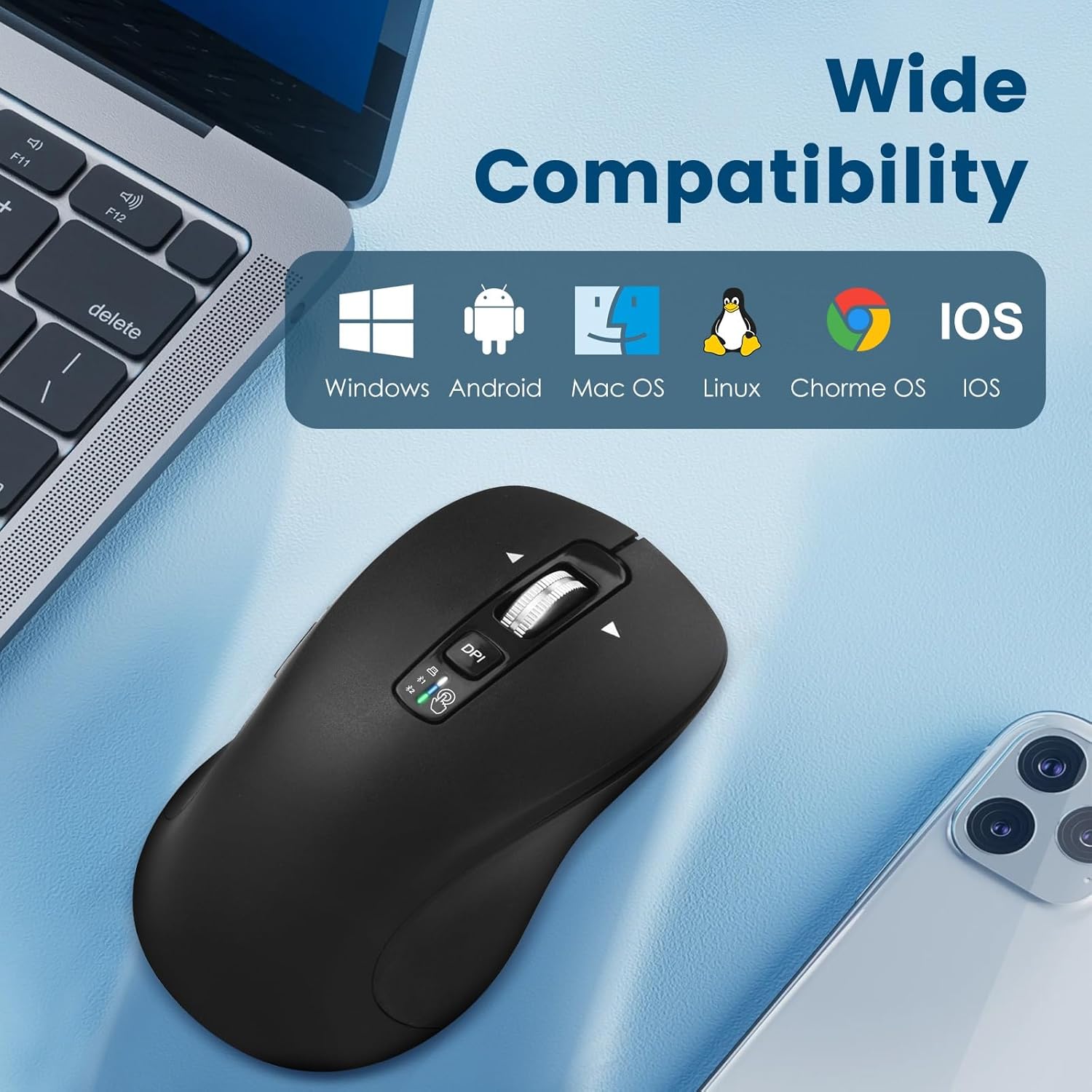
Figure 4: The DPI button allows users to adjust cursor sensitivity for various tasks.
2. 4-Way Scrolling and Horizontal Navigation
The scroll wheel supports 4-way scrolling, allowing for vertical and horizontal navigation. Scroll the wheel up or down for vertical movement. Tilt the scroll wheel left or right for horizontal scrolling, which is useful for wide documents or web pàgines.

Figure 5: The 4-way navigation wheel provides enhanced scrolling capabilities, including horizontal movement.
3. Silent Buttons
The left and right click buttons, as well as the scroll wheel, are designed for silent operation, reducing noise in quiet environments.

Figure 6: Silent buttons and scroll wheel ensure a quiet user experience.
4. Commutació multidispositiu
Easily switch between connected devices (USB, BT1, BT2) by pressing the mode switch button on the underside of the mouse. The mouse will automatically connect to the corresponding device if it has been previously paired.
Video 1: Official demonstration of the Wireless Bluetooth Mouse's multi-device switching capability, showing seamless transitions between different connected systems.
Maintenance and Power Saving
1. Durada i substitució de la bateria
The mouse boasts an impressive battery life of up to 3 years and 4 months (40 months) under daily use, thanks to its efficient power control system. When batteries need replacement, refer to the "Battery Installation" section.
2. Mode d'estalvi d'energia
To conserve power, the mouse will automatically enter sleep mode after 8 minutes of inactivity (in 2.4G mode). To reactivate, simply move the mouse or press any key.

Figure 7: The mouse features an automatic sleep mode to extend battery life during periods of inactivity.
Resolució de problemes
- El ratolí no respon: Ensure batteries are correctly installed and have sufficient charge. Check if the mouse is turned on. For 2.4G wireless, ensure the USB receiver is securely plugged in. For Bluetooth, ensure Bluetooth is enabled on your device and the mouse is paired.
- Problemes de connexió: Try re-pairing the Bluetooth connection or re-inserting the USB receiver. Ensure no other devices are interfering with the wireless signal.
- Cursor movement erratic: Adjust the DPI setting to a comfortable level. Ensure the mouse sensor is clean and used on a suitable surface.
Especificacions
| Número de model | L360 |
| Dimensions del producte | 4.6 x 2.6 x 1.6 polzades (117 x 67 x 41 mm) |
| Pes de l'article | 6 unces |
| Tecnologia de connectivitat | 2.4G Wireless (USB), Bluetooth 1, Bluetooth 2 |
| Configuració de DPI | 1000/1600/2400/3000 |
| Tipus de bateria | 2 x piles AA |
| Durada de la bateria | Up to 40 months (3 years and 4 months) |
| Característiques especials | 4-Way Scrolling, Multi-Device Switching, Silent Buttons, Rubber Side Grip |
| Compatibilitat | Windows, iOS, MacOS, Android, Linux, Chrome OS |
| Maximum Usage Distance | 33 peus |
Què hi ha a la caixa
- 1 x CITLLA Wireless Bluetooth Mouse (L360)
- 1 x USB Wireless Receiver (stored in battery compartment)
- 2 x AA Batteries (pre-installed or included)
- 1 x Manual d'usuari
Garantia i Suport
For warranty information or technical support, please refer to the contact details provided in the included user manual or visit the official CITLLA weblloc.


