1. Introducció
Thank you for choosing the A4TECH F.STYLER FBK11 Wireless Bluetooth Keyboard. This versatile keyboard offers dual connectivity modes (Bluetooth and 2.4 GHz wireless) and supports pairing with up to four devices simultaneously. It is designed for seamless use across various operating systems, including Windows, macOS, Android, and iOS. This manual provides detailed instructions to help you set up, operate, and maintain your new keyboard.

Figura 1: Frontal view of the A4TECH F.STYLER FBK11 Wireless Bluetooth Keyboard, showcasinel seu disseny compacte i la disposició de les tecles.
2. Característiques del producte
- Connectivitat dual: Supports both Bluetooth and 2.4 GHz wireless modes for flexible connection options.
- Vinculació de diversos dispositius: Connect and switch between up to 4 devices (3 via Bluetooth, 1 via 2.4G wireless) seamlessly.
- Tecles d'accés directe multimèdia: Dedicated shortcut keys for quick access to media controls and other functions.
- Compatibilitat del sistema operatiu: Compatible with Windows, macOS, Chrome OS, Android, and iOS devices.
- Disseny compacte i portàtil: Lightweight and easy to carry for on-the-go productivity.
- Arabic/English Layout: Features a dual-language key layout for broader usability.
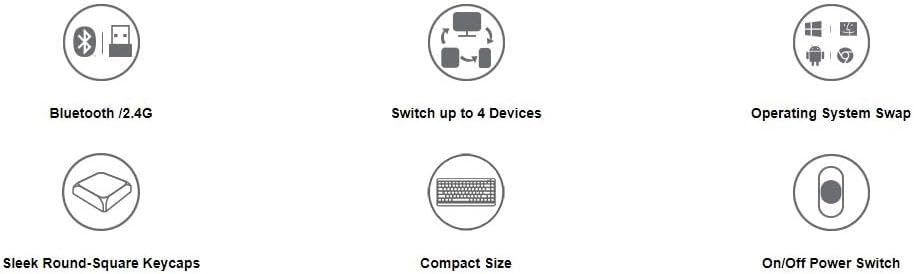
Figure 2: Visual representation of key features including Bluetooth/2.4G connectivity, multi-device switching, OS swap, sleek keycaps, compact size, and on/off power switch.
3. Contingut del paquet
Si us plau, comproveu el paquet per veure si hi ha els elements següents:
- A4TECH F.STYLER FBK11 Wireless Bluetooth Keyboard
- 2.4 GHz USB Nano Receiver
- 2 x piles alcalines AAA
- Manual d'usuari (aquest document)

Figure 3: The keyboard shown with its included accessories: the USB receiver and two AAA batteries.
4. Configuració
4.1. Instal·lació de la bateria
- Localitzeu el compartiment de la bateria a la part inferior del teclat.
- Obriu la tapa del compartiment de la bateria.
- Insert the two AAA alkaline batteries, ensuring correct polarity (+/-).
- Tanqueu bé la tapa del compartiment de la bateria.
4.2. Encendre/apagar
Slide the power switch, located on the top right edge of the keyboard, to the 'ON' position to power on the keyboard. Slide it to 'OFF' when not in use to conserve battery life.
5. Instruccions de funcionament
5.1. Modes de connectivitat
The FBK11 keyboard supports two connectivity modes: Bluetooth and 2.4 GHz wireless.
5.1.1. Connexió sense fil de 2.4 GHz
- Insert the 2.4 GHz USB Nano Receiver into an available USB port on your computer or device.
- Enceneu el teclat.
- The keyboard should automatically connect to the receiver. The 2.4G indicator light on the keyboard will illuminate briefly.
5.1.2. Connexió Bluetooth
The keyboard can connect to up to three Bluetooth devices (BT1, BT2, BT3).
- Enceneu el teclat.
- Manteniu premut el botó Fn key and then press one of the Bluetooth keys (BT1, BT2, o BT3) for 3-5 seconds until the corresponding Bluetooth indicator light starts blinking rapidly. This indicates the keyboard is in pairing mode.
- Al dispositiu (ordinador, tauleta, telèfon intel·ligent), aneu a la configuració de Bluetooth i cerqueu dispositius nous.
- Select "A4TECH FBK11" or a similar name from the list of available devices.
- Follow any on-screen prompts to complete the pairing process. The indicator light will stop blinking and remain solid for a few seconds once connected.
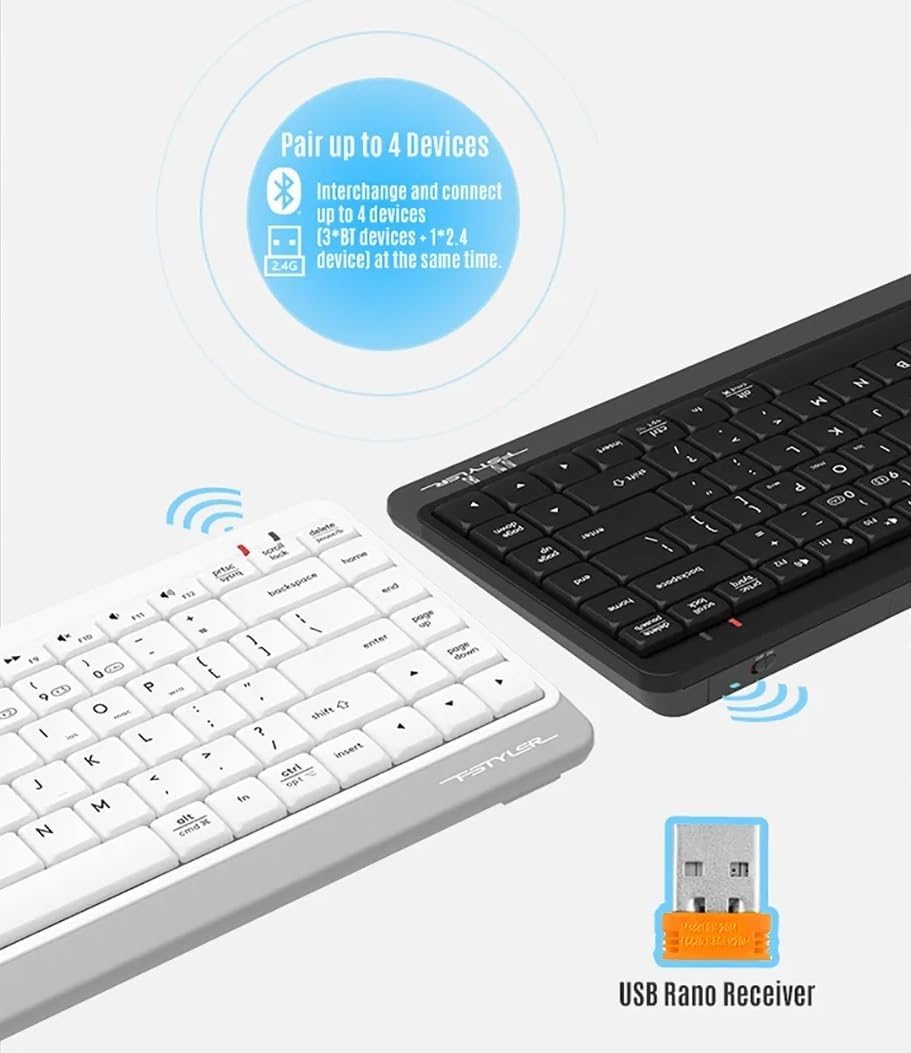
Figure 4: The keyboard demonstrating its dual connectivity options, including the USB Nano Receiver for 2.4G wireless and Bluetooth pairing capabilities.
5.2. Commutació multidispositiu
Per canviar entre dispositius connectats:
- Premeu Fn + 2.4G to switch to the device connected via the 2.4 GHz USB receiver.
- Premeu Fn + BT1 to switch to the first Bluetooth-paired device.
- Premeu Fn + BT2 to switch to the second Bluetooth-paired device.
- Premeu Fn + BT3 to switch to the third Bluetooth-paired device.

Figure 5: Diagram illustrating how the keyboard can be paired with up to four different devices simultaneously, including a smartphone, tablet, laptop, and desktop computer.
5.3. Operating System Switching
The keyboard features dedicated keys to optimize its layout for different operating systems:
- Premeu Fn + Q for Android/iOS mode.
- Premeu Fn + W for Windows mode.
- Premeu Fn + E for macOS mode.
5.4. Multimedia Hotkeys and FN Lock Mode
The keyboard includes 12 multimedia and internet hotkeys (F1-F12) that can be accessed directly or by using the Fn key.

Figura 6: Mésview of the keyboard's main functions, highlighting FN Locking Mode, Multimedia & Internet Hotkeys, Multi-Device Switch, Operating System Swap, and PC/MAC Dual-Function Keys.
5.4.1. FN Lock Mode
By default, after pairing, the FN shortcut is locked in FN mode. This means you can use the multimedia functions (F1-F12) directly without pressing the Fn key.
- Bloquejar el mode Fn: No need to press the Fn key for multimedia functions.
- Desbloqueja el mode Fn: Premeu Fn + ESC to switch back to standard F1-F12 key functions, requiring the Fn key to access multimedia shortcuts.
The locking FN mode is memorized when switching devices and shutting down.

Figure 7: Detailed explanation of how to lock and unlock the FN mode, allowing direct access to multimedia functions.
6. Solució De Problemes
| Problema | Causa possible | Solució |
|---|---|---|
| El teclat no respon | Low battery; Keyboard is off; Incorrect connection mode; Device Bluetooth is off. | Replace batteries; Turn on keyboard; Switch to correct connection mode (2.4G/BT1/BT2/BT3); Enable Bluetooth on your device. |
| No es pot emparellar per Bluetooth | Keyboard not in pairing mode; Device is too far; Interference. | Ensure keyboard is in pairing mode (blinking light); Move keyboard closer to device; Remove potential sources of interference. |
| 2.4G connection issues | USB receiver not properly inserted; Interference. | Re-insert USB receiver; Try a different USB port; Move keyboard closer to receiver; Remove potential sources of interference. |
| Les tecles multimèdia no funcionen | FN Lock mode is off. | Premeu Fn + ESC to toggle FN Lock mode. |
7. Especificacions
- Model: FBK11
- Connectivitat: Bluetooth 5.0, 2.4 GHz Wireless
- Interval de funcionament: Fins a 10 metres (33 peus)
- Tipus de bateria: 2 x piles alcalines AAA
- Material: Plàstic
- Color: Negre
- Dimensions: Aproximadament 36.1 x 15.3 x 4.4 cm
- Pes: Aproximadament 363 grams
- Sistema operatiu compatible: Windows, macOS, Chrome OS, Android, iOS
- Característiques especials: Lightweight, Portable, Multi-functional, Multi-device support
8. Manteniment
- Neteja: Use a soft, dry cloth to clean the keyboard. For stubborn dirt, a slightly damp cloth can be used, but ensure no moisture enters the keyboard.
- Emmagatzematge: Guardeu el teclat en un lloc fresc i sec, allunyat de la llum solar directa i de temperatures extremes.
- Cura de la bateria: Remove batteries if the keyboard will not be used for an extended period to prevent leakage.
- Eviteu líquids: No exposeu el teclat a l'aigua ni a altres líquids.
- Manejar amb cura: Eviteu deixar caure el teclat ni sotmetre'l a impactes forts.
9. Garantia i Suport
This product comes with a standard manufacturer's warranty. For detailed warranty terms and conditions, please refer to the warranty card included with your purchase or contact your local A4TECH distributor or retailer.
For technical support, troubleshooting assistance, or inquiries about your A4TECH F.STYLER FBK11 keyboard, please visit the official A4TECH website or contact their customer service department. Contact information can typically be found on the product packaging or the A4TECH weblloc.


