1. Introducció
Thank you for choosing the Mecer 23.8 Inch Full HD LED Monitor. This manual provides essential information for setting up, operating, and maintaining your monitor. Please read it thoroughly before use to ensure proper functionality and longevity of your device.
This monitor features a 23.8-inch Full HD (1920 x 1080) display, offering crisp and clear visuals. It incorporates TFT LED panel technology for energy efficiency and vibrant colors, with a 16:9 aspect ratio suitable for widescreen viewing. Connectivity options include VGA and HDMI, making it compatible with various devices. Built-in speakers provide basic audio, and wide 178° viewing angles ensure comfortable use. With a 2ms response time, it is suitable for general computing and multimedia consumption.
2. Informació de seguretat
- Font d'alimentació: Use only the power adapter supplied with the monitor. Ensure the power outlet is properly grounded.
- Ventilació: No bloquegeu les obertures de ventilació. Deixeu prou espai al voltant del monitor per a un flux d'aire adequat per evitar el sobreescalfament.
- Col·locació: Place the monitor on a stable, flat surface. Avoid placing it in direct sunlight, near heat sources, or in environments with excessive dust or humidity.
- Neteja: Disconnect the power cord before cleaning. Use a soft, dry cloth for the screen and a slightly damp cloth for the casing. Eviteu utilitzar productes de neteja o dissolvents abrasius.
- Exposició líquida: Keep liquids away from the monitor. If liquid enters the monitor, disconnect power immediately and contact qualified service personnel.
- Desmuntatge: No intenteu desmuntar ni reparar el monitor vosaltres mateixos. Envieu totes les tasques de manteniment a personal de servei qualificat.
3. Contingut del paquet
Si us plau, comproveu el contingut del paquet per assegurar-vos que hi hagi tots els elements:
- Mecer 23.8 Inch LED Monitor
- Suport de monitor (base i coll)
- Adaptador d'alimentació i cable
- Cable HDMI
- Cable VGA
- Manual d'usuari (aquest document)
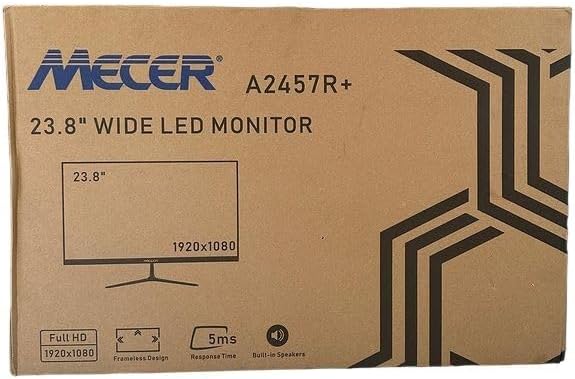
Imatge 3.1: The monitor packaging box, indicating the model A2457R+ and key features like 23.8" display, Full HD 1920x1080 resolution, frameless design, 5ms response time, and built-in speakers.
4. Configuració
4.1. Muntatge del suport del monitor
- Traieu amb cura els components del monitor i del suport de l'embalatge.
- Attach the stand neck to the monitor panel by aligning the tabs and pushing firmly until it clicks into place.
- Attach the stand base to the stand neck, securing it with the provided screw (usually hand-tightened).
- Col·loqueu el monitor muntat sobre una superfície plana i estable.

Imatge 4.1: Davant view of the Mecer 23.8 Inch LED Monitor with its stand assembled, ready for connection.
4.2. Connexió a un ordinador
El monitor admet connexions HDMI i VGA. Trieu el cable adequat per al vostre ordinador.
- Connexió HDMI: Connect one end of the HDMI cable to the HDMI port on your computer's graphics card and the other end to the HDMI port on the monitor. HDMI transmits both video and audio signals.
- Connexió VGA: Connect one end of the VGA cable to the VGA port on your computer's graphics card and the other end to the VGA port on the monitor. VGA transmits only video signals.

Imatge 4.2: posterior view of the Mecer 23.8 Inch LED Monitor, showing the input ports including HDMI and VGA, as well as the power input.
4.3. Connexió d'alimentació
- Connect the power adapter cable to the DC IN port on the back of the monitor.
- Connecteu l'adaptador de corrent a una presa de corrent.
5. Instruccions de funcionament
5.1. Encès / apagat
Press the power button, typically located on the bottom right side or rear of the monitor, to turn the monitor on or off. The power indicator light will illuminate when the monitor is on.
5.2. Selecció de la font d'entrada
If you have multiple devices connected, you may need to manually select the input source. Use the monitor's control buttons (usually located near the power button) to navigate to the input selection menu and choose between HDMI or VGA.
5.3. Menú de visualització en pantalla (OSD).
The OSD menu allows you to adjust various display settings. Use the monitor's control buttons to:
- Accediu al menú OSD.
- Navigate through menu options (e.g., Brightness, Contrast, Color Settings, Input Source).
- Adjust values or select options.
- Sortiu del menú OSD.
Els paràmetres ajustables habituals inclouen:
- Brillantor/Contrast: Ajusta la luminància general i la diferència entre les zones clares i fosques.
- Configuració de color: Adjust color temperature, RGB values, or select preset color modes.
- Relació d'aspecte: Change between 16:9, 4:3, or other available options.
- Àudio: Adjust volume for the built-in speakers.
5.4. Altaveus incorporats
The monitor includes built-in speakers for basic audio output. If using an HDMI connection, audio will be transmitted automatically. For VGA connections, ensure your computer's audio output is configured correctly. Adjust the volume through the OSD menu or your computer's operating system.
6. Manteniment
6.1. Neteja del monitor
- Desendolleu sempre el monitor de la presa de corrent abans de netejar-lo.
- Pantalla: Netegeu suaument la pantalla amb un drap suau i sense borrissol. Per a marques difícils, netegeu suaument.ampen the cloth with water or a specialized screen cleaner (ensure it's alcohol-free and ammonia-free) and wipe carefully. Do not spray liquid directly onto the screen.
- Casing: Feu servir un drap suau i sec per netejar el monitor casing. If necessary, a slightly damp es pot fer servir un drap, seguit d'un drap sec.
6.2. Emmagatzematge
Si guardeu el monitor durant un període prolongat, desconnecteu tots els cables, emboliqueu-lo a l'embalatge original (si n'hi ha) i guardeu-lo en un lloc fresc i sec, allunyat de la llum solar directa i de temperatures extremes.
7. Solució De Problemes
Si teniu problemes amb el monitor, consulteu els problemes i solucions més comuns següents:
- Sense energia:
- Ensure the power cable is securely connected to the monitor and the wall outlet.
- Comproveu que la presa de corrent funcioni connectant un altre dispositiu.
- Comproveu si l'adaptador de corrent funciona correctament.
- Sense senyal:
- Ensure the video cable (HDMI or VGA) is securely connected to both the monitor and the computer.
- Verify that the correct input source is selected on the monitor (via the OSD menu).
- Check if your computer is powered on and outputting a video signal.
- Try a different video cable if available.
- La imatge està borrosa o distorsionada:
- Ensure the monitor's resolution is set to its native resolution (1920 x 1080) in your computer's display settings.
- Adjust the monitor's OSD settings for brightness, contrast, and sharpness.
- For VGA connections, use the 'Auto Adjust' function in the OSD menu if available.
- No hi ha àudio dels altaveus integrats:
- Assegureu-vos que el volum del monitor no estigui silenciat ni massa baix al menú OSD.
- Comproveu la configuració de sortida d'àudio de l'ordinador per assegurar-vos que el monitor estigui seleccionat com a dispositiu de reproducció.
- If using VGA, ensure your computer's audio is routed to an external speaker system, as VGA does not carry audio.
8. Especificacions
| Característica | Especificació |
|---|---|
| Marca | Mecer |
| Número de model | A2457R+ |
| Mida de la pantalla | 23.8 polzades |
| Resolució | 1920 x 1080 píxels (Full HD) |
| Tipus de visualització | LED (TFT LED Panel) |
| Relació d'aspecte | 16:9 |
| Temps de resposta | 2 mil·lisegons |
| Freqüència d'actualització | 75 Hz |
| ViewAngles | 178° Horitzontal / 178° Vertical |
| Connectivitat | 1x HDMI, 1x VGA |
| Altaveus incorporats | Sí |
| Color | Negre |
| Dimensions del producte (P x A x A) | 560D x 42W x 410H millimetres |
| Característiques especials | High performance intelligent multi-frequency scanning, Micro Computer digital technology control, no radiation, no glare, Comply with VESA DPMS international power saving regulation, Support DDC 1/2B and Windows PNP Plug and Play |
9. Garantia i Suport
This Mecer monitor comes with a 1 anys de garantia limitada des de la data de compra. Si us plau, conserveu el comprovant de compra per a reclamacions de garantia.
For technical support, service, or warranty inquiries, please contact your retailer or the authorized Mecer service center in your region. Do not attempt to repair the product yourself, as this may void your warranty.


