1. Introducció
This manual provides essential information for the proper setup, operation, and maintenance of your NexiGo NG17QH 4K Portable Monitor. Please read this manual thoroughly before using the device to ensure optimal performance and to prevent damage. Keep this manual for future reference.

Image: The NexiGo NG17QH 4K Portable Monitor, showcasing its sleek design and smart cover.
2. Contingut del paquet
Verify that all items listed below are included in your package. If any items are missing or damaged, please contact NexiGo customer support.
- NexiGo NG17QH 4K Portable Monitor
- Smart Cover / Stand
- Cable USB-C a USB-C
- Mini cable HDMI a HDMI
- Cable d'alimentació USB-A a USB-C
- Adaptador d'alimentació
3. Producte acabatview
Familiarize yourself with the ports and controls on your NexiGo NG17QH portable monitor.
Imatge: Detallada view of the monitor's ports and controls.
Ports i botons:
- Port USB-C amb funcions completes: Used for power, video, and audio transmission with compatible devices.
- Port mini HDMI: Used for video and audio transmission with HDMI-compatible devices.
- Botó d'encesa: Press and hold to power the monitor on or off. Short press to access the OSD menu.
- Llum indicador d'alimentació: Indicates the monitor's power status.
- Multi-Function Key: Used to navigate the OSD menu and adjust settings.
- OTG Interface (USB-C): Allows connection of USB peripherals like keyboards or mice when the monitor is connected via the full-featured USB-C port.
- Presa d'auriculars de 3.5 mm: Per connectar dispositius d'àudio externs.
4. Configuració
Follow these steps to set up your NexiGo NG17QH portable monitor.
4.1 Alimentació del monitor
- Using a single USB-C cable (Full-Featured): If your device (laptop, smartphone) supports full-featured USB-C output, connect the monitor to your device using the provided USB-C to USB-C cable. This single cable can provide both power and display signal.
- Using an external power adapter: If your device does not provide sufficient power or if you are using the Mini HDMI port, connect the provided USB-A to USB-C power cable to the monitor's full-featured USB-C port and plug the USB-A end into the power adapter, then into a wall outlet.
4.2 Connexió a dispositius
- Laptop/PC (USB-C): Connect the monitor to your laptop/PC using the USB-C to USB-C cable. Ensure your laptop's USB-C port supports DisplayPort Alternate Mode.
- Laptop/PC (HDMI): Connect the monitor to your laptop/PC using the Mini HDMI to HDMI cable. Ensure the monitor is powered externally via the USB-C power cable.
- Gaming Consoles (PS5, Xbox, Switch): Connect the monitor to your console using the Mini HDMI to HDMI cable. Ensure the monitor is powered externally via the USB-C power cable.
- Smartphone: Connect the monitor to your smartphone using the USB-C to USB-C cable. Ensure your smartphone's USB-C port supports video output.
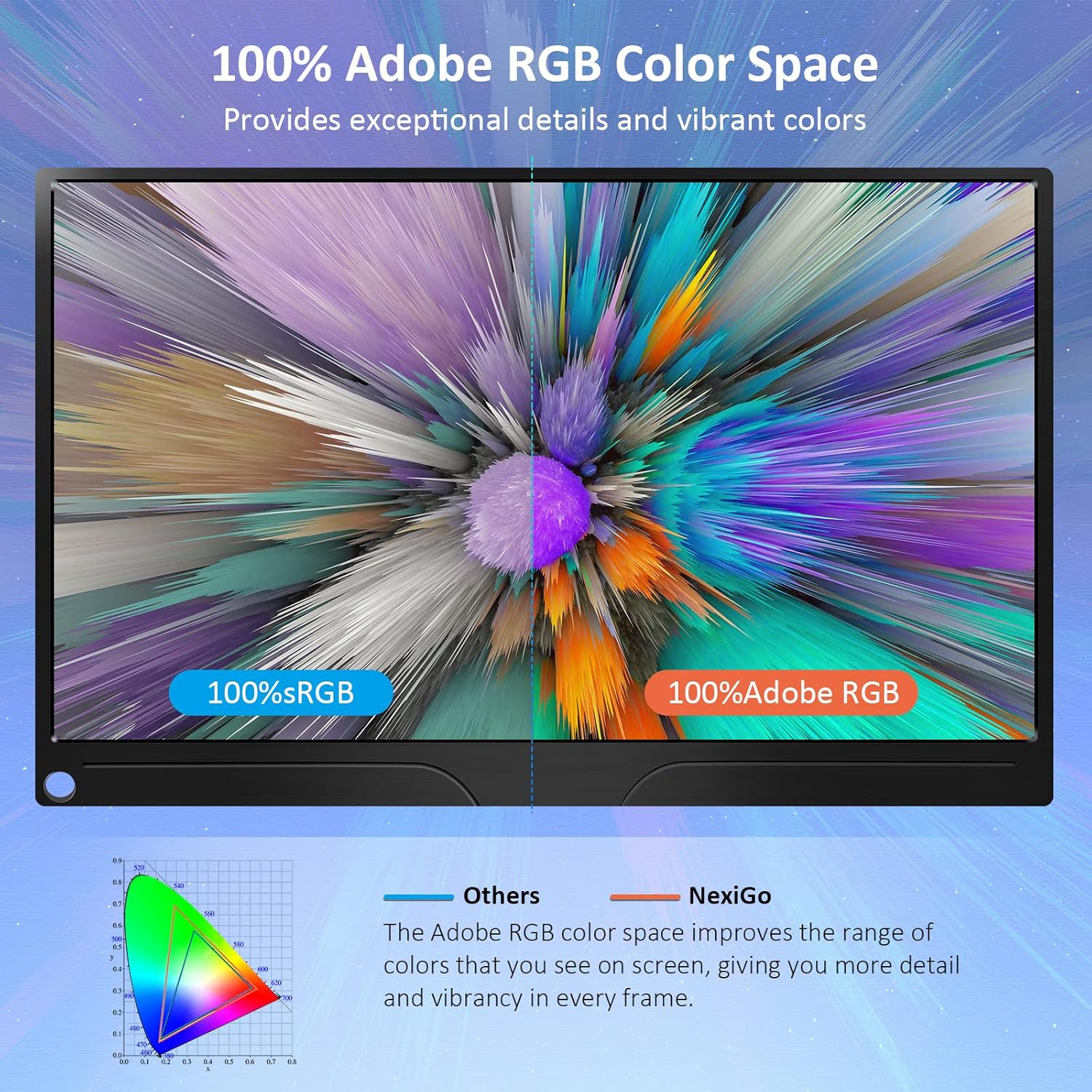
Image: The portable monitor connected to a laptop, demonstrating an extended display setup.
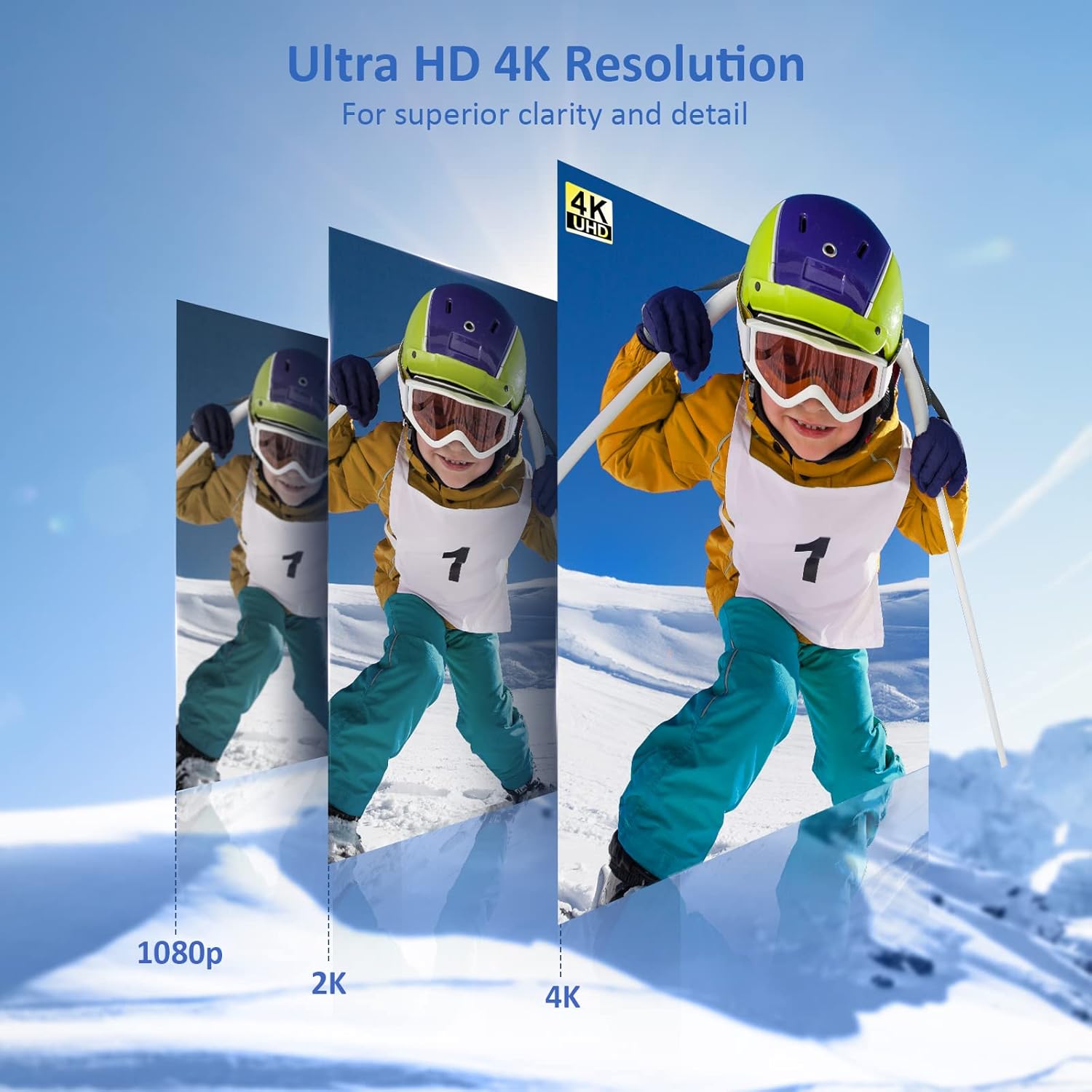
Image: The portable monitor connected to a smartphone, displaying content.
4.3 Muntatge VESA
The monitor is compatible with VESA mounts (75x75mm). To mount the monitor, remove the smart cover and attach it to a compatible VESA arm or wall mount using appropriate screws (not included).
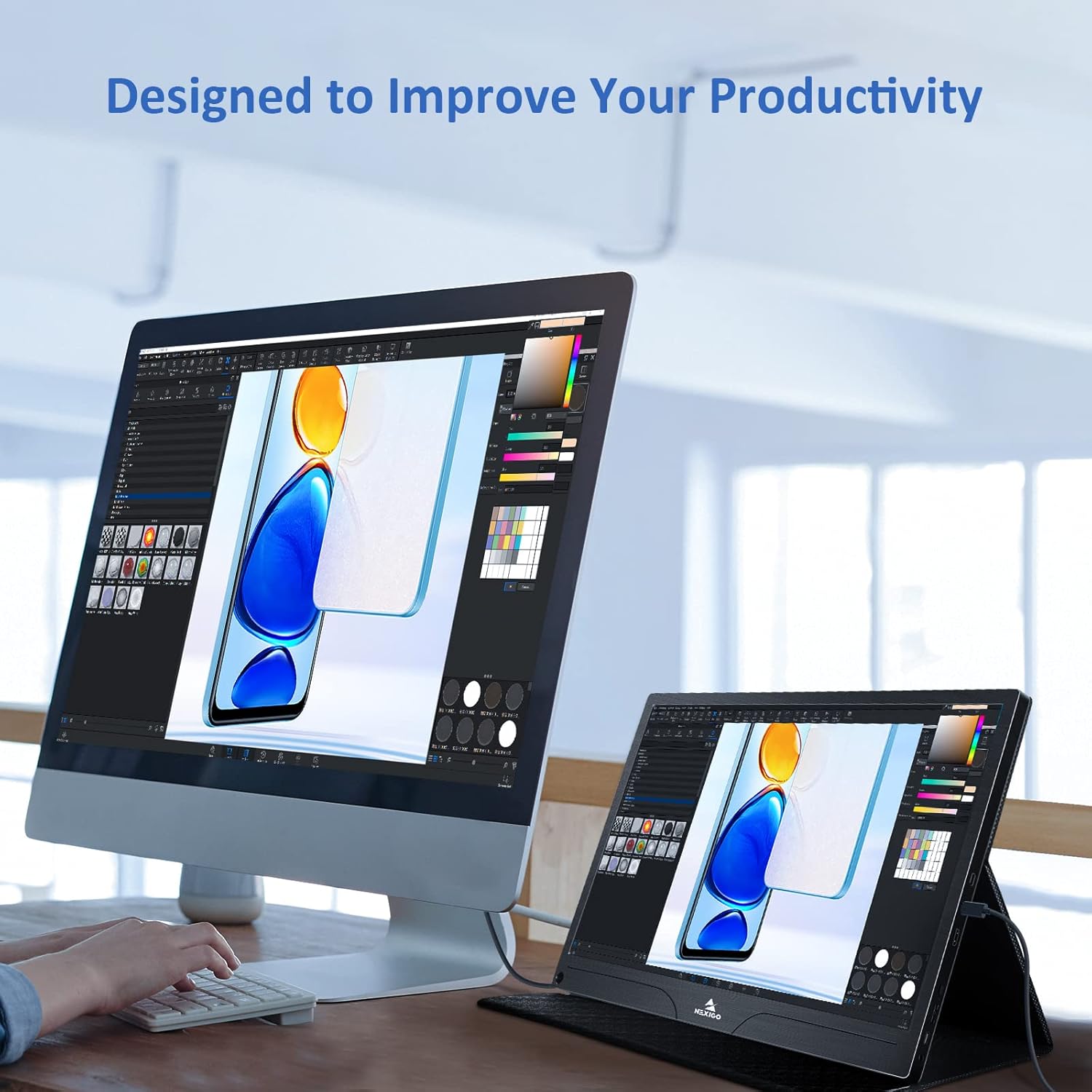
Image: The monitor mounted on a VESA-compatible desk arm.
5. Funcionament del monitor
5.1 Encès/Apagat
Manteniu premut el botó Botó d'engegada for approximately 3 seconds to turn the monitor on or off.
5.2 Menú de visualització en pantalla (OSD)
The OSD menu allows you to adjust various display settings. Short press the Botó d'engegada to open the OSD menu. Use the Tecla multifunció per navegar i seleccionar opcions.
- Amunt avall: Move the Multi-Function Key up or down to navigate through menu options.
- Introduïu: Press the Multi-Function Key inward to select an option or confirm a setting.
- Sortida: Press the Power Button to exit the current menu or the OSD.
5.3 Configuració de la pantalla
- Brillantor/Contrast: Ajusta la luminància i el contrast generals de la pantalla.
- Configuració de color: Modifica la temperatura de color, el to i la saturació.
- Mode HDR: Enable or disable High Dynamic Range for enhanced visual quality with compatible content.
- FreeSync: Enable FreeSync for smoother gaming experiences by synchronizing the monitor's refresh rate with your GPU's frame rate.
- Relació d'aspecte: Adjust the display aspect ratio (e.g., 16:9, 4:3).
5.4 Configuració d'àudio
Adjust the volume of the built-in dual speakers or connected headphones through the OSD menu.
6. Manteniment
- Neteja de la pantalla: Utilitzeu un drap suau i sense pelusa dampNetegeu amb aigua o un netejador de pantalles no abrasiu. No ruixeu líquid directament sobre la pantalla.
- Neteja de la Casing: Netegeu el monitor casing with a soft, dry cloth. Avoid using harsh chemicals or solvents.
- Emmagatzematge: When not in use, store the monitor in a cool, dry place, preferably in its original packaging or smart cover to protect it from dust and scratches.
- Eviteu condicions extremes: No exposeu el monitor a temperatures extremes, humitat ni llum solar directa.
7. Solució De Problemes
Si teniu problemes amb el monitor, consulteu la taula següent per veure els problemes i les solucions més habituals.
| Problema | Causa possible | Solució |
|---|---|---|
| Sense pantalla / Missatge "Sense senyal" | Incorrect cable connection, insufficient power, incorrect input source. | Ensure cables are securely connected. Verify external power is supplied if needed. Check the input source setting in the OSD menu. |
| El monitor no s'encén | Sense font d'alimentació, cable defectuós. | Ensure the power adapter is connected and working. Try a different USB-C cable or power source. |
| Pantalla parpellejant | Faulty cable, unstable power, incompatible resolution/refresh rate. | Replace the cable. Ensure stable power. Adjust the display resolution or refresh rate on your connected device. |
| Sense àudio | Volume too low, incorrect audio output setting, faulty cable. | Increase volume via OSD or connected device. Ensure the monitor is selected as the audio output device on your source. Check cable connections. |
| OTG port not working | Monitor not powered via full-featured USB-C, device incompatibility. | Ensure the monitor is connected to a device via the full-featured USB-C port that supports OTG functionality. |
8. Especificacions
Detailed technical specifications for the NexiGo NG17QH 4K Portable Monitor.
| Característica | Especificació |
|---|---|
| Número de model | NG17QH |
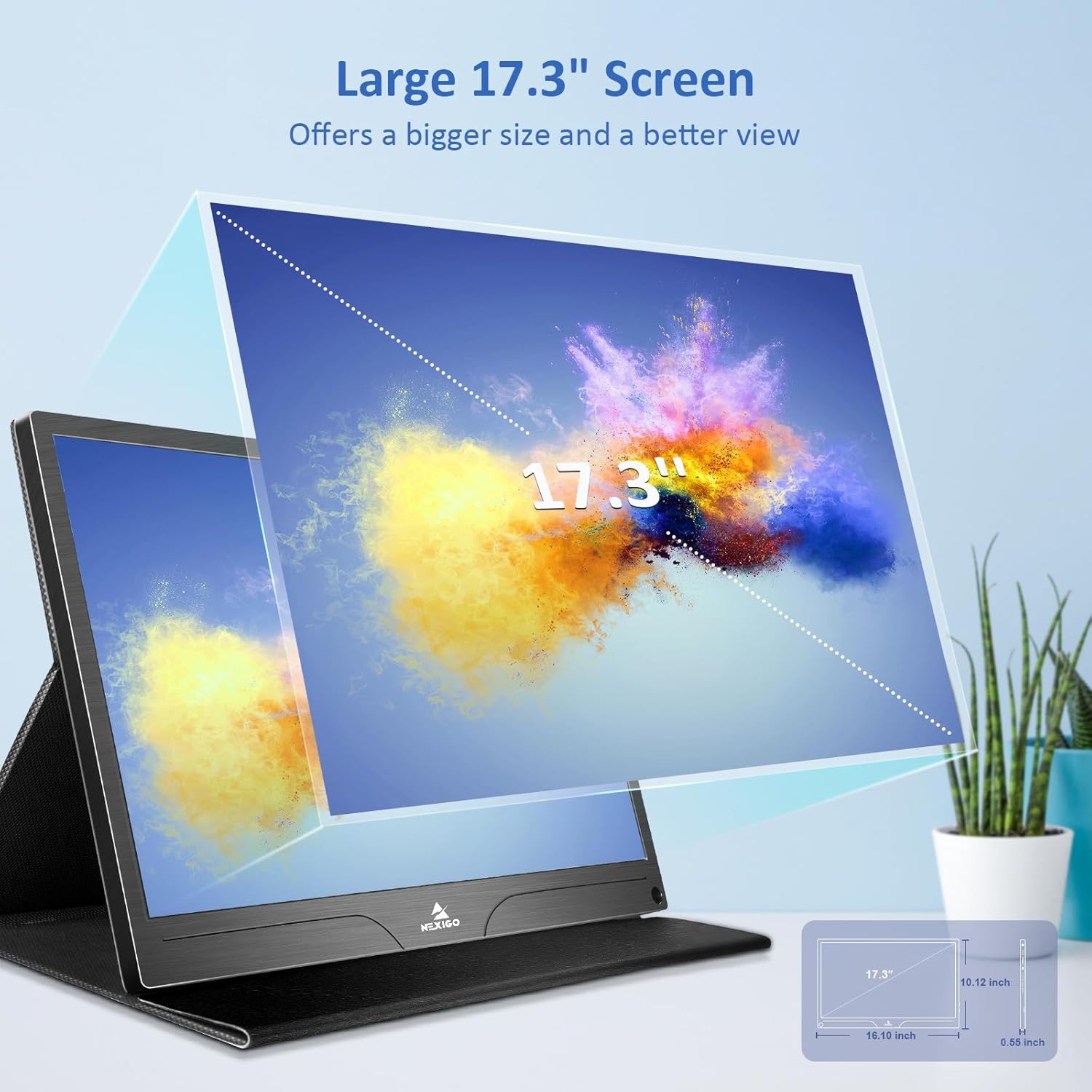
| Mida de la pantalla | 17.3 polzades |
| Resolució | 3840 x 2160 (4K UHD) |
| Tipus de panell | IPS |
| Brillantor | 400 cd/m² |
| Gamma de colors | 100% Adobe RGB |
| Relació d'aspecte | 16:9 |
| Viewangle ing | 178° |
| Característiques | FreeSync, HDR, Eye Care Screen |
| Altaveus | Dual Built-in Speakers |
| Connectivitat | Full-Featured USB-C (x1), Mini HDMI (x1), OTG USB-C (x1), 3.5mm Audio Jack (x1) |
| Compatibilitat VESA | 75 x 75 mm |
| Dimensions del producte | 16.1 x 10.12 x 0.55 polzades |
| Pes de l'article | 6.39 lliures |

Image: Visual comparison of 1080p, 2K, and 4K resolutions, demonstrating the clarity of the 4K display.
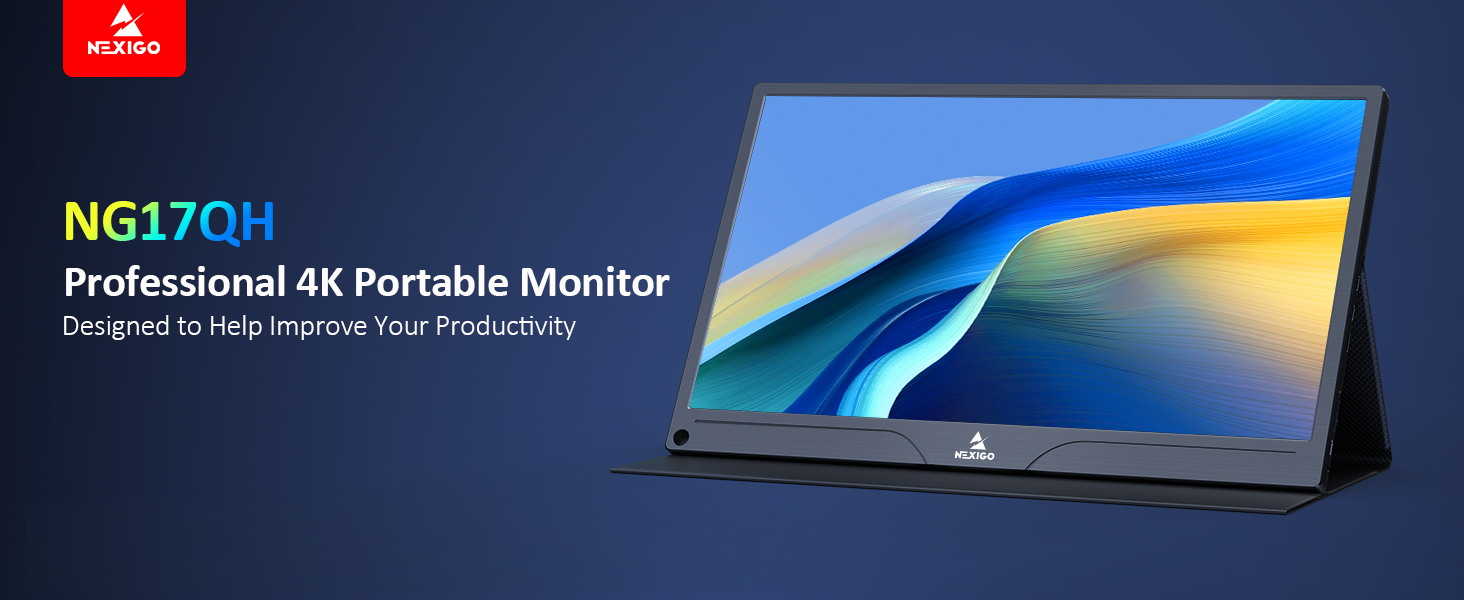
Image: A visual representation of 100% Adobe RGB color space coverage, indicating vibrant and detailed color reproduction.
9. Garantia i Suport
Your NexiGo NG17QH Portable Monitor comes with a manufacturer's warranty. For detailed warranty information, product registration, or technical support, please visit the official NexiGo weblloc web o contacteu directament amb el servei d'atenció al client. Conserveu el rebut de compra com a comprovant de compra per a reclamacions de garantia.
NexiGo Official Weblloc: www.nexigo.com


