1. Introducció
The CACOE Wireless Foldable Keyboard with Stand (Model X62) is an ultra-slim, portable, and foldable keyboard designed for enhanced productivity on the go. Weighing only 191 grams, this mini keyboard folds to the size of a cell phone, making it convenient to carry in a pocket or backpack. It features dual-channel wireless connectivity and broad compatibility with iOS, Android, and Windows operating systems.

Image 1.1: The CACOE Wireless Foldable Keyboard with a smartphone positioned in its integrated stand, ready for use.

Imatge 1.2: acabatview of key features: wireless connectivity, multiple device channels, and extended standby time.
2. Configuració i connexió
2.1 Càrrega del teclat
The keyboard is equipped with a rechargeable battery. Before initial use, ensure the keyboard is fully charged using a Type-C charging cable (not included). The battery capacity is 150mAh, providing over 80 hours of use time and more than 100 days of standby time.

Image 2.1: The keyboard connected to a power source via a Type-C cable for charging.
2.2 Emparellament amb dispositius
The keyboard supports stable wireless connection up to 10 meters (33 feet) and can seamlessly switch between two connected devices.
- Encès: Desplegueu el teclat per engegar-lo.
- Introduïu el mode de vinculació: Manteniu premut el botó Fn key and then press either the 1 or 2 key to select a channel. The corresponding indicator light will flash, indicating it is ready for pairing.
- Activa el Bluetooth: Al dispositiu (telèfon intel·ligent, tauleta, ordinador portàtil), activeu el Bluetooth.
- Connectar: Cerca "CACOE Keyboard" (or similar name) in your device's Bluetooth settings and select it to connect. The indicator light will stop flashing once connected.
- Canvia de canals: To switch between two paired devices, simply press Fn + 1 or Fn + 2.

Image 2.2: Instructions for pairing the keyboard with two devices and switching between them.

Image 2.3: The keyboard maintaining a stable wireless connection across multiple devices within a 10-meter range.
2.3 Compatibilitat del sistema
The keyboard is widely compatible with various operating systems, including iOS, Android, and Windows. This allows for versatile use with iPhones, Samsung phones, other smartphones, tablets, laptops, and desktop computers.

Image 2.4: The keyboard is compatible with Android, iOS, and Windows devices.
3. Instruccions de funcionament
3.1 Keyboard Layout and Function Keys
The keyboard features a QWERTY layout with additional function keys accessible via the Fn key. These keys provide shortcuts for various functions such as screen brightness, input method switching, media control, and volume adjustment.

Imatge 3.1: acabatview of the keyboard layout and function key assignments.
3.2 Special Characters and Input Methods
To ensure correct input of special characters, it is important to configure your device's language settings to match the physical keyboard's layout.
- In your device's settings, add the language the physical keyboard is in to the list of input methods.
- When inputting text, make sure that the input language is set to the language the keyboard is in.
Key combinations for special characters may vary slightly between operating systems:

Image 3.2: Guide for entering special characters on different operating systems.
3.3 Integrated Stand Usage
The keyboard features an adjustable stand for flexible viewing angles, with a maximum use angle of 150 degrees. This allows for comfortable typing in various environments, such as office or home settings.

Image 3.3: The keyboard's integrated stand offers adjustable viewangles de fins a 150 graus.

Image 3.4: The keyboard is suitable for various environments, including office and home use.
4. Manteniment
To ensure the longevity and optimal performance of your CACOE Wireless Foldable Keyboard, follow these maintenance guidelines:
- Neteja: Use a soft, dry, lint-free cloth to clean the keyboard surface. Avoid using harsh chemicals, abrasive cleaners, or excessive moisture, as these can damage the electronic components.
- Emmagatzematge: When not in use, fold the keyboard and store it in a dry, cool place away from direct sunlight and extreme temperatures.
- Manipulació: Avoid dropping the keyboard or subjecting it to strong impacts. Do not attempt to disassemble the keyboard, as this will void any potential warranty.
- Interval de funcionament: Please do not use the keyboard outside of its specified operating range (10 meters) to maintain a stable connection.
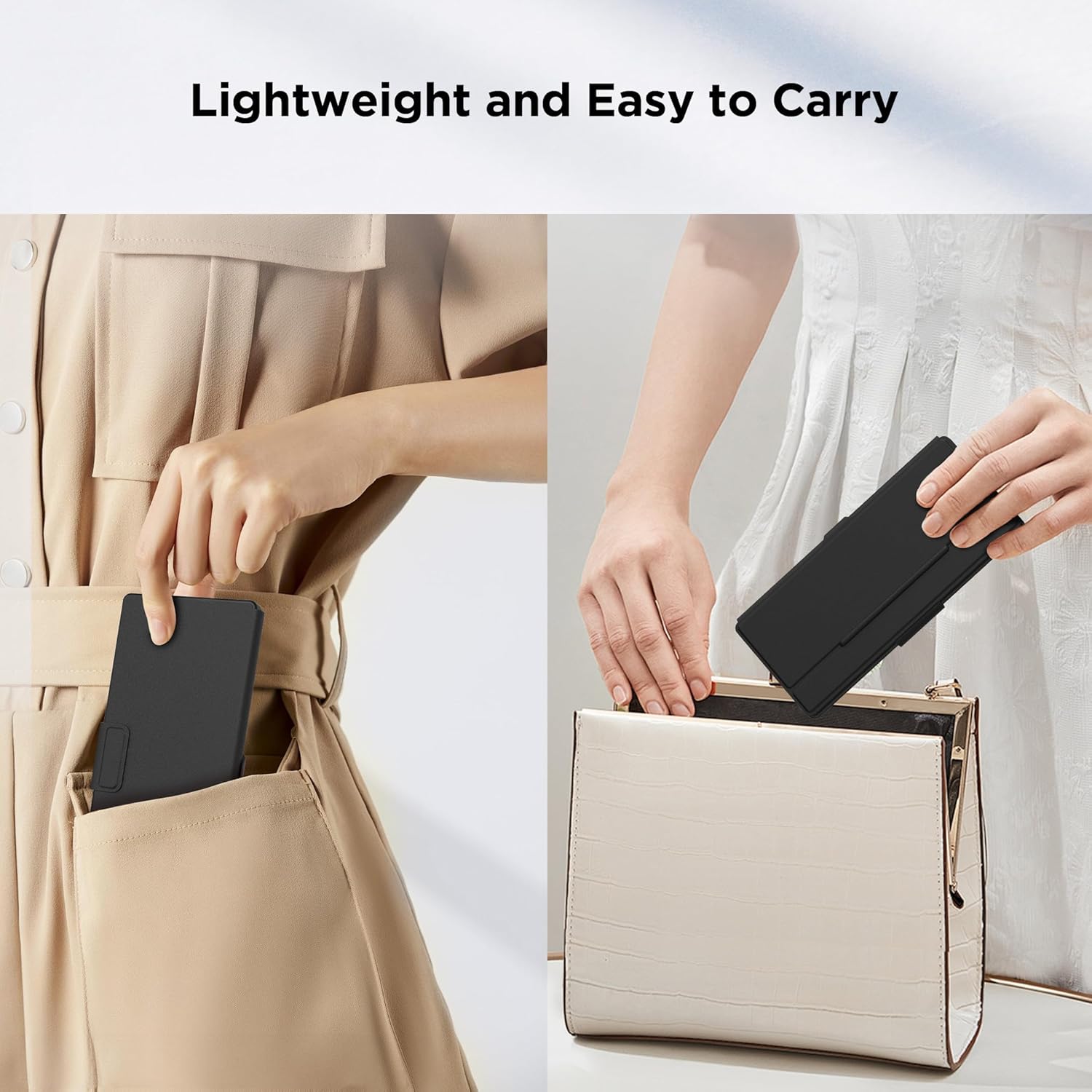
Image 4.1: The keyboard's compact, foldable design makes it easy to carry and store.
5. Solució De Problemes
If you encounter issues with your CACOE Wireless Foldable Keyboard, refer to the following common troubleshooting steps:
- El teclat no es connecta:
- Assegureu-vos que el teclat estigui carregat.
- Assegureu-vos que el Bluetooth estigui habilitat al vostre dispositiu.
- Verify the keyboard is within the 10-meter operating range.
- Prova de desvincular i tornar a vincular el teclat amb el dispositiu.
- Assegureu-vos que no hi hagi altres dispositius Bluetooth que causin interferències.
- Les tecles no responen o s'escriuen incorrectament:
- Comproveu el nivell de la bateria i carregueu si cal.
- Ensure the correct input language is selected on your device, matching the keyboard's layout.
- Restart both the keyboard (by folding and unfolding) and your connected device.
- Difficulty with special characters:
- Refer to Section 3.2 for specific key combinations for your operating system.
- Confirm your device's input language settings.
6. Especificacions
| Característica | Detall |
|---|---|
| Nom del model | X62 |
| Dimensions del producte (plegat) | 7.68 x 3.74 x 0.71 polzades (195 x 85 x 15 mm) |
| Pes de l'article | 8.1 unces (191 grams) |
| Fabricant | CACOE |
| Tecnologia de connectivitat | Sense fil (Bluetooth) |
| Interval d'operació | Fins a 10 metres (33 peus) |
| Dispositius compatibles | Smartphones, Tablets, Laptops, PCs |
| Sistemes operatius | iOS, Android, Windows |
| Tipus de bateria | 1 bateria no estàndard (inclosa) |
| Capacitat de la bateria | > 150mAh |
| Utilitza el temps | >80 hores |
| Temps d'espera | >100 dies |
| Port de càrrega | Tipus-C |
| Descripció del teclat | Multi Functional QWERTY |
| Tipus de canvi | Interruptor lliscant |
| Components inclosos | Teclat |
7. Garantia i Suport
CACOE is committed to providing quality products and customer satisfaction. While specific warranty details are not provided in this manual, we offer dedicated customer support.
If you have any questions, require assistance, or encounter any issues with your CACOE Wireless Foldable Keyboard, please contact our customer service team. We provide 24/7 online support to help resolve your concerns promptly.
For support, please refer to the contact information provided with your product packaging or visit the official CACOE weblloc.


