1. Introducció
The Xiaomi Gaming Monitor G27i is a high-performance 27-inch Fast IPS display designed for an immersive gaming experience. It features a 165Hz high refresh rate, 1ms GTG response time, and supports FreeSync Premium technology to ensure smooth, tear-free visuals. With professional color calibration and TÜV Low Blue Light certification, this monitor delivers vibrant colors while prioritizing eye comfort during extended use.

Figure 1.1: Xiaomi Gaming Monitor G27i
2. Guia de configuració
2.1 Desembalatge i comprovació de components
Carefully open the packaging and remove all components. Verify that all items listed in the packing list are present and undamaged. The packaging includes the monitor panel, stand base, stand neck, power adapter, HDMI cable, and user manual.
Video 2.1: Unboxing and initial setup of the Xiaomi Gaming Monitor G27i. This video demonstrates opening the box, removing components, and assembling the stand.
2.2 Muntatge del suport
- Attach the stand neck to the stand base using the provided screw. Ensure it is securely fastened.
- Align the assembled stand with the mounting slot on the back of the monitor panel.
- Gently push the stand into the slot until it clicks into place. Ensure the connection is firm and stable.
2.3 Cables de connexió
Locate the input ports on the back of the monitor. The Xiaomi G27i includes HDMI and DisplayPort inputs for video connectivity, along with a power input and an audio output jack.
- Connexió d'alimentació: Connecteu l'adaptador de corrent al port d'entrada d'alimentació del monitor i, a continuació, endolleu l'adaptador a una presa de corrent.
- Connexió de vídeo: Connect one end of the HDMI or DisplayPort cable to the corresponding port on your computer's graphics card and the other end to the monitor's input port. For optimal performance, especially for high refresh rates, DisplayPort is recommended.
- Sortida d'àudio (opcional): If desired, connect external speakers or headphones to the 3.5mm audio output jack on the monitor.
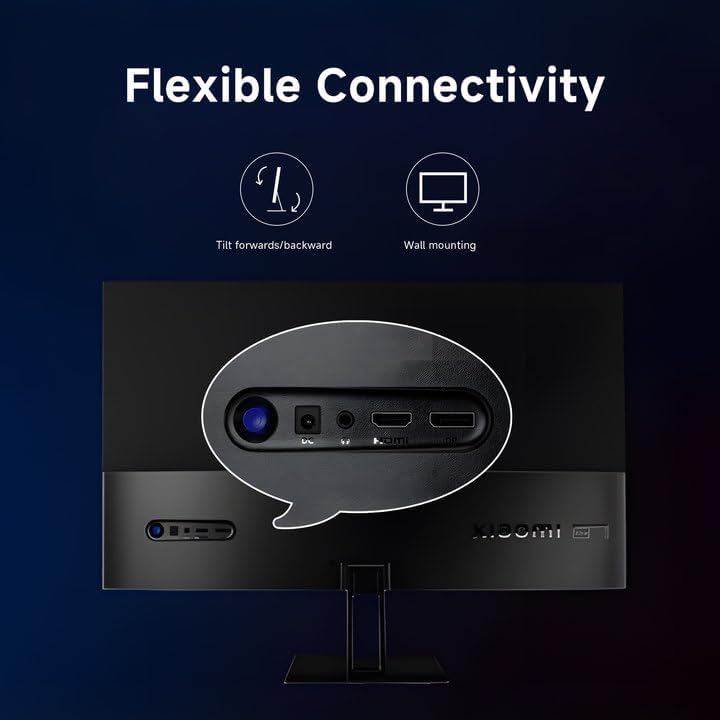
Figura 2.1: posterior view of the monitor showing power, HDMI, and DisplayPort connections.
Video 2.2: Demonstration of connecting cables to the Xiaomi Gaming Monitor G27i, highlighting the various input ports.
3. Instruccions de funcionament
3.1 Encès/Apagat
Press the power button, usually located on the back or bottom right of the monitor, to turn the display on or off. The power indicator light will illuminate when the monitor is active.
3.2 Característiques de visualització
The Xiaomi Gaming Monitor G27i is equipped with several advanced features to enhance your visual experience:
High Refresh Rate and Fast Response
Experience incredibly smooth visuals with a 165Hz refresh rate and a rapid 1ms GTG (Gray-to-Gray) response time. This significantly reduces motion blur and ghosting, providing a competitive edge in fast-paced games.

Figure 3.1: Visual representation of 165Hz high refresh rate and 1ms GTG response time.
Full HD Resolution (1920x1080)
Enjoy crisp and clear images with the 1920x1080 Full HD resolution. This standard resolution ensures compatibility with a wide range of content and systems.

Figure 3.2: Comparison of 1920x1080P and 1360x768P resolutions on the monitor.
Professional Color Gamut
The monitor boasts a 99% sRGB color gamut and 8-bit professional color depth, ensuring vivid colors and smooth transitions. Each monitor undergoes strict factory color calibration to achieve a color accuracy of ΔE < 2 (average).
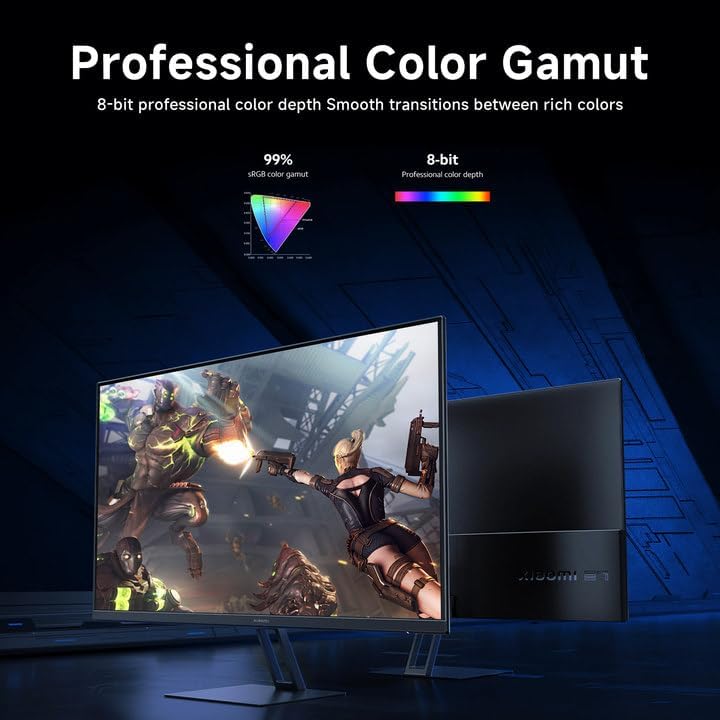
Figure 3.3: Illustration of the monitor's professional color gamut capabilities.
FreeSync Premium Technology
With FreeSync Premium, the monitor synchronizes its refresh rate with your graphics card's frame rate, effectively eliminating screen tearing and stuttering for a fluid gaming experience.

Figure 3.4: Visual comparison of FreeSync Premium enabled versus disabled.
Funcions de protecció ocular
The monitor is TÜV Low Blue Light certified, filtering harmful short-wave blue light. DC dimming technology further reduces display flicker, providing double eye protection and ensuring comfort during long hours of use.

Figure 3.5: Diagram illustrating the monitor's eye protection features.
3.3 Navegació pel menú en pantalla (OSD)
The monitor features an intuitive OSD menu for adjusting various settings. Use the control buttons (typically located on the back or bottom of the monitor) to navigate the menu. Common settings include brightness, contrast, color temperature, input source selection, and gaming modes.
- Press the main OSD button to open the menu.
- Feu servir els botons de direcció per navegar per les opcions.
- Premeu el botó de selecció per confirmar una selecció o entrar en un submenú.
- Premeu el botó Enrere/Sortida per tornar al menú anterior o sortir de l'OSD.
4. Manteniment
Un manteniment adequat garanteix la longevitat i el rendiment òptim del monitor:
- Neteja de la pantalla: Netegeu suaument la pantalla amb un drap suau i sense borrissol. Per a marques difícils, netegeu lleugerament.ampRenta el drap amb aigua o un netejador de pantalles especialitzat. Evita utilitzar productes químics agressius, materials abrasius o ruixar líquid directament sobre la pantalla.
- Neteja de la Casing: Feu servir un drap suau i sec per netejar la part frontal del monitor.asing.
- Ventilació: Assegureu-vos que les obertures de ventilació del monitor no estiguin bloquejades per evitar el sobreescalfament.
- Apagueu quan no estigui en ús: Apagueu el monitor quan no l'utilitzeu durant períodes prolongats per estalviar energia i allargar-ne la vida útil.
- Eviteu la llum solar directa: No exposeu el monitor a la llum solar directa ni a temperatures extremes.
5. Solució De Problemes
Si teniu problemes amb el monitor, consulteu els passos habituals següents per a la resolució de problemes:
| Problema | Causa possible | Solució |
|---|---|---|
| No hi ha imatge a la pantalla | Cable d'alimentació desconnectat; cable de vídeo desconnectat; font d'entrada incorrecta seleccionada. | Comproveu les connexions del cable d'alimentació i de vídeo. Assegureu-vos que la font d'entrada correcta (HDMI/DisplayPort) estigui seleccionada a través del menú OSD. |
| La imatge és borrosa o distorsionada | Resolució incorrecta; Problemes amb el controlador de la targeta gràfica. | Estableix la resolució de la pantalla a 1920 x 1080. Actualitza els controladors de la targeta gràfica. |
| La pantalla parpelleja | Loose video cable; Refresh rate mismatch; Interference. | Secure video cable. Ensure refresh rate is set correctly (e.g., 165Hz). Check for nearby electronic devices causing interference. |
| No sound from monitor (if using monitor speakers/audio out) | Volume too low; Incorrect audio output selected on PC. | Adjust monitor volume via OSD. Select the monitor as the default audio output device in your computer's sound settings. |
Si el problema persisteix després de provar aquests passos, poseu-vos en contacte amb l'atenció al client.
6. Especificacions
Key technical specifications for the Xiaomi Gaming Monitor G27i:
| Característica | Detall |
|---|---|
| Mida de la pantalla | 27 polzades |
| Tipus de panell | IPS ràpid |
| Resolució | 1920 x 1080 (FHD) |
| Freqüència d'actualització | 165 Hz |
| Temps de resposta | 1 ms GTG |
| Gamma de colors | 99% sRGB |
| Profunditat de color | 8 bits |
| Sincronització adaptativa | FreeSync Premium |
| Protecció ocular | TÜV Low Blue Light, DC Dimming |
| Connectivitat | HDMI, DisplayPort, Audio Out |
| Dimensions (LxWxH) | 6.69 x 24.1 x 17.78 polzades |
| Pes | 11.03 lliures |

Figure 6.1: Monitor dimensions in millimeters and inches.
7. Garantia i Suport
For warranty information and technical support, please refer to the warranty card included with your product or visit the official Xiaomi support weblloc web. Conserveu el rebut de compra com a comprovant de compra per a qualsevol reclamació de garantia.
Per a més ajuda, podeu contactar amb el servei d'atenció al client de Xiaomi a través dels seus canals oficials.


