Producte acabatview
The Xiiaozet Wireless Print Server (Model LK100W) is designed to transform traditional USB printers into network-accessible printers. This allows multiple computers within the same network to share a single printer, enabling automatic queue printing and wireless printing without the need for a dedicated host computer. It offers a compact, low-power solution that helps reduce maintenance costs.

Imatge: Davant i darrere view of the Xiiaozet Wireless Print Server, highlighting USB, LAN1, LAN2, Power, and Reset ports, along with indicator lights for Power, SYS, USB, Cloud, LAN2, and LAN1.
Què hi ha a la caixa
- Servidor d'impressió USB
- Adaptador d'alimentació
- Cable USB
- Cable Ethernet
Video: An unboxing video of the Xiiaozet Wireless Print Server (LK100W, LK100EW) showing the contents of the package.
Guia de configuració
Setting up the Xiiaozet Wireless Print Server involves two main steps: network configuration and printer addition. Windows users can utilize a quick installation tool for simplified setup.
1. Configuració de xarxa
To configure the network, connect your computer to the print server's setup Wi-Fi network and access the web management page. This allows you to connect the print server to your local Wi-Fi network.
Video: A step-by-step guide on how to configure the network settings for the print server.
2. Adding a Printer (Windows Quick Installation Tool)
For Windows users, a quick installation tool is available to easily add your printer to the network. This tool simplifies the process of driver installation and printer setup.
Video: Instructions on how to set up the print server for Windows using the provided installation tool.
Nota: If the Quick Installation Tool cannot be downloaded or used, please refer to the full user manual for manual printer addition instructions.
Instruccions de funcionament
Once configured, the print server allows seamless printing from multiple devices. It supports both wired and wireless connections to your local network, ensuring file security and reducing cable clutter.
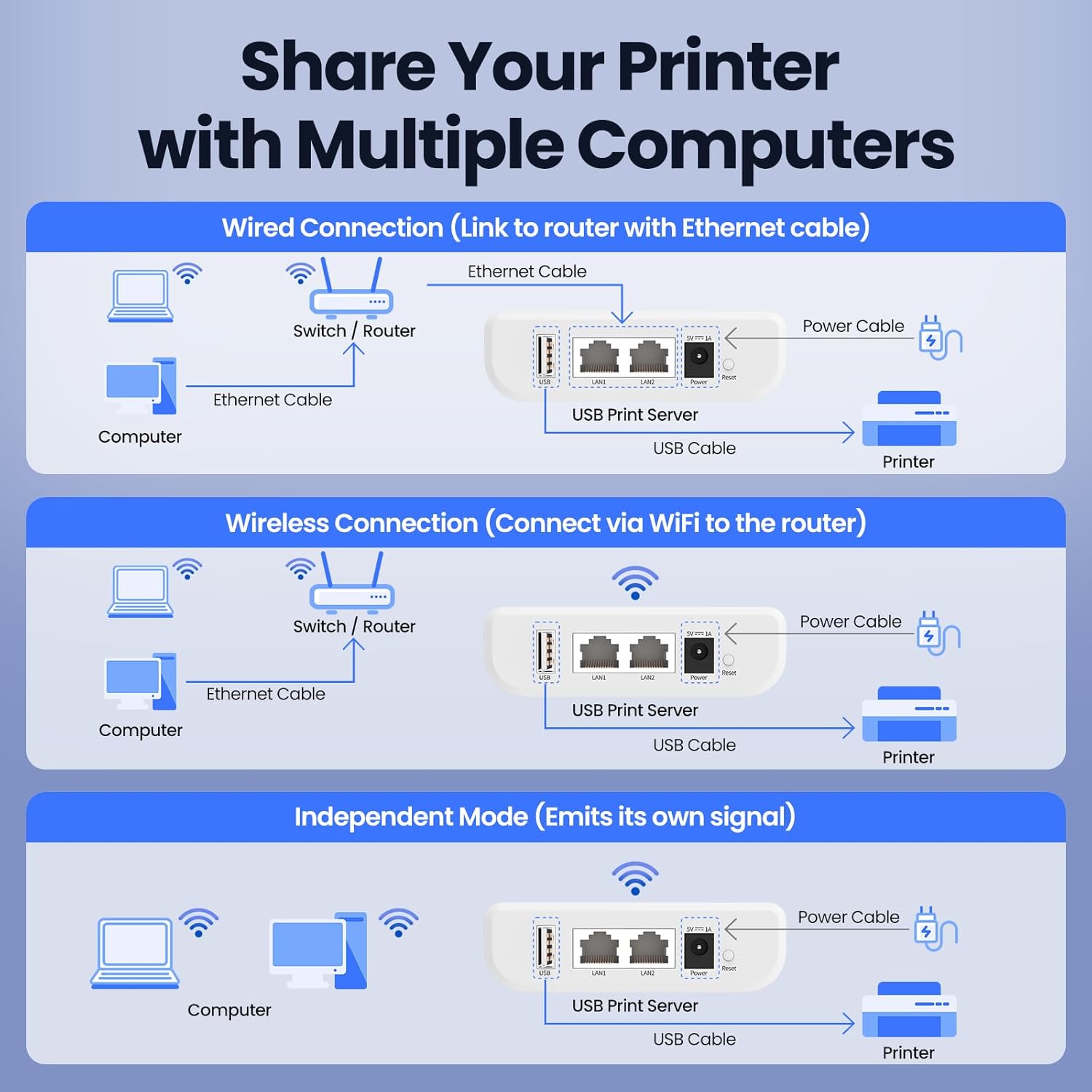
Image: Diagram illustrating various networking options: wired connection to a router, wireless connection via Wi-Fi to a router, and independent mode where the print server emits its own signal.
All computers within the same network can connect to the printer via the print server. This enables efficient sharing of a single USB printer across an office or home environment.
Video: A demonstration of how the Xiiaozet Print Server allows sharing a printer among multiple users.
Compatibilitat
The Xiiaozet Wireless Print Server supports RAW and IPP protocols, ensuring compatibility with approximately 95% of printer models. This includes various types such as inkjet, laser, thermal label, and dot matrix printers. It supports common USB interface printers and can also work with parallel port printers using a USB adapter.

Image: Visual representation of the wide compatibility of the print server with different printer types.
For a detailed list of compatible printers, please refer to our official compatibility list or contact our support team.
Vídeo: Una projecció de vídeoasing the compatibility list for the Xiiaozet Print Server.
Manteniment
To ensure optimal performance and longevity of your Xiiaozet Wireless Print Server, consider the following maintenance tips:
- Mantingueu el dispositiu en un lloc fresc i sec, allunyat de la llum solar directa i de la calor excessiva.
- Assegureu-vos una ventilació adequada al voltant del dispositiu per evitar el sobreescalfament.
- Regularly check cable connections (USB, Ethernet, Power) to ensure they are secure.
- Eviteu exposar el dispositiu a líquids o temperatures extremes.
- Periodically check for firmware updates on the official Xiiaozet weblloc per garantir el millor rendiment i compatibilitat.
Resolució de problemes
If you encounter issues with your Xiiaozet Wireless Print Server, try the following troubleshooting steps:
- Impressora no detectada:
- Ensure the USB cable from the printer is securely connected to the print server.
- Verify the print server is powered on and its indicator lights are active.
- Check if your printer model is on the compatibility list.
- Restart both the print server and the printer.
- No es pot connectar a la xarxa:
- Confirm your Wi-Fi password is correct during configuration.
- Ensure your computer is connected to the same Wi-Fi network as the print server after configuration.
- If using an Ethernet connection, ensure the cable is properly connected to both the print server and your router.
- Try resetting the print server by holding the reset button for 5 seconds.
- Printing Issues (Slow/No Print):
- Check the printer's status and ensure it's not offline or out of paper/ink.
- Verify that the correct printer (with "PrintBox" in its name) is selected on your computer.
- Ensure there are no firewall or antivirus settings blocking communication with the print server.
For more complex issues, refer to the comprehensive user manual or contact our professional after-sales team for assistance.
Especificacions
| Característica | Detall |
|---|---|
| Dimensions del producte | 3.94 x 2.76 x 1.18 polzades |
| Pes de l'article | 8.5 unces |
| Fabricant | Xiiaozet |
| Número de model | LK100W (1 USB Port) |
| Connectivitat | USB 2.0, Ethernet (LAN1, LAN2), Wi-Fi |
| Entrada de potència | 5V == 1A |
| Protocols compatibles | RAW, IPP |
Garantia i Suport
For detailed warranty information and comprehensive support, please refer to the official User Manual provided with your product or visit the Xiiaozet weblloc.
A professional after-sales team is available to assist you with any issues or questions you may have regarding the product's operation or setup.
Manual d'usuari oficial (PDF): Descarrega aquí


