1. Introducció
Thank you for choosing the Uogic Stylus Pen. This manual provides detailed instructions for the setup, operation, and maintenance of your new stylus pen. Designed for seamless integration with Microsoft Surface devices and other MPP 1.5/2.0 compatible touchscreen devices, this pen offers a natural and precise writing experience.
Què hi ha a la caixa:
- 1 x Bolígraf tàctil Uogic (amb una punta instal·lada)
- 2 x puntes de recanvi
- 1 x cable de càrrega USB-C
- 1 x Manual d'usuari

Figure 1.1: Uogic Stylus Pen (Black)
The Uogic Stylus Pen, shown in black, is designed for precise digital input on compatible devices. Its sleek design and advanced features make it ideal for writing, drawing, and navigating.
2. Primers passos
2.1 Charging the Stylus Pen
The Uogic Stylus Pen features fast USB-C charging. Before first use, or when the battery is low, charge the pen using the provided USB-C cable.
- Connect the USB-C charging cable to the pen's charging port.
- Connecteu l'altre extrem del cable a una font d'alimentació USB (per exemple, un port USB de l'ordinador, un adaptador de paret).
- A full charge takes approximately 40 minutes, providing up to 80 hours of continuous use. A 20-minute charge can provide up to 90% battery life.
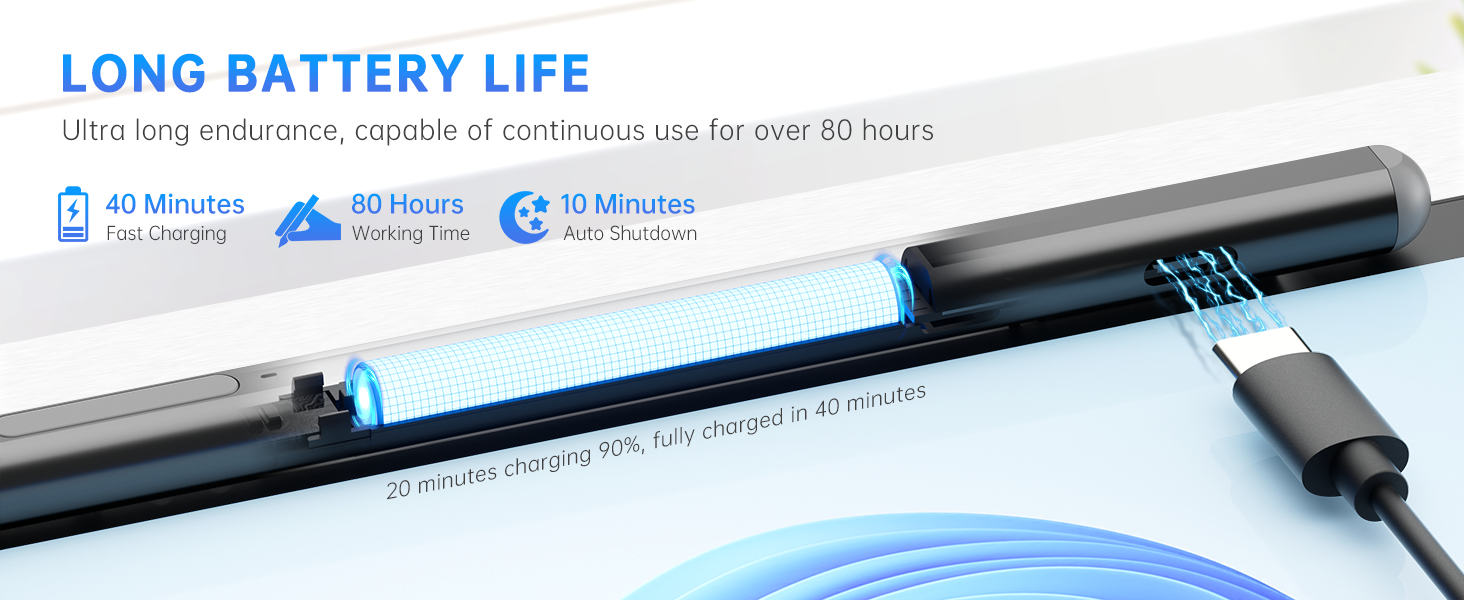
Figure 2.1: USB-C Fast Charging
This image illustrates the USB-C charging capability of the stylus pen, highlighting its fast charging times and long battery life.
2.2 Powering On and Initial Use
The Uogic Stylus Pen does not require Bluetooth pairing for basic functionality. Simply turn it on and start using it.
- Press and hold the upper button on the stylus pen for 1 second to power it on.
- The indicator light will illuminate, signifying that the pen is ready for use.
- The pen automatically enters sleep mode after 10 minutes of inactivity to conserve power.

Figura 2.2: Guia d'inici ràpid
This image demonstrates how to quickly start using the stylus pen by pressing and holding the upper button, with no Bluetooth pairing required.
3. Operating Your Stylus Pen
3.1 Escriptura suau i sensibilitat a la pressió
The Uogic Stylus Pen supports 1024 levels of pressure sensitivity, allowing for a natural and precise writing and drawing experience. The CNC-crafted, gold-plated nib ensures smooth lines without broken contacts.

Figure 3.1: Smooth Writing Technology
This image details the internal components of the pen tip, emphasizing the gold-plated copper core for precise and delay-free writing.
3.2 Funcions d'esborrador i clic dret
The stylus pen is equipped with two functional buttons for enhanced productivity:
- Botó inferior: Functions as an Goma d'esborrar. Press and hold this button while touching the screen to erase content.
- Botó superior: Functions as a Feu clic amb el botó dret button. Press and hold this button before touching the pen to the tablet screen to activate right-click menus or functions.

Figura 3.2: Funcions dels botons
This image clearly labels the right-click and eraser buttons on the stylus, explaining their respective functions for easy editing.
3.3 Rebuig del palmell
With palm rejection technology, you can comfortably rest your hand on the screen while writing or drawing. The device will only register input from the pen tip, preventing accidental marks from your palm.

Figura 3.3: Funció de rebuig del palmell
This image visually confirms the palm rejection feature, allowing users to write naturally without needing special gloves.
3.4 Fixació magnètica
The Uogic Stylus Pen features two built-in magnets, allowing it to securely attach to the side of compatible Surface devices (e.g., Surface Pro/Go/Book) for convenient storage and transport.
4. Compatibilitat
The Uogic Stylus Pen is compatible with a wide range of devices running Windows 10/11 and supporting MPP 1.5/2.0 protocol. Please refer to the list below for specific compatible models. Note that only Windows systems support Bluetooth functions, though the pen's core features do not require Bluetooth.
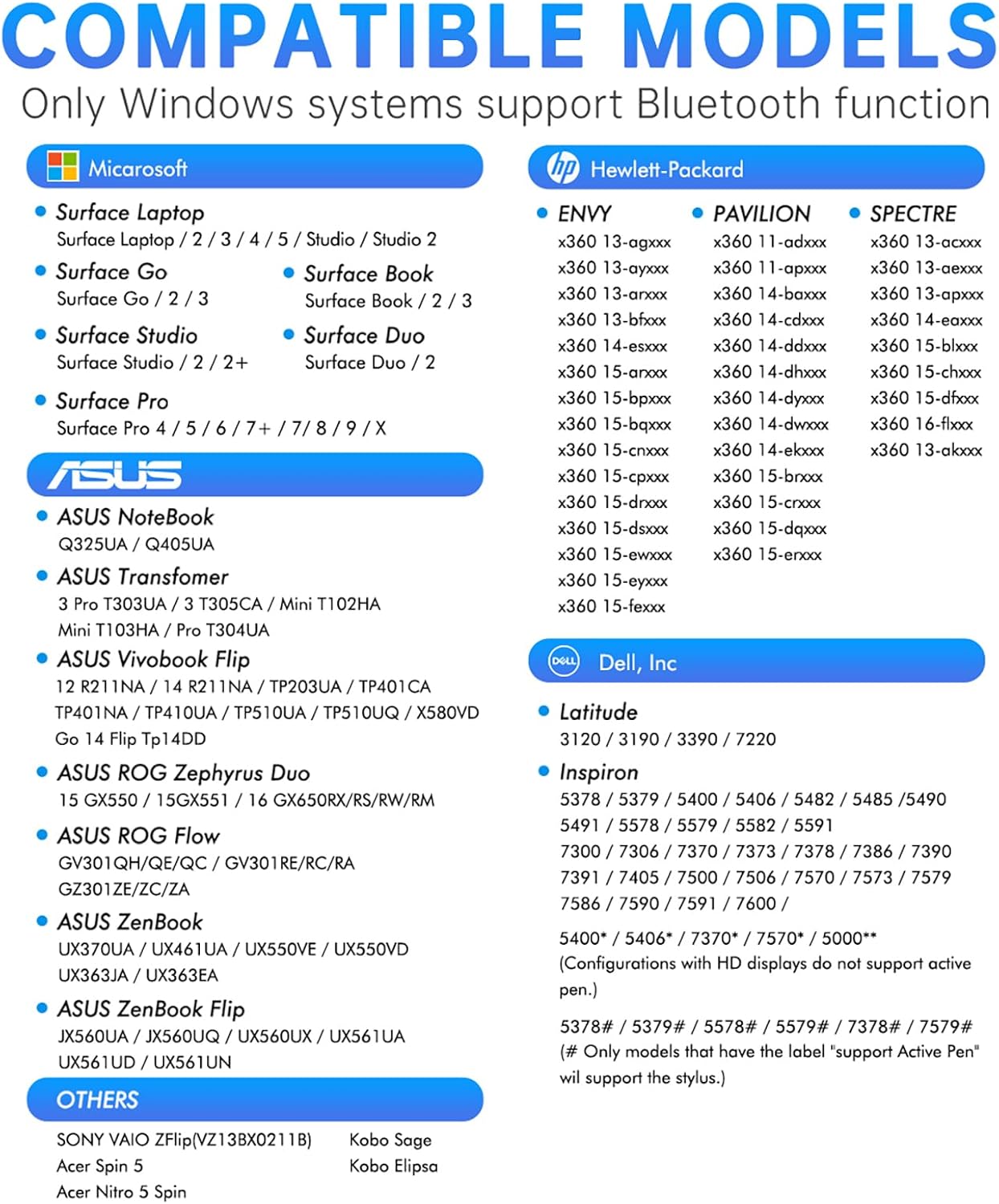
Figure 4.1: Compatible Models List
This image provides a comprehensive list of Microsoft Surface, HP, ASUS, and Dell devices that are compatible with the Uogic Stylus Pen.
Key Compatible Devices:
- Microsoft Surface: Surface Pro (3rd gen and later versions), Surface Go (1st/2nd/3rd gen), Surface Book (1st/2nd/3rd gen), Surface Studio (1st/2nd gen, 2+), Surface Laptop (1st/2nd/3rd/4th/5th gen), Surface Laptop Studio, Surface Duo (1st/2nd gen).
- HP ENVY, Pavilion, Spectre: Various x360 models (e.g., 13-apxxxx, 15-drxxxx, 11-adxxxx, 14-dhxxxx, etc.).
- ASUS: Notebook (Q325UA/Q405UA), Transformer (T303UA/T305CA/Mini T102HA/T103HA/T304UA), Vivobook Flip (various models), ROG Zephyrus Duo (15 GX550/15GX551/16 GX650RX/RS/RW/RM), ROG Flow (GV301QH/QE/QC), Zenbook (UX370UA/UX461UA/UX550VE/UX550VD/UX363JA/UX363EA), Zenbook Flip (JX560UA/JX560UQ/UX561UA/UX561UD/UX561UN).
- Dell: Latitude (3120/3190/3390/7220), Inspiron (various 5xxx and 7xxx models).
- Altres: SONY VAIO Flip (VZ13BX2211B), Kobo Sage, Kobo Elipsa, Acer Spin 5, Acer Nitro 5 Spin.
5. Cura i Manteniment
5.1 Substitució de les puntes del bolígraf
The Uogic Stylus Pen comes with replaceable tips. If the pen tip becomes worn or damaged, follow these steps to replace it:
- Estireu suaument la punta del bolígraf vell cap a fora del llapis.
- Insert a new replacement tip firmly into the pen until it clicks into place.
5.2 Cura de la bateria
- Eviteu descarregar completament la bateria amb freqüència.
- Store the pen in a cool, dry place when not in use for extended periods.
- Feu servir només el cable USB-C proporcionat o un equivalent certificat per carregar.
5.3 Neteja
To clean your stylus pen, gently wipe it with a soft, dry, lint-free cloth. Do not use harsh chemicals or abrasive materials.
6. Solució De Problemes
If you encounter issues with your Uogic Stylus Pen, please refer to the following common problems and solutions:
| Problema | Causa possible | Solució |
|---|---|---|
| El llapis no s'encén. | Bateria baixa. | Carregueu el llapis durant almenys 20 minuts. |
| Pen does not write or draw. | Pen is off; incompatible device; worn tip. | Ensure pen is on; verify device compatibility (Section 4); replace pen tip (Section 5.1). |
| Eraser/Right-click buttons not working. | Incorrect button press sequence; software issue. | Ensure button is pressed abans touching screen; restart your device; check application settings. |
| Pen randomly stops working. | Pen entered sleep mode; low battery. | Press the power button to wake it; charge the pen. |
If the problem persists after trying these solutions, please contact Uogic customer support.
7. Especificacions
| Número de model | F97 |
| Color | Negre |
| Material | Alumini |
| Dimensions del producte (L x A x A) | 6.22 x 0.35 x 0.33 polzades (15.8 x 0.89 x 0.84 cm) |
| Pes de l'article | 0.494 unces (14 grams) |
| Sensibilitat a la pressió | 1024 nivells |
| Tipus de bateria | 1 bateria de polímer de liti (inclosa) |
| Durada mitjana de la bateria (mode d'espera) | 80 hores |
| Temps de càrrega | Aproximadament 40 minuts per a una càrrega completa |
| Dormir automàticament | Després de 10 minuts d'inactivitat |
| Dispositius compatibles | Microsoft Surface series, HP, ASUS, Dell devices supporting MPP 1.5/2.0 (Windows 10/11) |
8. Garantia i Suport
Uogic stands behind the quality of its products. Your Stylus Pen comes with a Garantia de 12 mesos sense preocupacions des de la data de compra.
For any questions, technical assistance, or warranty claims, please contact our friendly customer service team. We aim to provide quick responses within 12 hours.
Informació de contacte: Please refer to the contact details provided on the product packaging or the official Uogic weblloc web per obtenir la informació d'assistència més actualitzada.
9. Vídeos oficials de productes
No official product videos were available for embedding at this time.


