1. Introducció
This manual provides instructions for the Qulose Bluetooth Keyboard with Precision Trackpad, designed for use with Microsoft Surface Pro tablets. Please read this manual thoroughly before use to ensure proper operation and to maximize the product's lifespan.
1.1. Compatibilitat
This keyboard is specifically designed for the following Microsoft Surface Pro models:
- Surface Pro 7 Plus (2021)
- Surface Pro 7 (2019)
- Surface Pro 6 (2018)
- Surface Pro 5 (2017)
- Surface Pro 4 (2015) 12.3 inch
- Surface Pro 3 (2014) 12 inch
Nota: This keyboard is not compatible with Surface Go series (Go 1, Go 2, Go 3), Surface Pro 8, Surface Pro 9, or Surface Pro X. Please verify your tablet model before purchase.
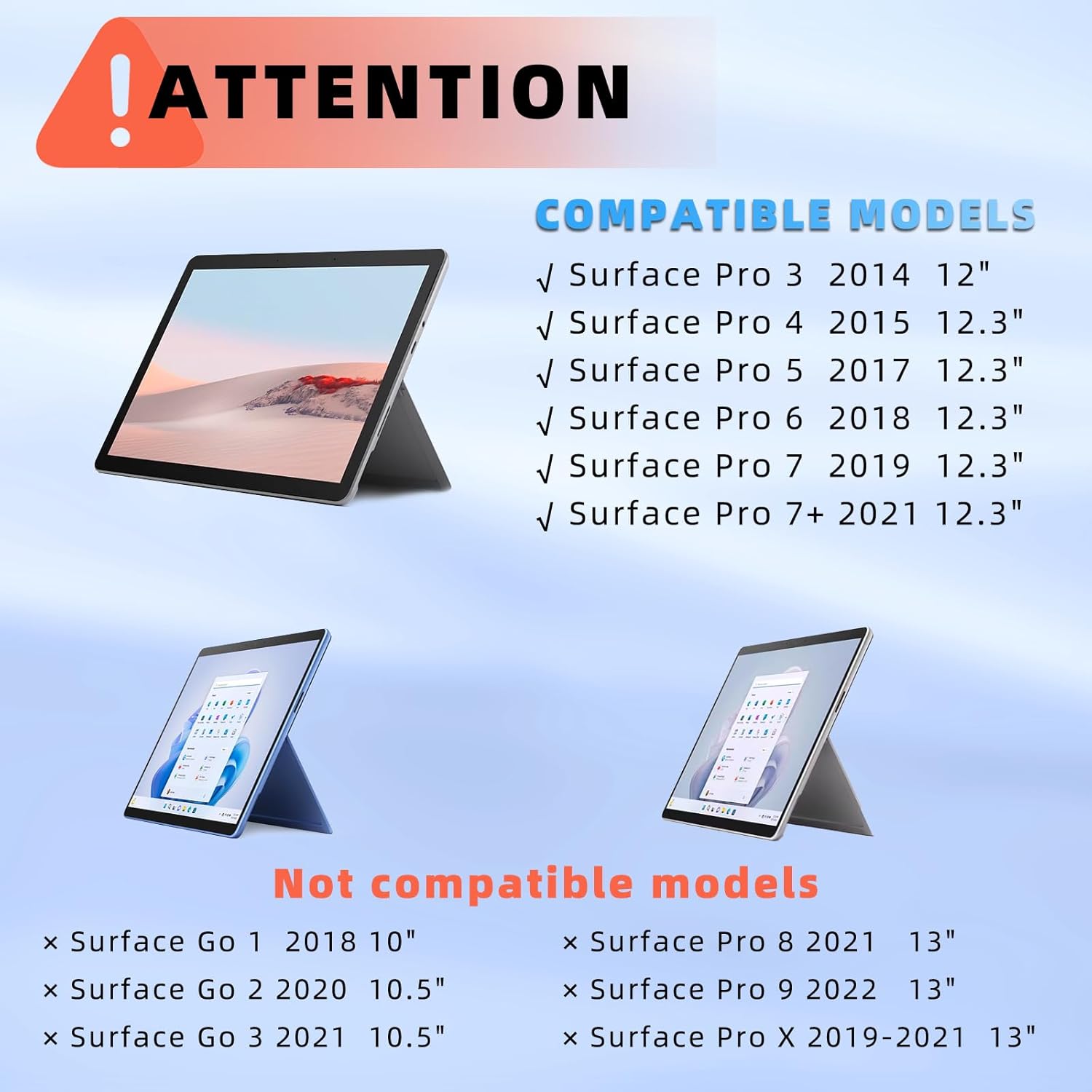
Image 1.1: Visual guide to compatible and incompatible Surface Pro models.
2. Contingut del paquet
Si us plau, comproveu el paquet per veure si hi ha els elements següents:
- 1 x Detachable Keyboard for Surface Pro
- 1 x Type-C Charging Cable (Charger not included)
- 1 x Manual d'usuari (Aquest document)
3. Configuració
3.1. Càrrega del teclat
The keyboard features a built-in rechargeable Lithium-ion battery. Before first use, or when the battery indicator shows low power, charge the keyboard using the provided Type-C cable.
- Connecteu l'extrem tipus C del cable de càrrega al port de càrrega del teclat.
- Connecteu l'extrem USB-A del cable de càrrega a un adaptador de corrent USB compatible (no inclòs) o al port USB d'un ordinador.
- The charging indicator light will illuminate during charging. It typically takes approximately 3 hours for a full charge.
The keyboard supports an auto sleep/wake function to conserve battery life. It will enter sleep mode after 10 minutes of inactivity.
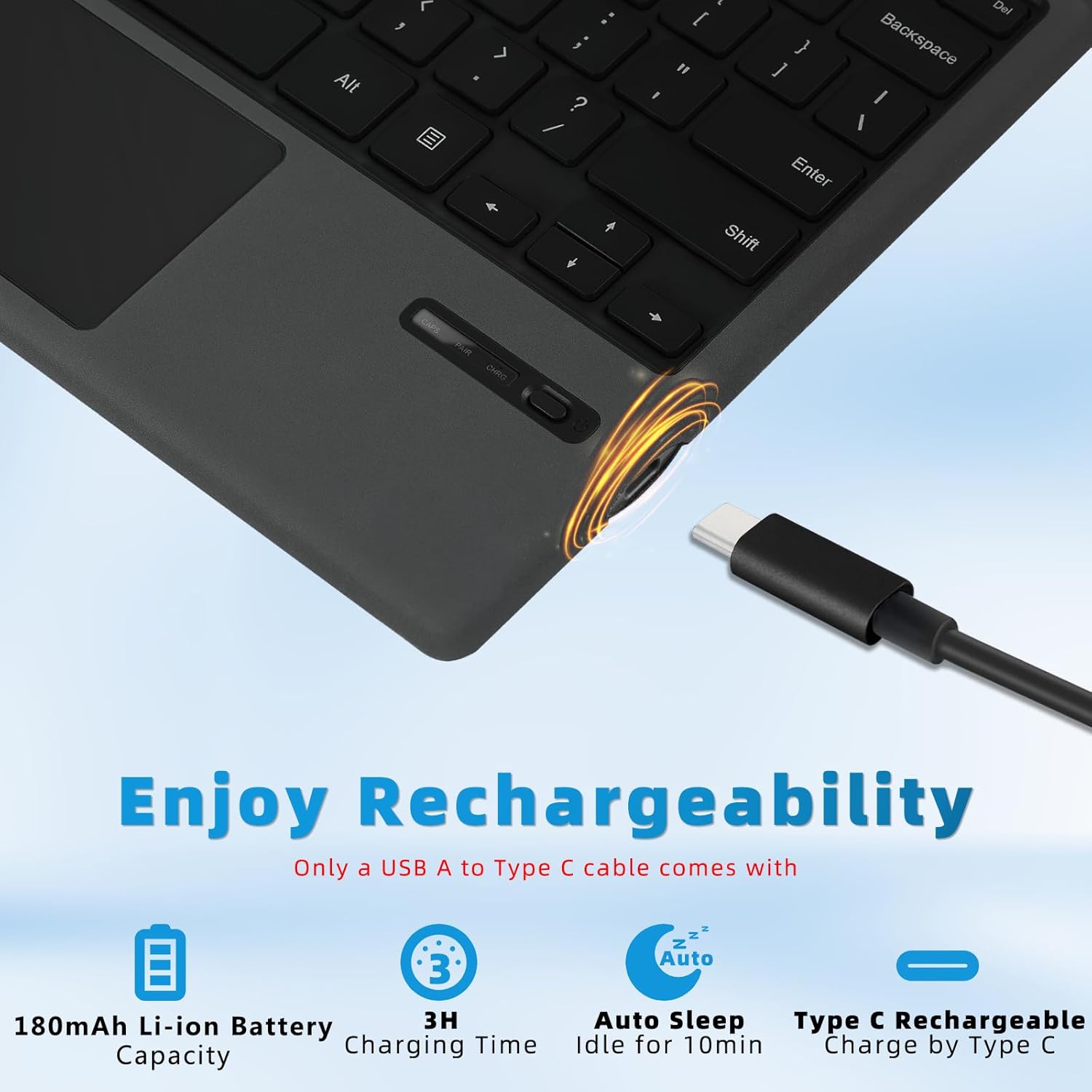
Image 3.1: Keyboard charging port and indicators.
3.2. Connexió Bluetooth
The keyboard connects to your Surface Pro tablet via Bluetooth 5.1, offering a stable connection up to 33 feet (10 meters).
- Enceneu el teclat: Locate the power switch on the side of the keyboard and slide it to the 'ON' position.
- Activate Bluetooth Pairing: Press the "Fn" key and the "C" key simultaneously on the keyboard. The Bluetooth indicator light will start blinking, indicating it is in pairing mode.
- Enable Bluetooth on Your Surface Pro: On your Microsoft Surface Pro, go to Configuració > Dispositius > Bluetooth i altres dispositius and ensure Bluetooth is turned 'On'.
- Emparellar el teclat: In the Bluetooth settings on your Surface Pro, select "Add Bluetooth or other device" and then choose "Bluetooth". Look for "Bluetooth 5.1 Keyboard" in the list of available devices and select it to pair.
- Confirmació: Once successfully paired, the Bluetooth indicator light on the keyboard will stop blinking and remain solid for a few seconds, then turn off. Your Surface Pro will also confirm the connection.
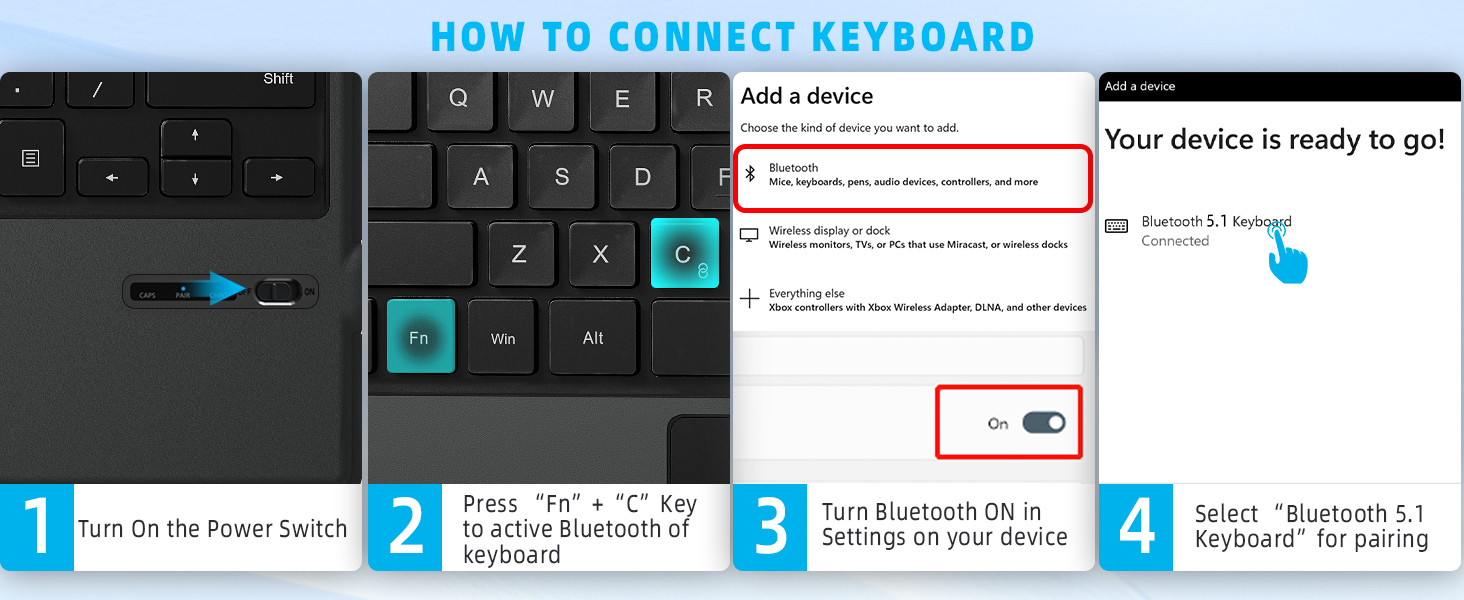
Image 3.2: Detailed steps for Bluetooth pairing.
4. Instruccions de funcionament
4.1. Característiques del teclat
The keyboard features split keys with scissors switches for a comfortable typing experience. It also includes a row of independent shortcut keys for quick access to various functions.

Image 4.1: Illustration of the scissors mechanical key structure.
4.2. Tecles de drecera
The top row of keys provides quick access to common functions:
| clau | Funció |
|---|---|
| Esc | escapar |
| F1/F2 | Control de brillantor |
| F3/F4 | Media Control (Previous/Play-Pause) |
| F5/F6 | Volume Control (Mute/Volume Down) |
| F7 | ON/OFF Trackpad |
| F8 | Captura de pantalla |
| F9 | Start/End of Line |
| F10/F11 | Pàgina amunt/avall |
| Del | Suprimeix |

Imatge 4.2: acabatview of keyboard shortcuts and dimensions.
4.3. Precision Trackpad
The integrated multi-touch trackpad allows for precise navigation and gesture control within Windows. To prevent accidental touches, you can enable or disable the trackpad function.
- Enable/Disable Trackpad: Press "Fn + F7" to toggle the trackpad function on or off.
The trackpad supports various multi-touch gestures:
- Feu clic a: Single finger tap.
- Desplaçament: Two fingers drag up or down.
- Apropar/reduir: Pessigar amb dos dits.
- Clic amb el botó dret: Two fingers tap.

Image 4.3: Multi-gesture touchpad capabilities.
4.4. Magnetic Detachable Design and ViewAngles
The keyboard features an innovative magnetically detachable design, allowing it to be easily attached to or removed from your Surface Pro tablet. This flexibility enables various typing and viewangles d'ajust.
- The keyboard attaches securely to the Surface Pro via a magnetic strip.
- Utilize the Surface Pro's built-in kickstand to adjust the screen angle for comfortable viewescrivint o escrivint.

Image 4.4: Magnetic attachment and adjustable viewangles d'ajust.
5. Manteniment
To ensure the longevity and optimal performance of your Qulose Surface Pro Keyboard, follow these maintenance guidelines:
- Neteja: Utilitzeu un drap suau i sense pelusa lleugerament dampNetegeu la superfície del teclat amb aigua o una solució de neteja suau. Eviteu productes químics agressius, productes de neteja abrasius o humitat excessiva.
- Emmagatzematge: When not in use, store the keyboard in a clean, dry environment away from extreme temperatures, direct sunlight, and humidity.
- Eviteu els vessaments: Keep liquids away from the keyboard to prevent damage to internal components. In case of a spill, immediately power off the keyboard and allow it to dry completely before attempting to use it again.
- Manejar amb cura: Avoid dropping the keyboard or subjecting it to strong impacts, which can damage the keys, trackpad, or internal circuitry.
6. Solució De Problemes
If you encounter issues with your Qulose Surface Pro Keyboard, please refer to the following common solutions:
6.1. El teclat no es connecta per Bluetooth
- Comproveu la potència: Assegureu-vos que el teclat estigui encès i que la bateria estigui prou carregada.
- Torna a entrar al mode d'emparellament: Press "Fn + C" on the keyboard to put it back into pairing mode (Bluetooth indicator blinking).
- Bluetooth on Surface Pro: Verify that Bluetooth is enabled on your Surface Pro and that it is discoverable.
- Oblida el dispositiu: If the keyboard was previously paired but is not connecting, try removing ("forgetting") the keyboard from your Surface Pro's Bluetooth device list and then re-pairing it.
- Reinicieu els dispositius: Restart both your Surface Pro and the keyboard, then attempt the pairing process again.
- Distància: Ensure the keyboard is within the 33ft (10m) operating range of your Surface Pro.
6.2. Trackpad Not Responding
- Check Trackpad Lock: Press "Fn + F7" to ensure the trackpad is not locked.
- Reinicia el teclat: Apagueu el teclat i torneu-lo a encendre.
- Torna a emparellar el Bluetooth: If the issue persists, try re-pairing the keyboard with your Surface Pro.
6.3. Les tecles no responen
- Nivell de bateria: Ensure the keyboard is charged. Low battery can affect key responsiveness.
- Connexió Bluetooth: Verify that the keyboard is properly connected via Bluetooth.
- Claus netes: Comproveu si hi ha restes o objectes estranys allotjats sota les claus.
6.4. Durada curta de la bateria
- Càrrega completa: Ensure the keyboard is charged for the recommended 3 hours.
- Repòs automàtic: The keyboard has an auto-sleep function after 10 minutes of inactivity to conserve power. Ensure it's not being woken up unnecessarily.
- Cable/adaptador de càrrega: Try using a different Type-C charging cable and a reliable USB power adapter to rule out charging accessory issues.
7. Especificacions
| Característica | Detall |
|---|---|
| Nom del model | JP178 |
| Marca | Qulose |
| Dispositius compatibles | Microsoft Surface Pro 7+/ Pro 7 / Pro 6 / Pro 5 / Pro 4 / Pro 3 |
| Tecnologia de connectivitat | Bluetooth 5.1 |
| Descripció del teclat | Surface Pro Wireless Bluetooth Keyboard, Ergonomic |
| Característiques especials | Ergonomic, Hotkeys and Media Keys, Lightweight, Rechargeable, Trackpad |
| Color | Negre |
| Dimensions del producte | 24.5 cm de llargada x 18.7 cm d'amplada x 0.66 cm d'alçada |
| Pes de l'article | 1.28 lliures (0.58 kg) |
| Bateria | 1 bateria de ions de liti (inclosa) |
| Port de càrrega | Tipus-C |
| Temps de càrrega | Aprox. 3 hores |
| Dormir automàticament | Després de 10 minuts d'inactivitat |
8. Garantia i Suport
8.1. Informació de la garantia
Qulose strives to provide high-quality products. For specific warranty details regarding your purchase, please refer to the documentation provided at the time of purchase or contact Qulose customer support.
8.2. Atenció al client
If you have any questions, concerns, or require assistance with your Qulose Surface Pro Keyboard, please contact our customer support team. We aim to provide a satisfactory purchase experience and address your concerns promptly.
- Temps de resposta: Messages are typically answered within 1 business day.
Per obtenir més ajuda, visiteu el Qulose Store on Amazon.


