1. Introducció
Welcome to the user manual for your UGEE UE12 Drawing Tablet. This 11.6-inch graphic tablet features a full-laminated screen, 124% sRGB color gamut, and a battery-free stylus, designed to provide a natural and precise drawing experience. It is compatible with various operating systems and creative software, making it an ideal tool for digital art, animation, image editing, and 3D sculpture.

Figure 1.1: UGEE UE12 Drawing Tablet with its battery-free stylus, showcasing el seu disseny i pantalla elegants.
2. Què hi ha a la caixa
Upon unboxing your UGEE UE12 Drawing Tablet, please ensure all the following components are present:
- UGEE UE12 Drawing Tablet
- Làpix sense bateria
- Replacement Nibs (8 included)
- USB-C to USB-C Cable (for direct connection)
- 3-in-1 Cable (for traditional connection)
- Manual d'usuari (aquest document)
Nota: A power adapter for the USB-C cable may need to be prepared separately if your device does not provide sufficient power via a single USB-C connection.
3. Guia de configuració
3.1 Connexió de la tauleta
The UGEE UE12 offers flexible connectivity options using its dual Type-C ports.
Option 1: Single USB-C Cable Connection (Full-featured USB-C port required)
If your computer, laptop, or Android device has a full-featured USB-C port that supports video output and power delivery, you can connect the tablet using a single USB-C to USB-C cable.
- Connect one end of the USB-C to USB-C cable to the UGEE UE12 tablet's Type-C port.
- Connect the other end of the cable to the full-featured USB-C port on your computer, laptop, or Android device.
- Ensure your device provides sufficient power. If the tablet does not power on or display correctly, you may need to use an external power adapter connected to the tablet's second Type-C port.
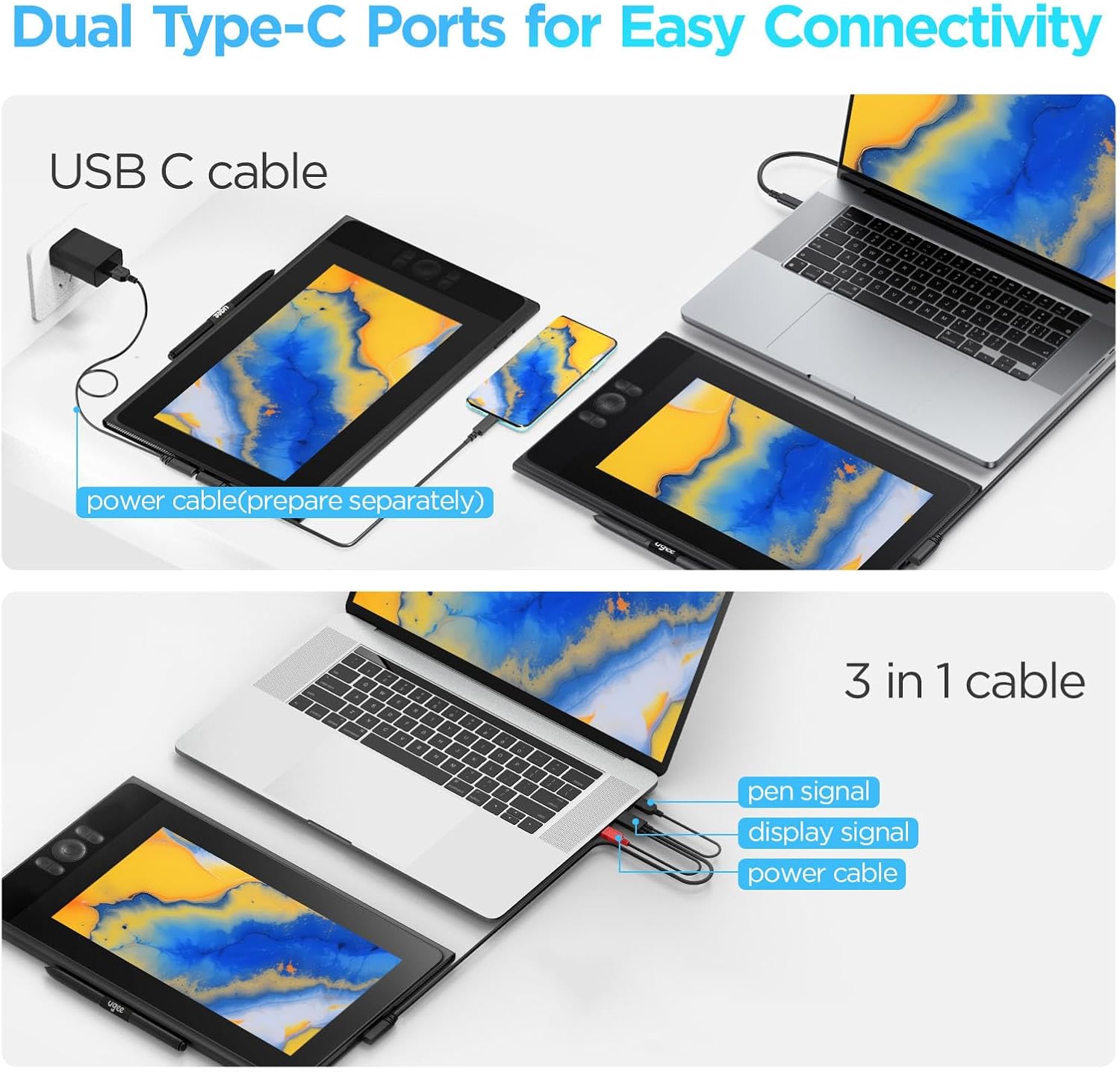
Figure 3.1: Connecting the UGEE UE12 using a single USB-C cable to a laptop or Android phone. Note the option for a separate power cable if needed.
Option 2: 3-in-1 Cable Connection
For devices without a full-featured USB-C port, use the provided 3-in-1 cable. This cable combines HDMI for display, USB-A for data, and USB-A for power.
- Connect the single end of the 3-in-1 cable to the UGEE UE12 tablet's Type-C port.
- Connecteu el connector HDMI al port HDMI de l'ordinador.
- Connect the USB-A data connector to your computer's USB port.
- Connect the USB-A power connector to a USB power source (e.g., your computer's USB port or a USB wall adapter).
3.2 Instal·lació del controlador
To ensure full functionality and customization of your UGEE UE12 tablet, it is essential to install the latest drivers.
- Before installing, uninstall any existing tablet drivers from other brands to avoid conflicts.
- Visita la pàgina oficial de la UGEE weblloc (www.ugee.com) and navigate to the support or download section.
- Locate and download the latest driver for the UGEE UE12 model compatible with your operating system (Windows, macOS, Android, ChromeOS).
- Executeu l'instal·lador i seguiu les instruccions a la pantalla.
- Reinicieu l'ordinador un cop finalitzada la instal·lació.
- After restarting, open the UGEE driver software to customize pen pressure, shortcut keys, and display settings.

Figure 3.2: The UGEE UE12 is compatible with various operating systems and creative software, indicated by their respective logos.
4. Com utilitzar la tauleta
4.1 Full-Laminated Display
The UE12 features an 11.6-inch FHD (1920x1080) full-laminated, anti-glare screen. This design minimizes parallax, providing a precise and natural drawing experience. The anti-glare surface reduces reflections, while the full lamination ensures the cursor appears directly under the pen tip.
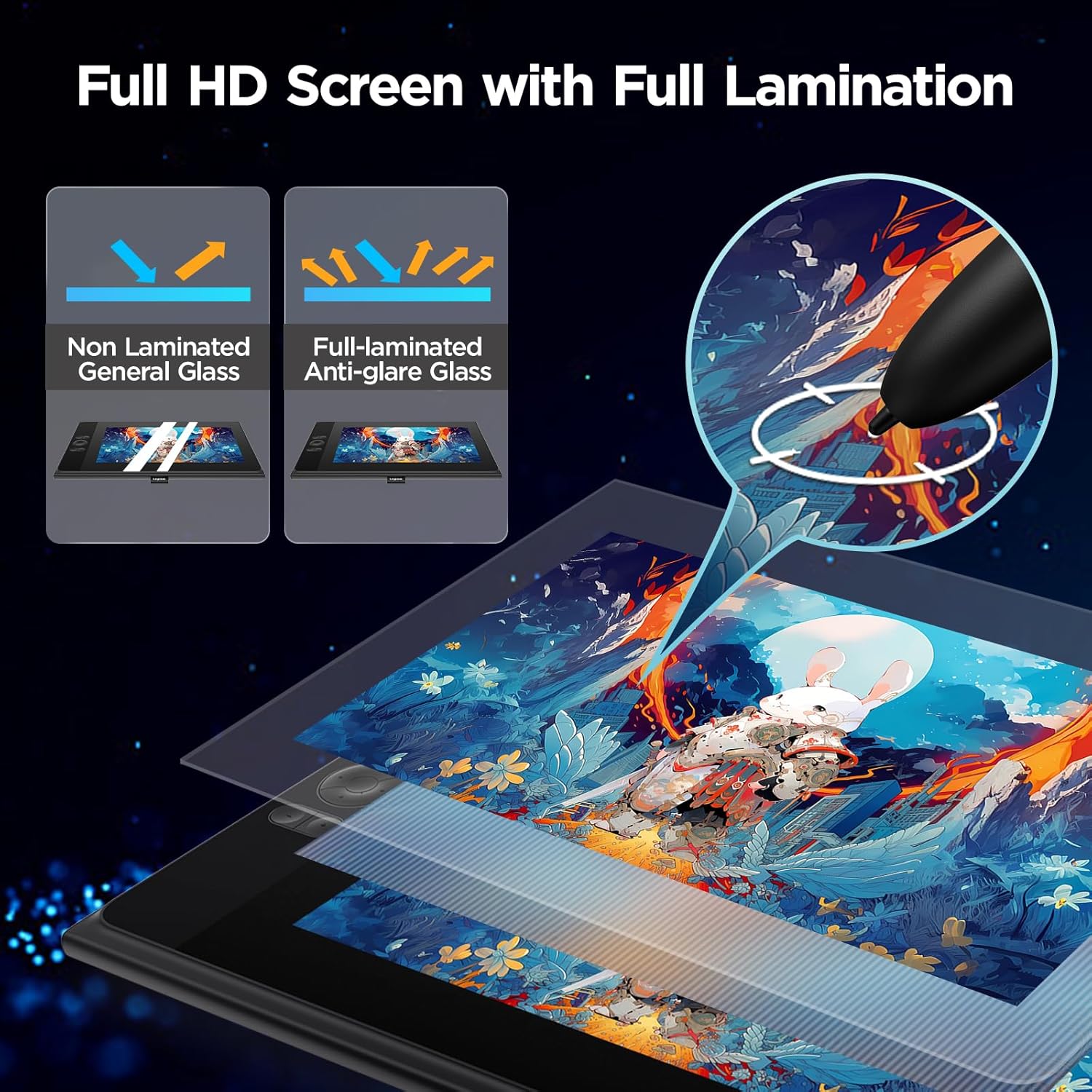
Figure 4.1: Comparison of non-laminated vs. full-laminated anti-glare glass, highlighting reduced parallax and improved visual clarity.

Figure 4.2: The anti-glare surface minimizes ambient light interference, and the paper-like frosted surface enhances the natural drawing feel.
The display boasts an ultra-wide color gamut of 124% sRGB, allowing for vibrant and accurate color reproduction. You can switch between three color spaces: sRGB, Adobe RGB, and DCI-P3, to match your workflow requirements.

Figure 4.3: The UE12 offers a wide color gamut, including 124% sRGB, 96% NTSC, and 100% Adobe RGB for accurate color representation.
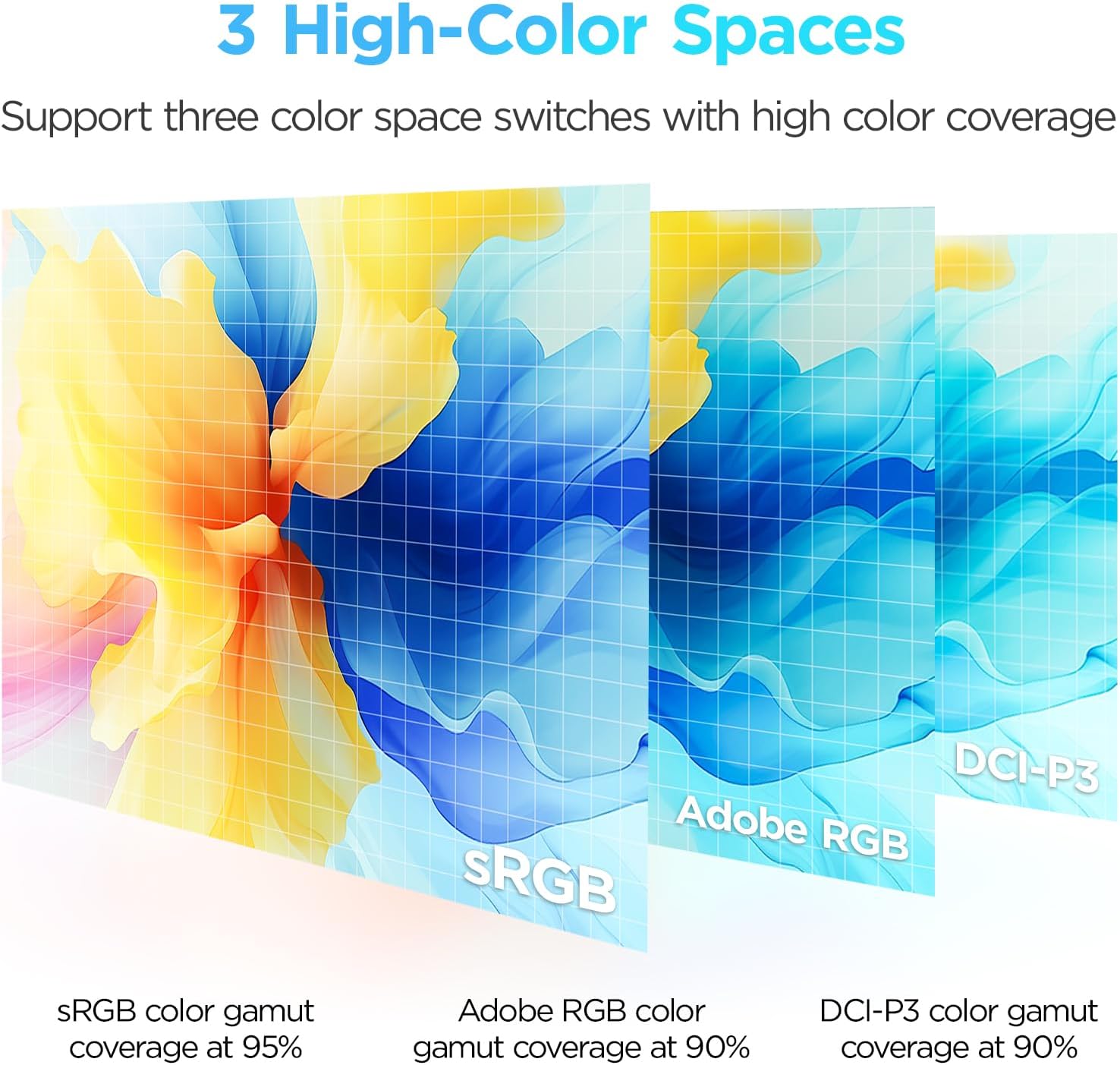
Figure 4.4: The tablet supports switching between sRGB, Adobe RGB, and DCI-P3 color spaces for professional color management.
4.2 Battery-Free Stylus
The included stylus is battery-free, eliminating the need for charging. It features 16K-level pressure sensitivity and 60° tilt recognition, providing a natural and responsive drawing experience with no delays.
- Sensibilitat a la pressió: The 16K pressure levels allow for fine control over line thickness and opacity.
- Reconeixement de la inclinació: The 60° tilt support enables natural shading and brush effects, mimicking traditional art tools.
- Programmable Hot Keys: The stylus body has two customizable buttons. By default, these can be set to switch between drawing tools, eraser, or other functions via the driver software.
- Replacement Nibs: Eight replacement nibs are included in the package. To replace a nib, gently pull out the old nib with the nib remover tool (if provided, otherwise use tweezers) and insert a new one.

Figure 4.5: The UGEE stylus is battery-free, offers 16K levels of pressure sensitivity, 60° tilt support, and a fine pen design that mimics a pencil.
4.3 Tecles de drecera personalitzables
The UE12 Graphics Tablet is equipped with 8 customizable shortcut keys and a concave-convex design for easy blind operation. These keys can be configured through the driver software to perform various functions, such as:
- Pen/Eraser toggle
- Brush size adjustment (increase/decrease)
- Desfer/Refer
- Apropar/reduir
- Application-specific shortcuts
Refer to the driver software interface for detailed customization options.

Figure 4.6: The 8 customizable shortcut keys and central dial for efficient workflow, allowing for blind operation.
4.4 Compatibilitat de programari
The UGEE UE12 is compatible with a wide range of mainstream drawing and design software, including but not limited to:
- Adobe Photoshop
- Adobe Illustrator
- Manga Studio
- CorelPainter
- ibis Paint X
- Batedora
- GIMP
- maia
- Autodesk Sketchbook
- Affinity Designer/Photo
Ensure your software is updated to its latest version for optimal performance.

Figure 4.7: The UGEE UE12 can be used for various creative tasks, including drawing, note-taking, and even gaming.
5. Manteniment
5.1 Neteja de la tauleta
To maintain the performance and appearance of your UGEE UE12 tablet:
- Always power off and unplug the tablet before cleaning.
- Utilitzeu un drap suau i sense pelusa lleugerament dampnetejat amb aigua o un netejador de pantalles dissenyat específicament per a electrònica.
- Do not use harsh chemicals, abrasive cleaners, or alcohol-based solutions, as these can damage the screen and surface.
- Netegeu suaument la pantalla iasing. Avoid spraying liquid directly onto the tablet.
5.2 Substitució de la punta del llapis
The stylus nibs will wear down over time, especially with frequent use on the paper-like surface. Replace the nib when it becomes too short or sharp, or if you notice a change in drawing feel.
- Gently pull the worn nib straight out using the nib remover tool or a pair of tweezers.
- Insert a new replacement nib firmly into the stylus until it clicks into place.
5.3 Emmagatzematge
When not in use, store your tablet in a cool, dry place away from direct sunlight and extreme temperatures. Protect the screen from scratches by using a protective sleeve or case.
6. Solució De Problemes
If you encounter issues with your UGEE UE12 Drawing Tablet, please refer to the following common solutions:
6.1 No Display / Screen Flashing
- Comproveu els cables: Ensure all cables (USB-C or 3-in-1) are securely connected to both the tablet and your computer/device.
- Font d'alimentació: If using a single USB-C cable, ensure your computer's USB-C port provides sufficient power. Try connecting an external power adapter to the tablet's second Type-C port.
- Problema amb el controlador: Uninstall and reinstall the latest UGEE drivers from the official website. Conflicting drivers from other tablet brands can cause display issues.
- Configuració de la pantalla: Check your computer's display settings to ensure the tablet is detected as an extended or duplicated display. Adjust resolution if necessary.
- Prova un port/cable diferent: Test with a different USB-C port on your computer or try using the 3-in-1 cable if you were using a single USB-C cable.
6.2 Stylus Not Responding / Inaccurate Cursor
- Instal·lació del controlador: Verify that the UGEE driver is correctly installed and running. Reinstall if necessary.
- Nib Check: Ensure the stylus nib is properly inserted and not overly worn. Replace if needed.
- Interferència: Keep the tablet away from strong electromagnetic interference sources (e.g., large monitors, speakers).
- Calibració: Use the calibration tool within the UGEE driver software to recalibrate the screen and pen.
- Conflicte de programari: Close any other drawing applications or tablet drivers that might be running in the background.
6.3 Shortcut Keys Not Working
- Programari del controlador: Open the UGEE driver software and ensure the shortcut keys are correctly mapped. Reset to default settings if unsure.
- Enfocament de l'aplicació: Some applications may override tablet shortcuts. Ensure the drawing application is the active window.
- Reinstal·lació del controlador: If the issue persists, a clean reinstallation of the driver might resolve it.
7. Especificacions
| Característica | Detall |
|---|---|
| Dimensions del producte | 11.6 x 10.09 x 0.04 polzades |
| Pes de l'article | 3.84 lliures |
| Nom del model | UE12 |
| Mida de la pantalla | 11.6 polzades |
| Resolució de visualització | Full HD (1920 x 1080) |
| Gamma de colors | 124% sRGB |
| Stylus Technology | Sense bateria |
| Sensibilitat a la pressió | 16 nivells |
| Reconeixement de la inclinació | 60° |
| Tecles de drecera | 8 Tecles personalitzables |
| Connectivitat | Dual Type-C Ports (USB-C, 3-in-1 Cable) |
| Compatibilitat de sistemes operatius | Windows 7 or later, macOS 10.10 or later, Android 10.1 or later, Chrome 88 or later |
| Característiques especials | Full Lamination, Anti-Glare Glass, 60° Tilt Support, Shortcut Keys |
8. Garantia i Suport
8.1 Garantia del producte
Your UGEE UE12 Drawing Tablet is covered by a manufacturer's warranty. Please refer to the warranty card included with your product for specific terms, conditions, and duration. Typically, this warranty covers defects in materials and workmanship under normal use. Keep your proof of purchase for warranty claims.
For additional protection, extended protection plans may be available for purchase from authorized retailers.
8.2 Atenció al client
For technical assistance, driver downloads, or further inquiries, please visit the official UGEE support channels:
- Oficial Weblloc: www.ugee.com
- Brand Store on Amazon: UGEE Official Store
- Refer to the contact information provided in your product packaging for direct customer service.
When contacting support, please have your product model (UE12) and purchase details ready.


