1. Introducció
The Microsoft Surface Pro 10 is a versatile 2-in-1 device designed to adapt to various work styles, offering the functionality of both a tablet and a laptop. It features an Intel Core Ultra 5 processor, providing robust performance for daily tasks and advanced applications. This manual provides essential information to help you set up, operate, and maintain your device, ensuring optimal performance and longevity.
2. Què hi ha a la caixa
Carefully unpack your Surface Pro 10 and ensure all items are present. The standard package includes:
- Microsoft Surface Pro 10 Device
- Unitat d'alimentació
- Microsoft Surface Pro Keyboard
- Microsoft Surface Pro Slim Pen
- Guia d'inici ràpid
- Documents de seguretat i garantia
3. Dispositiu acabatview
Familiarize yourself with the physical components of your Surface Pro 10.

Figura 3.1: Davant view of the Surface Pro 10 with the keyboard attached, showcasinla disposició de la pantalla i del teclat.

Figura 3.2: lateral view of the Surface Pro 10 in laptop configuration, highlighting the adjustable kickstand and connected keyboard.
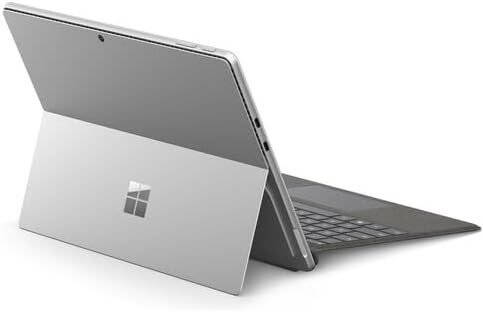
Figura 3.3: posterior view of the Surface Pro 10 with the kickstand deployed, revealing the device's sleek design and the iconic Microsoft logo.
Components clau:
- 13-inch PixelSense Flow Display: High-resolution touchscreen for vibrant visuals and touch interaction.
- Càmera frontal: For video calls and facial recognition (Windows Hello).
- Càmera posterior: Per capturar fotos i vídeos.
- Botó d'encesa: Situat al lateral, serveix per encendre/apagar el dispositiu o posar-lo en repòs.
- Botons de volum: Located on the side, for adjusting audio levels.
- Ports USB-C: For charging, data transfer, and connecting external displays or accessories.
- Port de connexió de superfície: For charging and connecting to Surface Dock accessories.
- Suport de peu: Integrated into the back, allows for multiple viewangles d'ajust.
- Micròfons: For voice commands and audio recording.
4. Configuració
4.1 Càrrega inicial
- Connect the power supply to the Surface Connect port or one of the USB-C ports on your Surface Pro 10.
- Connecteu la font d'alimentació a una presa de corrent.
- Allow the device to charge for at least 30 minutes before first use, or until the battery indicator shows sufficient charge.
4.2 Engegada/apagada
- Per encendre: Premeu i manteniu premut el botó d'engegada fins que aparegui el logotip de Microsoft a la pantalla.
- Per apagar: From the Windows desktop, select Comença > Poder > Apagueu. Alternatively, press and hold the Power button for a few seconds, then slide down to shut down.
- Per dormir: Briefly press the Power button. Press it again to wake the device.
4.3 Configuració inicial de Windows
Upon first power-on, you will be guided through the Windows 11 setup process. Follow the on-screen prompts to:
- Seleccioneu el vostre idioma i regió.
- Connecteu-vos a una xarxa Wi-Fi.
- Accepteu els termes de la llicència.
- Inicia la sessió amb el teu compte de Microsoft o crea'n un de nou.
- Set up Windows Hello (facial recognition or fingerprint, if available).
- Configura la configuració de privadesa.
4.4 Attaching the Surface Pro Keyboard
Align the magnetic connector on the keyboard with the corresponding port at the bottom edge of your Surface Pro 10. The keyboard will snap into place magnetically. You can adjust the keyboard to lie flat or tilt it slightly for a more ergonomic typing experience.
4.5 Pairing the Surface Pro Slim Pen
The Surface Pro Slim Pen typically pairs automatically when first used with your Surface Pro 10. If not, follow these steps:
- Vés a Comença > Configuració > Bluetooth i dispositius > Afegeix un dispositiu > Bluetooth.
- Press and hold the top button on your Slim Pen for 5-7 seconds until the LED light flashes white.
- Select your Surface Slim Pen from the list of available devices and follow any on-screen prompts.
5. Com fer funcionar el Surface Pro 10
5.1 Switching Between Tablet and Laptop Modes
- Mode portàtil: Attach the Surface Pro Keyboard and adjust the kickstand for a traditional laptop experience.
- Mode tauleta: Detach the keyboard or fold it back completely. Windows will automatically switch to Tablet Mode, optimizing the interface for touch input.
5.2 Ús de la pantalla tàctil
The PixelSense Flow Display supports multi-touch gestures:
- Toca: Selecciona un element o obre una aplicació.
- Mantén premut: Access context menus (right-click equivalent).
- Pessiga per fer zoom: Apropar o allunyar les imatges i web pàgines.
- Swipe from Edges: Access quick settings, notifications, or switch between apps.
5.3 Using the Surface Pro Slim Pen
The Slim Pen allows for precise input and creative tasks:
- Escriptura/Dibuix: Use the pen directly on the screen in compatible apps like Microsoft Whiteboard or OneNote.
- Seleccionant: Tap with the pen to select items.
- Goma d'esborrar: Use the eraser button on the pen to erase digital ink.
- Botó superior: Customizable for quick access to apps like OneNote or screenshots.
5.4 Basic Windows 11 Navigation
- Menú d'inici: Access apps, settings, and power options.
- Barra de tasques: Pin frequently used apps and view aplicacions obertes.
- Centre d'acció: Swipe in from the right edge (or click the icon) for quick settings and notifications.
- Ginys: Swipe in from the left edge (or click the icon) for personalized information.
6. Manteniment
6.1 Neteja del vostre dispositiu
- Utilitzeu un drap suau i sense pelusa lleugerament dampNetegeu la pantalla amb aigua o amb un netejador de pantalles homologat.
- For the body of the device and keyboard, use a soft, dry cloth.
- Avoid harsh chemicals, abrasive cleaners, or excessive moisture.
6.2 Cura de la bateria
- Eviteu descarregar completament la bateria amb freqüència.
- Guardeu el dispositiu en un lloc fresc i sec quan no el feu servir durant períodes prolongats.
- Use only the official Microsoft power supply or certified compatible chargers.
6.3 Actualitzacions de programari
Regularly check for and install Windows updates to ensure your device has the latest security patches, features, and performance improvements. Go to Comença > Configuració > Actualització de Windows.
7. Solució De Problemes
7.1 El dispositiu no s'encén
- Ensure the device is charged. Connect the power supply and wait a few minutes before attempting to power on.
- Perform a force restart: Press and hold the Power button for 15-20 seconds, then release and press it again briefly to turn on.
7.2 Problemes de pantalla (no hi ha pantalla, parpelleig)
- Reinicieu el dispositiu.
- Ensure display drivers are up to date via Windows Update.
- If connected to an external display, try disconnecting it.
7.3 Problemes de connectivitat Wi-Fi o Bluetooth
- Check if Wi-Fi or Bluetooth is enabled in Quick Settings or Windows Settings.
- Restart your Surface Pro 10 and your router/modem.
- Forget the network/device and try reconnecting.
- Update network drivers via Windows Update.
7.4 Performance Issues (Slowdowns, Freezes)
- Tanca les aplicacions innecessàries que s'executen en segon pla.
- Comproveu i instal·leu totes les actualitzacions de Windows disponibles.
- Run a disk cleanup and optimize drives.
- Assegureu-vos que hi hagi prou espai d'emmagatzematge lliure.
8. Especificacions
The following table outlines the key technical specifications for the Microsoft Surface Pro 10 (Intel Core Ultra 5, 16GB RAM, 256GB SSD) model:
| Característica | Especificació |
|---|---|
| Nom del model | Surface Pro 10 (ZEA-00001) |
| Mida de la pantalla de peu | 13 polzades |
| Resolució de pantalla | 2880 x 1920 píxels |
| Resolució de pantalla màxima | 2880 x 1920 |
| Processador | Intel Core Ultra 5 a 1.4 GHz |
| Disc dur | SSD de 256 GB |
| Mida instal·lada de la memòria RAM | 16 GB de RAM DDR5 |
| Sistema operatiu | Windows 11 Pro |
| Xipset Brand | Intel |
| Descripció de la targeta gràfica | Integrat |
| Tipus sense fil | 802.11ax |
| Color | Platí |
| Dimensions del producte | 11.3 x 8.2 x 0.4 polzades |
| Bateries | 1 bateria de ions de liti (inclosa) |
9. Garantia i Suport
Your Microsoft Surface Pro 10 comes with a limited hardware warranty. For detailed warranty information, please refer to the documentation included with your device or visit the official Microsoft Support website. For technical assistance, troubleshooting guides, and driver downloads, please visit support.microsoft.com/surface.


