Introducció
Thank you for choosing the Ourlife WiFi Extender. This device is designed to expand your existing Wi-Fi network coverage, eliminate dead spots, and provide a stable, high-speed internet connection throughout your home or office. With a data transfer rate of up to 300Mbps on the 2.4GHz band, it is ideal for streaming, online gaming, and general internet use. This manual provides detailed instructions for setup, operation, and troubleshooting.
Informació de seguretat
- No exposeu el dispositiu a l'aigua ni a la humitat.
- No intenteu desmuntar o reparar el dispositiu vosaltres mateixos.
- Feu servir només l'adaptador de corrent proporcionat o recomanat pel fabricant.
- Mantingueu el dispositiu lluny de fonts de calor i de la llum solar directa.
- Assegureu-vos una ventilació adequada al voltant del dispositiu per evitar el sobreescalfament.
Contingut del paquet
Si us plau, reviseu atentament el contingut del paquet. Si falta algun article o hi ha algun dany, poseu-vos en contacte amb el vostre distribuïdor.
- Ourlife WiFi Extender (repeater body)
- Manual d'usuari
Producte acabatview
L'Ourlife WiFi Extender features a compact design with four high-gain external antennas for enhanced signal penetration and coverage. It includes an Ethernet port for wired connections.
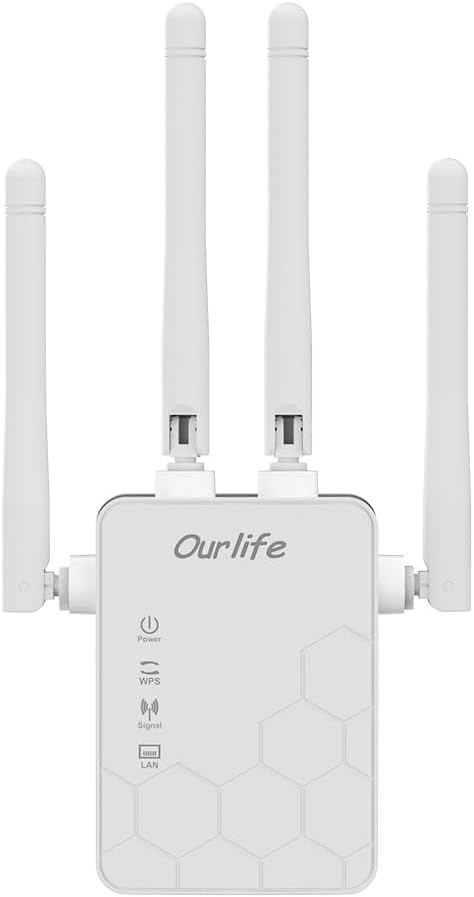
Imatge: Frontal view de l'Ourlife WiFi Extender, showing the Ourlife logo, power indicator, WPS button, signal strength indicator, and LAN port indicator. Four external antennas are visible.
Components clau:
- Indicador d'alimentació: S'il·lumina quan el dispositiu està encès.
- Botó WPS: Used for quick, one-button setup with compatible routers.
- Indicador de senyal: Shows the strength of the Wi-Fi signal received from the main router.
- Port LAN: An Ethernet port for connecting wired devices or for setting up the extender in Access Point (AP) mode.
- Antenes externes: Four adjustable antennas to optimize signal reception and transmission.

Imatge: Lateral view de l'Ourlife WiFi Extender with dimensions. The device measures approximately 17.2cm/6.8in in height, 5.4cm/2.1in in width, and 3.3cm/1.3in in depth.
Configuració
L'Ourlife WiFi Extender offers two primary setup methods: WPS (Wi-Fi Protected Setup) for quick connection, and manual setup via a web navegador.
Method 1: WPS Setup (Recommended for quick setup)
- Encès: Plug the Ourlife WiFi Extender into an electrical outlet near your main Wi-Fi router. Wait for the Power indicator to light up.
- Premeu WPS a l'extensor: Press the WPS button on the Ourlife WiFi Extender. The WPS indicator light will start blinking.
- Premeu WPS al router: Within 2 minutes, press the WPS button on your main Wi-Fi router.
- Espera la connexió: The WPS indicator on the extender will stop blinking and remain solid when the connection is established. The Signal indicator will also light up, indicating a successful connection.
- Canvia l'extensor: Once connected, unplug the extender and move it to a location halfway between your router and the Wi-Fi dead zone. Ensure the Signal indicator shows a strong signal (usually green or multiple bars) for optimal performance.

Image: Visual representation of the four simple setup steps: 1. Unbox, 2. Plug it in, 3. Press the button (WPS), 4. And Pair (with router).
Method 2: Manual Setup via Web Navegador
- Encès: Plug the Ourlife WiFi Extender into an electrical outlet near your computer or mobile device.
- Connecteu-vos al Wi-Fi de l'extensor: On your computer or mobile device, connect to the Wi-Fi network named "Ourlife_Extender" (or similar, check the label on the device). No password is required for the initial connection.
- Obert Web Navegador: Obre a web browser (e.g., Chrome, Firefox, Safari) and enter the default IP address or domain name (e.g., 192.168.10.1 or reapeter.net) into the address bar. Refer to the device label or included mini-manual for the exact address.
- Inici de sessió: Introduïu el nom d'usuari i la contrasenya predeterminats (normalment admin/administrador).
- Seleccioneu el mode: Choose "Repeater Mode" or "AP Mode" based on your needs.
- Mode de repetidor: Extends your existing Wi-Fi network wirelessly.
- Mode AP (punt d'accés): Converts a wired internet connection into a wireless Wi-Fi hotspot. Connect an Ethernet cable from your router to the extender's LAN port.
- Configura la xarxa:
- For Repeater Mode: Select your main Wi-Fi network from the list, enter its password, and choose whether to keep the same SSID or create a new one for the extended network.
- For AP Mode: Set a new SSID (network name) and password for the Wi-Fi hotspot.
- Aplica la configuració: Save the settings and wait for the extender to restart.
- Canvia l'extensor: Once configured, unplug and relocate the extender to an optimal position.
En funcionament
After successful setup, the Ourlife WiFi Extender will operate automatically. The Signal indicator will provide visual feedback on the connection quality.
Dispositius de connexió:
- Dispositius sense fil: Connect your smartphones, tablets, laptops, and other Wi-Fi enabled devices to the extended Wi-Fi network (the SSID you configured during setup).
- Wired Devices (via LAN Port): If you are using the extender in Repeater mode, you can connect a wired device (e.g., desktop PC, smart TV, game console) to the extender's LAN port using an Ethernet cable to provide it with network access.
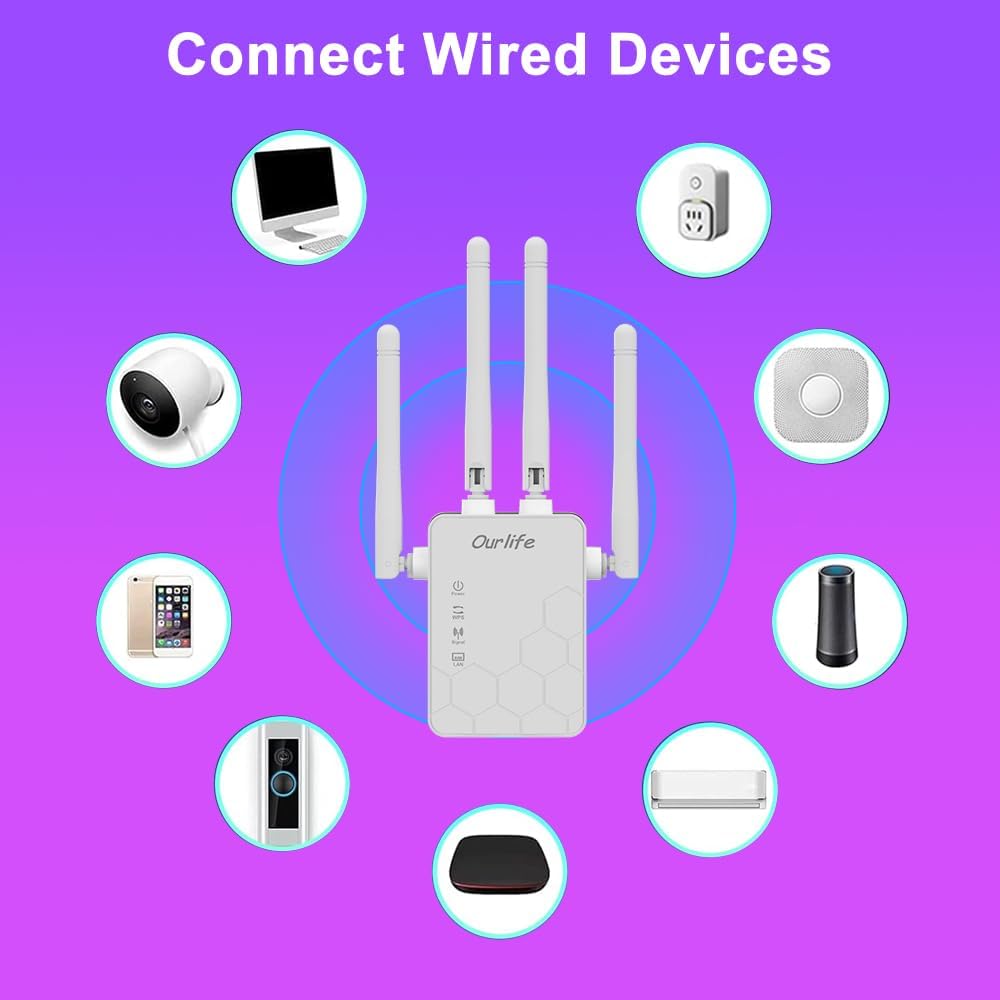
Image: Diagram showing various wired and wireless devices (e.g., desktop computer, smart plug, smart speaker, air conditioner, smart doorbell, security camera, smartphone) that can connect to the Ourlife WiFi Extender.

Imatge: L'Ourlife WiFi Extender plugged into a wall outlet, with an Ethernet cable connected to its LAN port, illustrating its capability to provide a wired connection.
Manteniment
Regular maintenance helps ensure the longevity and optimal performance of your Ourlife WiFi Extender.
- Neteja: Feu servir un drap suau i sec per netejar el dispositiu. No utilitzeu netejadors líquids ni aerosols.
- Actualitzacions de firmware: Reviseu periòdicament el fabricant weblloc web per a actualitzacions de firmware. L'actualització del firmware pot millorar el rendiment, afegir funcions i corregir errors.
- Reiniciant: If you experience network issues, try restarting the extender by unplugging it from the power outlet for 10 seconds and then plugging it back in.
- Col·locació òptima: Ensure the extender is placed in an open area, away from large metal objects, concrete walls, and other electronic devices that may cause interference.
Resolució de problemes
If you encounter issues with your Ourlife WiFi Extender, refer to the following common problems and solutions:
| Problema | Possible solució |
|---|---|
| L'extensor no s'encén. | Assegureu-vos que l'extensor estigui ben connectat a una presa de corrent que funcioni. Proveu-ne una altra. |
| Cannot connect to the extender's Wi-Fi for setup. | Ensure you are connecting to the correct default SSID (e.g., "Ourlife_Extender"). Try restarting the extender and your device. |
| WPS setup fails. | Ensure your router supports WPS. Press the WPS button on both devices within the 2-minute window. Try manual setup if WPS continues to fail. |
| No internet access after connecting to the extended network. | Check if your main router has internet access. Relocate the extender closer to your main router to ensure a strong signal (check Signal indicator). Reconfigure the extender. |
| Slow speeds on the extended network. | Relocate the extender to an optimal position where the Signal indicator shows a strong connection to the main router. Avoid placing it near interference sources. Ensure your main router is providing good speeds. |
| Forgot login password for web pàgina de gestió. | Perform a factory reset on the extender (usually by pressing and holding a reset button for 5-10 seconds). This will revert all settings to default, including the login credentials. |
Especificacions
| Característica | Detall |
|---|---|
| Marca | Ourlsi |
| Model | Ourlife WiFi Extender 300Mbps |
| ASIN | B0D7HB4DBC |
| Velocitat de transferència de dades | 300 Megabits Per Second (2.4GHz) |
| Antenes | 4 High-Gain External Antennas |
| Port Ethernet | 1 x Port LAN |
| Color | Blanc |
| Connectivitat | Wireless-N (802.11n/g/b) |
| Protocols de seguretat | Supports Wireless Security (WPA/WPA2) |
| Dimensions (aprox.) | 17.2 cm (alt) x 5.4 cm (ample) x 3.3 cm (profunditat) |
Garantia i Suport
For warranty information and technical support, please refer to the documentation included with your purchase or visit the official Ourlsi website. You can also contact Ourlife customer service directly for assistance with product setup, troubleshooting, or warranty claims.
Ourlife Store Link: Visit the Ourlife Store on Amazon


