Introducció
The Makeid P1 Thermal Label Printer is a high-speed desktop label maker designed for efficient and precise labeling. It features automatic label recognition and supports various label types for mailing addresses, file folders, name badges, and more. This manual provides comprehensive instructions for setting up, operating, and maintaining your P1 printer to ensure optimal performance.

Image: The Makeid P1 printer, a compact white device, shown with rolls of thermal labels, demonstrating its primary function.
Configuració
Setting up your Makeid P1 printer is a straightforward process designed for ease of use.
1. Connexió a l'ordinador
- Assegureu-vos que l’ordinador estigui engegat.
- Connect the Makeid P1 printer to your PC using the provided USB cable. The printer supports Windows 7/8/9/10/11 and Mac OS v10.12 and above.
2. Instal·lació de programari
- Once connected, launch the Makeid P1 software. If the software does not auto-launch, please download it from the official Makeid weblloc.
- Seguiu les instruccions a la pantalla per completar la instal·lació del programari.
- The software provides an intuitive interface for designing and printing labels.

Image: A user interacting with the Makeid P1 software on a laptop, demonstrating the ease of label creation and editing.
3. Carregant etiquetes
- Obriu la coberta superior de la impressora.
- Insert a whole roll of thermal labels into the designated compartment. The printer supports various label sizes up to 2 inches in width.
- Ensure the labels are fed smoothly through the printer's mechanism.
- The printer features automatic label size detection, which helps prevent waste by ensuring precise prints.
- Tanqueu la coberta superior de manera segura.

Image: A hand demonstrating the "Drop-in Paper Change Process," showing how easily a roll of labels is inserted into the Makeid P1 printer.
Instruccions de funcionament
The Makeid P1 printer is designed for efficient and high-quality label printing.
1. Creació i impressió d'etiquetes
- Open the Makeid P1 software on your computer.
- Use the software's interface to design your desired label. You can add text, images, barcodes, and other elements.
- Select the appropriate label size and orientation within the software. The printer supports various label sizes, but note that it is no designed for 4"x6" shipping labels.
- Once your design is complete, click the "Print" button.
- The printer will automatically detect the label size and print at a high speed of 100mm/s, capable of printing 100 sheets in approximately one minute.

Image: Various applications of the Makeid P1 printer, showcasing mailing labels, address labels, folder labels, and name badges.
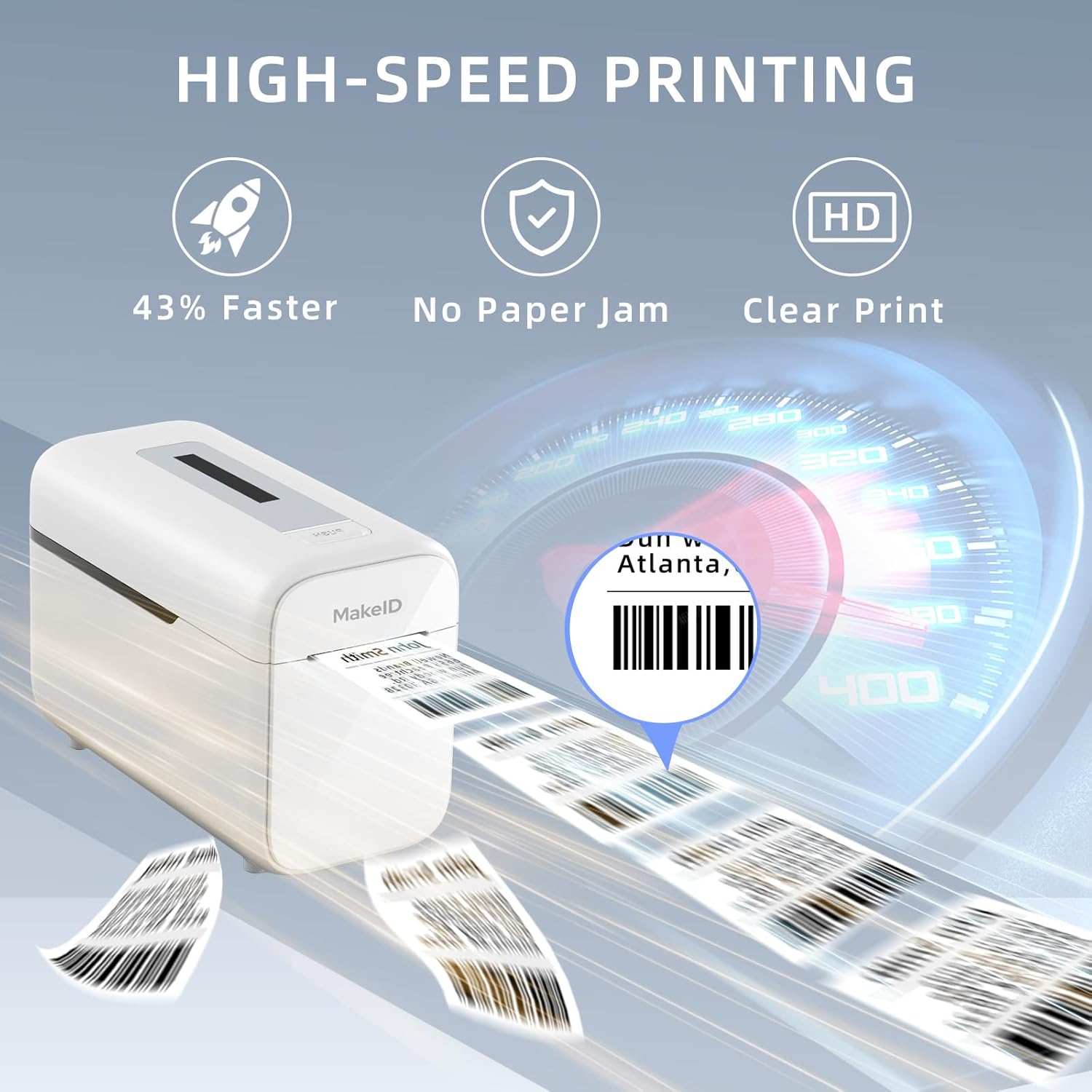
Image: The Makeid P1 printer in action, illustrating its high-speed printing capability with labels rapidly exiting the device.
2. Tipus i mides d'etiquetes compatibles
The Makeid P1 is versatile and can print various label types for different applications. It features a 2-inch print head.
- Mailing and Shipping Labels: Ideal for packages and envelopes.
- Etiquetes d'adreça: Per a correspondència personal o empresarial.
- Prescription Labels: Suitable for medical or pharmaceutical use.
- Oficina File Gestió Tags: For organizing documents and folders.
- Visitor Name Badges: For events or office visitors.
- Preu del producte Tags: For retail or inventory management.
Common label sizes supported include 2" x 4" (54x101mm), 1" x 3.5" (29x89mm), 2" x 2.7" (54x70mm), and 0.98" x 2.1" (25x54mm). Please refer to the software for a complete list of supported label dimensions.

Image: A visual guide illustrating the different label sizes compatible with the 2-inch print head of the Makeid P1, along with examples of their uses like clothing price tags and contract labels.

Imatge: Un primer pla view highlighting the "Crystal Clear Print Quality" of labels produced by the Makeid P1 printer, showing sharp text and details.
Manteniment
Proper maintenance ensures the longevity and optimal performance of your Makeid P1 printer.
1. Neteja del capçal d'impressió
- Regularly clean the print head to maintain print quality.
- Apagueu la impressora i desconnecteu-la de la font d'alimentació.
- Netegeu suaument el capçal d'impressió amb un drap sense borrissolampamb alcohol isopropílic.
- Allow the print head to dry completely before reconnecting the power.
2. Using Quality Labels
- Always use high-quality thermal labels compatible with the Makeid P1 printer.
- Using substandard labels can lead to poor print quality, paper jams, and potential damage to the print head.
- Makeid labels are designed to be tear-proof, waterproof, oil-proof, and scratch-resistant, ensuring durability.

Imatge: Una explosió view illustrating the "7-Layer Laminated Tape" construction, highlighting the durable and protective layers of Makeid labels, which are waterproof, scratch-resistant, oil-proof, and sticky.

Image: Makeid labels displayed alongside symbols for REACH and RoHS certifications, emphasizing their eco-friendly material composition.
Resolució de problemes
If you encounter issues with your Makeid P1 printer, refer to the following common troubleshooting steps.
Problemes comuns i solucions:
- La impressora no respon:
- Assegureu-vos que el cable USB estigui ben connectat tant a la impressora com a l'ordinador.
- Verify the printer is powered on.
- Reinicieu la impressora i l'ordinador.
- Check if the printer driver is correctly installed and updated.
- Mala qualitat d'impressió:
- Netegeu el capçal d'impressió tal com es descriu a la secció Manteniment.
- Assegureu-vos d'utilitzar etiquetes tèrmiques d'alta qualitat.
- Check the label roll for any damage or improper loading.
- Adjust print density settings in the Makeid P1 software.
- Labels Not Feeding Correctly / Paper Jams:
- Ensure the label roll is loaded correctly and not skewed.
- Remove any jammed labels carefully.
- Comproveu si hi ha obstruccions a la ruta de l'etiqueta.
- Ensure the labels are compatible with the printer and not too thick or thin.
- Automatic Label Recognition Failure:
- Ensure the labels are properly aligned and the leading edge is clean.
- Try reloading the label roll.
- Ensure the labels are standard thermal labels with a clear gap between them for detection.
If these steps do not resolve your issue, please contact Makeid customer support for further assistance.
Especificacions
Key technical specifications for the Makeid P1 Thermal Label Printer.
| Marca | Makeid |
| Model | P1 |
| Tecnologia d'impressió | Tèrmica |
| Tecnologia de connectivitat | USB |
| Dispositius compatibles | PC (Windows 7/8/9/10/11, Mac OS v10.12 and above) |
| Mitjans impresos | Etiquetes |
| Sortida de la impressora | Monocrom |
| Print Head Size | 2 polzades |
| Velocitat d'impressió | 100 mm/s |
| Certificacions | RoHS, REACH (for labels) |
Garantia i Suport
Makeid is committed to providing excellent customer service and product support.
Informació de la garantia:
The Makeid P1 Thermal Label Printer comes with a robust 3 any de garantia. This warranty covers replacements rather than repairs, ensuring minimal downtime should an issue arise.
Assistència tècnica:
Makeid offers 24/7 lifetime technical assistance to help you with any questions or issues you may encounter with your P1 printer. Please refer to the contact information provided with your product packaging or visit the official Makeid weblloc per obtenir detalls de suport.


