1. Introducció
This manual provides detailed instructions for the installation, configuration, and operation of the MokerLink 8-Port 2.5G PoE+ 6x10G SFP+ L3 Managed Switch. This device is designed to provide high-speed network connectivity with Power over Ethernet capabilities and advanced Layer 3 management features for various network environments.
The switch features 8 x 2.5 Gigabit PoE Ethernet ports, 2 x 10 Gigabit Ethernet ports, and 4 x 10 Gigabit SFP+ optical ports, offering flexible and high-bandwidth connectivity options.
2. Contingut del paquet
Verify the contents of your package. If any items are missing or damaged, please contact your vendor.
- MokerLink 8-Port 2.5G PoE+ 6x10G SFP+ L3 Managed Switch
- Cable d'alimentació
- Kit de muntatge en bastidor
- Manual d'usuari (aquest document)
3. Producte acabatview
The MokerLink Managed Switch offers a robust solution for demanding network applications, combining high-speed data transfer with Power over Ethernet (PoE) functionality and comprehensive Layer 3 management.
3.1 Característiques clau
- 2.5G PoE Ports: 8 x 2.5Gigabit PoE Ethernet Ports (IEEE802.3bz compliant), supporting 10/100/1000M/2.5G adaptive speeds. Ports 1-8 support IEEE802.3AF/AT PoE protocol, auto-detecting compatible non-PoE devices. Maximum 30W output per port, with a total built-in power supply of 120W.
- 10Gbps Ports: 2 x 10G Ethernet Ports, backward compatible with 100M/1000M/2.5G/5Gbps rates, suitable for high-bandwidth uplink connections.
- Ports SFP+: 4 x 10G SFP+ optical ports supporting standard 10G/2.5G/1G adaptive modules (modules not included by default).
- L3 Managed Capabilities: Suports Web/CLI management for device and port configuration. Includes Layer 3 routing (IPV4/IPV6 Management, Routes, ARP, Loopback Interface) and Layer 2 switching features (VLAN, ACL, QoS, Jumbo frame, DHCP, security, multicast, MAC address table, diagnosis, statistics, MSTP/RSTP/STP).
- Security & Diagnosis: Features AAA/802.1X/MAC-Based authentication, DoS anti-attack, dynamic ARP inspection, DHCP Snooping, IP Source Guard, Port Security, Protected Ports, storm control. Diagnostic tools include Console/RAM/Flash Logs, Port Mirroring, Ping, Traceroute, Port Tests, UDLD Protocol.
- Gestió flexible: Supports Telnet/SSH/SNMP, Firmware Upgrade, Configuration File Download/Upload.
- Disseny: Metal case, desktop/wall-mounting design, industrial-grade fan for heat dissipation.
3.2 Disposició del panell frontal
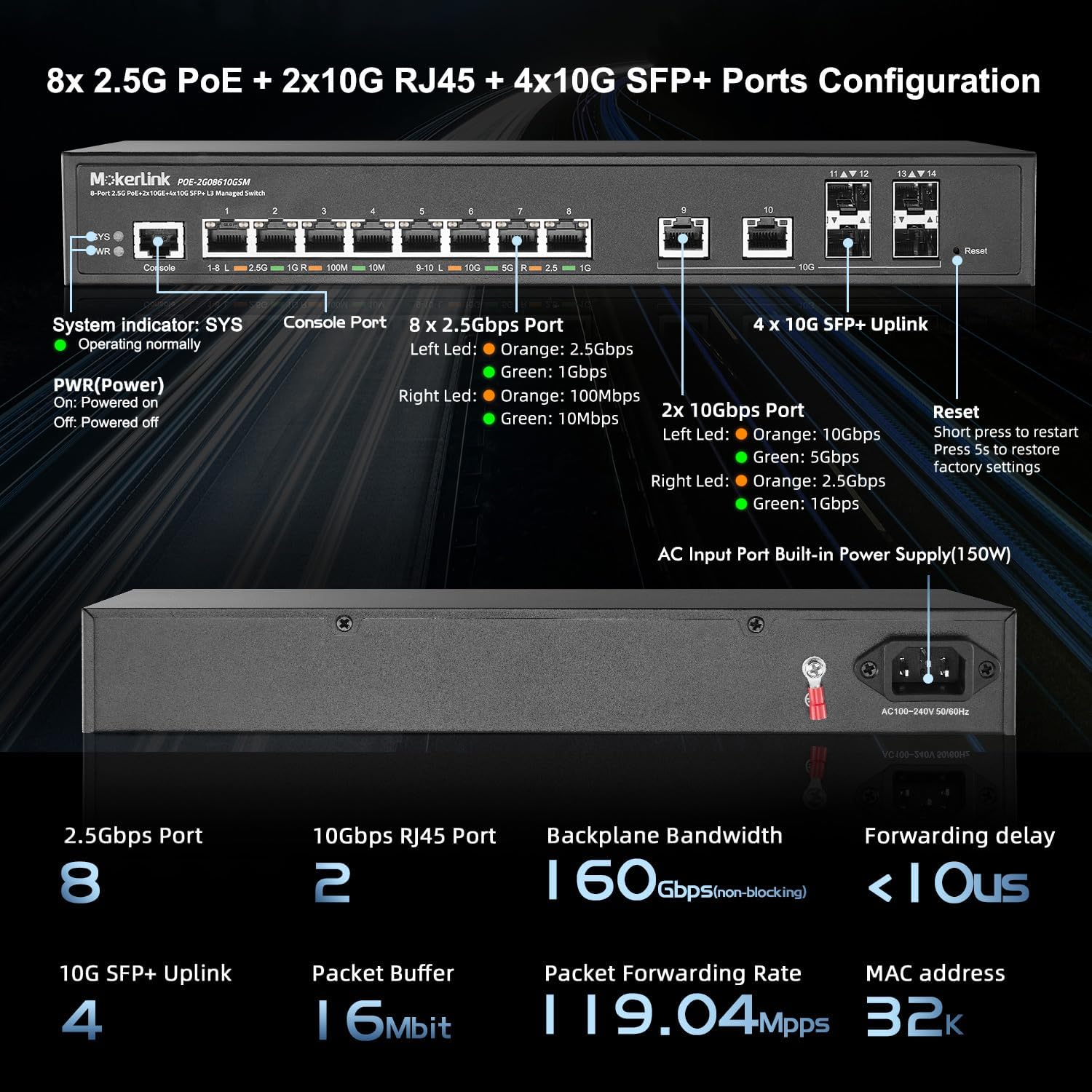
Figura 1: Panell frontalview. This image displays the front panel of the switch, highlighting the Console Port, 8x 2.5Gbps PoE ports (1-8), 2x 10Gbps RJ45 ports (9-10), 4x 10G SFP+ Uplink ports (11-14), System (SYS) and Power (PWR) indicators, and the Reset button.
- Indicador SYS: Indicates system operating status. Blinking rapidly may indicate an issue.
- Indicador PWR: Indicates power status. On for powered, Off for powered off.
- Port de la consola: RJ45 port for CLI management.
- 2.5Gbps Ports (1-8): 8x 2.5 Gigabit Ethernet ports with PoE+ support. LEDs indicate link speed (Orange: 2.5Gbps, Green: 1Gbps, Off: 100Mbps).
- 10Gbps Ports (9-10): 2x 10 Gigabit Ethernet RJ45 ports. LEDs indicate link speed (Orange: 10Gbps, Green: 5Gbps, Off: 2.5Gbps/1Gbps).
- SFP+ Uplink Ports (11-14): 4x 10 Gigabit SFP+ slots for fiber optic connections.
- Botó de restabliment: Press briefly to restart. Press and hold for 5 seconds to restore factory settings.
3.3 Disseny del panell posterior
Figura 2: Panell posteriorview. This image shows the rear panel of the switch, featuring the AC Input Power Port (150W) for connecting the power cord.
- AC Input Power Port: Connects to the included power cord for AC power supply (100-240V, 50/60Hz).
4. Configuració i instal·lació
Follow these steps to properly install and set up your MokerLink Managed Switch.
4.1 Precaucions de seguretat
- Assegureu-vos que la font d'alimentació voltage coincideix amb els requisits del commutador.
- No bloquejar les obertures de ventilació.
- Avoid exposing the switch to water or excessive humidity.
- Do not open the switch casing. Demaneu el servei tècnic a personal qualificat.
4.2 Instal·lació física
The switch can be installed on a desktop or mounted in a rack.
Instal·lació d'escriptori
Place the switch on a flat, stable surface. Ensure adequate space around the switch for ventilation.
Instal·lació de rack
Use the provided rackmount kit to install the switch into a standard 19-inch equipment rack. Secure the mounting brackets to the sides of the switch, then attach the switch to the rack using appropriate screws.

Figure 3: Rackmount Installation. This image illustrates multiple MokerLink switches mounted within a standard server rack, demonstrating the rackmount capability.
4.3 Connexió de cables de xarxa
Connect your network devices to the appropriate ports on the switch.
- 2.5G PoE Ports (1-8): Use CAT5e, CAT6, or CAT7 Ethernet cables for connecting devices such as IP cameras, wireless access points, IP phones, or other network devices. These ports provide both data and power for PoE-compatible devices.
- 10G RJ45 Ports (9-10): Use CAT6 (up to 55m), CAT6a, or CAT7 (up to 100m) Ethernet cables for high-speed connections to servers, other switches, or devices requiring 10 Gigabit speeds.
- 10G SFP+ Ports (11-14): Insert compatible 1G/10G SFP+ optical modules into these slots, then connect fiber optic cables for high-speed fiber uplinks or connections to other SFP+ enabled devices.

Figure 4: 2.5Gbps Port Connectivity. This image shows the 2.5Gbps ports (1-8) and indicates compatibility with CAT5e, CAT6, and CAT7 cables for connecting devices like WiFi APs, NAS, and Workstations.

Figure 5: 10Gbps Port Connectivity. This image details the 10Gbps RJ45 ports (9-10) and SFP+ ports (11-14), specifying compatible cable types (CAT6, CAT6a, CAT7) and adaptive SFP modules for connecting servers and core switches.
4.4 Encendre l'interruptor
Connect the power cord to the AC Input Power Port on the rear of the switch and then to a power outlet. The PWR indicator on the front panel should illuminate, and the SYS indicator will begin to blink as the system boots up.
5. Funcionament de l'interruptor
The MokerLink Managed Switch offers various methods for configuration and management.
5.1 Accés inicial i gestió
El commutador es pot gestionar mitjançant un Web-based Graphical User Interface (GUI) or a Command Line Interface (CLI).
Web Interface (GUI) Access
- Connecteu un ordinador a qualsevol dels ports Ethernet del commutador.
- Configure your computer's IP address to be in the same subnet as the switch's default IP address (e.g., if the switch is 192.168.2.1, set your computer to 192.168.2.X, where X is not 1, with subnet mask 255.255.255.0).
- Obre a web browser and enter the default IP address of the switch: 192.168.2.1
- Enter the default username and password: admin / admin
- Upon successful login, you will access the switch's management interface. It is highly recommended to change the default password immediately for security.
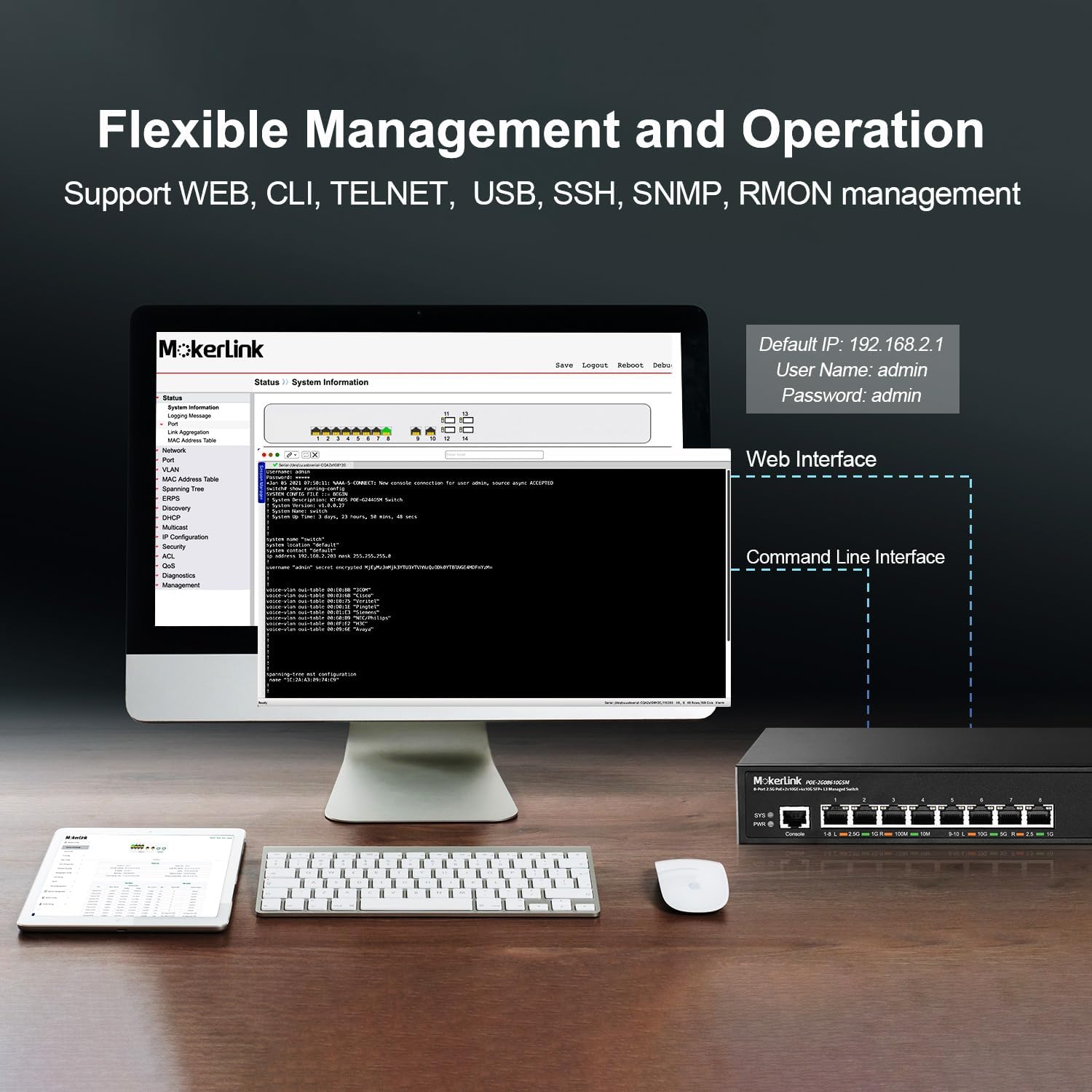
Figure 6: Flexible Management Options. This image displays both the web interface and command-line interface (CLI) for managing the MokerLink switch, along with the default IP address, username, and password.
Command Line Interface (CLI) Access
Connect to the Console port using an RJ45-to-serial cable and a terminal emulator (e.g., PuTTY, Tera Term) with the following settings:
- Velocitat de transmissió: 115200
- Bits de dades: 8
- Paritat: cap
- Bits d'aturada: 1
- Control de flux: cap
Login with the default username and password (admin/admin).
5.2 PoE Functionality
The 2.5G ports (1-8) support IEEE 802.3af/at Power over Ethernet standards. The switch automatically detects and provides power to compatible Powered Devices (PDs).

Figure 7: PoE+ Support. This diagram illustrates how the switch provides power to PoE devices (IP Camera, Wireless AP, IP Phone) while also connecting to non-PoE devices (Router, Computer, NVR) for data only.
- Max 30W per PoE port.
- Total PoE Power Budget: 120W.
- The switch supplies 48V output voltage to PoE devices.
- For ports connected to non-PoE devices, it is recommended to disable PoE on those specific ports via the management interface to prevent potential issues.
5.3 Característiques de la capa 2 i la capa 3
The switch provides a comprehensive set of Layer 2 and Layer 3 features for advanced network management.

Figure 8: Layer 3 Managed Features. This image highlights various software features including VLAN, QoS, LACP, IGMP, ACL, DHCP, SNMP, Route, and Security.
VLAN (xarxa d'àrea local virtual)
VLANs allow you to segment your network into logical broadcast domains, improving security and performance. The switch supports 802.1Q TagVLAN basades en.

Figure 9: VLAN Configuration. This diagram illustrates how 802.1Q Tag-based VLANs can segregate network traffic for different device types (e.g., IP cameras, wireless APs, IP phones) without requiring separate physical equipment.
QoS (Qualitat de servei)
QoS allows you to prioritize network traffic, ensuring critical applications (like voice or video) receive sufficient bandwidth and low latency.

Figure 10: QoS Prioritization. This diagram shows how QoS prioritizes different types of network traffic, such as high priority for audio, medium for video, and low for general data, to reduce packet loss and latency.
Link Aggregation (LACP)
LACP (Link Aggregation Control Protocol) allows you to group multiple physical links into a single logical link, increasing d'ample de banda i proporcionant redundància.

Figure 11: Link Aggregation. This diagram illustrates how LACP combines multiple Ethernet connections between the MokerLink switch and other devices (like another switch or a NAS) to increase bandwidth and improve resilience.
Encaminament de la capa 3
The switch supports IPV4/IPV6 routing, ARP, and Loopback Interface management, enabling inter-VLAN routing and more complex network topologies.
Característiques de seguretat
Implement security measures such as AAA/802.1X/MAC-Based authentication, DoS anti-attack, dynamic ARP inspection, DHCP Snooping, IP Source Guard, Port Security, Protected Ports, and storm control to protect your network.
6. Manteniment
Un manteniment regular garanteix un rendiment òptim i una llarga vida útil del vostre interruptor.
6.1 Actualització del firmware
Firmware updates can provide new features, performance improvements, and security patches. Refer to the management interface for firmware upgrade options. It is recommended to download firmware from the official MokerLink support channels. As of current information, firmware updates may not be publicly available on the manufacturer's website, and direct contact might be required.
6.2 Còpia de seguretat i restauració de la configuració
Regularly back up your switch configuration to prevent data loss. The management interface (Web GUI or CLI) provides options to download the current configuration file and upload a saved configuration file.
CLI Command ExampLI: copy running-config startup-config to save current configuration.
6.3 Consideracions ambientals
Ensure the switch is operated within its specified temperature and humidity ranges. The industrial-grade fan assists with heat dissipation, but proper airflow around the unit is crucial.

Figure 12: Design and Efficiency. This image highlights the switch's features such as Energy Efficient Ethernet (EEE), durable metal casing, and overall energy-saving design, with arrows indicating airflow for cooling.
7. Solució De Problemes
Aquesta secció ofereix solucions a problemes comuns que podeu trobar.
7.1 No Power / System Indicator Off
- Verifiqueu que el cable d'alimentació estigui connectat correctament tant a l'interruptor com a la presa de corrent.
- Assegureu-vos que la presa de corrent funcioni.
- Check the power supply unit for any visible damage.
7.2 Sense llum d'enllaç / Sense connectivitat
- Comproveu la connexió del cable Ethernet als dos extrems. Proveu un cable diferent.
- Assegureu-vos que el dispositiu connectat estigui encès i funcioni correctament.
- Verify the port status in the switch's management interface.
- For SFP+ ports, ensure the SFP+ module is correctly inserted and compatible, and the fiber cable is intact.
7.3 El dispositiu PoE no s'encén
- Confirm the connected device is PoE-compatible (IEEE 802.3af/at).
- Check the PoE status of the port in the switch's management interface. Ensure PoE is enabled for that port.
- Verify the power requirements of the PD do not exceed 30W per port or the total 120W budget.
- If connecting a non-PoE device to a PoE port, it is recommended to disable PoE on that port to prevent potential damage to the non-PoE device.
7.4 Network Performance Issues
- Check for network loops. The switch supports loop detection to help identify and resolve these.
- Utilize QoS settings to prioritize critical traffic.
- Review port statistics and logs in the management interface for errors or high utilization.

Figure 13: Loop Detection. This diagram illustrates how the loop detection feature helps identify and remove network loops between switches or devices, preventing network slowdowns or outages.
7.5 Restabliment dels valors predeterminats de fàbrica
If you forget the login credentials or encounter persistent configuration issues, you can reset the switch to its factory default settings. With the switch powered on, press and hold the Botó de restabliment on the front panel for approximately 5 seconds until the SYS LED blinks rapidly, then release. The switch will reboot with default settings.
8. Especificacions
| Característica | Descripció |
|---|---|
| Número de model | 8x2.5G POE + 6x10G SFP Managed |
| Tipus d'interfície | PoE, SFP+ |
| Nombre de Ports | 8x 2.5G PoE, 2x 10G Ethernet, 4x 10G SFP+ |
| Estàndard PoE | IEEE 802.3af / at |
| Pressupost total d'energia PoE | 120W |
| Velocitat de transferència de dades | 10 Gigabits Per Second (max) |
| Ample de banda del pla posterior | 160 Gbps (sense bloqueig) |
| Paquet de memòria intermèdia | 16 Mbit |
| Tarifa d'enviament de paquets | 119.04 Mpps |
| Mida de la taula d’adreces MAC | 32K |
| Gestió | Web GUI, CLI (Console, Telnet, SSH), SNMP |
| Layer Features | L2 (VLAN, QoS, LACP, STP), L3 (Static Routing, ARP) |
| Dimensions | 14.25 x 11.5 x 3.27 polzades |
| Pes de l'article | 5.06 lliures |
| Material de la caixa | Metall |
| Color | Negre |
| Components inclosos | 2.5G POE Switch, Power Cord, Rackmount Kit |
9. Garantia i Suport
MokerLink products typically come with a standard manufacturer's warranty. Please refer to the product packaging or the official MokerLink weblloc web per conèixer els termes i condicions específiques de la garantia.
For technical support, product inquiries, or to obtain the latest firmware updates, it is recommended to contact MokerLink directly through their official support channels. As noted in some user reviews, direct support may be the primary method for obtaining detailed documentation or firmware beyond what is included with the product.
For general information, you may visit the Botiga MokerLink a Amazon.


