1. Introducció
This manual provides detailed instructions for the installation, operation, and maintenance of your YEEHUNG 12.3 Inch Linux Car Touch Display Screen. Please read this manual thoroughly before installation and use to ensure proper functionality and to avoid potential issues.
2. Compatibilitat
This display screen is designed for Mercedes-Benz vehicles equipped with the NTG5.0 OEM system, specifically models from 2016 to 2019:
- Classe C (W205)
- GLC Class (X253)
- GLA Class (X156)
- CLA Class (C117)
- A Class (W176)
The system operates on a Linux platform.
3. Característiques clau
- Connectivitat Bluetooth: Integrated Bluetooth for calls and audio streaming.
- CarPlay i Android Auto: Supports both wired and wireless CarPlay and Android Auto.
- Enllaç mirall: Allows screen mirroring from compatible devices.
- Control del volant: Answer CarPlay/Android Auto calls using existing steering wheel buttons.
- Camera & Radar Display: Displays original car's reversing camera and radar information. Compatible with OEM and aftermarket CVBS/720P AHD cameras.
- Control de botó OEM: Control CarPlay/Android Auto functions using the car's original knob.
- Reproducció de mitjans USB: Play music and video files mitjançant USB.

Figure 3.1: Visual representation of the display's key features.
4. Notes importants i limitacions
- Aftermarket cameras exceeding 720P AHD format are no suportat.
- Supports up to 720P offline video playback.
- The screen does no support 4G network connectivity.
- The built-in WIFI hotspot is for establishing an automatic connection only.
- For Airplay and USB flash drive audio, a separately purchased USBAUX box is required. Search ASIN: B0FHKL9FPY.
- If you encounter any issues with vehicle compatibility, audio quality, installation, or original screen distortion, please contact customer support immediately for assistance.
5. Configuració i instal·lació
Professional installation is recommended. Ensure the vehicle's power is off before beginning installation.
5.1. General Installation Overview

Figure 5.1: Before and after installation of the display screen.
5.2. Contingut del paquet

Figure 5.2: Included installation components.
5.3. Specific Mounting Notes
For GLC Class (X253), GLA Class (X156), CLA Class (C117), and A Class (W176) models, the display mounts directly to the original base. The supplied base is not required for these models.
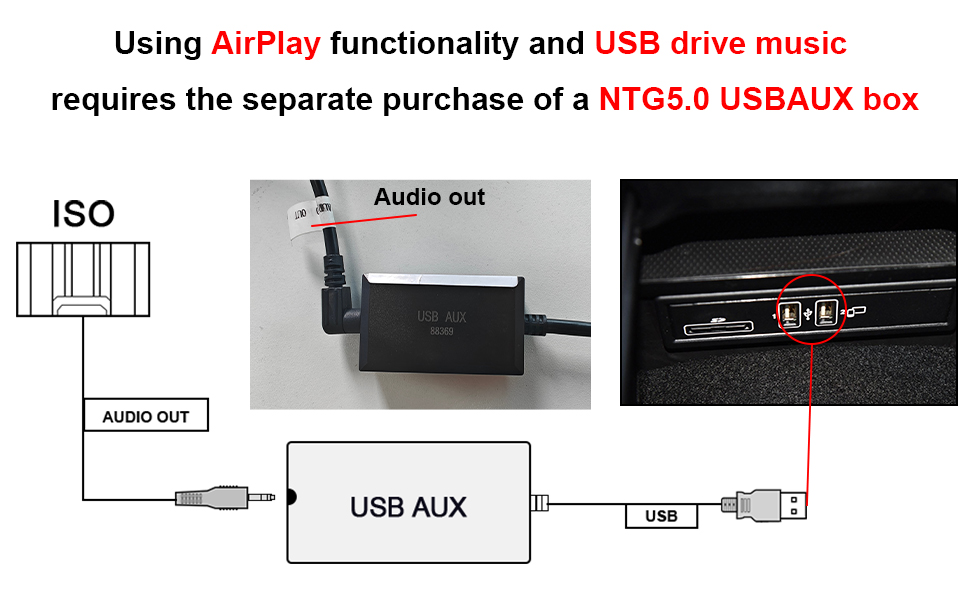
Figure 5.3: Direct installation for specific Mercedes-Benz models.
5.4. Fiber Optic Cable Adaptation
If your car uses fiber optic cables for sound or data transmission, proper adaptation is crucial. The 2-pin optical fiber cable from the original CD unit must be connected to the Linux harness.
Video 5.1: Instructions on how to properly adapt fiber optic cables during installation.
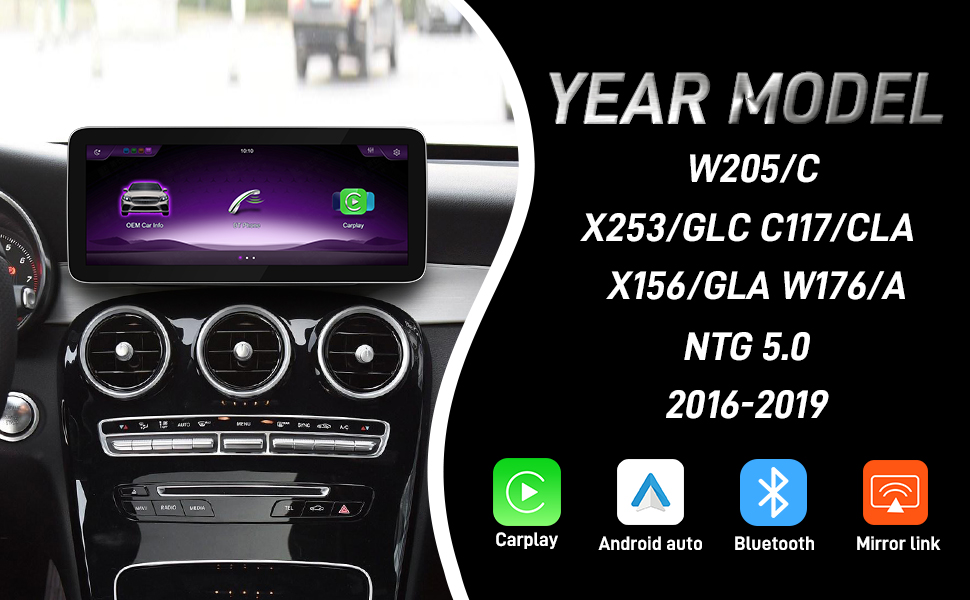
Figure 5.4: Fiber optic cable connection diagram.
5.5. USB Connection for CarPlay/Android Auto
For wired CarPlay and Android Auto functionality, ensure you use the designated "USB IN 1" port on the wiring harness.
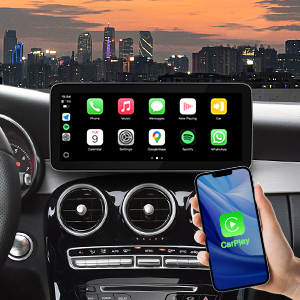
Figure 5.5: Correct USB port for wired CarPlay/Android Auto.
5.6. Setting Original Screen Resolution
It is important to set the resolution according to your original system screen for optimal display quality.
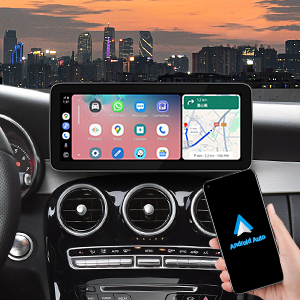
Figure 5.6: OEM Resolution settings.
Video 5.2: Guide on setting the correct resolution based on the original system screen.
5.7. Camera Type Settings
Configure the camera type in the settings to ensure proper display of reversing camera and radar information.
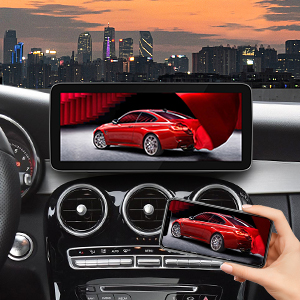
Figure 5.7: Camera type settings interface.
6. Instruccions de funcionament
6.1. Connecting to OEM Bluetooth for Audio
To achieve excellent call quality and sound for CarPlay and Android Auto, the system supports obtaining audio through the car's OEM Bluetooth.
Video 6.1: Instructions on how to connect the Linux screen to OEM Bluetooth for CarPlay audio.
Video 6.2: Demonstrates using OEM Bluetooth and CarPlay features together for seamless audio.
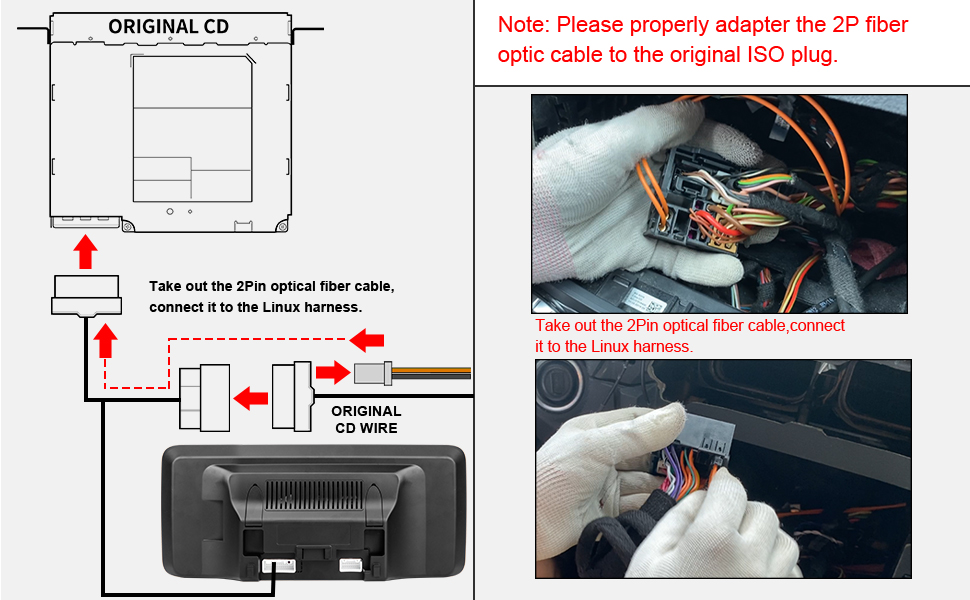
Figure 6.1: OEM Bluetooth audio connection diagram.
6.2. Switching Between OEM and Linux Systems
The system features a dual-system architecture, allowing you to switch between the original OEM information display and the new Linux system.

Figure 6.2: Dual System interface for switching between OEM and Linux.
6.3. CarPlay and Android Auto Interface
The display supports both Apple CarPlay and Android Auto, providing a familiar and intuitive interface for navigation, music, and communication.

Figure 6.3: CarPlay interface on the 12.3 inch display.

Figure 6.4: CarPlay and Android Auto interfaces.
6.4. Reversing Camera and Radar Display
The system integrates with your car's reversing camera and radar, providing clear visual and auditory alerts when parking or reversing.

Figure 6.5: High-definition reversing camera and radar display.
7. Manteniment
To ensure the longevity and optimal performance of your YEEHUNG display screen, follow these maintenance guidelines:
- Neteja: Feu servir un drap suau i sense borrissol per netejar la pantalla. Per a taques difícils, fregueu lleugeramentampNetegeu el drap amb aigua o un netejador de pantalles. Eviteu productes químics agressius o materials abrasius.
- Actualitzacions de programari: Periodically check for available firmware updates to ensure you have the latest features and bug fixes. Follow the instructions provided with the update package carefully.
- Condicions ambientals: Avoid exposing the screen to extreme temperatures, direct sunlight for prolonged periods, or excessive moisture.
8. Solució De Problemes
If you encounter any issues, please refer to the following common problems and solutions. If the problem persists, contact customer support.
| Problema | Causa possible | Solució |
|---|---|---|
| No sound or poor audio quality from CarPlay/Android Auto. | Incorrect Bluetooth connection or AUX setting. | Ensure your phone is correctly paired with the car's OEM Bluetooth. Verify that the "Use Car's BT Channel" is ON and "Auto Switch to AUX" is OFF in the system settings. If using a USBAUX box, ensure it is correctly installed and selected as the audio source. |
| Original screen distortion or flickering. | Loose wiring connection or incorrect resolution setting. | Check all wiring connections, especially the main harness. Ensure the correct OEM screen resolution is selected in the car settings. |
| El CarPlay/Android Auto no es connecta. | Bluetooth pairing issue or incorrect settings. | Ensure Bluetooth is enabled on your phone and the Linux system. Try turning off and on your phone's Bluetooth. Verify CarPlay/Android Auto is enabled in the Smart Phone settings. |
| Display is not turning on. | Power supply issue or loose connection. | Check all power connections and fuses. Ensure the main wiring harness is securely connected. |
8.1. Addressing Sound Problems (Fiber Optic Cable)
If your vehicle has fiber optic cables and you experience sound issues (e.g., high current sound, one-sided speaker sound), specific steps are required for proper connection.
Video 8.1: Guide to solving high current sound or one-sided car speaker sound issues.
Video 8.2: Detailed steps for solving sound problems when a fiber optic cable is present.
9. Especificacions
- Dimensions del producte: 12.83 x 0.98 x 5.67 polzades
- Pes de l'article: 5.39 lliures
- Sistema operatiu: Linux
- Comunicació sense fils: Bluetooth
- Tecnologies de connectivitat: Bluetooth
- Característiques especials: Bluetooth, Touchscreen
- Mida de la pantalla: 12.3 polzades
- Mode de sortida d'àudio: OEM Bluetooth
- Tipus de muntatge: Suport al tauler
- Fabricant: Fineyea
10. Garantia i Suport
For any product-related inquiries, technical support, or warranty claims, please contact YEEHUNG customer service. We are committed to providing prompt assistance and resolving any issues you may encounter.
Please express your problem clearly so that we can help you solve the problem quickly. We aim to reply within 24 hours.