1. Introducció
This manual provides comprehensive instructions for the setup, operation, maintenance, and troubleshooting of your vretti D467B Bluetooth Thermal Shipping Label Printer. This high-performance thermal printer is designed for efficient label printing for various applications, including shipping, address, and barcode labels, supporting both USB and Bluetooth connectivity.

Figure 1: vretti D467B Printer and accessories. A sample label with barcode 4206047823456789012345678901 es mostra.
2. Configuració
2.1 Desembalatge i contingut
Traieu amb cura tots els components de l'embalatge. Assegureu-vos que hi hagi els elements següents:
- vretti D467B Thermal Label Printer
- Adaptador d'alimentació
- Cable USB
- USB Flash Drive (containing drivers and software)
- Label Spindle and Holders
- Guia d'inici ràpid
2.2 Connexió de la impressora
- Connecteu l'adaptador de corrent al port d'alimentació de la impressora i després a una presa de corrent.
- For USB connection: Connect the USB cable from the printer to your computer.
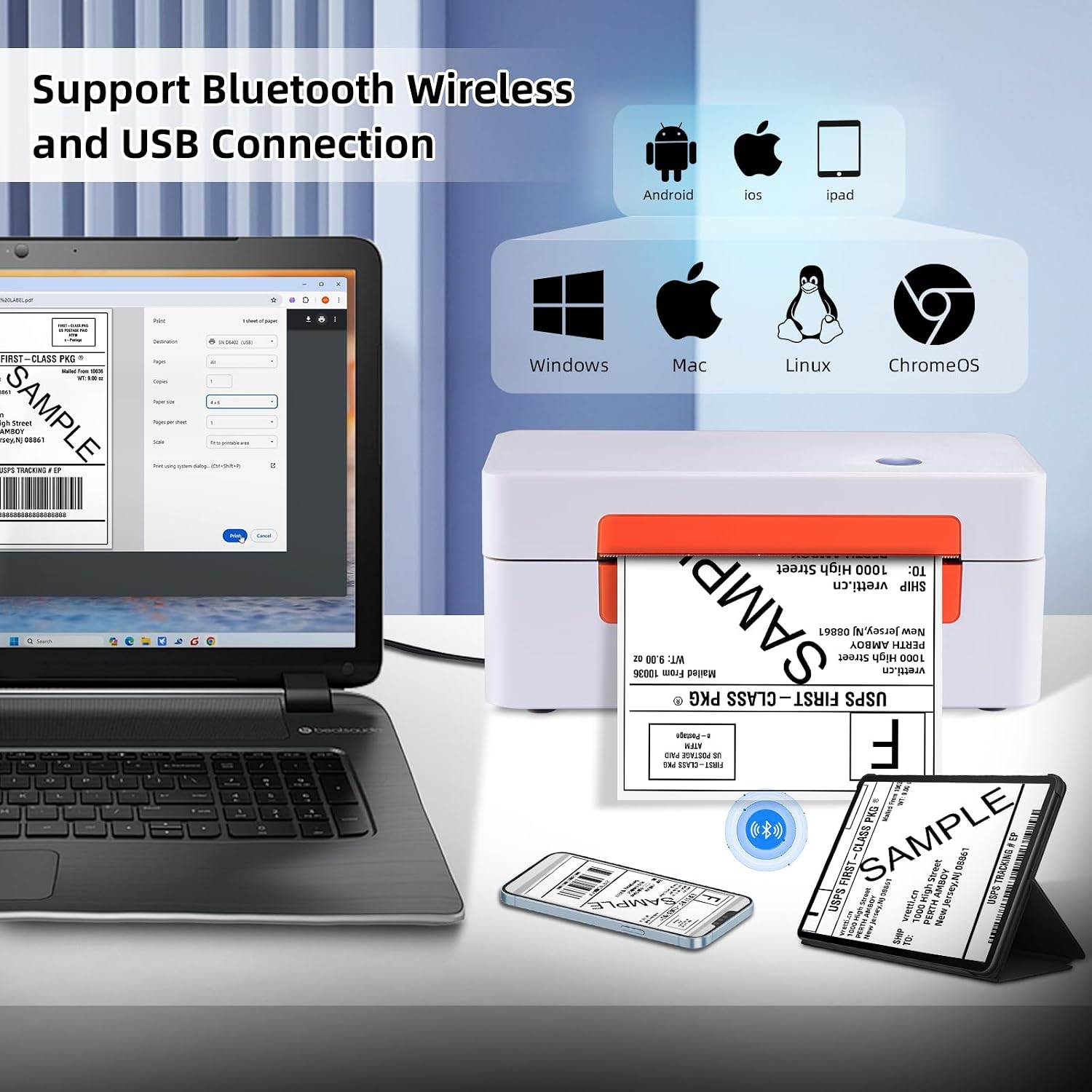
Figure 2: Printer connectivity options (USB and Bluetooth).
2.3 Càrrega d'etiquetes
- Obriu la coberta de la impressora.
- Place the label roll onto the label spindle and secure it with the holders.
- Feed the labels through the guide until the leading edge is slightly past the print head.
- Tanqueu la coberta de la impressora.
- Press the feed button once to allow the printer to automatically detect and calibrate the label size.

Figure 3: Label loading and supported label sizes. A nutrition facts label with barcode 0403685400125 es mostra.
2.4 Driver Installation and Software
The printer supports Windows, macOS, Chrome OS, and Linux systems via USB, and Android/iOS via Bluetooth using the "Ezlabel" app.
- Per a la connexió USB: Insert the provided USB flash drive into your computer. Follow the instructions to install the appropriate drivers for your operating system. For Chrome OS users, an extension may need to be installed from the USB flash drive.
- Per a la connexió Bluetooth: Download the "Ezlabel" app from your device's app store (available for Android and iOS).
3. Funcionament
3.1 Passos bàsics d'impressió
- Ensure the printer is powered on and labels are loaded correctly.
- For USB Printing:
- Open the document or label file al teu ordinador.
- Select the vretti D467B printer from your print options.
- Adjust print settings (e.g., label size, orientation) as needed.
- Initiate printing.
- For Bluetooth Printing (via Ezlabel App):
- Open the "Ezlabel" app on your Android or iOS device.
- Pair your device with the printer via Bluetooth.
- Import or create your label design within the app.
- Customize and preview l'etiqueta.
- Envieu el treball d'impressió a la impressora.

Figure 4: High-speed and high-resolution printing capabilities.
3.2 Compatibilitat de la plataforma
The vretti D467B printer is compatible with various e-commerce and shipping platforms, including but not limited to:
- Amazon
- eBay
- Shopify
- Etsy
- USPS
- UPS
- FedEx
- DHL
- Walmart
- Stamps.com
- Estació de vaixell
- Obres Navals
- Shippo
- EasyPost
- Endicia
- Wish
- AliExpress
- XPS Ship

Figure 5: Compatible e-commerce and shipping platforms.
3.3 Tipus d'etiquetes compatibles
The printer supports a wide range of thermal label types, including:
- Shipping Labels (e.g., 4x6 inches)
- Address Labels
- Barcode Labels
- Etiquetes de productes
- Etiquetes de bricolatge
- Business Logos

Figura 6: Examples of supported label applications.
4. Manteniment
4.1 Neteja del capçal d'impressió
To ensure optimal print quality, regularly clean the print head. Use an alcohol swab or a specialized print head cleaning pen. Power off the printer and allow the print head to cool before cleaning. Gently wipe the print head surface to remove any dust or adhesive residue.
4.2 Atenció general
- Mantingueu la impressora en un entorn net i sense pols.
- Eviteu exposar la impressora a la llum solar directa o a temperatures extremes.
- Feu servir només etiquetes tèrmiques d'alta qualitat per evitar danys al capçal d'impressió.
- Do not use abrasive cleaners or solvents on the printer's exterior.
5. Solució De Problemes
This section addresses common issues you might encounter with your vretti D467B printer.
5.1 La impressora no respon
- Assegureu-vos que el cable d'alimentació estigui connectat correctament i que la impressora estigui engegada.
- Verifiqueu que el cable USB estigui connectat correctament tant a la impressora com a l'ordinador.
- For Bluetooth, ensure the printer is paired with your device and the "Ezlabel" app is open.
- Reinicieu la impressora i l'ordinador/dispositiu mòbil.
5.2 Mala qualitat d'impressió
- Check if the thermal labels are loaded correctly and are facing the right direction.
- Netegeu el capçal d'impressió tal com es descriu a la secció Manteniment.
- Assegureu-vos d'utilitzar etiquetes tèrmiques d'alta qualitat.
- Adjust print density settings in your printer preferences or the "Ezlabel" app.
5.3 Labels Not Feeding Correctly
- Ensure labels are properly aligned within the guides.
- Perform a label calibration by pressing the feed button.
- Comproveu si hi ha obstruccions a la ruta de l'etiqueta.
5.4 Problemes de connectivitat
- USB: Reinstall the printer drivers from the provided USB flash drive. Try a different USB port or cable.
- Bluetooth: Ensure Bluetooth is enabled on your device. Forget the printer from your device's Bluetooth settings and re-pair it through the "Ezlabel" app. Ensure the printer is within range.
6. Especificacions
| Característica | Detall |
|---|---|
| Model | D467B |
| Tecnologia d'impressió | Tèrmica |
| Connectivitat | Bluetooth, USB |
| Resolució d'impressió | 203 DPI |
| Velocitat màxima d'impressió | 152 mm/s (72 labels/minute for 4x6) |
| Amplada de l'etiqueta compatible | 1 inch to 4.5 inches (25.4mm to 115mm) |
| Mides de suports admesos | 4x6 inches (standard shipping labels) and other custom sizes |
| Sortida de la impressora | Monocrom |
| Dimensions del producte | 7.6 x 3.9 x 3.9 polzades |
| Pes de l'article | 2.89 lliures |
| Mètode de control | App, USB |
| UPC | 692878863544 |
7. Suport i garantia
7.1 Suport tècnic
For any technical assistance or inquiries, vretti offers comprehensive support through various channels:
- Suport tècnic remot: Available for complex issues.
- Suport per correu electrònic: Contact via email for detailed queries.
- Instant Messaging: Support available via WhatsApp.
- Online Q&A: Check the product's Q&A section for common questions and answers.
Please refer to the contact information provided with your product packaging or on the official vretti weblloc web per obtenir els detalls d'assistència més actualitzats.
7.2 Garantia del producte
Information regarding the product warranty is typically provided with your purchase documentation or can be obtained from the retailer where the printer was purchased. Please retain your proof of purchase for warranty claims.


