Introducció
Thank you for choosing the AJAZZ AJ179 8K Wireless Gaming Mouse. This high-performance ergonomic mouse is designed for competitive gaming, featuring a PAW3950 optical sensor, multiple connectivity options, and a unique magnetic charging dock with an interactive screen. This manual provides detailed instructions for setup, operation, maintenance, and troubleshooting to ensure optimal performance and longevity of your device.

Figure 1: AJAZZ AJ179 8K Wireless Gaming Mouse with its magnetic charging dock.
Especificacions tècniques
| Marca de producte | AJAZZ |
| Mètode de transmissió | Cable USB + 2.4 G sense fil + BT5.0 |
| Tipus d'interfície | Interfície tipus C |
| Mida del producte | 117.80 x 65.55 x 41.32 mm |
| Pes del producte | ~58g (2.04 oz) |
| Material de closca | Emmotllament per injecció d'ABS |
| Nombre de claus | 6 tecles + 1 interruptor |
| Longitud del cable | 1.5M |
| Ajust de DPI | 400-3200 (six-speed DPI driver adjustable), minimum 50 DPI, maximum 42000 DPI (30000-42000 DPI is overclocking) |
| Sensor | PAW3950 |
| Botó Vida | 100 milions de clics |
| Capacitat de la bateria | 400 mAh |
| Reply Rate (Polling Rate) | Default wired USB: 1000Hz; Default 2.4G: 1000Hz; Default BT: 125Hz. Driver software adjustable: Wired: 125Hz/250Hz/500Hz/1000Hz; 2.4G: 125Hz/250Hz/500Hz/1000Hz/2000Hz/4000Hz/8000Hz; BT: Not adjustable. |
| Sistemes suportats | Windows Vista/XP/7/8/10/11, Mac |

Figure 2: Key features including PAW3950 sensor, 8000Hz return rate, 400mAh battery, and charging dock.
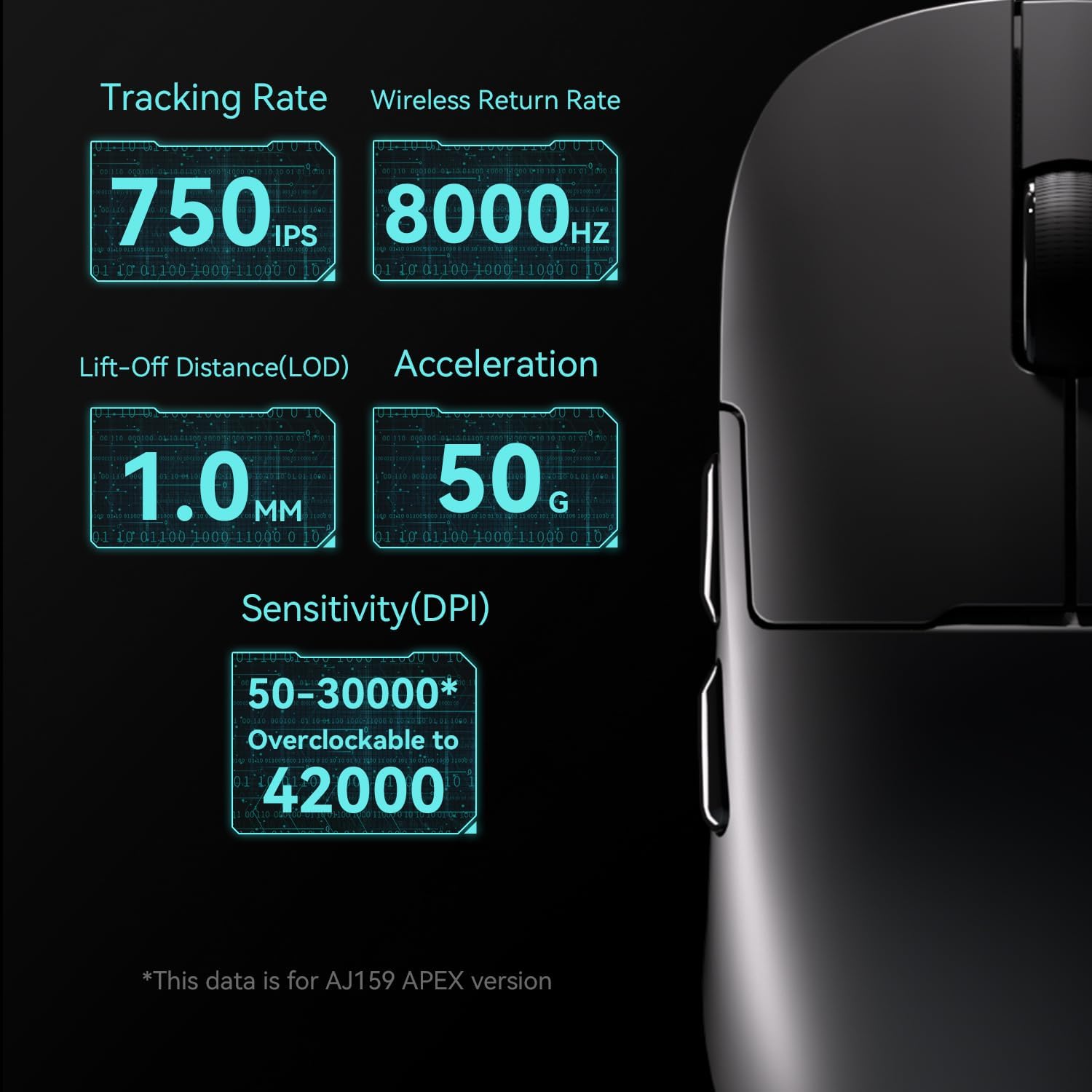
Figure 3: Detailed specifications for tracking rate, lift-off distance (LOD), acceleration, and DPI range.
Configuració i connectivitat
The AJAZZ AJ179 mouse offers three versatile connection modes: wired USB-C, 2.4G wireless, and Bluetooth 5.0.
1. Connexió amb cable (USB-C)
- Connecteu el cable USB-C proporcionat al port frontal del ratolí.
- Connecteu l'altre extrem del cable a un port USB disponible de l'ordinador.
- The mouse will be automatically recognized and ready for use. This mode also charges the mouse.
2. Connexió sense fil 2.4G
- Locate the 2.4G USB receiver. It is typically stored in a compartment on the underside of the mouse or integrated into the charging dock.
- Connecteu el receptor USB a un port USB disponible de l'ordinador.
- Turn on the mouse using the switch on its underside. The mouse should automatically connect to the receiver.
3. Connexió Bluetooth 5.0
- Turn on the mouse using the switch on its underside.
- Switch the mouse to Bluetooth mode (refer to the mouse's physical switch or software settings if applicable).
- A l'ordinador, navega fins a la configuració de Bluetooth i cerca dispositius nous.
- Select "AJAZZ AJ179" (or similar name) from the list of available devices to pair.
Carregant el ratolí
The AJ179 mouse can be charged via the included USB-C cable or by placing it on the magnetic charging dock. The charging dock features an RGB full-color interactive screen that displays mouse status, including battery level.

Figure 4: The magnetic charging docking station provides convenient charging and displays mouse information.

Figure 5: The charging dock features an RGB screen and supports the mouse's 8000Hz return rate.
Instruccions de funcionament
Ajust de DPI
The mouse supports DPI adjustment from 50 to 42000 DPI. You can cycle through preset DPI levels using the dedicated DPI button on the mouse (usually on the underside or top, refer to your specific model's layout). For fine-tuning and custom DPI settings, use the official AJAZZ driver software. The software allows for six-speed DPI adjustments and can set minimum 50 DPI and maximum 42000 DPI (with 30000-42000 DPI being overclocked).
Customizing Buttons and Macros
The AJ179 features 6 programmable keys. Utilize the powerful AJAZZ driver software to assign macros, reassign button functions, redefine DPI and Lift-Off Distance (LOD), and adjust the polling rate. The software also allows for personalization of the charging base's display and monitoring of battery status.
Ajust de la taxa de votació
The polling rate, or reply rate, can be adjusted via the driver software.
- Mode per cable: 125 Hz, 250 Hz, 500 Hz, 1000 Hz
- Mode sense fil 2.4G: 125 Hz, 250 Hz, 500 Hz, 1000 Hz, 2000 Hz, 4000 Hz, 8000 Hz
- Mode Bluetooth: Fixed at 125Hz (not adjustable)
Magnetic Screen Display
The magnetic charging dock features a built-in TFT screen that visually displays various mouse statuses. This includes GIF images in wireless mode, LOD, current DPI, polling rate, battery level, and date. This provides real-time feedback on your mouse's performance and status.
Manteniment
Neteja
- Per netejar el ratolí, feu servir un drap suau i sec.
- Per a la brutícia persistent, lleugerament dampNetegeu el drap amb aigua o un netejador suau i no abrasiu. Eviteu la humitat excessiva.
- Do not use harsh chemicals, solvents, or abrasive materials, as these can damage the mouse's surface and internal components.
- Regularly clean the optical sensor area on the underside of the mouse to ensure accurate tracking.
Cura de la bateria
- Per allargar la durada de la bateria, eviteu descarregar completament el ratolí amb freqüència.
- Charge the mouse regularly using the provided USB-C cable or the magnetic charging dock.
- Guardeu el ratolí en un lloc fresc i sec quan no l'utilitzeu durant períodes prolongats.

Figure 6: The mouse features a durable 100 million click lifespan and a 400mAh battery for long-lasting use.
Resolució de problemes
Mouse Not Responding / Disconnecting
- Comproveu la bateria: Ensure the mouse has sufficient charge. Place it on the charging dock or connect via USB-C cable.
- Comprova el mode de connexió: Verify the mouse is in the correct mode (2.4G, Bluetooth, or Wired) for your setup.
- Sense fil 2.4G: Assegureu-vos que el receptor USB estigui ben connectat a un port USB que funcioni. Proveu-ho amb un altre port USB.
- Bluetooth: Re-pair the mouse with your computer. Ensure Bluetooth is enabled on your computer.
- Amb cable: Assegureu-vos que el cable USB-C estigui connectat correctament tant al ratolí com a l'ordinador. Proveu un altre port o cable USB.
- Interferència: Move the mouse and receiver closer to each other. Avoid placing the receiver near other wireless devices or large metal objects that might cause interference.
Inaccurate Tracking / Lagging Cursor
- Neteja el sensor: Dust or debris on the optical sensor can cause tracking issues. Clean the sensor area on the underside of the mouse with a soft cloth.
- Superfície del coixinet de ratolí: Ensure you are using the mouse on a suitable surface. Highly reflective or uneven surfaces can affect tracking. A good quality mouse pad is recommended.
- Configuració de DPI: Adjust the DPI setting to a level that is comfortable and appropriate for your task.
- Taxa de votació: For gaming, ensure the polling rate is set to a higher value (e.g., 1000Hz or higher in 2.4G mode) via the driver software.
- Problemes de programari/controlador: Ensure you have the latest drivers and firmware installed for the mouse. Visit the official AJAZZ weblloc de descàrregues.
Charging Dock Screen Not Displaying
- Connexió d'alimentació: Ensure the charging dock is properly connected to a power source via its USB-C cable.
- Mouse Placement: Ensure the mouse is correctly seated on the magnetic charging contacts of the dock.
- Programari: Check the AJAZZ software for any display settings or firmware updates related to the charging dock.
Garantia i Suport
AJAZZ provides a 12-month warranty for the AJ179 8K Wireless Gaming Mouse. This warranty covers manufacturing defects and issues arising from normal use. Please retain your proof of purchase for warranty claims.
For technical support, troubleshooting assistance, or warranty inquiries, please contact AJAZZ customer service through their official website or the retailer from whom you purchased the product. A professional support team is available to answer your questions.
Additional resources, including driver software and firmware updates, may be available on the official AJAZZ website. Regularly checking for updates can improve performance and resolve potential issues.


