Introducció
Thank you for choosing the CITLLA Wireless Mouse. This manual provides detailed instructions for setting up, operating, and maintaining your new mouse. Please read this manual thoroughly before use to ensure optimal performance and longevity of your device.
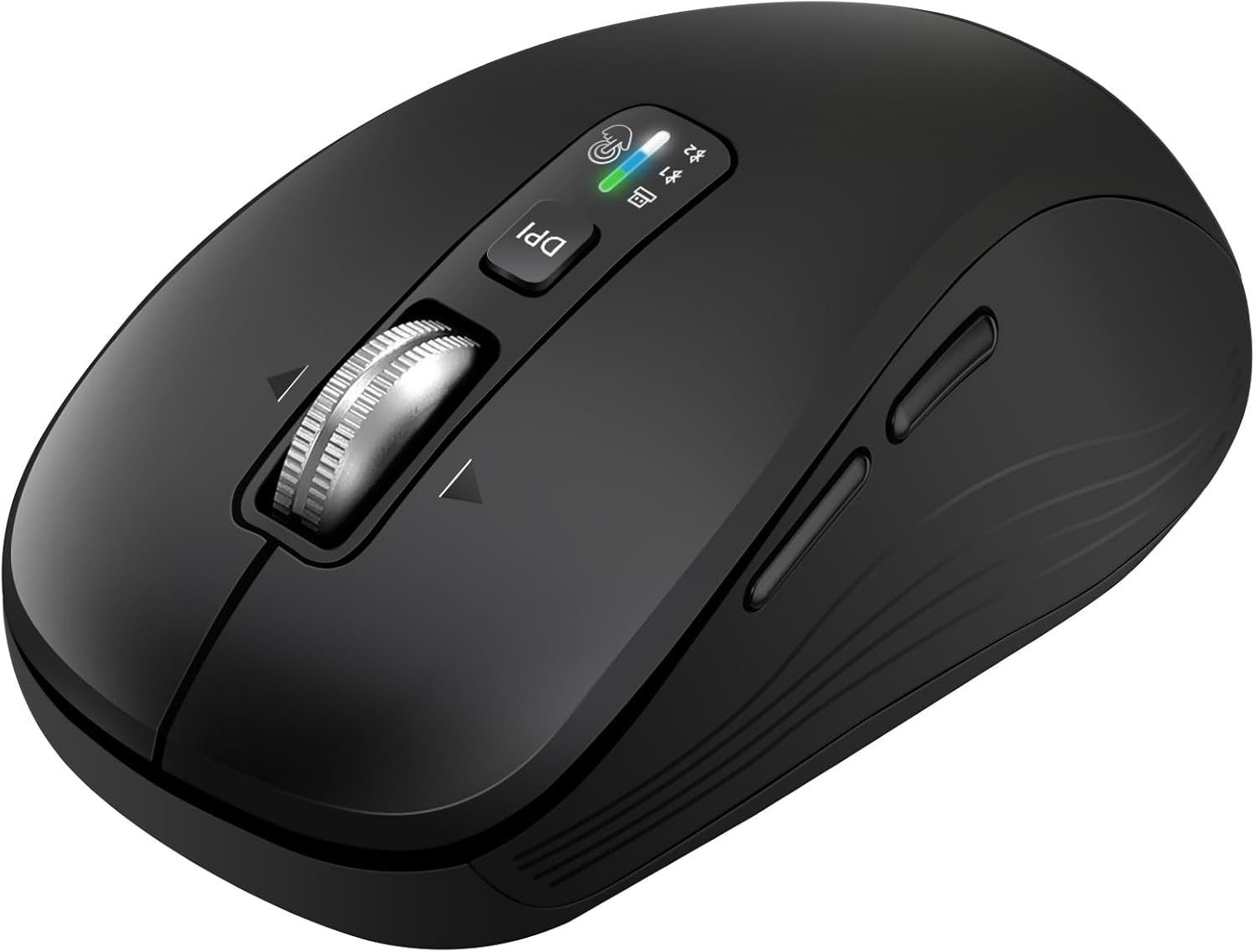
Image: The CITLLA Wireless Mouse, showcasinel seu disseny ergonòmic i la disposició dels botons.
Guia de configuració
1. Instal·lació de la bateria
The mouse requires two AA batteries (included). To install:
- Gently remove the top cover of the mouse. It is held by magnets.
- Insert the two AA batteries into the battery compartments, ensuring correct polarity (+/-).
- Torneu a col·locar la coberta superior, assegurant-vos que encaixi correctament al seu lloc.

Imatge: Part inferior view of the mouse with the top cover removed, showing the two AA battery compartments and the USB-A dongle storage.
Note: The mouse can operate with one or two AA batteries, depending on user preference for mouse weight.
2. Opcions de connectivitat
The CITLLA Wireless Mouse offers versatile connectivity with two Bluetooth channels and one USB-A receiver.
- Receptor USB-A: The USB-A dongle is stored inside the mouse, next to the battery compartments. Remove it and plug it into an available USB-A port on your computer. The mouse should connect automatically.
- Emparellament Bluetooth:
- Engegueu el ratolí amb l'interruptor ON/OFF que es troba a la part inferior.
- Press the "Devices Switch Button" on the top of the mouse to select either Bluetooth 1 or Bluetooth 2 mode. The corresponding indicator light will blink.
- On your device (computer, laptop, tablet, smartphone), go to Bluetooth settings and search for "CITLLA Mouse" or similar.
- Select the mouse to pair. The indicator light on the mouse will stop blinking once successfully paired.

Image: Illustration showing the mouse connected to a desktop via USB-A receiver, a tablet via Bluetooth 1, and a laptop via Bluetooth 2, demonstrating multi-device support.
Instruccions de funcionament
1. Funcions bàsiques
- Clic esquerre: Selecció i activació primàries.
- Clic dret: Accedeix als menús contextuals.
- Clic silenciós: All clicks are designed to be noiseless for a quiet working environment.

Image: A person using the mouse in an office setting, with a graphic illustrating the low decibel level of the mouse's clicks compared to office and music noise.
2. 4-Way Scrolling Wheel
The mouse features a unique 4-way scrolling wheel for enhanced navigation:
- Vertical Scrolling: Scroll the wheel up or down for vertical navigation. The hyper-scrolling feature allows for rapid scrolling through long documents or web pàgines.
- Horizontal Scrolling: Tilt the scroll wheel left or right to enable horizontal movement, ideal for wide spreadsheets or web pàgines.

Image: Close-up of the mouse highlighting the 4-way smart scroll wheel, emphasizing precision and speed scrolling.
3. Adjustable Cursor Speed (DPI)
Adjust the cursor sensitivity to match your task requirements:
- Press the "DPI Switch button" located near the scroll wheel to cycle through available DPI settings: 1000, 1600, 2400, and 3000 DPI.
- Each press will change the cursor speed, allowing for more accurate tracking or faster movement.

Image: Four panels illustrating different DPI settings (1000, 1600, 2400, 3000) suitable for various tasks like work, editing, design, and gaming.
4. Botons laterals
The mouse includes convenient side buttons for enhanced productivity:
- Forward/Back Buttons (Windows): These buttons typically function as forward and back navigation in web navegadors i file explorers on Windows systems.
- Application Switch (Mac OS): On Mac OS, these buttons can be configured to switch between applications or perform other custom functions.

Image: A detailed diagram of the mouse highlighting all its buttons and features, including DPI switch, devices switch, smart flying scroll wheel, forward/back buttons, application switch (Mac OS), and ON/OFF button.
Compatibilitat
The CITLLA Wireless Mouse is broadly compatible with various operating systems and devices, including:
- Windows
- Mac OS
- iOS
- Linux
- Chrome OS
- Sistemes Android
- Compatible with computers, laptops, iPads, MacBooks, smartphones, and tablets.
Gestió d'energia
The mouse is designed for long battery life, with an estimated life of over 3 years using the included AA batteries. To conserve power, ensure the ON/OFF switch on the bottom of the mouse is set to "OFF" when not in use for extended periods.
Disseny ergonòmic
The mouse features an ambidextrous and comfortable design, suitable for both left- and right-handed users. Its curved shape is engineered to reduce pressure on your hands during prolonged use, ensuring comfort and durability with a 5 million click durability rating.
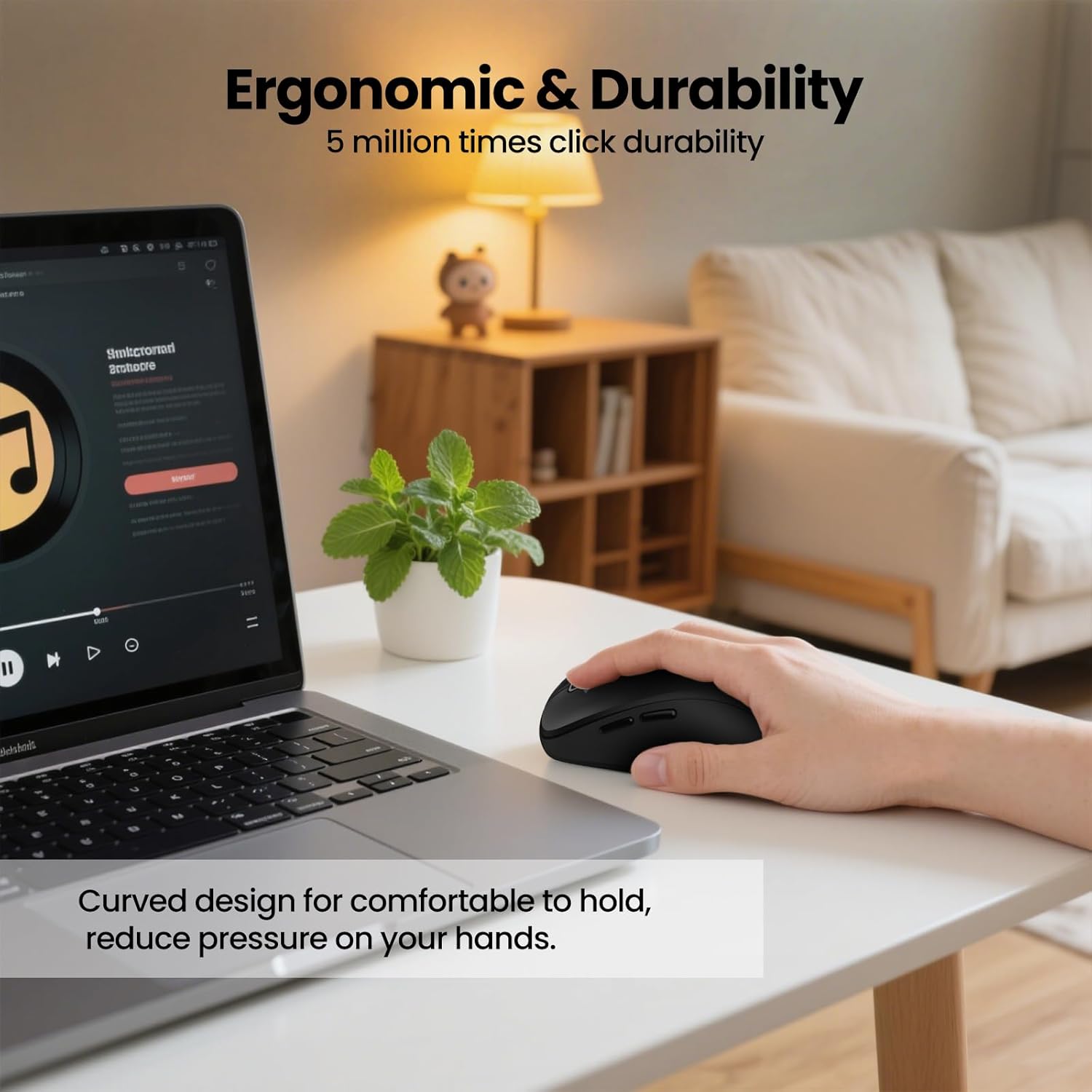
Image: A person using the mouse, highlighting its curved design for comfortable holding and reduced hand pressure, along with a note on 5 million click durability.
Especificacions
| Característica | Detall |
|---|---|
| Dimensions del producte | 4.24 x 1.48 x 0.1 polzades |
| Pes de l'article | 4.7 unces |
| Número de model | L370 |
| Bateries | 2 piles AA (incloses) |
| Tecnologia de connectivitat | Bluetooth (2 channels), USB (1 receiver) |
| Característiques especials | Wireless, Portable, 4-Way Scrolling, Ergonomic Design, Soundless |
| Tecnologia de detecció de moviment | Òptic |
| Color | Negre |
Què hi ha a la caixa
- 1 x CITLLA Wireless Mouse
- 2 x piles AA
Manteniment
To ensure the longevity and optimal performance of your mouse:
- Mantingueu el ratolí net netejant-lo amb un drap suau i sec. Eviteu utilitzar productes químics agressius o materials abrasius.
- Avoid exposing the mouse to extreme temperatures, direct sunlight, or moisture.
- Store the USB-A receiver inside the mouse when not in use to prevent loss.
Resolució de problemes
- El ratolí no respon:
- Assegureu-vos que les bateries estiguin instal·lades correctament i tinguin una càrrega suficient.
- Check if the ON/OFF switch on the bottom of the mouse is in the "ON" position.
- For USB-A connection, ensure the dongle is securely plugged into a working USB port.
- For Bluetooth connection, ensure Bluetooth is enabled on your device and the mouse is correctly paired to the selected channel (Bluetooth 1 or 2). Try re-pairing if necessary.
- El moviment del cursor és erràtic o lent:
- Netegeu el sensor òptic de la part inferior del ratolí.
- Assegureu-vos que feu servir el ratolí sobre una superfície adequada (no reflectant, no transparent).
- Adjust the DPI setting using the DPI switch button to a more appropriate speed.
- No es pot canviar entre dispositius:
- Press the "Devices Switch Button" firmly to cycle through the connected devices (USB-A, Bluetooth 1, Bluetooth 2).
- Ensure each device is correctly paired to its respective channel.
Vídeo oficial del producte
Vídeo: Un producte oficial acabatview of the CITLLA L380 Wireless Mouse, demonstrating its features and multi-device capabilities.
Garantia i Suport
CITLLA products are manufactured with high-quality standards. For any issues or support inquiries, please refer to your purchase platform or contact CITLLA customer service directly. Please retain your proof of purchase for warranty claims.
Per a més informació, visiteu el CITLLA Store on Amazon.


