1. Introducció
Thank you for choosing the KEFEYA 15.6" Triple Laptop Screen Extender. This device is designed to significantly boost your productivity by expanding your laptop's display to a versatile triple-screen workstation. With its high-quality FHD IPS panels and broad compatibility, it's an ideal solution for professionals, students, and anyone seeking an enhanced multi-tasking experience on the go or at their desk.
This manual provides detailed instructions for setup, operation, maintenance, and troubleshooting to ensure you get the most out of your new screen extender.
2. Producte acabatview
The KEFEYA S6 features two 15.6-inch portable monitors that attach to your laptop, creating a comprehensive triple-screen setup. Each display offers a 1920 x 1080 Full HD IPS resolution with 120% sRGB color gamut and 300 Candela brightness, ensuring crisp, vibrant visuals. The innovative design allows for flexible positioning and rotation, adapting to various work scenarios.

Figure 2.1: KEFEYA S6 Triple Laptop Screen Extender in use.

Figura 2.2: Detallada view of the 1080P FHD IPS Display features.
Característiques principals:
- Triple Screen Setup: Boosts productivity by up to 300% with extended screen real estate.
- Pantalla d'alta qualitat: 15.6-inch FHD IPS panels with 120% sRGB and 300 nits brightness.
- Funcionament flexible: Up to 7 different combinations and 360° rotation for versatile viewangles d'ajust.
- Magnetic Frame: New magnetic design for effortless storage and transportation.
- Múltiples mètodes de connexió: Supports full-featured USB-C, USB-A + HDMI, and includes a USB-to-HDMI converter for broader compatibility.
- Àmplia compatibilitat: Compatible with most laptops (Mac/Win/Android), excluding MacBooks with M1/M2/M3/M4 chips.
3. Contingut del paquet
Marqueu la casella per als elements següents:
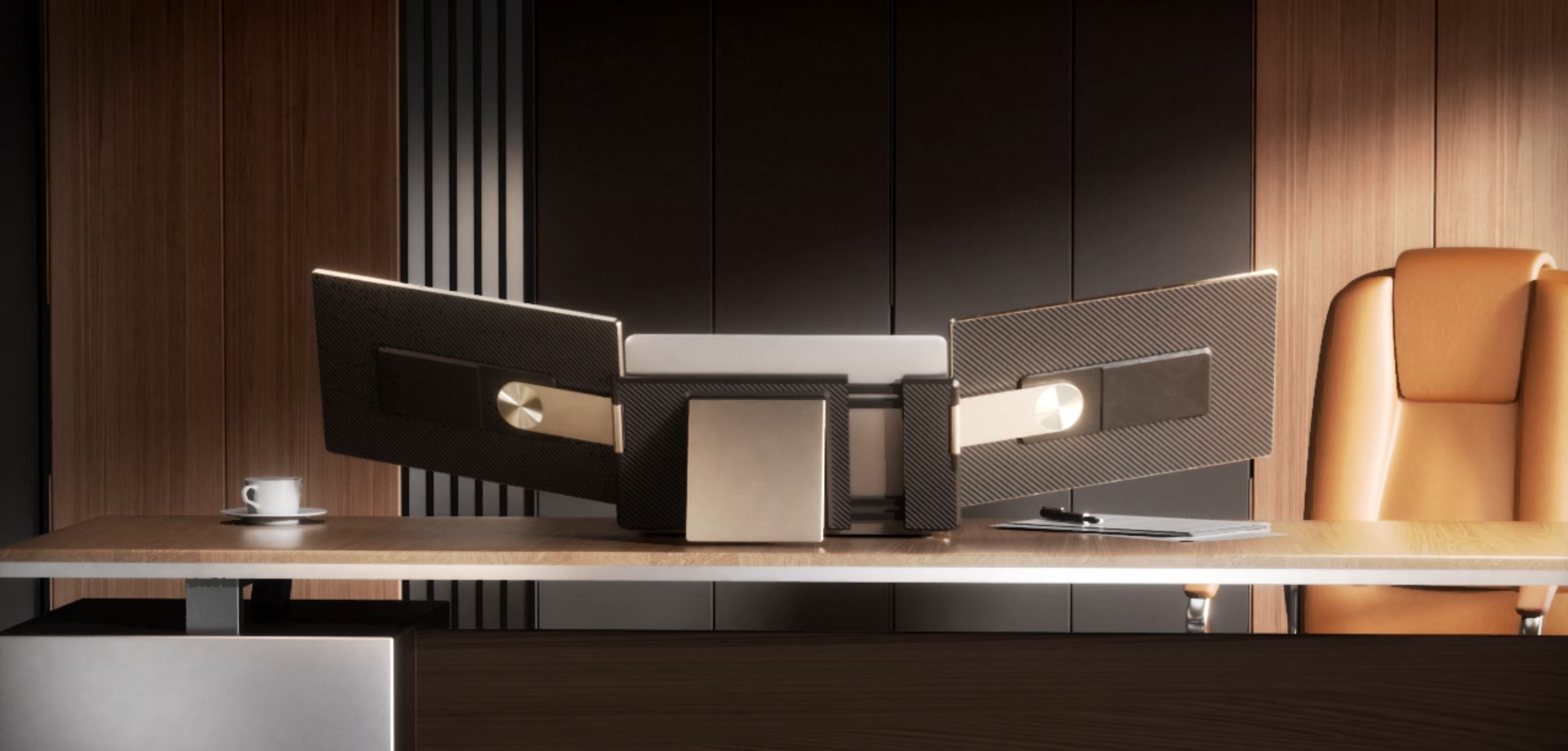
Figure 3.1: KEFEYA S6 Packaging Box Contents.
- KEFEYA S6 Triple Laptop Screen Extender (2 monitors)
- Manual d'usuari
- Sleeve Stand
- HDMI to Type-C Cable (x2)
- USB-A to Type-C Cable (x2)
- USB-C to Type-C Cable (x2)
- Suport de pantalla única
- Bossa de transport
4. Instruccions de configuració
Follow these steps to set up your KEFEYA S6 Triple Laptop Screen Extender.
4.1. Desembalatge i preparació inicial
- Traieu amb cura tots els components de l'embalatge.
- Place the main unit (the central part of the extender) on a stable surface.
- Gently slide out the two side monitors from the main unit.
- Remove any protective films from the screens.
Video 4.1: KEFEYA S6 Unboxing and Initial Setup. This video demonstrates how to unpack the screen extender and prepare it for use, including sliding out the monitors and removing protective films.
4.2. Attaching to Your Laptop
- Open your laptop to a comfortable viewangle de ing.
- Align the central bracket of the screen extender with the top edge of your laptop screen.
- Gently slide the extender onto your laptop screen, ensuring it is securely clipped. The magnetic frame will help secure it in place.

Figure 4.1: Extender attached to a laptop, highlighting viewing angles and stand flexibility.
4.3. Connecting the Monitors
The KEFEYA S6 offers multiple connection options depending on your laptop's available ports. Each screen has three USB-C ports: USB C with DP (DisplayPort Alternate Mode), Type-C1, Type-C2, and a Power switch.

Figure 4.2: Ports on the KEFEYA S6 monitor.
Option 1: Laptop with Two Full-Featured USB-C Ports
If your laptop has two full-featured USB-C ports (supporting DisplayPort Alternate Mode and power delivery), this is the simplest connection method.
- Connect one USB-C to USB-C cable from your laptop's first full-featured USB-C port to the 'USB C with DP' port on the left extender screen.
- Connect a second USB-C to USB-C cable from your laptop's second full-featured USB-C port to the 'USB C with DP' port on the right extender screen.

Figure 4.3: Easy connection methods for the KEFEYA S6.
Option 2: Laptop with One Full-Featured USB-C Port, One HDMI Port, and One USB-A Port
This method uses a combination of cables.
- For the first screen: Connect one USB-C to USB-C cable from your laptop's full-featured USB-C port to the 'USB C with DP' port on one extender screen.
- For the second screen: Connect the USB-A end of the USB-A to Type-C cable to your laptop's USB-A port, and the Type-C end to the 'Type-C1' or 'Type-C2' port on the second extender screen. Then, connect an HDMI to Type-C cable from your laptop's HDMI port to the 'USB C with DP' port on the same second extender screen. Important: Ensure you connect the USB-A cable first, then the HDMI cable.

Figure 4.4: USB-A & HDMI connection method.
Option 3: Laptop with One HDMI Port, Multiple USB-A Ports, but No Full-Featured USB-C Port (Requires H5-T Cable)
If your laptop lacks a full-featured USB-C port, you may need the included H5-T cable (USB-to-HDMI converter).
- For the first screen: Use the H5-T cable to connect to the 'DP' port on one extender screen. This cable typically requires a USB-A connection for power and an HDMI connection for video.
- For the second screen: Use a USB-A to Type-C cable to connect to the 'Type-C1' or 'Type-C2' port on the second extender screen. Then, connect an HDMI to Type-C cable from your laptop's HDMI port to the 'USB C with DP' port on the same second extender screen.

Figure 4.5: H5-T cable usage scenarios.
Nota: If a single USB-C port cannot power one screen, please contact customer support for assistance. Ensure your laptop's display settings are configured to extend or duplicate the display as desired after connection.
5. Instruccions de funcionament
Once connected, your KEFEYA S6 extender is ready for use. The monitors should automatically detect the signal from your laptop.
5.1. Display Settings Configuration
You may need to adjust your display settings within your operating system (Windows, macOS, Android, Chrome OS, Switch, Xbox) to optimize your triple-screen setup.
- Extend Display: This mode allows you to have separate content on each screen, maximizing your workspace.
- Duplicate Display: This mode mirrors your main laptop screen onto the extender screens.
- Arrange Displays: You can drag and drop the virtual displays in your operating system's display settings to match their physical arrangement on your desk.

Figure 5.1: KEFEYA S6 in various usage scenarios.
5.2. Monitor Adjustments
The KEFEYA S6 offers extensive flexibility for positioning and viewing.
- Rotació: The monitors can rotate up to 235° from the central unit, allowing for various configurations, including portrait mode.
- Suport de peu: Utilize the integrated kickstand on the back of the central unit for additional stability, especially when using the monitors in a freestanding setup or with a laptop stand.
- Single Screen Stand: For individual monitor use, attach the provided single screen stand to either monitor.

Figure 5.2: Monitor rotation and stand options.
5.3. Configuració de la funció
Each monitor has controls to adjust display parameters:
- Brillantor: Ajusta la lluminositat de la pantalla.
- Contrast: Modifica la diferència entre les zones clares i fosques.
- Il·luminació de fons: Control the intensity of the backlight.
- Nitidez: Millora la claredat de la imatge.
- Mode ECO: Optimize power consumption.
- DCR (relació de contrast dinàmic): Enable or disable dynamic contrast.
6. Compatibilitat
The KEFEYA S6 is designed for broad compatibility with various operating systems and devices.

Figure 6.1: KEFEYA S6 compatibility overview.
Sistemes operatius compatibles:
- Windows
- macOS (excluding M1/M2/M3/M4 chip MacBooks due to chip limitations)
- Android
- Chrome OS
- Nintendo Switch
- Xbox
Nota important: Due to the limitations of some laptop port types and chip architectures, not all laptops are suitable for this product. Specifically, MacBooks with M1/M2/M3/M4 chips are not compatible. If you have an older MacBook chip, please consult KEFEYA customer support before purchase to verify compatibility.
7. Manteniment
To ensure the longevity and optimal performance of your KEFEYA S6 screen extender, follow these maintenance guidelines:
- Neteja: Use a soft, lint-free cloth to clean the screens and exterior. For stubborn smudges, slightly dampen the cloth with water or a screen-safe cleaning solution. Avoid abrasive cleaners or solvents.
- Emmagatzematge: When not in use, fold the screens back into the main unit and store the extender in its provided carrying bag to protect it from dust and scratches.
- Manipulació: Avoid applying excessive force when adjusting the screens or connecting cables. Do not squeeze or pierce the screens.
- Temperatura: Operate and store the device within recommended temperature ranges to prevent damage. Avoid extreme heat or cold.
8. Solució De Problemes
If you encounter issues with your KEFEYA S6, refer to the following common problems and solutions:
| Problema | Causa possible | Solució |
|---|---|---|
| Screen not displaying / No signal | Incorrect cable connection; Insufficient power; Laptop display settings; Incompatible port. | 1. Ensure all cables are securely connected to the correct ports on both the extender and your laptop. 2. Verify your laptop's USB-C ports are full-featured (support DisplayPort Alt Mode and power). If not, use the USB-A + HDMI method or the H5-T cable. 3. Check laptop display settings (Windows: Display Settings; macOS: System Settings > Displays) to ensure 'Extend' or 'Duplicate' mode is selected. 4. If using USB-A & HDMI, ensure USB-A is connected first, then HDMI. |
| Screen flickering or unstable display | Insufficient power; Loose connection; Driver issue (for some setups). | 1. Ensure your laptop provides sufficient power to the screens. If a single USB-C port is not enough, try connecting an external power source if available or contact support. 2. Re-seat all cables. 3. For certain configurations (e.g., some older MacBooks or specific Windows setups), a driver download might be required. Consult KEFEYA support. |
| Monitors not recognized by laptop | Incompatible laptop model/chip; Outdated drivers. | 1. Confirm your laptop is not an M1/M2/M3/M4 MacBook. 2. Update your laptop's graphics drivers. 3. Try restarting your laptop with the extender connected. |
| Image quality issues (dull, blurry) | Incorrect display settings; Cable quality. | 1. Adjust brightness, contrast, and sharpness using the monitor's function settings. 2. Ensure your laptop's resolution output matches the extender's native resolution (1920x1080). 3. Try using different cables provided with the product. |
If you continue to experience issues, please contact KEFEYA customer support with your laptop model information for further assistance.
9. Especificacions
| Característica | Detall |
|---|---|
| Número de model | S6 |
| Mida de la pantalla | 15.6 Inches (each monitor) |
| Resolució | 1920 x 1080 píxels (FHD 1080p) |
| Tecnologia de visualització | IPS |
| Gamma de colors | 120% sRGB |
| Brillantor de la imatge | 300 Candela |
| Relació d'aspecte | 16:9 |
| Ports USB totals | 4 (per screen: USB C with DP, Type-C1, Type-C2, Power) |
| Dimensions del producte | 14.21 x 9.69 x 1.81 polzades |
| Pes de l'article | 9.06 lliures |
| Voltage | 5 volts (CC) |
| Fabricant | Shenzhen Baijiayoupu Technology Co., Ltd. |
10. Garantia i assistència
The KEFEYA S6 Triple Laptop Screen Extender comes with a garantia d'un any des de la data de compra, cobrint defectes de fabricació i avaries en condicions d'ús normal.
Atenció al client:
For any questions, technical assistance, or warranty claims, please contact KEFEYA customer service. When reaching out, please provide your laptop model information, especially if you are experiencing connection issues, to help us assist you promptly.
You can typically find contact information for 'HAMAQI US' (the seller) on the product's purchase page or within the packaging materials.


