Introducció
This manual provides detailed instructions for the proper use and maintenance of your EazeID H1100 Label Maker. Please read this manual thoroughly before operating the device to ensure optimal performance and longevity.
Contingut del paquet
Verifiqueu que tots els elements que s'enumeren a continuació s'inclouen al vostre paquet:
- EazeID H1100 Label Maker (White-Gray) x 1
- 12mm 0.47 Laminated White Tape (Sample Tape 4M*12mm) x 1
- Cable USB-C x 1
- Manual d'usuari x 1
- Replacement Cutter Holder x 1

Image: The EazeID H1100 Label Maker shown with its complete package contents, including the device, a sample tape cassette, a USB-C cable, the user manual, and a replacement cutter holder.
Producte acabatview
The EazeID H1100 is a portable, inkless label maker designed for various labeling needs in home, office, and school environments. It features a QWERTY keyboard, a backlit LCD screen, and supports multiple fonts, symbols, and frames for customized labels.

Imatge: Una imatge detallada view of the EazeID H1100 Label Maker, highlighting its keyboard layout, display screen, and overall ergonomic design.
Configuració
1. Font d'alimentació
The EazeID H1100 Label Maker supports two power supply methods:
- Cable USB-C: Connect the included USB-C cable to the label maker and a compatible power adapter (not included) or USB port.
- Piles AAA: Insert 6 AAA batteries (not included) into the battery compartment located on the underside of the device.
Note: When using the USB-C cable, it is recommended to use a charger block with an output voltage of ≤5V. The device can only stay powered with the Type-C cable; it does not support battery charging.

Image: Illustration demonstrating how to power the label maker using either 6 AAA batteries or the provided USB-C cable.
2. Càrrega de la cinta d'etiquetes
- Open the tape compartment cover on the back of the label maker.
- Insert the label tape cassette with the tape facing downwards, ensuring it clicks into place.
- Tanqueu bé la tapa del compartiment de la cinta.

Image: A visual guide to correctly inserting the EazeID BZ label tape cassette into the label maker.
Instruccions de funcionament
1. Creació bàsica d'etiquetes
- Premeu el botó Poder botó per encendre el dispositiu.
- Type your desired text using the QWERTY keyboard. The text will appear on the backlit LCD screen.
- Premeu el botó Imprimeix button (usually indicated by a printer icon) to print the label.
- Use the built-in cutter to cut the printed label.
2. Backlit Screen
The LCD screen features a backlight for improved visibility in various lighting conditions. Press the dedicated backlight key (often indicated by a lightbulb icon) to toggle the backlight on or off.

Image: A visual comparison illustrating the enhanced readability of the EazeID H1100's backlit LCD screen.
3. Text Editing and Customization
The EazeID H1100 offers extensive customization options:
- Tipus de lletra: Premeu el botó Font button to cycle through available font styles. The device supports 21 fonts.
- Símbols: Premeu el botó Símbol button to access a library of over 800 symbols. Use the navigation keys to select and insert symbols.
- Marcs: Premeu el botó Marc button to choose from over 100 decorative frames for your labels.
- Idiomes: The device supports 22 languages for text input. Refer to the menu settings to change the input language.

Image: A visual representation of the various font options available on the label maker.

Image: A collection of symbols that can be added to labels for enhanced customization.

Imatge: Examples of frames that can be used to decorate and highlight labels.

Image: A list of the 22 languages supported for text input on the label maker.
4. Cable Labeling Modes
The EazeID H1100 includes specialized modes for cable labeling:
- Cable Wrap: Creates labels that wrap around cables.
- Cable Flag: Generates labels that fold into a flag shape for easy identification.
- Faceplate Label: Produces labels suitable for faceplates or flat surfaces.
Premeu el botó Cable button to access these modes and select the appropriate option.

Imatge: Visual examples of the three distinct cable labeling formats available.
5. Multi-Copy Printing
To print multiple copies of the same label or different labels in sequence:
- Multiple Copies of the Same Label: After typing your text, press Canvi + Imprimeix. Use the navigation keys or number keys (1-9) to set the number of copies, then press OK or Imprimeix.
- Multi-Edit for Different Labels: Input text, then press Multi Edit. Input the next label's text, press Multi Edit again, and repeat for up to 20 different labels. Finally, press Imprimeix to print all entered labels sequentially.

Image: An illustration detailing the steps for using the multi-edit function to print a series of different labels.
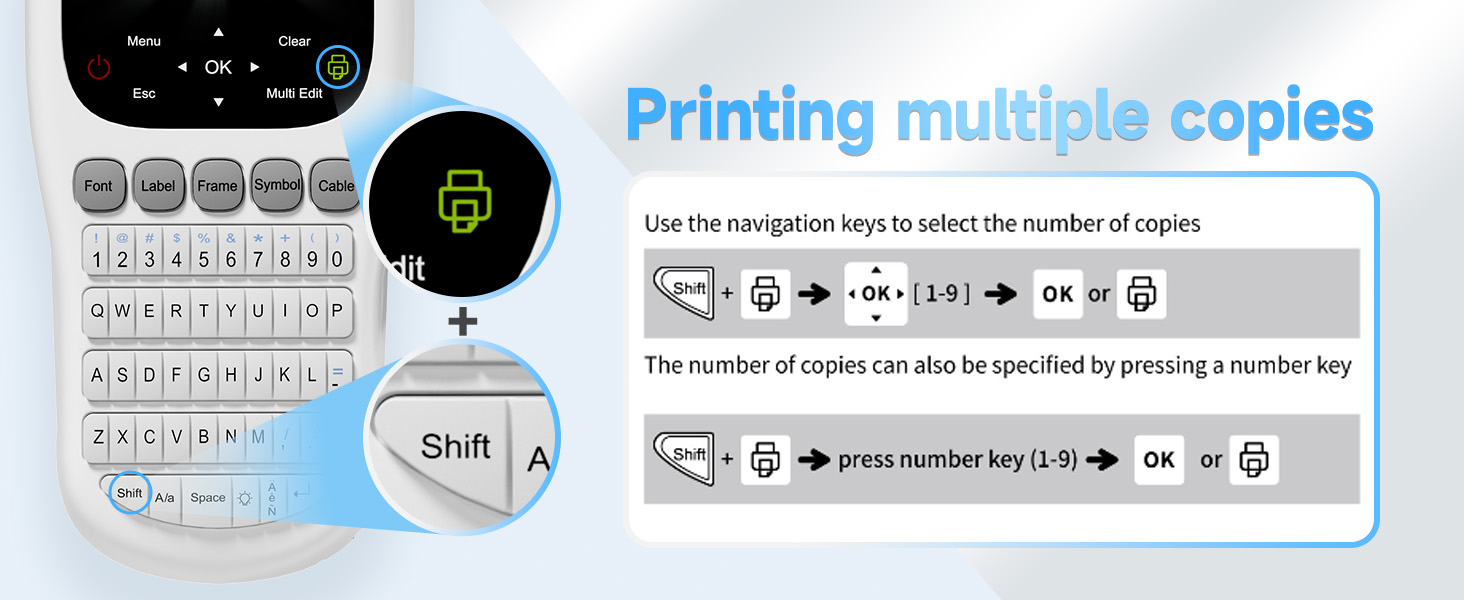
Image: Instructions for setting the number of copies for a single label print job.
6. Clearing Text
To clear text from the display:
- Delete characters one by one: Premeu el botó BS (retrocés) clau.
- Delete all text and format: Premeu Clar → OK → [Text i format] → OK.
- Delete all text only: Premeu Clar → [Només text] → OK.

Image: A guide to using the 'Clear' function for deleting text and formatting.
7. Saving and Opening Label Files
The EazeID H1100 has built-in memory to save frequently used labels:
- Desa: Premeu Menú → OK → [File] → OK → [Desa] → OK. Select a memory slot (1-9) and press OK.
- Obert: Premeu Menú → OK → [File] → OK → [Obert] → OK. Select the desired memory slot and press OK.

Image: Instructions for accessing and managing saved label designs through the device's menu.
Manteniment
1. Neteja del dispositiu
To maintain optimal performance, regularly clean the print head and cutter blade:
- Turn off the label maker and disconnect any power sources.
- Open the tape compartment.
- Gently wipe the print head with a soft, dry cloth or a cotton swab. Do not use alcohol or other solvents.
- Carefully clean any adhesive residue from the cutter blade using a cotton swab.
- Close the tape compartment.
2. Replacing Label Tape
When the label tape runs out or you wish to change tape types:
- Ensure the label maker is powered off.
- Obriu la tapa del compartiment de la cinta.
- Remove the empty or unwanted tape cassette.
- Insert a new EazeID BZ label tape cassette as described in the 'Loading Label Tape' section.
- Tanqueu la tapa del compartiment de la cinta.
Resolució de problemes
| Problema | Causa possible | Solució |
|---|---|---|
| El dispositiu no s'encén | Low or dead batteries; USB-C cable not connected properly or faulty. | Replace AAA batteries; ensure USB-C cable is securely connected and power source is functional. |
| Blank labels printed | Tape cassette inserted incorrectly; tape is exhausted. | Reinsert tape cassette correctly; replace with a new tape cassette. |
| Poca qualitat d'impressió | Print head is dirty; incorrect tape type. | Clean the print head as described in the Maintenance section; ensure you are using EazeID BZ label tape. |
| Jam de cinta | Tape not inserted correctly; foreign object in tape path. | Open compartment, remove tape, clear any obstructions, and reinsert tape correctly. |
| El tallador no funciona | Cutter blade is dull or jammed. | Clear any obstructions around the cutter; replace the cutter holder if necessary. |
Especificacions
| Característica | Detall |
|---|---|
| Nom del model | EazeID H1100 |
| Tecnologia d'impressió | Tèrmica |
| Mida màxima del suport | 12 mm |
| Resolució d'impressió màxima | 200 DPI |
| Velocitat màxima d'impressió (monocrom) | 15 mm/s |
| Font d'alimentació | USB-C (5V) or 6 AAA Batteries |
| Interfície del maquinari | USB |
| Tipus de teclat | QWERTY |
| Mostra | Pantalla LCD retroil·luminada |
| Dimensions del producte | 2 x 2 x 2 polzades |
| Pes de l'article | 1.1 lliures |
Garantia i Suport
For warranty information and customer support, please refer to the contact details provided in the original product packaging or visit the official EazeID weblloc web. Conserveu el rebut de compra com a comprovant de compra per a reclamacions de garantia.


