1. Introducció
The ZTE U10S Pro is a portable 4G+ LTE Mobile Wi-Fi 6 device designed to provide high-speed internet connectivity on the go. It allows you to create a personal Wi-Fi hotspot, sharing a 4G/3G connection with up to 32 devices simultaneously. Its compact design and long-lasting battery make it ideal for travel and various mobile internet needs.
1.1. Contingut del paquet
Si us plau, comproveu el paquet per veure si hi ha els elements següents:
- ZTE U10S Pro Device
- Bateria recarregable (3000 mAh)
- Guia d'inici ràpid

Image: The ZTE U10S Pro device shown alongside its blue retail box, indicating the product and its packaging.
2. Configuració inicial
Follow these steps to set up your ZTE U10S Pro for the first time.
2.1. Instal·lació de la targeta SIM i la bateria
- Traieu amb cura la coberta posterior del dispositiu.
- Insert a Nano 4G SIM card into the designated SIM card slot. Ensure the SIM card is correctly oriented as indicated on the device.
- Insert the provided 3000mAh rechargeable battery into the battery compartment.
- Torneu a col·locar la coberta posterior, assegurant-vos que encaixi correctament al seu lloc amb un clic.

Image: The ZTE U10S Pro device with its back cover open, revealing the internal battery compartment and SIM card slot, illustrating how to install components.
2.2. Encendre el dispositiu
Press and hold the Power button (usually located on the side or top) for a few seconds until the screen illuminates and the device starts up. The device will automatically detect the SIM card and attempt to connect to the 4G/3G network.

Image: Two different angled views of the ZTE U10S Pro, showcasing its sleek blue design and the circular display screen.
3. Funcionament
3.1. Connecting Devices to the Wi-Fi Hotspot
The ZTE U10S Pro can connect up to 32 Wi-Fi enabled devices. To connect your device:
- On your Wi-Fi enabled device (e.g., smartphone, tablet, laptop), open the Wi-Fi settings.
- Cerca available Wi-Fi networks. The network name (SSID) and password for your ZTE U10S Pro are typically found on a label inside the battery compartment or on the device's screen.
- Select your ZTE U10S Pro's network name from the list.
- Introduïu la contrasenya de Wi-Fi quan se us demani.
- El dispositiu ara hauria d'estar connectat a Internet.
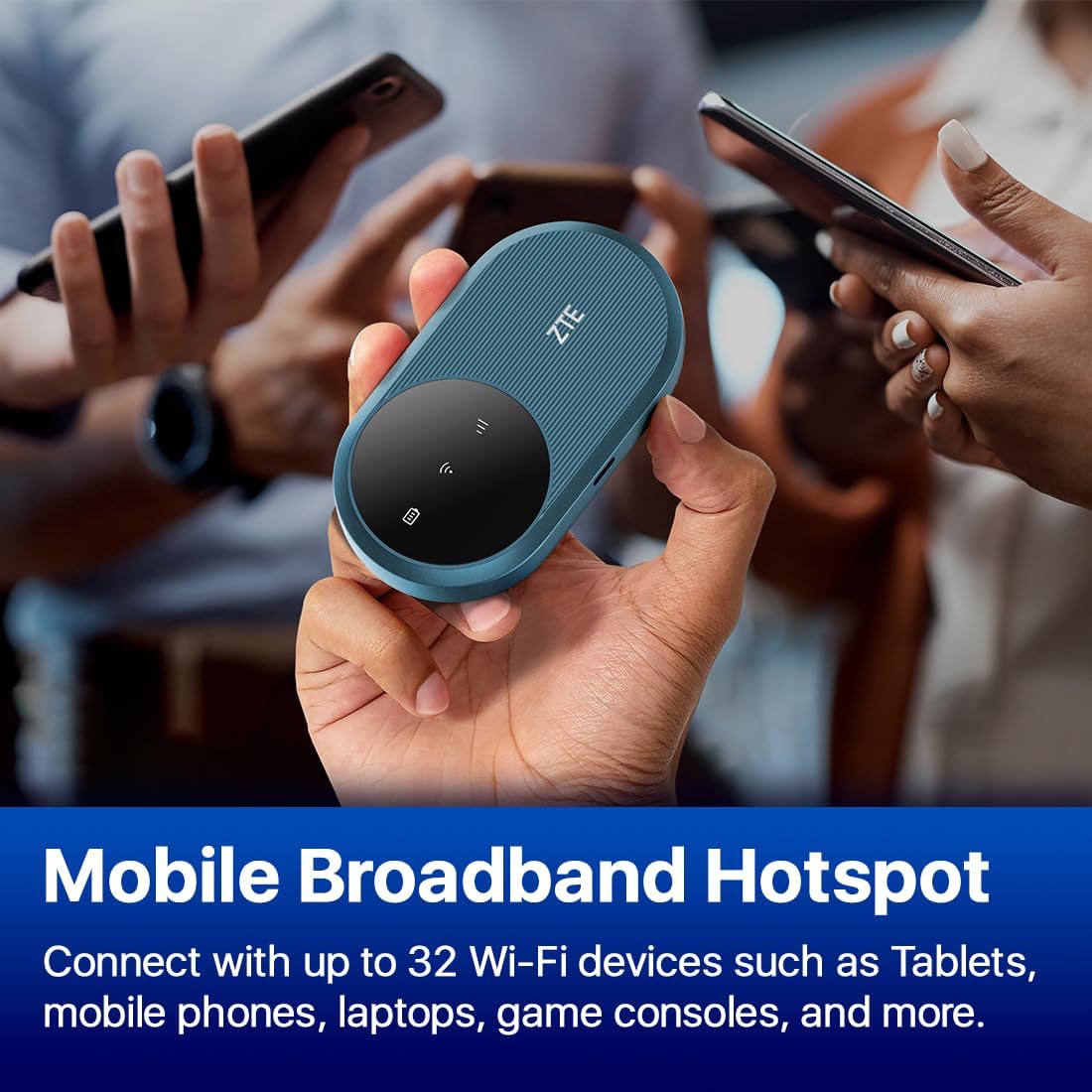
Image: The ZTE U10S Pro held in a hand, with other hands holding various mobile devices in the background, symbolizing its capability to connect multiple devices as a mobile broadband hotspot.
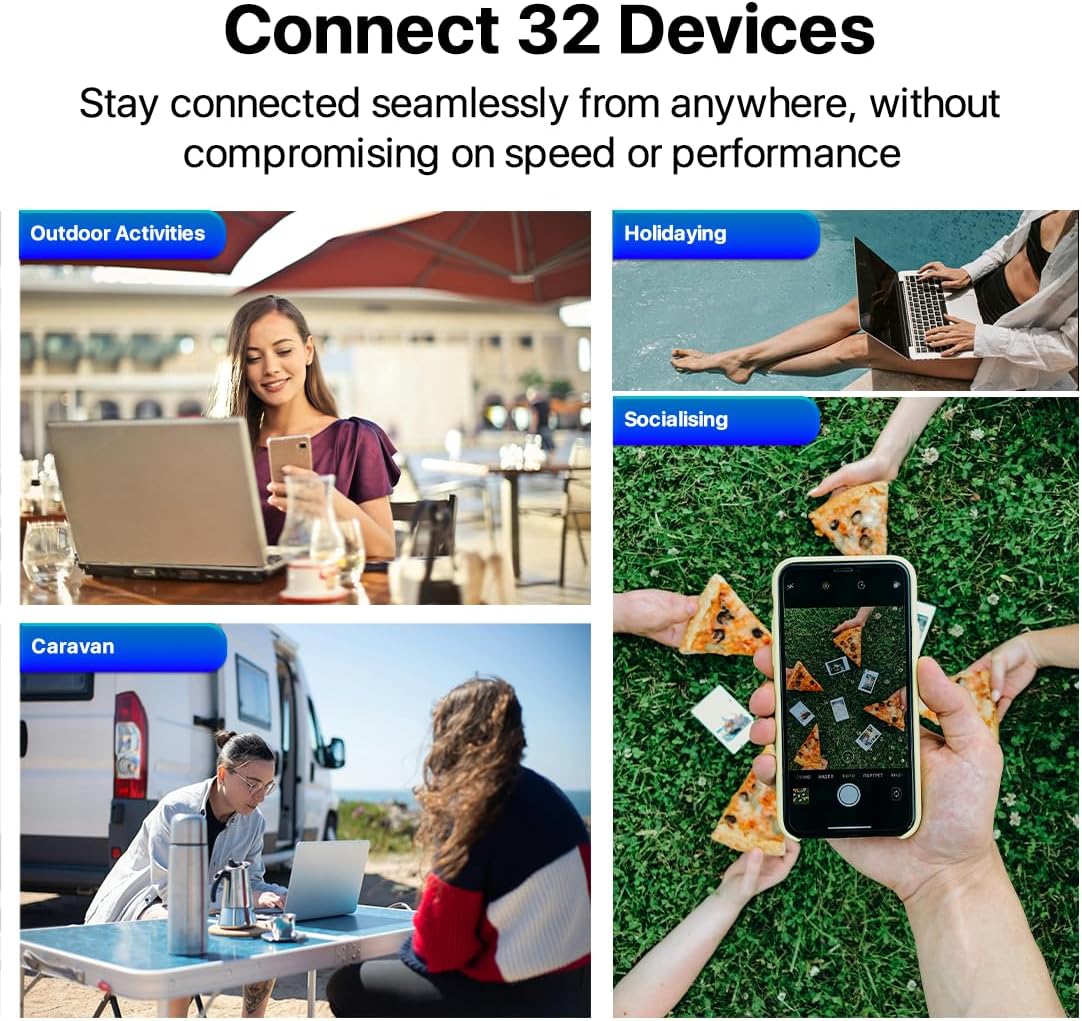
Image: A visual representation showing the ZTE U10S Pro connecting 32 devices, with scenes depicting its use during outdoor activities, holidays, social gatherings, and in a caravan, highlighting its versatility.
3.2. Understanding the Device Screen
The circular screen on your ZTE U10S Pro provides real-time information about the device's status. Key indicators include:
- Intensitat del senyal: Indicates the strength of the 4G/3G network signal.
- Durada de la bateria: Mostra el nivell de bateria actual.
- Usuaris connectats: Shows the number of devices currently connected to the hotspot.
- Upload/Download Speeds: Provides real-time data transfer rates.
- QR Code for Wi-Fi Connection: Allows for quick connection by scanning the QR code.

Image: The ZTE U10S Pro's screen showing various icons and information, such as signal strength, battery level, and connected users, demonstrating its easy management features.
3.3. Advanced Wi-Fi Features
The ZTE U10S Pro supports Dual-Band Wi-Fi 6 technology, providing efficient and fast wireless connectivity. You can manage settings such as:
- Control parental: A simplified system to help ensure online safety.
- Xarxa de convidats: Create a separate network for guests without sharing your main network password.
These settings can typically be accessed via the device's web management interface (refer to the Quick Start Guide for default IP address and login credentials).

Image: The ZTE U10S Pro device with a shield icon overlaid, illustrating its parental control and guest network capabilities for enhanced online safety.
4. Càrrega del dispositiu
The ZTE U10S Pro is equipped with a 3000mAh rechargeable battery, providing up to 10 hours of working time. To charge the device:
- Connect the device to a power source using a compatible USB cable (not included, typically uses USB-C).
- L'indicador de bateria a la pantalla mostrarà el progrés de la càrrega.
- Ensure the device is fully charged before extended use for optimal battery performance.

Image: The ZTE U10S Pro device connected to a white charging cable, with a prominent battery icon on its screen indicating that it is charging, demonstrating its super-fast 4G+ speeds while charging.
5. Especificacions tècniques
| Nom del model | U10SPRO |
| Dimensions | 10.8 x 6 x 2 cm |
| Pes | 20 g |
| Capacitat de la bateria | 3000 mAh d'ions de liti |
| Temps de treball | Fins a 10 hores |
| Estàndard sense fils | 802.11n, 802.11ax (Wi-Fi 6), 802.11b, 802.11a, 802.11g |
| Banda de freqüència | Doble banda (2.4 GHz) |
| Màxim dispositius connectats | 32 |
| Tipus de targeta SIM | Nano 4G SIM |
| Tecnologia de connectivitat | Bluetooth, Wi-Fi, USB, LTE |
| Sistema operatiu | RouterOS (Internal Firmware) |
6. Solució De Problemes
If you encounter issues with your ZTE U10S Pro, try the following solutions:
- Sense senyal de xarxa:
- Assegureu-vos que la targeta SIM estigui correctament inserida i activada.
- Check if you are in an area with 4G/3G network coverage.
- Reinicieu el dispositiu.
- No es pot connectar a Wi-Fi:
- Verifiqueu la contrasenya del Wi-Fi.
- Ensure the device's Wi-Fi is enabled.
- Move closer to the ZTE U10S Pro.
- Comproveu si s'ha arribat al nombre màxim de dispositius connectats (32).
- Velocitat d'Internet lenta:
- Check your network signal strength on the device screen.
- Reduir el nombre de dispositius connectats.
- Ensure your SIM card plan has sufficient data allowance and speed.
- El dispositiu no s'encén:
- Assegureu-vos que la bateria estigui ben inserida i carregada.
- Connect the device to a power source and try again.
7. Garantia i Suport
The ZTE U10S Pro comes with a manufacturer's warranty. Please refer to the Quick Start Guide or the official ZTE weblloc web per obtenir informació detallada sobre els termes i condicions de la garantia.
For technical support, product inquiries, or warranty claims, please contact ZTE customer service or visit their official support channels. Information regarding support is typically provided in the Quick Start Guide included with your product.
També podeu visitar el Botiga ZTE a Amazon per a més informació i actualitzacions del producte.


