1. Introducció
This manual provides detailed instructions for the setup, operation, customization, and maintenance of your CHERRY XTRFY M50 Wireless Gaming Mouse. Please read this manual thoroughly to ensure optimal performance and longevity of your device.
1.1. Contingut del paquet
- Ratolí per a jocs sense fil CHERRY XTRFY M50
- Cable de càrrega USB-C a USB-A
- USB Wireless Receiver (2.4 GHz)
- Guia d'inici ràpid
2. Configuració
2.1. Connectar el ratolí
The CHERRY XTRFY M50 Wireless Gaming Mouse offers multiple connectivity options: 2.4 GHz wireless via USB receiver, Bluetooth, and wired via USB-C cable.
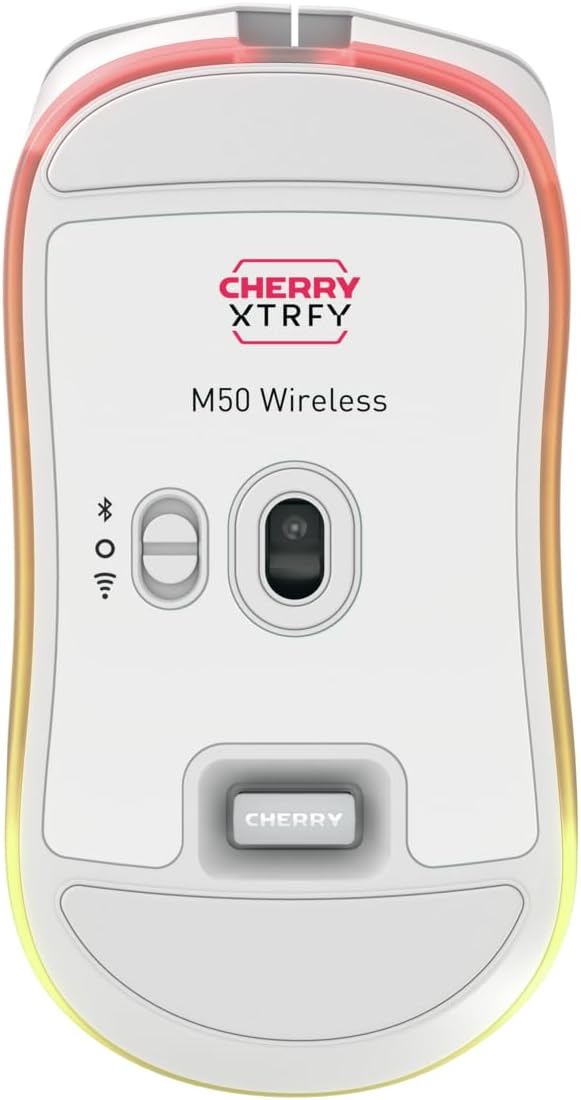
Imatge: A baix view of the M50 Wireless mouse, highlighting the sensor and the connectivity mode switch.
2.1.1. Connexió sense fil de 2.4 GHz
- Locate the USB wireless receiver. It is typically stored in a compartment on the underside of the mouse.
- Plug the USB wireless receiver into an available USB-A port on your computer.
- On the underside of the mouse, slide the switch to the '2.4 GHz' position (often indicated by a wireless icon).
- El ratolí s'hauria de connectar automàticament a l'ordinador.
2.1.2. Connexió Bluetooth
- On the underside of the mouse, slide the switch to the 'Bluetooth' position (often indicated by a Bluetooth icon).
- On your computer, navigate to Bluetooth settings and enable Bluetooth.
- Seleccioneu "Afegeix un dispositiu" o "Emparella un dispositiu nou".
- The mouse should appear as 'CHERRY XTRFY M50' or similar. Select it to pair.
2.1.3. Connexió per cable
- Connecteu l'extrem USB-C del cable de càrrega al port frontal del ratolí.
- Connect the USB-A end of the charging cable to an available USB-A port on your computer.
- El ratolí funcionarà en mode amb cable i es carregarà simultàniament.

Imatge: The M50 Wireless mouse connected via its USB-C charging cable, illustrating wired mode and charging.
2.2. Càrrega del ratolí
To charge the M50 Wireless mouse, connect the provided USB-C cable to the mouse and the USB-A end to a powered USB port on your computer or a USB wall adapter. The RGB lighting may indicate charging status.
3. Instruccions de funcionament
The CHERRY XTRFY M50 Wireless Gaming Mouse features an ergonomic design for comfortable use and precise control.

Imatge: Davant view of the M50 Wireless mouse, displaying its main buttons and scroll wheel.
3.1. Funcions bàsiques
- Clic esquerre: Botó d'acció principal.
- Clic dret: Botó d'acció secundària, normalment per a menús contextuals.
- Roda de desplaçament: Used for vertical scrolling. The 4D tilt wheel also supports horizontal scrolling.
- Botó DPI: Located behind the scroll wheel, this button cycles through pre-set CPI (Counts Per Inch) levels.
- Botons laterals: Typically used for 'forward' and 'back' navigation in web navegadors o personalitzables en programari.
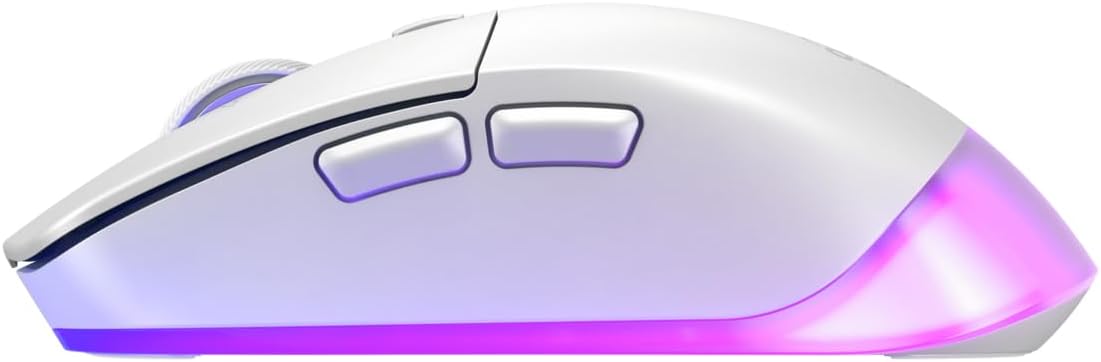
Imatge: lateral view of the M50 Wireless mouse, showing the ergonomic curve and the two side buttons.
4. Customization (CHERRY UTILITY Software)
The CHERRY XTRFY M50 Wireless Gaming Mouse features 5 customizable on-board profiles. To unlock the full potential of your mouse, download and install the CHERRY UTILITY software from the official CHERRY XTRFY weblloc.
4.1. Característiques del programari
With the CHERRY UTILITY software, you can:
- Adjust CPI (Counts Per Inch) sensitivity levels.
- Configure Polling Rate.
- Assignar macros als botons.
- Funcions del botó Remap.
- Customize RGB illumination effects and colors.
- Create and manage up to 5 on-board profiles, which are stored directly on the mouse.
5. Manteniment
5.1. Neteja
Per mantenir un rendiment i un aspecte òptims:
- Ensure the mouse is disconnected from your computer or powered off before cleaning.
- Utilitzeu un drap suau i sense pelusa dampamb aigua o una solució de neteja suau.
- Eviteu l'ús de productes químics agressius, materials abrasius o humitat excessiva.
- Clean the sensor area gently with a cotton swab if tracking issues occur.
5.2. Emmagatzematge
When not in use for extended periods, store the mouse in a dry, cool environment away from direct sunlight and extreme temperatures.
6. Solució De Problemes
6.1. Problemes de connectivitat
- El ratolí no respon (2.4 GHz): Ensure the USB receiver is securely plugged into a working USB port. Check that the mouse's mode switch is set to 2.4 GHz. Try a different USB port.
- El ratolí no respon (Bluetooth): Ensure Bluetooth is enabled on your computer and the mouse's mode switch is set to Bluetooth. Re-pair the device if necessary.
- Connexió intermitent: Move the mouse closer to the receiver or Bluetooth adapter. Avoid sources of interference (e.g., other wireless devices, large metal objects).
6.2. Problemes de seguiment
- Clean the mouse sensor with a cotton swab.
- Assegureu-vos que feu servir el ratolí sobre una superfície adequada (per exemple, una estora de ratolí).
- Adjust CPI settings via the DPI button or CHERRY UTILITY software.
6.3. Problemes de càrrega
- Ensure the USB-C cable is properly connected to both the mouse and a powered USB port.
- Prova un altre port USB o cable de càrrega.
7. Especificacions
| Marca | XTRFY DE CIRER |
| Nom del model | M50 sense fil |
| Número de model | JW-5000-0 |
| Tecnologia de connectivitat | Sense fil de 2.4 GHz, Bluetooth, USB amb cable |
| Tecnologia de detecció de moviment | Làser |
| Característica especial | Lightweight, Adjustable RGB Illumination, 4D Tilt Wheel |
| Color | Blanc |
| Dimensions aproximades del paquet (L x A x A) | 7.2 x 4.09 x 2.72 polzades |
8. Garantia i Suport
Per obtenir informació sobre la garantia i assistència tècnica, consulteu la pàgina oficial de CHERRY XTRFY. weblloc web o poseu-vos en contacte amb el servei d'atenció al client. Conserveu el comprovant de compra per a reclamacions de garantia.
Weblloc: www.cherryxtrfy.com


