1. Producte acabatview
The PXN V9 Gen2 Gaming Racing Wheel is a versatile peripheral designed for an immersive racing and driving simulation experience across multiple platforms. It features a 270/900-degree rotation angle, magnetic pedals, a 6+R shifter, and dual-vibration motors for realistic feedback.

Figure 1: PXN V9 Gen2 Racing Wheel, Pedals, and Shifter.
2. Configuració i connexió
This section details the steps to connect your PXN V9 Gen2 Racing Wheel to various gaming platforms.
2.1 Connexió a l'ordinador
- Connect the Type-C cable of the pedal to the PEDAL connector on the back of the wheel base.
- Connect the Type-C cable of the shifter to the SHIFTER connector on the back of the wheel base.
- Use the Type-C to USB-A cable to connect the PC/CONSOLE connector on the back of the steering wheel to a USB port on your PC.
- After successful connection, the red indicator light on the steering wheel will remain on.
Video 1: How to connect PXN V9 Gen2 Steering Wheel to PC. This video demonstrates the physical connection process for PC setup.

Figure 2: Rear ports of the PXN V9 Gen2 wheel base, showing connections for pedals, shifter, and PC/console.
2.2 Connecting to PS4 / Xbox One / Xbox Series X/S
- You need to use the original gamepad of your console (PS4/Xbox One/Xbox Series X/S) for guidance.
- Before booting, ensure that both the console and the original gamepad are turned off.
- Use a Micro-USB cable with data transmission function to connect the steering wheel and the original gamepad.
- Connect the steering wheel to the console. After the original gamepad is connected to the steering wheel, turn on the console.
- After booting, press the HOME button on the steering wheel. The wheel should now be controllable.
2.3 Connecting to PS3
- Connect the pedals and shifter as needed.
- Plug the USB interface of the steering wheel into the PS3 console, then power on the PS3.
- The red indicator will remain on when connected successfully. You can then launch a game or configure functions on PS3.
2.4 Connexió a la Nintendo Switch
2.4.1 Console Mode
- Connect the pedals and shifter as needed.
- Plug the Type-C OTG adapter (not included) into the Nintendo Switch console.
- Connect the steering wheel's USB interface with the Type-C adapter.
- The red indicator on the steering wheel will remain on when connected successfully.
2.4.2 Dock Mode
- Connect the pedals and shifter as needed.
- Place the Nintendo Switch console into its dock to ensure successful connection.
- Plug the USB interface of the steering wheel into the SWITCH dock and power on the SWITCH console.
- The red indicator on the steering wheel will remain on when connected successfully.
Note: For Nintendo Switch, ensure "Pro Controller Wired Connection" is set to ON in the console's settings (Settings > Controllers and Sensors).

Figure 3: The PXN V9 Gen2 Racing Wheel is compatible with PC, PS3, PS4, Xbox One, Xbox Series X/S, and Nintendo Switch.
3. Instruccions de funcionament
3.1 Steering Angle Adjustment (270°/900°)
The PXN V9 Gen2 supports both 270-degree and 900-degree rotation angles. There is a setting button on the racing wheel to adjust the corresponding degree. If the game also has a setting for steering degree, please match it to the same degree as the racing wheel for optimal performance.
- 270-Degree Mode: Suitable for competing racing games like Forza Horizon 4, DiRT Rally, Test Drive: Unlimited, Need for Speed series.
- 900-Degree Mode: Ideal for simulator driving games such as Euro Truck Simulator 2, CTS, Fern Bus Simulator, American Truck Simulator.

Figure 4: Visual representation of 270-degree and 900-degree steering rotation options.
3.2 Mode Switching (D-Input / X-Input for PC)
By default, the steering wheel operates in D-Input mode on PC. To switch to X-Input mode, press and hold the "MODE" button on the steering wheel for 3 seconds until the indicator light flashes. After successful switching, the purple light will always be on.
- Mode d'entrada D: Recommended for games like Euro Truck Simulator 2, Assetto Corsa, F1 series, Need for Speed 1-12, Dirty2/3, Ridge Racing.
- Mode d'entrada X: Required for using the shifter on PC in some games.

Figure 5: Illustration of X-Input and D-Input modes and the MODE button for switching.
3.3 Button Functionality Check
Buttons can be checked and configured in your game's settings, typically under the "game controller" or "controls" section.
3.4 PXN V9 Gen2 App (PXN Wheel)
For enhanced customization, download the "V9 Assistant" app (also known as "PXN Wheel") from the Apple App Store or Google Play Store. This app allows you to adjust the steering wheel angle, sensitivity, vibration strength, test button functions, and preset game button scenes.
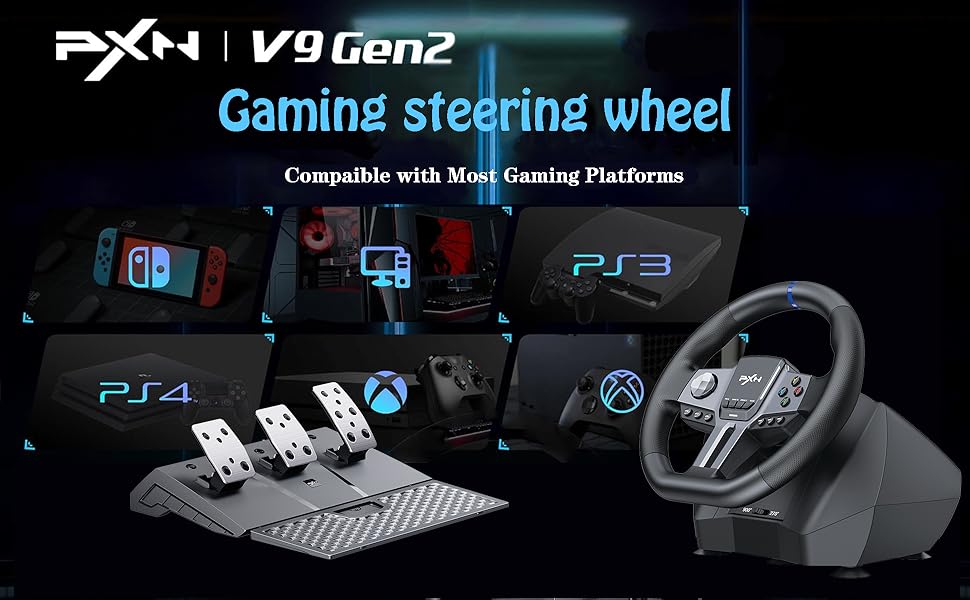
Figure 6: The PXN Wheel app provides personalized parameter configuration.
3.5 Pedal and Shifter Features
- Hall Magnetic Linear Pedal: Three pedals simulate real car pedals with wear-resistant metal. Hall magnetic high sensitivity sensors provide precise output from foot force. Features a foldable, extended foot pad for stability and easy storage.
- 6+R Shifter: The six-speed manual transmission uses an "H" gearbox design. Includes a "P" button for handbrake functionality.

Figura 7: Detallada view of the Hall Magnetic Linear Pedals, highlighting their design and features.

Figure 8: Close-up of the P button for handbrake, soft rubber gear lever, and adjustable mounting clamps.
4. Manteniment
To ensure the longevity and optimal performance of your PXN V9 Gen2 Racing Wheel, follow these general maintenance guidelines:
- Mantingueu el dispositiu net netejant-lo amb un drap suau i sec. Eviteu utilitzar productes químics agressius o materials abrasius.
- Store the racing wheel in a cool, dry place away from direct sunlight and extreme temperatures.
- Avoid excessive force or sudden impacts on the steering wheel, pedals, or shifter.
- Regularly check cable connections to ensure they are secure and free from damage.
5. Solució De Problemes
If you encounter issues with your PXN V9 Gen2 Racing Wheel, refer to the following common problems and solutions:
- Button Setting Issues: You need to set the buttons within the game's settings and save them. Settings made directly on the steering wheel may not be saved or recognized by the game.
- PS3/PS4 Hanging Mode: The PXN-V9Gen2 does not support hanging mode for PS3/PS4.
- PS4 Headset Voice Interaction: For PS4, voice interaction through a headset is supported when inserted into the original gamepad. Note that when using the Shifter, headset and microphone functions may be restricted.
- Steering Not Working (PC): This may be due to incorrect game steering settings or if the left joystick is not selected in the game's control options. Ensure the correct input mode (D-Input/X-Input) is selected for the game.
- Clutch and Shifter Not Working (PC): If the clutch and shift lever do not work on PC, it may be that the game mode is incorrect. The steering wheel defaults to D-Input mode on PC. When using the shift lever on PC, you need to press and hold the MODE key for 3 seconds to switch to "X-Input" mode, and then set the shift function in the game. Some games may also use an automatic transmission design and only support throttle control, not manual shifting.
- Steering Wheel Not Controlling Game Page (PS4): If the steering wheel cannot control the game page after connecting to PS4, check if the gear lever is connected. Try removing the gear lever interface, restarting the console, and matching the handle mode. In handle mode (without connecting the gear lever), the steering wheel can operate the interface. In steering wheel mode (with gear lever connected), the steering wheel may not respond on the console interface (only cross keys work) until you enter the game.
- Driver Acquisition: You can scan the QR code in the user manual (if provided) with your mobile phone to download the app. Alternatively, download the corresponding driver from the official weblloc: www.e-pxn.com/support.
- Compatibilitat: The PXN-V9Gen2 does not support Apple Desktop/Laptop/PS5 first generation host.
6. Especificacions
| Característica | Detall |
|---|---|
| Model | PXN V9 Gen2 |
| Dimensions del producte | 14.17 x 12.6 x 10.24 polzades |
| Pes de l'article | 13.52 lliures |
| Angle de direcció | 270/900 graus |
| Pedals | Hall Magnetic Linear Pedals (3-pedal set) |
| Canviador | 6+R H-pattern shifter |
| Vibració | Dual-Vibration Motors |
| Codificador | 16-bit Magnetic Encoder |
| Il·luminació | Cyber Style RGB Lighting Effect (Shift indicators) |
| Material d'adherència | TPE Soft Rubber |
7. Contingut del paquet
The PXN V9 Gen2 Gaming Racing Wheel package includes the following items:
- V9 Gen2 Racing Wheel x1
- Hall Pedal x1
- 6+R Shifter x1
- Steering Wheel Fixed Clamps x2
- Cable de tipus C a USB-A x2
- Micro-USB to USB-A Cable x1
8. Garantia i Suport
For warranty information and further support, please refer to the official PXN website or contact PXN customer service. You can also utilize the "V9 Assistant" app for personalized settings and troubleshooting.
Suport oficial Weblloc: www.e-pxn.com/support


