1. Introducció
Welcome to the Blackview Tab30 Kids Tablet user manual. This guide provides essential information for setting up, operating, maintaining, and troubleshooting your new tablet. Please read this manual thoroughly to ensure optimal performance and a safe user experience for your child.
2. Contingut del paquet
En obrir el paquet, comproveu que tots els elements enumerats a continuació hi siguin presents i estiguin en bon estat:
- Negreview Tab30 Kids Tablet
- Funda protectora amb suport
- Cable de càrrega USB
- Adaptador d'alimentació
- Manual d'usuari (aquest document)
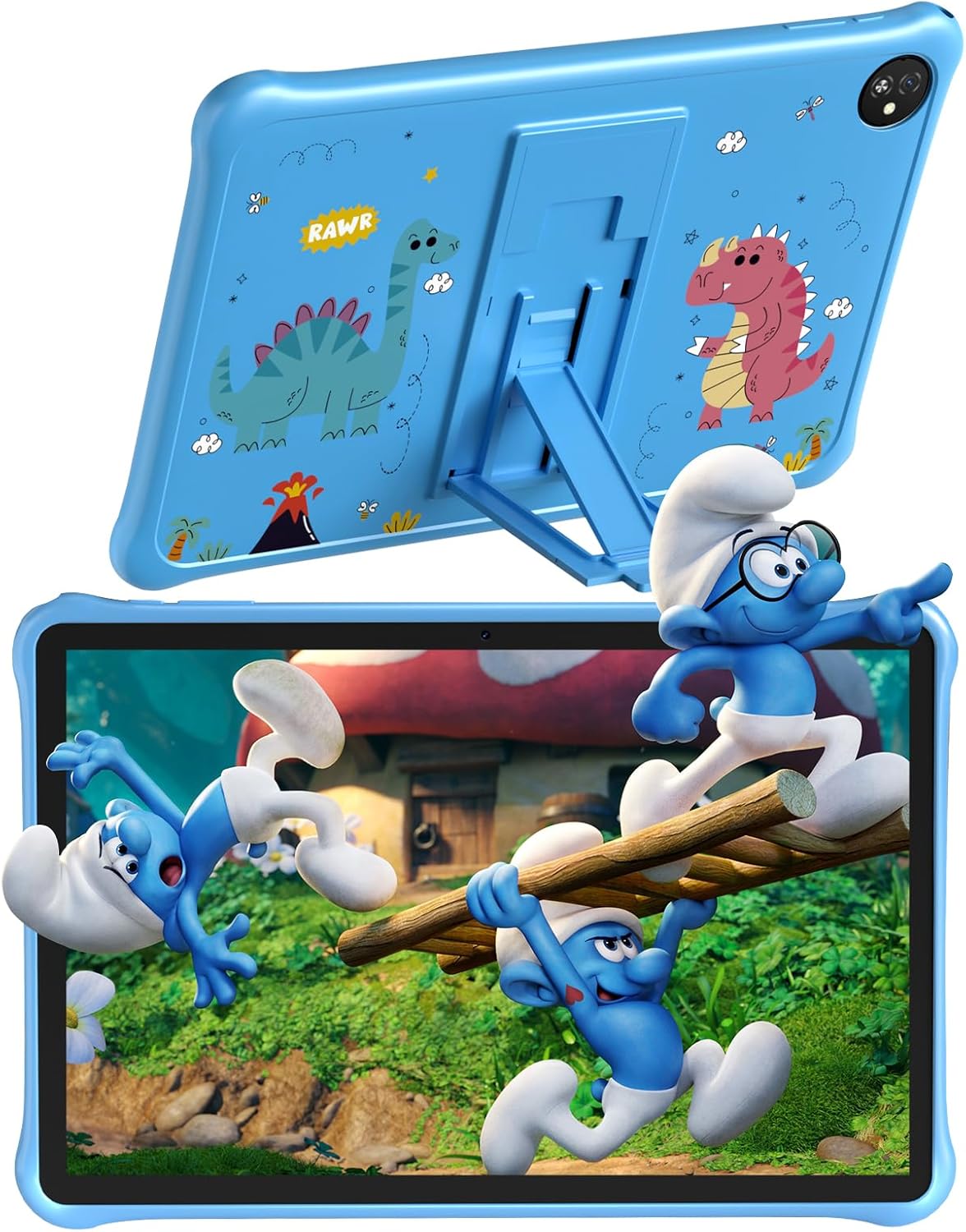
Image: Blackview Tab30 Kids Tablet with its protective case and stand.

Image: Details of the protective case, showing the integrated stand and durable EVA material.
3. Dispositiu acabatview
Familiarize yourself with the physical components and key features of your Blackview Tab30 Kids Tablet.
- Càmera frontal: Per a videotrucades i selfies.
- Pantalla de visualització: 10-inch IPS display for clear visuals.
- Botó d'encesa: To turn the tablet on/off or put it to sleep/wake it up.
- Botons de volum: Per ajustar el volum de l'àudio.
- Port USB-C: Per a càrrega i transferència de dades.
- Auriculars Jack: Per connectar auriculars amb cable.
- Càmera posterior: Per fer fotos i vídeos.
- Ponent: Per a la sortida d'àudio.
- Ranura per a targeta MicroSD: Per a emmagatzematge ampliable.

Imatge: Més deview of the tablet's main features.
4. Configuració
4.1 Càrrega de la tauleta
Before initial use, fully charge the tablet using the provided USB cable and power adapter. The battery indicator on the screen will show charging status.
4.2 Engegada/apagada
Manteniu premut el botó Botó d'encesa located on the side of the tablet to turn it on or off. A short press will put the tablet to sleep or wake it up from sleep mode.
4.3 Assistent de configuració inicial
Upon first power-on, the tablet will guide you through an initial setup wizard. Follow the on-screen instructions to:
- Seleccioneu el vostre idioma preferit.
- Connecteu-vos a una xarxa Wi-Fi.
- Set up or log in with your Google account.
- Configure basic device settings.
4.4 Inserció d'una targeta MicroSD
To expand the tablet's storage, locate the MicroSD card slot on the side of the device. Gently insert a compatible MicroSD card (up to 1TB, sold separately) until it clicks into place. Ensure the tablet is powered off before inserting or removing the card.
5. Instruccions de funcionament
5.1 Navegació bàsica
El Negreview Tab30 Kids Tablet uses a touch-based interface:
- Toca: Per seleccionar un element o obrir una aplicació.
- Llisca: To scroll through screens, menus, or content.
- Pessigar: Per ampliar o reduir les imatges i web pàgines.
- Llisca cap avall: From the top of the screen to access notifications and quick settings.
5.2 Connexió a Wi-Fi
Per connectar-se a una xarxa sense fils:
- Vés a Configuració.
- Toqueu Xarxa i Internet.
- Seleccioneu Wi-Fi i enceneu-lo.
- Trieu la xarxa Wi-Fi que vulgueu de la llista.
- Introduïu la contrasenya de xarxa si us demana i, a continuació, toqueu Connecta't.
5.3 Google Kids Space and Parental Controls
El Negreview Tab30 Kids Tablet is designed with children in mind, featuring Google Kids Space and the iKids application. These provide a curated, safe, and educational environment.

Image: The iKids software interface with learning and entertainment options.
Setting Up Parental Controls:
Access the iKids application or Google Kids Space settings to configure parental control features. These tools allow you to:
- Protecció amb contrasenya: Prevent children from exiting the Kids Protection Area without parental permission.
- Gestió d'aplicacions: Filter and select which applications your child can access.
- Website Management: Choose safe and healthy websites for browsing.
- Gestió del temps: Set daily usage limits and break times to encourage balanced use.
- Tablet Usage Management: View statistical reports of app usage behavior.
- Create Multiple Kid Accounts: Customize different proper content and settings for each child.

Image: Parental Control and Kids Space features.
5.4 Ús de la càmera
Toqueu Càmera icon on the home screen to open the camera application. You can switch between the front and rear cameras and select photo or video mode.
5.5 Eye Care Mode
Activar Mode de cura dels ulls from the quick settings panel (swipe down from the top of the screen) or within the display settings. This mode reduces blue light emission, which can help protect your child's eyes during extended screen time.
5.6 Suport Widevine L1
The tablet supports Widevine L1, which enables high-definition (HD) streaming content from supported platforms like Netflix, Disney+, and Amazon Prime Video, ensuring a quality viewexperiència.

Image: Display features including HD+ resolution, WiFi6, and Widevine L1.
6. Manteniment
6.1 Neteja
Feu servir un drap suau i sense borrissol per netejar la pantalla i el cos de la tauleta. Per a taques difícils, fregueu lleugerament.ampen the cloth with water. Avoid abrasive cleaners, solvents, or aerosol sprays, as these can damage the tablet's surfaces.
6.2 Actualitzacions de programari
Periodically check for system updates to ensure your tablet has the latest features, performance improvements, and security patches. Go to Configuració > Sistema > Actualització del sistema per comprovar i instal·lar les actualitzacions disponibles.
6.3 Cura de la bateria
To prolong the lifespan of your tablet's battery:
- Avoid exposing the tablet to extreme temperatures (very hot or very cold).
- No permetis que la bateria es descarregui completament amb freqüència. Carrega-la abans que baixi del 20%.
- Feu servir només el carregador i el cable USB proporcionats.
7. Solució De Problemes
This section addresses common issues you might encounter with your Blackview Tab30 Kids Tablet.
La tauleta 7.1 no s'encén
- Ensure the tablet is charged. Connect it to the charger for at least 30 minutes before attempting to power it on again.
- Mantingueu premut el botó d'engegada durant 10-15 segons per realitzar un reinici forçat.
7.2 Problemes de connexió Wi-Fi
- Comproveu si el Wi-Fi està activat a Configuració > Xarxa i Internet > Wi-Fi.
- Reinicieu el router Wi-Fi i la tauleta.
- Assegureu-vos que esteu introduint la contrasenya de Wi-Fi correcta.
- Prova de connectar-te a una xarxa Wi-Fi diferent si està disponible.
7.3 Les aplicacions es bloquegen o es bloquegen
- Tanca i torna a obrir l'aplicació problemàtica.
- If the issue persists, clear the app's cache: Go to Configuració > Aplicacions > [Nom de l'aplicació] > Emmagatzematge i memòria cau > Esborra la memòria cau.
- Consider uninstalling and reinstalling the app.
7.4 Rendiment lent
- Tanca les aplicacions que no s'utilitzen i que s'executen en segon pla.
- Esborra la memòria cau i temporal files regularment.
- Consider uninstalling unnecessary applications to free up storage space.
7.5 Parental Control Issues
- Verify parental control settings within the iKids application or Google Kids Space.
- Ensure the correct password is used for parental access.
- Check if any time limits or app restrictions are inadvertently causing the issue.
8. Especificacions
| Model | Negreview Pestanya 30 Nens |
| Sistema operatiu | Android 13 |
| Processador | Allwinner A133P Quad-Core, 1.8 GHz |
| Mostra | 10-inch IPS, 1280 x 800 pixels |
| RAM | 6 GB (2 GB físic + 4 GB d'expansió virtual) |
| Emmagatzematge intern | 64 GB |
| Emmagatzematge ampliable | Up to 1TB via MicroSD card (not included) |
| Bateria | 5100 mAh, up to 8 hours usage |
| Càmeres | Posterior: 5 MP, Frontal: 2 MP |
| Connectivitat | Wi-Fi 6 (802.11ax) |
| Ports | USB-C, presa per a auriculars de 3.5 mm |
| Dimensions | 9.85 mm thickness, 520 g weight |
| Característiques especials | Google Kids Space, iKids, Eye Care Mode, Widevine L1, Protective TPU Case included |
9. Informació de seguretat
Please observe the following safety guidelines to ensure safe operation and prevent damage to your tablet or injury to yourself or others:
- Do not expose the tablet to extreme temperatures, direct sunlight, or moisture.
- Use only the provided charger and accessories. Using unauthorized accessories may void your warranty and pose safety risks.
- Keep the tablet and its small parts away from infants and small children to prevent choking hazards.
- Eviteu escoltar àudio a volums elevats durant períodes prolongats per evitar danys auditius.
- Do not attempt to disassemble, repair, or modify the tablet yourself. Contact authorized service personnel for any repairs.
- Desfeu-vos de la tauleta i la bateria de manera responsable d'acord amb la normativa local.
10. Garantia i Suport
For detailed warranty information, technical support, or service inquiries, please refer to the warranty card included in your product package. You may also visit the official Blackview website for the latest support resources and contact information. Please retain your proof of purchase for any warranty claims.


