Introducció
This manual provides detailed instructions for the setup, operation, and maintenance of your TECWARE Spectre 75% RGB Mechanical Gaming Keyboard. Designed for performance and customization, the Spectre 75 features a compact layout, customizable LCD screen, multi-function knob, gasket mount design, and hot-swappable switches. Please read this manual thoroughly to ensure proper use and to maximize your keyboard's potential.

Image: The TECWARE Spectre 75 mechanical gaming keyboard, showcasing el seu disseny compacte del 75% i la seva vibrant retroiluminació RGB.
Configuració
Contingut del paquet
- TECWARE Spectre 75 Mechanical Gaming Keyboard
- Cable USB-C a USB-A
- Dongle sense fil de 2.4 GHz
- Eina d'extracció de tecles/interruptors
- Manual d'usuari (aquest document)
Opcions de connectivitat
The TECWARE Spectre 75 keyboard offers three modes of connectivity:
- Sense fil de 2.4 GHz: For a stable, low-latency wireless connection.
- Bluetooth 5.0: For wireless connection to multiple devices.
- USB-C amb cable: For a direct, reliable connection and charging.

Image: The keyboard's connectivity options, including the 2.4GHz wireless dongle, USB-C port, and Bluetooth indicator.
Connexió inicial
- Connexió per cable: Connect the provided USB-C cable to the keyboard's USB-C port and the other end to an available USB port on your computer. The keyboard will be recognized automatically.
- Connexió sense fil de 2.4 GHz:
- Locate the 2.4GHz wireless dongle.
- Connecteu el dongle a un port USB disponible de l'ordinador.
- Ensure the keyboard's mode switch (usually on the back or side) is set to 2.4G.
- El teclat s'hauria de connectar automàticament.
- Connexió Bluetooth:
- Ensure the keyboard's mode switch is set to BT.
- A l'ordinador o dispositiu, navega fins a la configuració de Bluetooth.
- Cerca new devices and select "TECWARE Spectre 75" (or similar) from the list.
- Seguiu les indicacions de la pantalla per completar l'aparellament.
The keyboard is equipped with a 4000mAh battery, providing up to 400 hours of continuous usage on a single charge. Charge the keyboard using the USB-C cable.
Funcionament
Pantalla LCD personalitzable
The 1.14" TFT-LCD smart screen can display various information and custom content.
- Visualització d'informació: View time, date, battery level, connection mode, and system information (e.g., CPU/GPU usage).
- Contingut personalitzat: Upload your own GIFs or static images for a personalized display. This feature is managed via the TECWARE software.

Imatge: Examples of content displayed on the customizable LCD screen, including animated GIFs, time and date, and system performance metrics.
Pom multifunció
The dedicated knob provides dual functionality for media control and LCD screen navigation.
- Canvi de modes: Manteniu premut el botó FN key and rotate the knob for 3 seconds to switch between LCD Mode and Volume Mode.
- Mode LCD:
- Rotate Left/Right: Navigate through the LCD menu.
- Press Down: Confirm selection.
- Mode de volum:
- Turn: Adjust system volume.
- Press: Mute/Unmute audio.

Image: A user's hand adjusting the multi-function knob, which controls volume and LCD screen navigation.
Il·luminació RGB
The keyboard features 16.8 million color RGB illumination with per-key customization and an RGB LED side underglow.
- Preset Lighting Modes: Access 18 preset lighting modes directly from the keyboard or customize further using the TECWARE software.
- Il·luminació RGB de 3 zones: Lighting can be customized for keys, underglow, and the volume wheel.

Image: The TECWARE Spectre 75 keyboard displaying its extensive RGB lighting capabilities, including per-key customization and underglow effects.
Suport de programari
Download the official TECWARE software from the TECWARE website to unlock advanced customization options:
- Enregistrament de macro: Create and assign complex macros to keys.
- Assignació de macros: Easily assign recorded macros to any key.
- Usuari personalitzat Profiles: Save and switch between different key layouts and lighting configurations.
- LCD Screen Customization: Upload GIFs and images to the LCD screen.
- Advanced RGB Control: Fine-tune lighting effects and colors.

Image: The TECWARE Spectre 75 keyboard, highlighting its compatibility with software for advanced customization features like macros and user profiles.
Manteniment
Neteja del teclat
- Utilitzeu un drap suau i sense pelusa lleugerament dampEsbandiu amb aigua o una solució netejadora suau per netejar les tecles i el xassís.
- Per a la pols i les restes entre les tecles, feu servir aire comprimit.
- Eviteu ruixar líquids directament sobre el teclat.
- No utilitzeu productes químics o materials abrasius.
Interruptors intercanviables en calent
The TECWARE Spectre 75 features 5-pin universal hot-swappable sockets, allowing for easy replacement of switches without soldering.
- Eliminació dels interruptors: Use the provided switch puller tool. Gently grip the switch from the top and bottom, then pull upwards with even pressure until the switch detaches from the PCB.
- Instal·lació d'interruptors: Align the pins of the new switch with the holes on the PCB. Press down firmly until the switch clicks into place. Ensure the pins are not bent before insertion.
- Compatibilitat: South-facing LEDs ensure compatibility with most aftermarket switches.
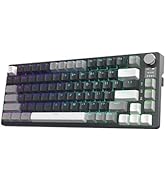
Image: The TECWARE Spectre 75 keyboard with keycaps and switches removed, showing the hot-swappable sockets and the tools required for switch replacement.
Resolució de problemes
El teclat no respon
- Amb cable: Assegureu-vos que el cable USB-C estigui connectat correctament tant al teclat com a l'ordinador. Proveu un port o cable USB diferent.
- Sense fil de 2.4 GHz:
- Verify the dongle is properly inserted into a USB port.
- Check that the keyboard's mode switch is set to 2.4G.
- Assegureu-vos que la bateria del teclat estigui carregada.
- Bluetooth:
- Confirm the keyboard's mode switch is set to BT.
- Check your device's Bluetooth settings to ensure the keyboard is paired and connected.
- Prova de desvincular i tornar a vincular el teclat.
- Assegureu-vos que la bateria del teclat estigui carregada.
Problemes d'il·luminació RGB
- If RGB lighting is not working or displaying incorrectly, check the TECWARE software for lighting settings.
- Ensure the keyboard firmware is up to date.
La pantalla LCD no es mostra
- Assegureu-vos que el teclat estigui encès i connectat.
- Check LCD settings within the TECWARE software.
- Try resetting the keyboard (refer to software or manufacturer weblloc web per obtenir instruccions específiques).
Claus que no es registren o que es teclegen dues vegades
- Això podria indicar un interruptor defectuós. Utilitzeu la funció d'intercanvi en calent per substituir l'interruptor problemàtic.
- Assegureu-vos que l'interruptor estigui completament col·locat a la seva base.
Especificacions
| Característica | Detall |
|---|---|
| Dimensions del producte | 13.04 x 5.74 x 1.51 polzades |
| Pes de l'article | 2.03 lliures |
| Fabricant | Tecware |
| Bateries | 1 bateria de 9V (inclosa) |
| Marca | TECWARE |
| Dispositius compatibles | PC, Mac |
| Tecnologia de connectivitat | Bluetooth (BT 5.0), USB-C, 2.4 GHz Wireless |
| Descripció del teclat | Teclat de joc mecànic RGB |
| Usos recomanats | Jocs |
| Característica especial | Backlit, Customizable LCD Screen, Multi-Function Knob, Gasket Mount, Hot-Swappable Sockets |
| Color | Black, Candy Red Switch (Linear) |
| Estil | espectre 75 |
| Tema | Arc de Sant Martí |
| Font d'alimentació | Funciona amb bateria |
Switch Specifications (Candy Red Linear)
| Característic | Valor |
|---|---|
| Força d'accionament | 45 ± 5 gf |
| Bottom Out Force | 48 ± 5 gf |
| Distància total de recorregut | 3.5 ± 0.3 mm |
| Tipus | Lineal |
Nota: les especificacions estan subjectes a canvis sense previ avís.
Informació de la garantia
TECWARE products typically come with a limited manufacturer's warranty. For specific warranty terms, duration, and conditions applicable to your region and product, please refer to the warranty card included with your product or visit the official TECWARE weblloc.
Conserveu el vostre comprovant de compra per a reclamacions de garantia.
Suport
For technical assistance, driver downloads, firmware updates, or further inquiries, please visit the official TECWARE support page:
You may also contact TECWARE customer service through the contact information provided on their weblloc.


