1. Introducció
Thank you for choosing the Jinvocloud Tuya Smart Multi-Mode Gateway. This device serves as the central hub for your smart home system, supporting Zigbee 3.0, Bluetooth Low Energy (BLE), and Bluetooth Mesh protocols. It enables seamless communication and control of various smart devices through the Smart Life app, and offers compatibility with popular voice assistants like Alexa and Google Assistant. This manual provides detailed instructions for setup, operation, and troubleshooting to ensure optimal performance of your gateway.
2. Informació de seguretat
- No exposeu el dispositiu a temperatures extremes, humitat o llum solar directa.
- Mantingueu el dispositiu allunyat de l'aigua i altres líquids.
- No intenteu desmuntar ni reparar el dispositiu vosaltres mateixos. Encarregueu tot el manteniment a personal qualificat.
- Use only the provided USB power supply line or a compatible Type-C power adapter that complies with local regulations.
- Assegureu-vos una ventilació adequada al voltant del dispositiu per evitar el sobreescalfament.
3. Contingut del paquet
Marqueu la casella per als elements següents:
- 1 x Smart Gateway
- 1 x USB Power Supply Line
- 1 x Manual d'usuari (aquest document)
4. Producte acabatview
The Tuya Smart Multi-Mode Gateway is a compact device designed for efficient smart home management.
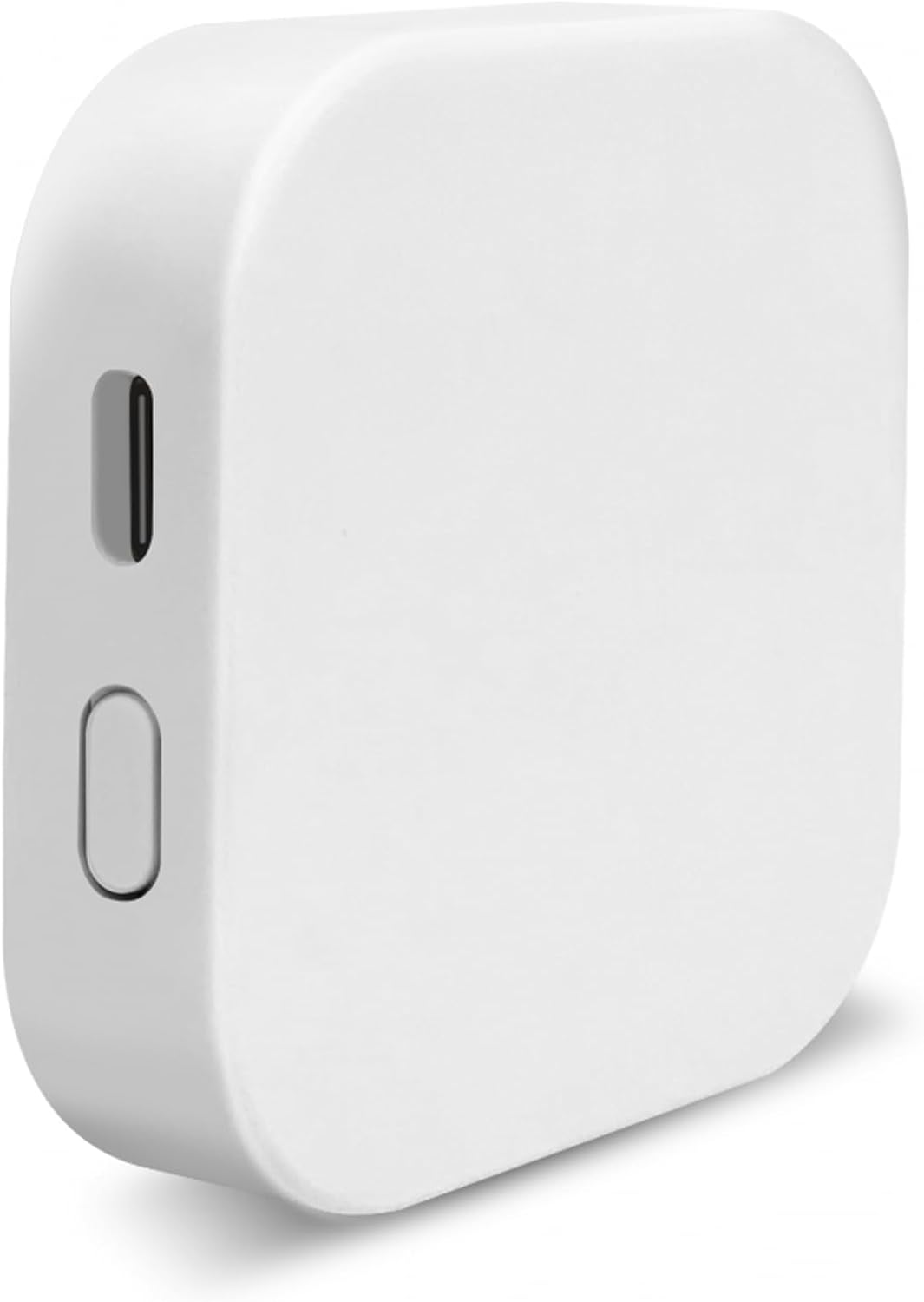
Figura 4.1: Frontal view of the Tuya Smart Multi-Mode Gateway, showing the USB-C port and reset button.
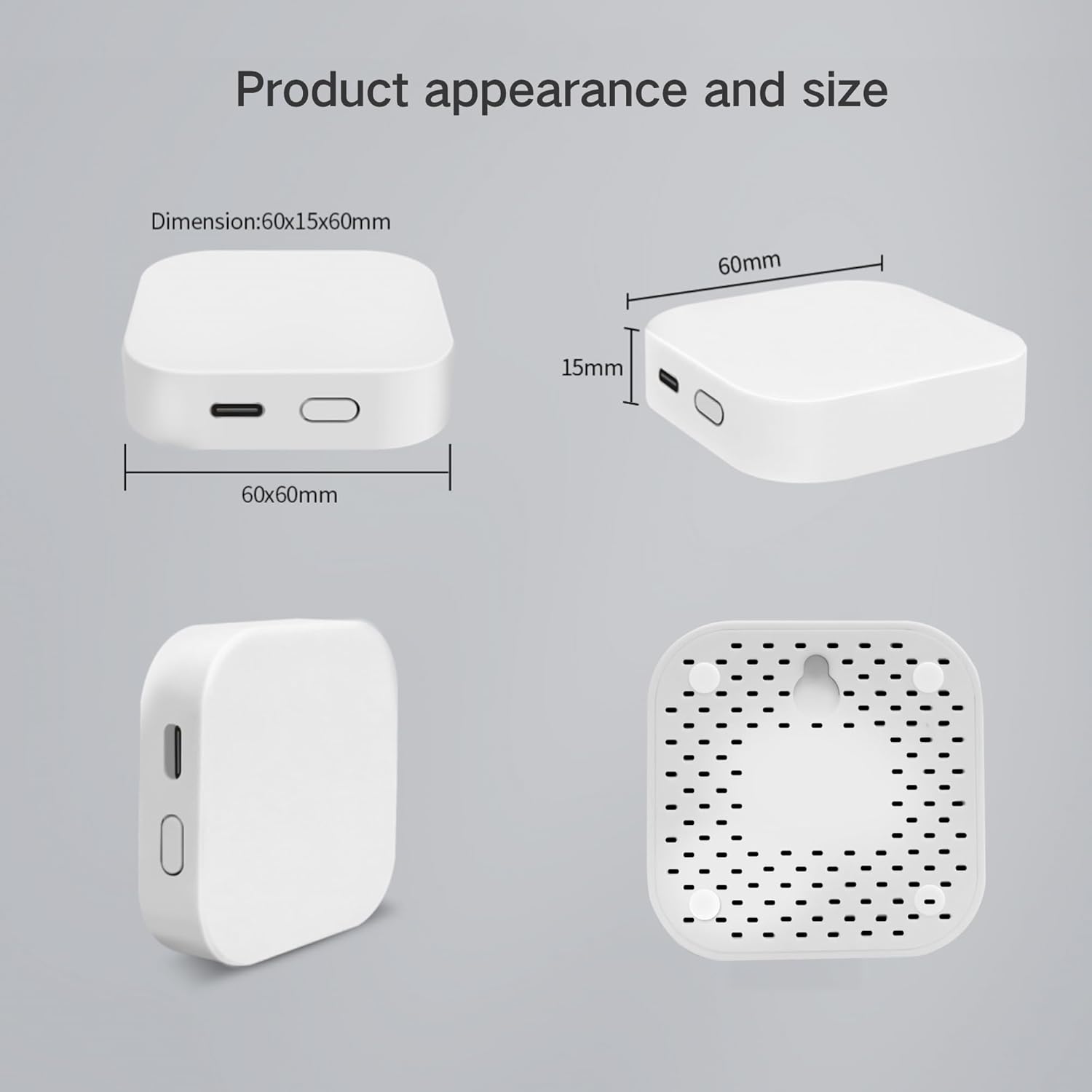
Figure 4.2: Product dimensions and back view of the gateway, highlighting the Type-C power input, hangable mount, and heat dissipation holes.
Característiques principals:
- Suport multiprotocol: Integrates Zigbee 3.0, BLE, and Bluetooth Mesh devices.
- Àmplia compatibilitat: Works with Smart Life app, Alexa, Google Assistant, and IFTTT.
- Alta capacitat: Supports up to 128 Zigbee/Bluetooth Mesh devices and 2 concurrent BLE devices.
- Connexió estable: Designed for reliable indoor smart home system networking.
- Comandament a distància: Manage devices from anywhere via the Smart Life app.
- Control de veu: Control devices using voice commands through compatible smart speakers.
- Disseny eficient: Features Type-C power input and improved heat dissipation with a hangable mount option.
5. Configuració
5.1 Powering On the Gateway
- Connect the provided USB Power Supply Line to the Type-C port on the gateway.
- Connecteu l'altre extrem del cable USB a un adaptador de corrent USB compatible (no inclòs) o a un port USB.
- The gateway's indicator light will turn on, indicating it is powered.
5.2 Connecting to Wi-Fi and App Pairing
Before proceeding, ensure your phone is connected to a Xarxa Wi-Fi de 2.4 GHz. The gateway does not support 5GHz Wi-Fi.
- Descarrega't el Vida intel·ligent app from your mobile app store (App Store for iOS, Google Play Store for Android).
- Registra't o inicia la sessió al teu compte de Smart Life.
- Open the Smart Life app and tap the "+" icon in the top right corner to add a device.
- Select "Gateway & Other" or search for "Multi-Mode Gateway".
- Follow the on-screen instructions in the app to put the gateway into pairing mode. Typically, the indicator light will blink rapidly. If not, press and hold the reset button on the gateway for 5-10 seconds until it blinks.
- Confirma que l'indicador lluminós parpelleja ràpidament a l'aplicació.
- Introduïu la contrasenya de la xarxa Wi-Fi de 2.4 GHz quan se us demani.
- The app will begin searching for and connecting to the gateway. Once connected, you can rename the gateway and assign it to a room.
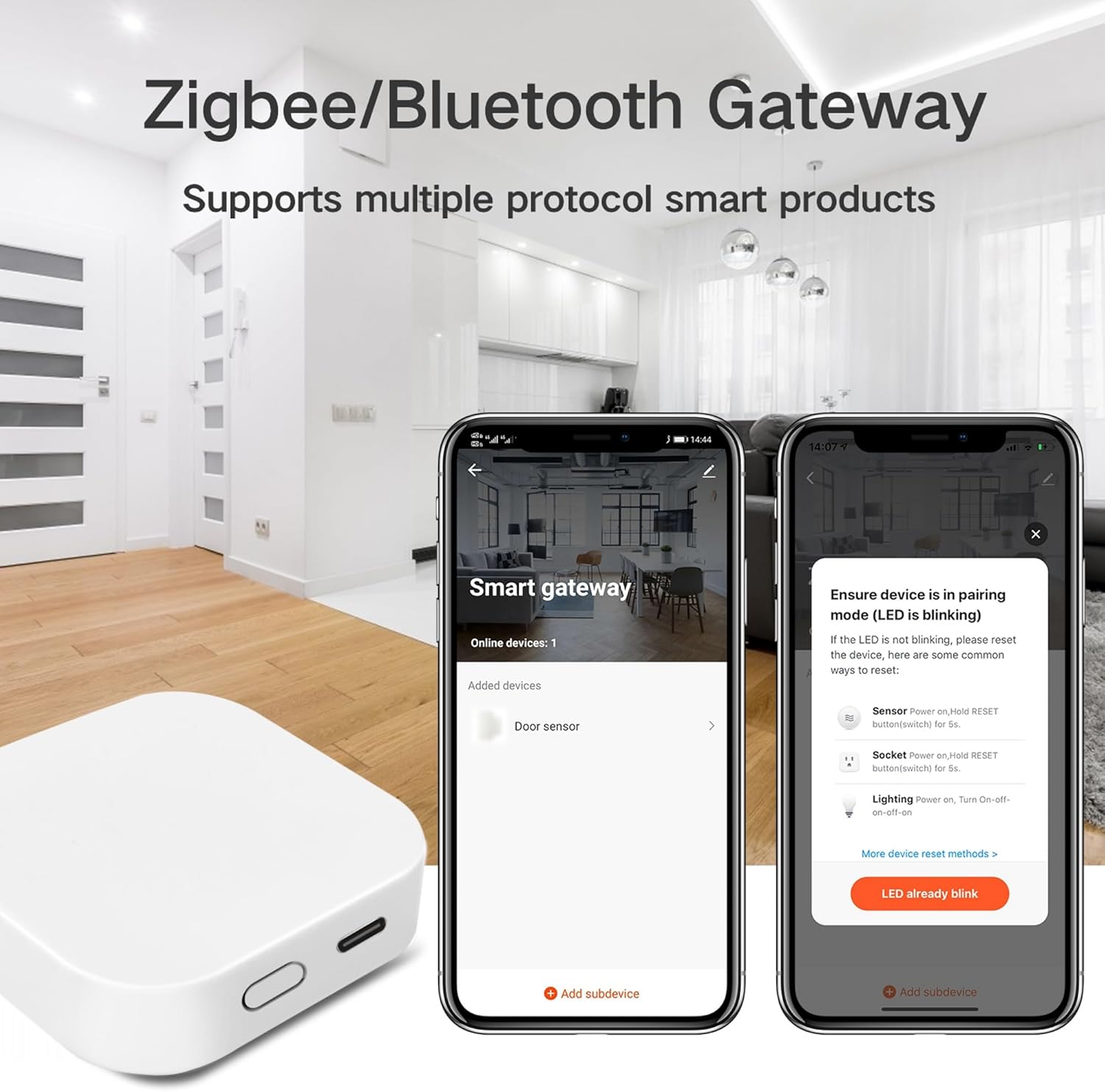
Figure 5.1: Smart Life app interface showing the process of adding a smart gateway and pairing devices.
6. Operating the Gateway
6.1 Adding Sub-Devices
Once the gateway is connected, you can add Zigbee, BLE, and Bluetooth Mesh sub-devices to it.
- In the Smart Life app, tap on your Multi-Mode Gateway.
- Tap "Add subdevice" or "Add device".
- Follow the app's instructions to put your sub-device into pairing mode (this usually involves pressing a button on the sub-device).
- The gateway will automatically detect and add the sub-device.

Figure 6.1: Illustration of a smart home system with various devices connected through the gateway.
6.2 Control remot mitjançant l'aplicació
The Smart Life app allows you to control all connected devices remotely.
- Obriu l'aplicació Smart Life.
- Select the device you wish to control from the device list.
- Adjust settings, turn devices on/off, or view dades en temps real.

Figure 6.2: Remote control of smart devices using the Smart Life app.
6.3 Creating Smart Scenarios
Automate your home by setting up smart scenarios (routines) within the Smart Life app.
- Navigate to the "Smart" or "Scenario" section in the Smart Life app.
- Create new automations based on conditions (e.g., time of day, sensor triggers) and actions (e.g., turn on lights, adjust temperature).
- Example: Automatically turn off the air conditioner when a window sensor detects the window is open.

Figura 6.3: Example of a smart scenario: turning off the air conditioner when a window is opened.
6.4 Integració del control per veu
The gateway supports voice control through Alexa and Google Assistant.
- Link your Smart Life account to Alexa or Google Home app.
- Descobriu dispositius.
- Utilitzeu ordres de veu com ara:
- "Alexa, encén el llum de la sala d'estar."
- "Hey Google, set the bedroom temperature to 72 degrees."

Figure 6.4: Voice control integration with smart speakers.
7. Manteniment
- Keep the gateway clean by wiping it with a soft, dry cloth.
- Eviteu utilitzar netejadors abrasius o dissolvents.
- Ensure the gateway is placed in an area with good air circulation to prevent overheating.
- Periodically check the Smart Life app for firmware updates for the gateway and connected devices to ensure optimal performance and security.
8. Solució De Problemes
| Problema | Causa possible | Solució |
|---|---|---|
| La passarel·la no s'encén. | Sense corrent, cable/adaptador defectuós. | Comprova la connexió d'alimentació. Prova un altre cable USB-C o adaptador de corrent. |
| Gateway not connecting to Wi-Fi. | Incorrect Wi-Fi band (5GHz), wrong password, weak signal. | Ensure your phone and gateway are on a 2.4GHz Wi-Fi network. Verify Wi-Fi password. Move gateway closer to router. |
| Cannot add sub-devices. | Sub-device not in pairing mode, out of range, incompatible protocol. | Ensure sub-device is in pairing mode. Move sub-device closer to gateway. Verify sub-device uses Zigbee, BLE, or Bluetooth Mesh. |
| El control per veu no funciona. | Smart Life account not linked, device not discovered, incorrect command. | Ensure Smart Life account is linked in Alexa/Google Home app. Redo device discovery. Use correct voice commands. |
| Gateway frequently disconnects. | Weak Wi-Fi signal, network interference. | Relocate gateway closer to Wi-Fi router. Minimize interference from other 2.4GHz devices. |
9. Especificacions
| Atribut | Detall |
|---|---|
| Número de model | ZigBee Bluetooth |
| Dimensions | 2.36 x 2.36 x 0.6 polzades (60 x 60 x 15 mm) |
| Pes de l'article | 3.2 unces |
| Color | Blanc |
| Protocols sense fil | Zigbee 3.0, BLE, Bluetooth Mesh |
| Suport Wi-Fi | 2.4GHz only (5GHz not supported) |
| Max Sub-Devices | Up to 128 Zigbee/Bluetooth Mesh devices, 2 concurrent BLE devices |
| Font d'alimentació | Tipus C USB |
| Fabricant | Tuya Cloud Smart |
| País d'origen | Xina |
10. Garantia i Suport
For warranty information and technical support, please refer to the purchase platform or contact Jinvocloud customer service directly. Specific warranty terms may vary by region and retailer. Please retain your proof of purchase for any warranty claims.
Per a més ajuda, també podeu visitar el Jinvocloud Store on Amazon.