1. Introducció
This manual provides detailed instructions for setting up, operating, and maintaining your Mercusys MR27BE BE3600 Dual-Band Wi-Fi 7 Router. The MR27BE is designed to deliver high-speed wireless connectivity with Wi-Fi 7 technology, featuring dual-band operation and multiple high-speed Ethernet ports for a robust home or small office network.
2. Contingut del paquet
Comproveu que el vostre paquet contingui els elements següents:
- Mercusys MR27BE Wi-Fi 7 Router
- Adaptador d'alimentació
- Cable Ethernet
- Guia d'instal·lació ràpida

This image displays the retail packaging for the Mercusys MR27BE BE3600 Dual Band Wi-Fi 7 Router, highlighting key features and branding.
3. Sobrecàrrega físicaview
3.1 Panell posterior
The rear panel of the MR27BE router features various ports and buttons for connectivity and control.
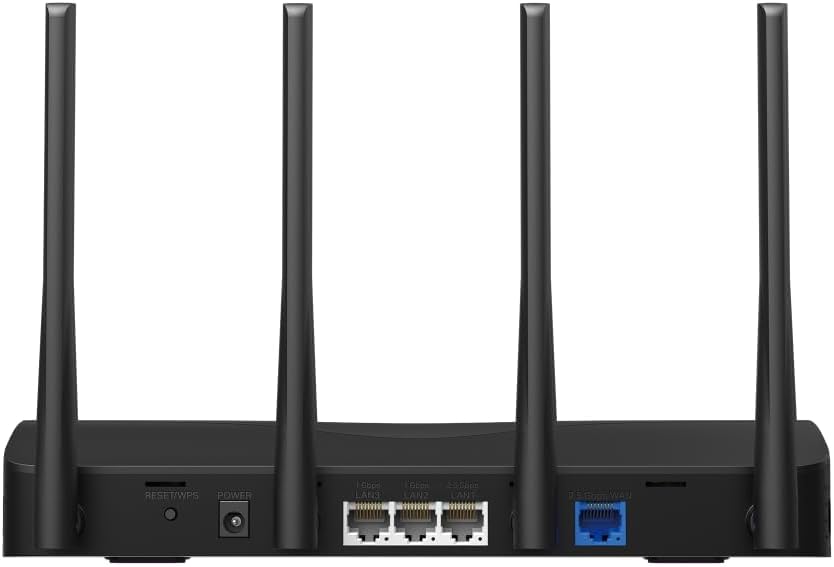
This image displays the rear panel of the MR27BE router, highlighting the 2.5 Gbps WAN port (blue), 2.5 Gbps LAN port, two 1 Gbps LAN ports, the Reset/WPS button, and the power input.
- Port d'alimentació: Connecteu aquí l'adaptador de corrent proporcionat.
- Botó de restabliment/WPS: Press and hold for 1 second to activate WPS. Press and hold for more than 5 seconds to factory reset the router.
- LAN Ports (1 Gbps): Two Gigabit Ethernet ports for connecting wired devices.
- LAN Port (2.5 Gbps): One 2.5 Gigabit Ethernet port for high-speed wired connections.
- WAN Port (2.5 Gbps): One 2.5 Gigabit Ethernet port for connecting to your modem or internet service provider's (ISP) network.
3.2 Característiques clau
The MR27BE router incorporates advanced features for enhanced network performance.

This graphic illustrates key features of the MR27BE, including its Wi-Fi 7 capabilities, the presence of 2x 2.5 Gbps ports and 2x Gigabit ports, four omni-directional high-gain antennas, EasyMesh compatibility, and easy app control.

This image demonstrates the speed performance of the MR27BE router, indicating up to 2880 Mbps on the 5 GHz band and 688 Mbps on the 2.4 GHz band, showcasing its Wi-Fi 7 capabilities.
4. Configuració
4.1 Connexió de maquinari
- Apagar: Disconnect the power from your modem (if applicable).
- Connecta el port WAN: Connect one end of the Ethernet cable to your modem's Ethernet port and the other end to the blue 2.5 Gbps WAN port on your MR27BE router.
- Connectar l'alimentació: Connect the power adapter to the router's Power port and plug it into an electrical outlet.
- Encès: Wait for the router to power on completely. The LED indicator should turn solid green.
- Connectar dispositius (opcional): For wired devices, connect an Ethernet cable from your computer or other device to one of the yellow LAN ports on the router.

This image shows the 2.5 Gbps ports of the MR27BE router in use, illustrating connections for 2.5 Gbps wired devices and multi-gig internet access, emphasizing high-performance networking.
4.2 Configuració inicial
You can configure your router using the MERCUSYS app or a web navegador.
Using the MERCUSYS App:
- Download the MERCUSYS app from the App Store or Google Play.
- Connect your smartphone to the router's default Wi-Fi network (SSID and password are on the label at the bottom of the router).
- Open the MERCUSYS app and follow the on-screen instructions to complete the setup.
Utilitzant a Web Navegador:
- Connect your computer to the router via an Ethernet cable or the default Wi-Fi network.
- Obre a web navegador i tipus
mwlogin.netor192.168.1.1a la barra d'adreces. - Crea una contrasenya d'inici de sessió quan se't demani.
- Follow the Quick Setup wizard to configure your internet connection and Wi-Fi settings.
5. Funcionament del router
5.1 Connexió de dispositius
- Dispositius sense fil: Cerca your Wi-Fi network name (SSID) on your device and enter the Wi-Fi password you set during setup.
- Dispositius amb cable: Connect an Ethernet cable from your device to any available LAN port on the router.
5.2 Compatibilitat amb EasyMesh
The MR27BE router supports EasyMesh, allowing you to create a seamless whole-home Wi-Fi network by adding compatible EasyMesh range extenders or other routers.

This diagram visually explains how the EasyMesh system, compatible with the MR27BE router, can expand Wi-Fi coverage throughout an entire home, ensuring seamless connections.
To set up an EasyMesh network, refer to the instructions provided with your EasyMesh compatible devices or the MERCUSYS app.
5.3 Advanced Settings (via Web Interfície)
Accedeix al web interfície (mwlogin.net) per configurar paràmetres avançats com ara:
- Xarxa de convidats: Crea una xarxa Wi-Fi separada per als convidats.
- Controls parentals: Gestionar l'accés a Internet per a dispositius específics.
- Seguretat de la xarxa: Configure firewall rules and access control.
- Mode de funcionament: Switch between Router, Access Point, or Range Extender modes.
6. Manteniment
6.1 Actualització del microprogramari
Regularly updating the router's firmware ensures optimal performance and security. You can check for updates via the MERCUSYS app or the web interface under System Tools > Firmware Upgrade.
6.2 Reinici de l'encaminador
If you experience network issues, a simple restart can often resolve them. You can restart the router via the MERCUSYS app, the web interface, or by unplugging and replugging the power adapter.
6.3 Restabliment de fàbrica
A factory reset will restore the router to its default settings. This can be done by pressing and holding the Reset/WPS button on the rear panel for more than 5 seconds until the LED blinks rapidly, or via the web interface under System Tools > Factory Defaults.
7. Solució De Problemes
7.1 Sense accés a Internet
- Check all cable connections, especially the WAN port connection to your modem.
- Ensure your modem is working correctly.
- Reinicieu tant el mòdem com el router.
- Verifiqueu la configuració d'Internet al router web interfície.
7.2 Problemes amb el senyal Wi-Fi
- Assegureu-vos que el router estigui situat en un lloc central, allunyat d'obstacles i fonts d'interferències (per exemple, microones, telèfons sense fil).
- Ajusteu les antenes del router per obtenir una cobertura òptima.
- Consider using EasyMesh compatible devices to extend coverage in larger homes.
7.3 Forgotten Wi-Fi Password or Login Password
- The default Wi-Fi password is on the label at the bottom of the router.
- If you changed it and forgot, you will need to perform a factory reset to restore default settings, then reconfigure the router.
8. Especificacions
| Nom del model | MR27BE |
| Estàndard sense fils | 802.11be (Wi-Fi 7) |
| Classe de banda de freqüència | Doble banda |
| Port WAN | 1x 2.5 Gbps WAN Port |
| Ports LAN | 1x 2.5 Gbps LAN Port, 2x 1 Gbps LAN Ports |
| Característica especial | Compatible amb EasyMesh |
| Dimensions del producte | 7.87 x 5.91 x 3.94 polzades |
| Pes de l'article | 2.23 lliures |
| Components inclosos | MR27BE, Power Adapter, instruction manual |
9. Suport
For technical support, warranty information, or further assistance, please visit the official Mercusys website or contact Mercusys customer support.
- Mercusys Official Weblloc: www.mercusys.com
- Refer to the Quick Installation Guide for initial setup and contact details.


