1. Introducció
The EINSTAR VEGA Wireless 3D Scanner is an all-in-one handheld device designed for comprehensive 3D scanning of objects ranging from small to large. It integrates two distinct scanning technologies and features built-in computing capabilities for efficient data archiving. This manual provides essential information for setting up, operating, maintaining, and troubleshooting your VEGA 3D scanner.

Figure 1.1: The EINSTAR VEGA Wireless 3D Scanner, showcasing its compact, handheld design.
2. Característiques clau
- Disseny tot en un: Equipped with VCSEL and MEMS projectors, an 8-core 2.4GHz CPU, 32GB RAM, and 512GB SSD. This integration allows for two scanning technologies within a single device, complete with built-in computing and internal data archiving.

Figure 2.1: Internal components of the VEGA scanner, illustrating the dual projection system.
- Comprehensive Object Scanning: Característiques a Mode ràpid for medium to large objects (working distance 270-1500 mm, up to 20 FPS) utilizing VCSEL for long-range scanning. A Mode HD is available for small to medium objects (working distance 100-350 mm, up to 15 FPS) using MEMS for high-detail data capture.

Figure 2.2: The VEGA scanner capturing data from various objects, highlighting its versatility.
- Reliable Outdoor/Indoor Scanning: Utilizes an infrared light source to minimize sunlight interference, ensuring reliable outdoor scanning. The infrared light is eye-safe and effective for scanning dark surfaces and hair.

Figure 2.3: Outdoor scanning capability of the VEGA, capturing a motorcycle in daylight.
- Wireless Solution: Enables scanning without direct PC connection and supports power bank usage for extended operation. Features SHINING 3D Cloud for data sharing (5GB free storage) and wireless screen casting to a second display.

Figure 2.4: Wireless scanning and screen casting in action, showing the scanner's independence from a tethered PC.
- Pioneer Software Features: Includes advanced functionalities such as 12mm Markers Alignment (for large objects in Fast Mode), Hybrid alignment for enhanced tracking, Scanning Rewind to correct data alignment errors, Auto Detecting the Base Plane, Coordinate System Adjustment, and Model Measurement.

Figure 2.5: The VEGA's intuitive software interface, showing scanning progress and advanced settings.
- Beginner-Ready Design: Offers one-click scanning and processing, with automatic configuration selection, making it user-friendly for beginners. Features powerful hardware including a 6.4-inch 2K AMOLED display, 32GB RAM, 32GB eMMC + 512GB SSD, and a 48MP RGB Texture Camera.

Figure 2.6: The VEGA's ergonomic design and user-friendly interface for quick and easy scanning.
3. Configuració
Before using your EINSTAR VEGA 3D Scanner, ensure the following initial setup steps are completed:
- Unboxing: Carefully remove the scanner and all accessories from the packaging. Verify all components listed in the packing list are present.
- Càrrega: Connect the scanner to a power source using the provided charging cable. Ensure the device is fully charged before first use for optimal performance. The device can also be powered by a compatible power bank for extended wireless operation.
- Encesa inicial: Press and hold the power button until the display illuminates. Follow any on-screen prompts for initial setup, such as language selection.
- Actualitzacions de programari: Connect the scanner to a Wi-Fi network and check for any available software updates. Keeping the software updated ensures access to the latest features and performance improvements.
- Calibració: Perform a calibration as instructed by the device's software. This step is crucial for accurate scanning results.
4. Instruccions de funcionament
The EINSTAR VEGA offers intuitive operation with its integrated display and one-click scanning features.
4.1. Procés bàsic d'escaneig
- Seleccioneu el mode: Choose between "Fast Mode" for larger objects or "HD Mode" for smaller objects requiring higher detail. The device automatically suggests optimal settings.
- Posicionament: Hold the scanner at the recommended working distance from the object. The on-screen display will provide visual feedback on optimal distance and tracking quality.
- Comença a escanejar: Press the scan button or tap the "Start" icon on the touchscreen. Move the scanner smoothly around the object to capture all desired surfaces.
- Comentaris en temps real: Monitor the real-time 3D model on the 6.4-inch 2K AMOLED display. The software provides indicators for data quality and tracking stability.
- Pausa/Reprèn: You can pause the scan at any time and resume it later, even after editing the captured data.
- Complete Scan: Once the desired data is captured, stop the scan. The device will automatically process the data.

Figure 4.1: Scanning an object using the VEGA scanner, demonstrating the handheld operation.
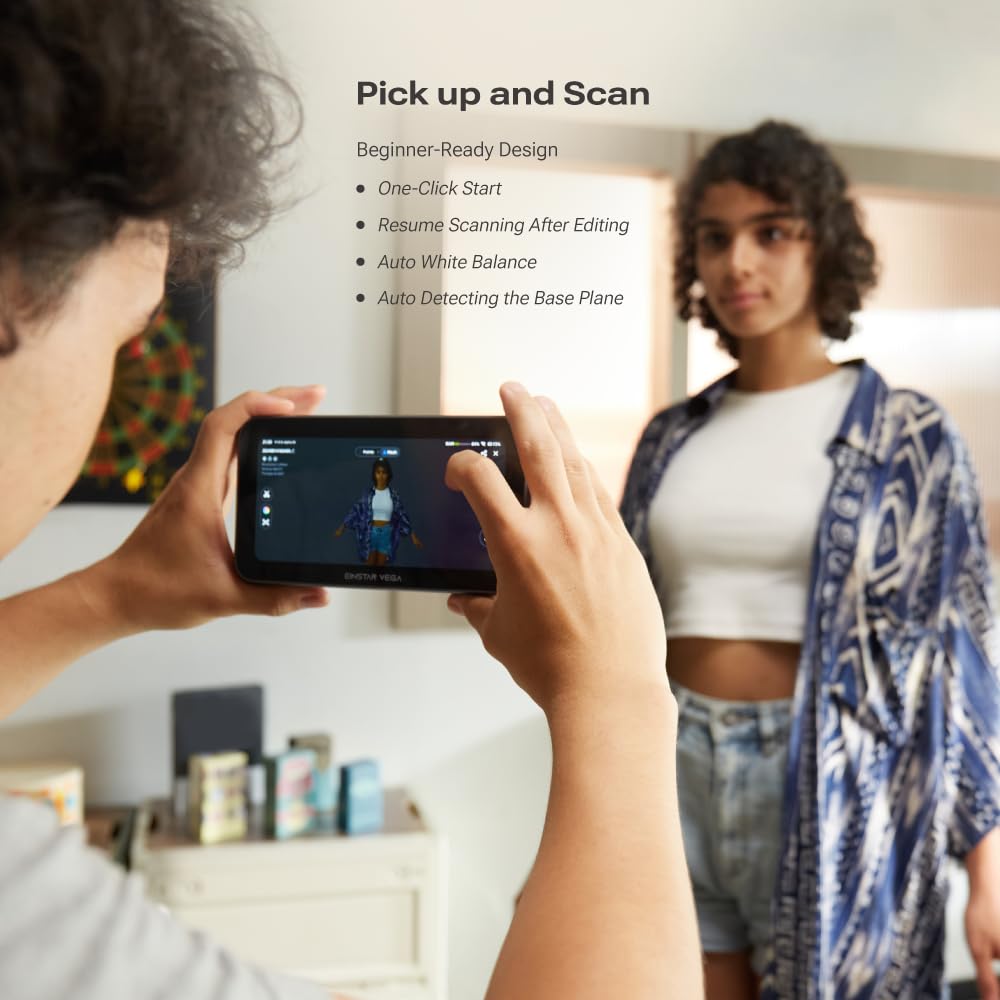
Figure 4.2: The VEGA scanner being used to capture a human subject, highlighting its adaptability.
4.2. Advanced Software Features
- 12mm Markers Alignment: For scanning super large objects in Fast Mode, this feature minimizes the number of markers required, simplifying the process.
- Hybrid Alignment: Enhances tracking stability and efficiency during scanning, especially in complex environments.
- Scanning Rewind: Allows correction of data alignment errors during the scanning process, preventing the need to restart.
- Auto Detecting the Base Plane: Automatically identifies and sets the base plane for easier model orientation.
- Coordinate System Adjustment: Provides tools to adjust the coordinate system of your scanned model.
- Model Measurement: Perform direct measurements on your 3D models within the scanner's software.
4.3. Data Management and Export
After scanning, the VEGA scanner processes the data internally. You can then manage and export your 3D models:
- Emmagatzematge intern: Scanned data is saved to the internal 512GB SSD.
- SHINING 3D Cloud: Utilize the SHINING 3D Cloud service (5GB free storage) for easy data sharing, collaboration, storage, and measurement.
- PC Software StarVision: For more advanced processing and export options, transfer your data to a computer and use the StarVision software, compatible with both Windows and Mac OS.
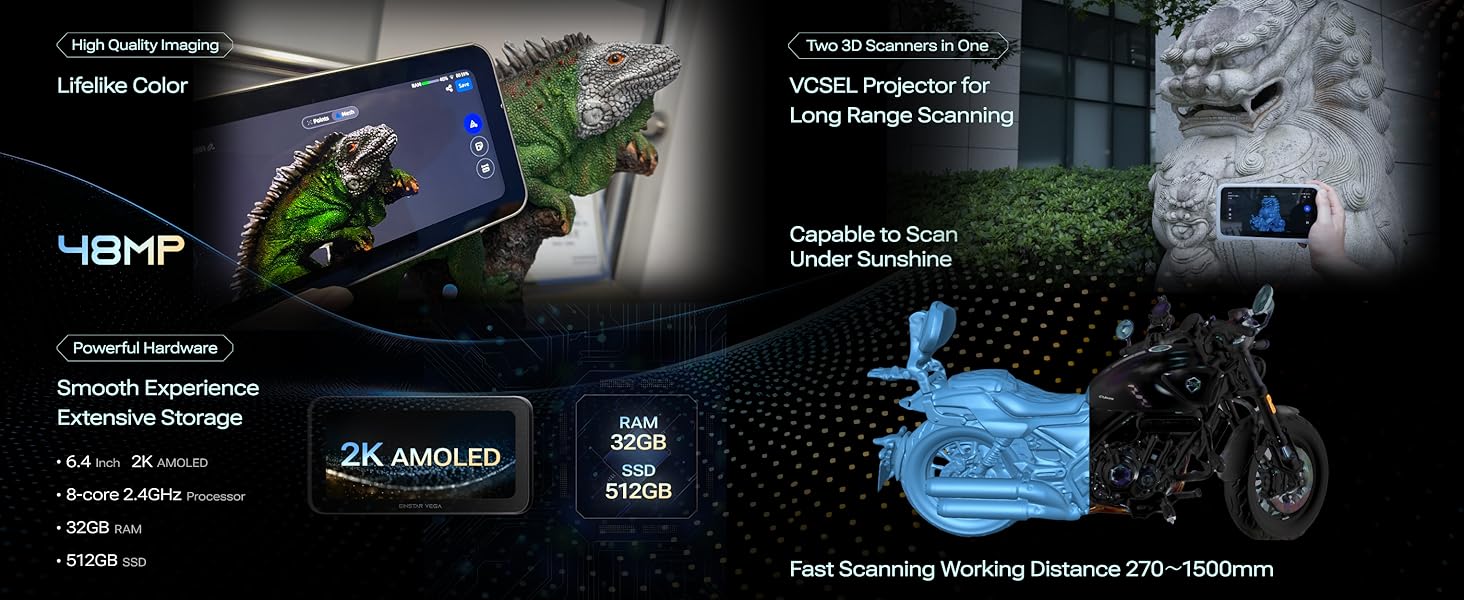
Figura 4.3: Mésview of SHINING 3D Cloud and StarVision PC software for data management and advanced processing.
4.4. Video Demonstration: Coin Scanning
Watch this official video demonstrating the EINSTAR VEGA 3D Scanner's capability in scanning a coin with 0.1mm resolution, showcasing the precision and ease of use for small objects.
Video 4.1: EINSTAR VEGA 3D Scanner Coin Scanning. This video illustrates the detailed scanning process and high resolution achievable with the VEGA scanner on small, intricate objects like coins.
5. Manteniment
Proper maintenance ensures the longevity and optimal performance of your EINSTAR VEGA 3D Scanner:
- Neteja: Regularly clean the scanner's lenses and display with a soft, lint-free cloth. Avoid abrasive materials or harsh chemicals.
- Emmagatzematge: Store the scanner in a dry, dust-free environment, preferably in its original packaging or a protective case, when not in use. Avoid extreme temperatures.
- Cura de la bateria: For long-term storage, ensure the battery is charged to approximately 50-60%. Avoid fully discharging the battery for extended periods.
- Actualitzacions de programari: Periodically check for and install software updates to benefit from performance enhancements and bug fixes.
- Calibració: Re-calibrate the scanner periodically or if you notice any inconsistencies in scanning accuracy.
6. Solució De Problemes
This section addresses common issues you might encounter with your EINSTAR VEGA 3D Scanner.
| Problema | Causa possible | Solució |
|---|---|---|
| Scanner not powering on | Bateria baixa; el botó d'engegada no s'ha premut correctament | Carrega el dispositiu completament. Prem i mantén premut el botó d'engegada durant uns segons. |
| Poor tracking during scan | Object too reflective/dark; Insufficient features on object; Too fast movement; Incorrect working distance | Apply scanning spray to reflective/dark surfaces. Ensure adequate lighting. Move the scanner slower and maintain optimal working distance. Use markers for featureless objects. |
| Inaccurate scan results | Calibration needed; Environmental interference; Software glitch | Perform a calibration. Avoid strong direct sunlight or other infrared sources. Restart the scanner and software. |
| No es pot connectar a la Wi-Fi | Incorrect password; Out of range; Network issue | Verify Wi-Fi password. Move closer to the router. Restart the scanner and router. |
| Sobreescalfament del dispositiu | Prolonged use; Poor ventilation | Allow the device to cool down. Ensure proper airflow around the scanner during operation. |
If the issue persists after attempting these solutions, please contact EINSTAR customer support.
7. Especificacions
| Característica | Detall |
|---|---|
| Dimensions del producte | 14.96 x 12.01 x 6.1 polzades |
| Pes | 6.39 lliures |
| Número de model | Vega-FBA |
| Bateries | Necessites 1 piles de ions de liti (incloses) |
| CPU | 8 nuclis 2.4 GHz |
| RAM | 32 GB |
| Emmagatzematge | 512GB SSD (plus 32GB eMMC) |
| Mostra | 6.4 Inch 2K AMOLED |
| Texture Camera | 48MP RGB |
| Fast Mode Working Distance | 270 - 1500 mm |
| Fast Mode Scanning Speed | Fins a 20 FPS |
| HD Mode Working Distance | 100 - 350 mm |
| HD Mode Scanning Speed | Fins a 15 FPS |
| Fabricant | 3D BRILLANT |
8. Garantia i Suport
EINSTAR products are manufactured to high-quality standards. For detailed warranty information, please refer to the warranty card included with your product or visit the official SHINING 3D weblloc.
For technical support, troubleshooting assistance, or service inquiries, please contact EINSTAR customer support through the following channels:
- Assistència en línia: Visit the official SHINING 3D support portal for FAQs, drivers, software downloads, and online ticketing.
- Suport per correu electrònic: Consulteu la documentació del producte per obtenir l'adreça electrònica d'assistència dedicada.
- Suport telefònic: Contact numbers for regional support are typically available on the official weblloc.
Please have your product model number (Vega-FBA) and serial number ready when contacting support.


