Introducció
This manual provides comprehensive instructions for the LOFREE Foundation Tri-Mode Wireless Numpad, model EH121. It covers setup, operation, maintenance, and troubleshooting to ensure optimal performance across various operating systems, including MacOS, iOS, Windows, and Android. Please read this manual thoroughly before using your numpad.
Contingut del paquet
- 1 x Foundation Tri-Mode Wireless Numpad
- 1 x receptor 2.4G
- 1 x cable de càrrega USB
- 1 x Guia d'usuari

Figure 1: Contents of the LOFREE Foundation Tri-Mode Wireless Numpad package, including the numpad, 2.4G receiver, USB charging cable, and user guide.
Configuració
Carregant el Teclat Numèric
Before initial use, fully charge the numpad using the provided USB-C cable. Connect one end to the numpad's USB-C port and the other to a power source (e.g., computer USB port or wall adapter). The charging indicator will show the charging status.
Modes de connectivitat
The LOFREE Foundation Numpad supports three connection modes: Bluetooth 5.3, 2.4Ghz wireless (via USB receiver), and wired USB-C. You can connect up to three devices simultaneously via Bluetooth.
1. Connexió sense fil de 2.4 GHz
- Locate the 2.4G receiver in the package.
- Connecteu el receptor 2.4G a un port USB disponible de l'ordinador.
- Turn on the numpad. It should automatically connect to the receiver.
2. Connexió Bluetooth
- Turn on the numpad.
- Press and hold the Bluetooth pairing key (refer to the numpad's keycap legends for the specific key, often indicated by a Bluetooth icon) until the indicator light flashes, signifying pairing mode.
- On your device (MacOS, iOS, Windows, Android), go to Bluetooth settings and select "LOFREE Numpad" from the list of available devices.
- Seguiu les indicacions de la pantalla per completar el procés de vinculació.
- To switch between paired Bluetooth devices (up to three), short press the corresponding Bluetooth channel key.
3. Connexió USB-C amb cable
- Connect the numpad to your computer using the provided USB-C cable.
- El teclat numèric funcionarà com un dispositiu amb cable i es carregarà simultàniament.

Figura 2: lateral view of the numpad, illustrating the USB-C port for wired connection and charging, and the power/mode switch.
Instruccions de funcionament
Numpad and Calculator Modes
The LOFREE Foundation Numpad can operate as a standard numeric keypad or as a standalone calculator. Use the dedicated 'Num' and 'Calc' keys to switch between these modes. In calculator mode, results are displayed on the integrated screen.

Figure 3: A hand interacting with the numpad, demonstrating its functionality in calculator mode with a digital display showing a numerical result.
Control de la llum de fons
The numpad features a White-LED backlight. Adjust brightness or toggle the backlight using the designated function keys (refer to your numpad's keycap legends for specific controls).
Canvi de clau N (NKRO)
The numpad supports N-key rollover, allowing multiple keys to be pressed simultaneously without ghosting or missed inputs. This ensures accuracy and responsiveness during rapid data entry.
Manteniment
Neteja
To clean the numpad, gently wipe the surface and keycaps with a soft, damp cloth. Avoid using harsh chemicals or abrasive materials that could damage the ABS and PC keycaps or the transparent casing. Ensure the device is powered off and disconnected from any power source before cleaning.
Cura de la bateria
The numpad is equipped with a rechargeable Lithium Polymer battery. For optimal battery life, avoid fully discharging the battery frequently. Recharge the numpad when the battery indicator is low. If storing the numpad for an extended period, charge it to approximately 50% and store it in a cool, dry place.
Resolució de problemes
- Numpad not responding: Ensure the numpad is powered on and fully charged. Check the connection mode (2.4G, Bluetooth, or wired) and ensure it is correctly paired or connected to your device. Try restarting the numpad and your device.
- Problemes de connexió Bluetooth: Make sure Bluetooth is enabled on your device. Unpair and re-pair the numpad. Ensure no other devices are interfering with the Bluetooth signal. Try connecting to a different Bluetooth channel if available.
- 2.4Ghz connection issues: Ensure the USB receiver is securely plugged into your computer. Try plugging the receiver into a different USB port.
- Claus que no es registren o queden sense res: This numpad supports N-key rollover, so simultaneous presses should register correctly. If issues persist, ensure the keycaps are properly seated. If the numpad is hot-swappable, consider reseating the switch or replacing it if necessary.
- La retroiluminació no funciona: Check if the backlight is enabled and adjusted to a visible brightness level using the function keys. Ensure the numpad has sufficient battery charge.
Especificacions
| Número de model | EH121 |
| Dimensions del producte | 5.91 x 3.94 x 1.77 polzades |
| Pes de l'article | 15.2 unces |
| Fabricant | LOFREE |
| Bateries | 1 bateria de polímer de liti (inclosa) |
| Dispositius compatibles | Laptop, PC (MacOS, iOS, Windows, Android) |
| Tecnologia de connectivitat | Bluetooth 5.3, 2.4Ghz RF, USB-C |
| Descripció del teclat | Mecànica |
| Característiques especials | Backlit, Hot-Swappable, Rechargeable |
| Color de retroiluminació | Single Color (White-LED) |
| Material | Plastic (ABS and PC keycaps) |
Producte addicional Views


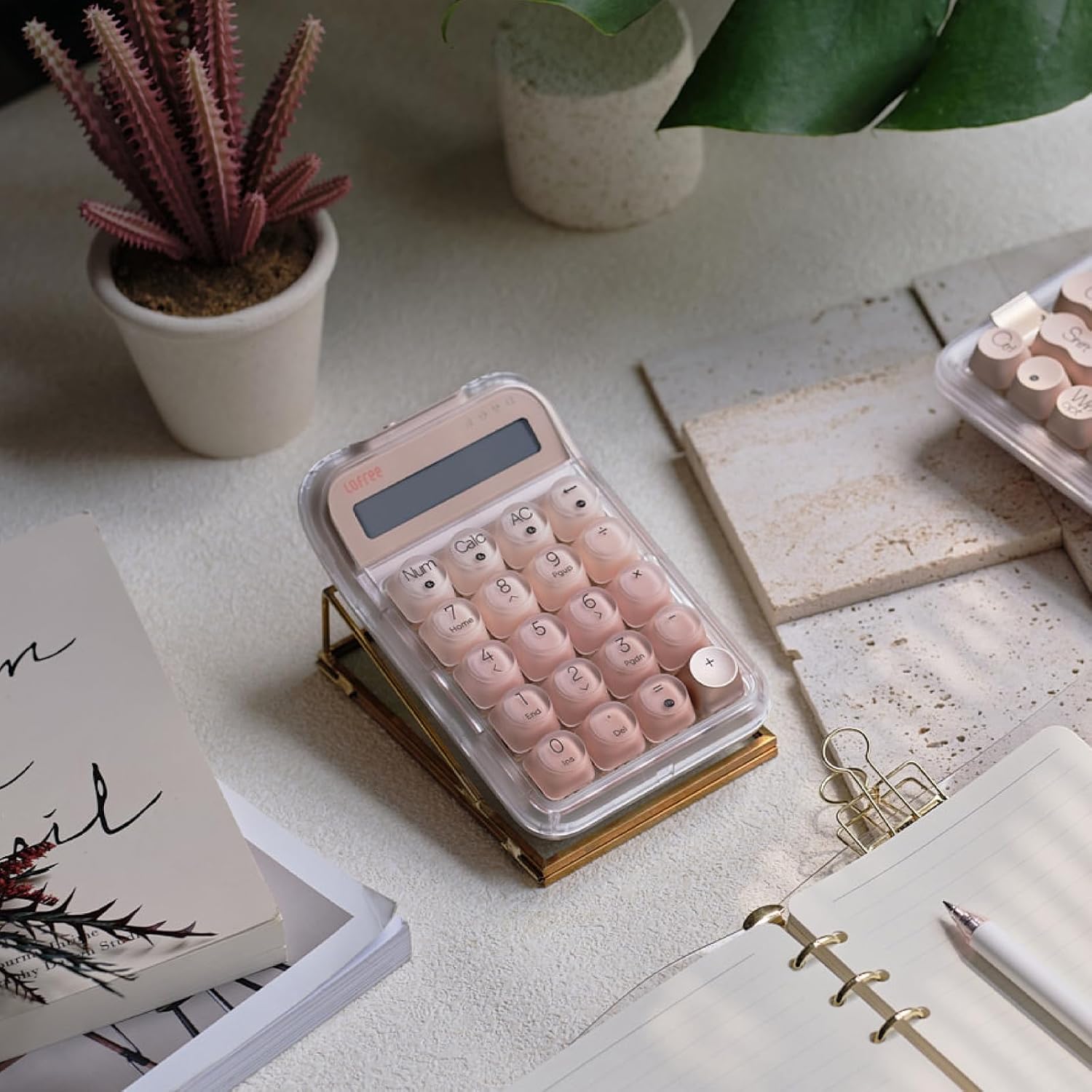


Vídeos oficials de productes
Official LOFREE video showcasing the DOT Foundation Mechanical Keyboard. While this video features a related keyboard, it demonstrates the brand's design philosophy, keycap style, and typing experience, which are similar to the Numpad.
Garantia i Suport
For warranty information, technical support, or service inquiries, please refer to the official LOFREE website or contact LOFREE customer service directly. Keep your purchase receipt for warranty validation.


