1. Producte acabatview
This manual provides instructions for the SABLUTE KL386 Wireless Keyboard and Mouse Combo. This combo offers a compact, quiet, and rechargeable solution for your computing needs, featuring backlit keys and an RGB mouse.
Contingut del paquet:
- Teclat sense fil
- Ratolí sense fil
- Receptor USB (2.4 GHz)
- Adaptador USB-A a USB-C
- Cable de càrrega USB-C
- Manual d'usuari
Identificació de components:
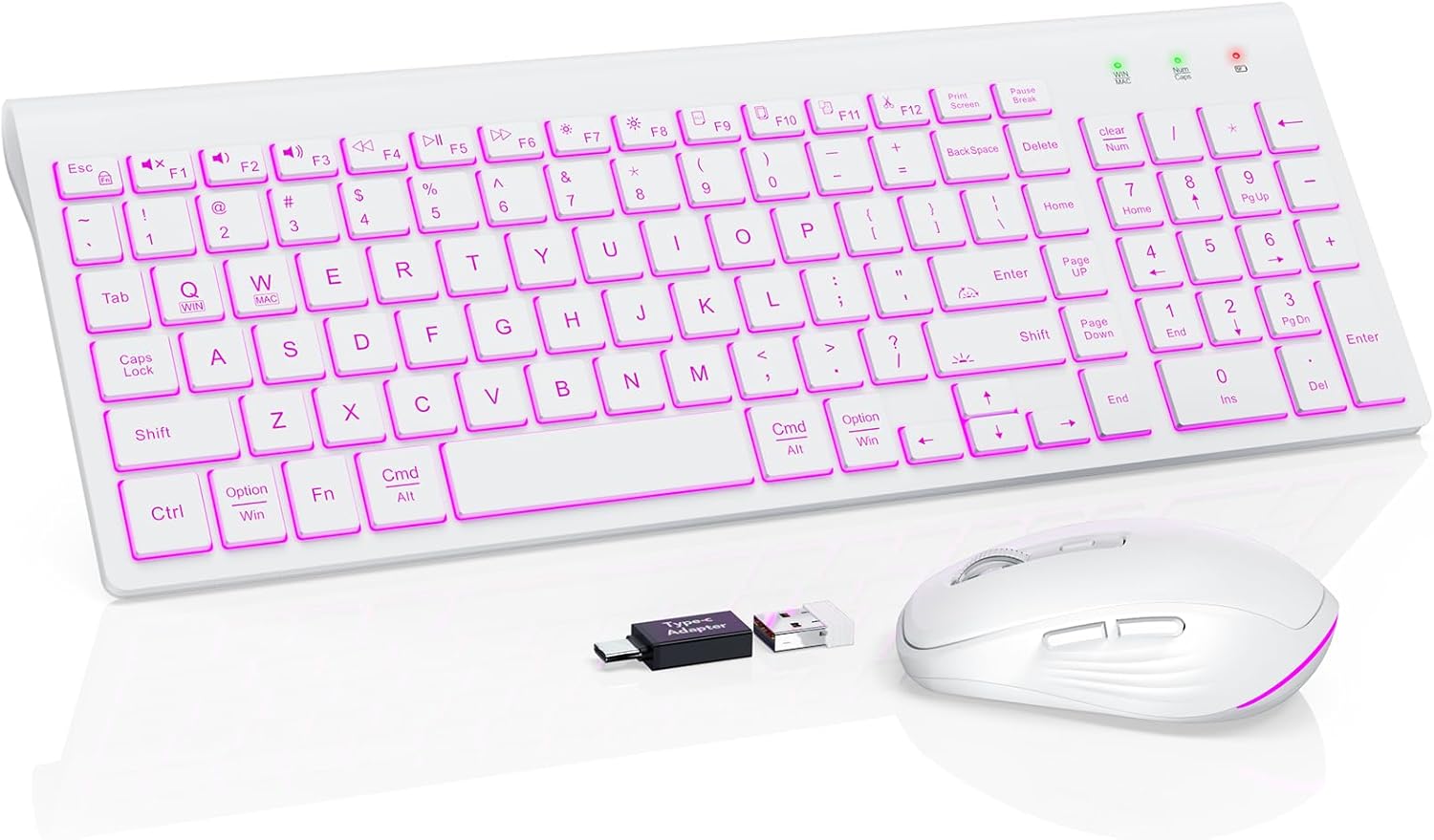
Image: The SABLUTE KL386 wireless keyboard and mouse combo, including the USB receiver and USB-C adapter.
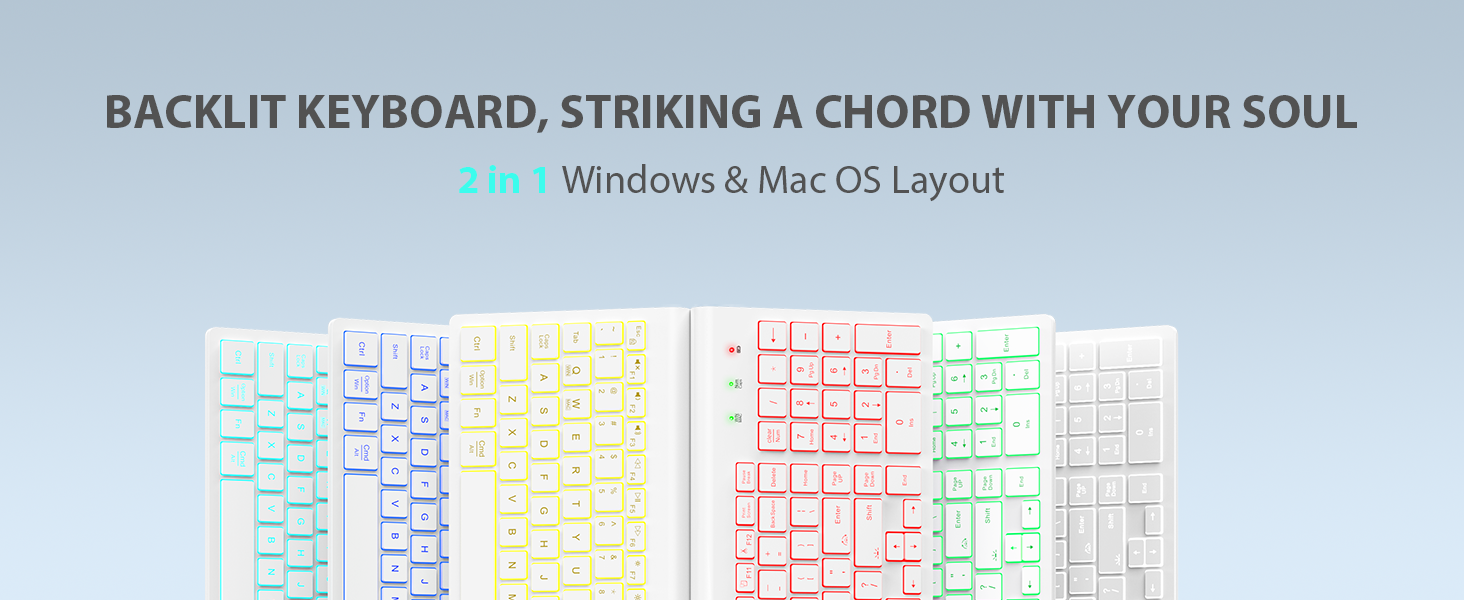
Imatge: Detallada view of the SABLUTE KL386 keyboard layout, highlighting key functions and indicators.
2. Instruccions de configuració
2.1 Càrrega dels dispositius
Before initial use, fully charge both the keyboard and mouse.
- Connect the provided USB-C charging cable to the charging port on the keyboard and mouse.
- Connecteu l'altre extrem del cable a una font d'alimentació USB (per exemple, un port USB de l'ordinador o un adaptador de paret USB).
- El llum indicador de càrrega s'il·luminarà durant la càrrega i s'apagarà quan estigui completament carregat.

Image: Illustration of the keyboard and mouse connected via USB-C cables for charging, showing battery capacity indicators.
2.2 Connecting the Wireless Combo
The keyboard and mouse share a single USB receiver for connection.
- Locate the USB receiver, typically stored in the mouse's battery compartment.
- Plug the USB receiver into an available USB-A port on your computer. If your computer only has USB-C ports, use the included USB-A to USB-C adapter.
- Turn on the power switch located on the back of both the keyboard and the mouse.
- The devices are plug-and-play and should connect automatically within a few seconds.
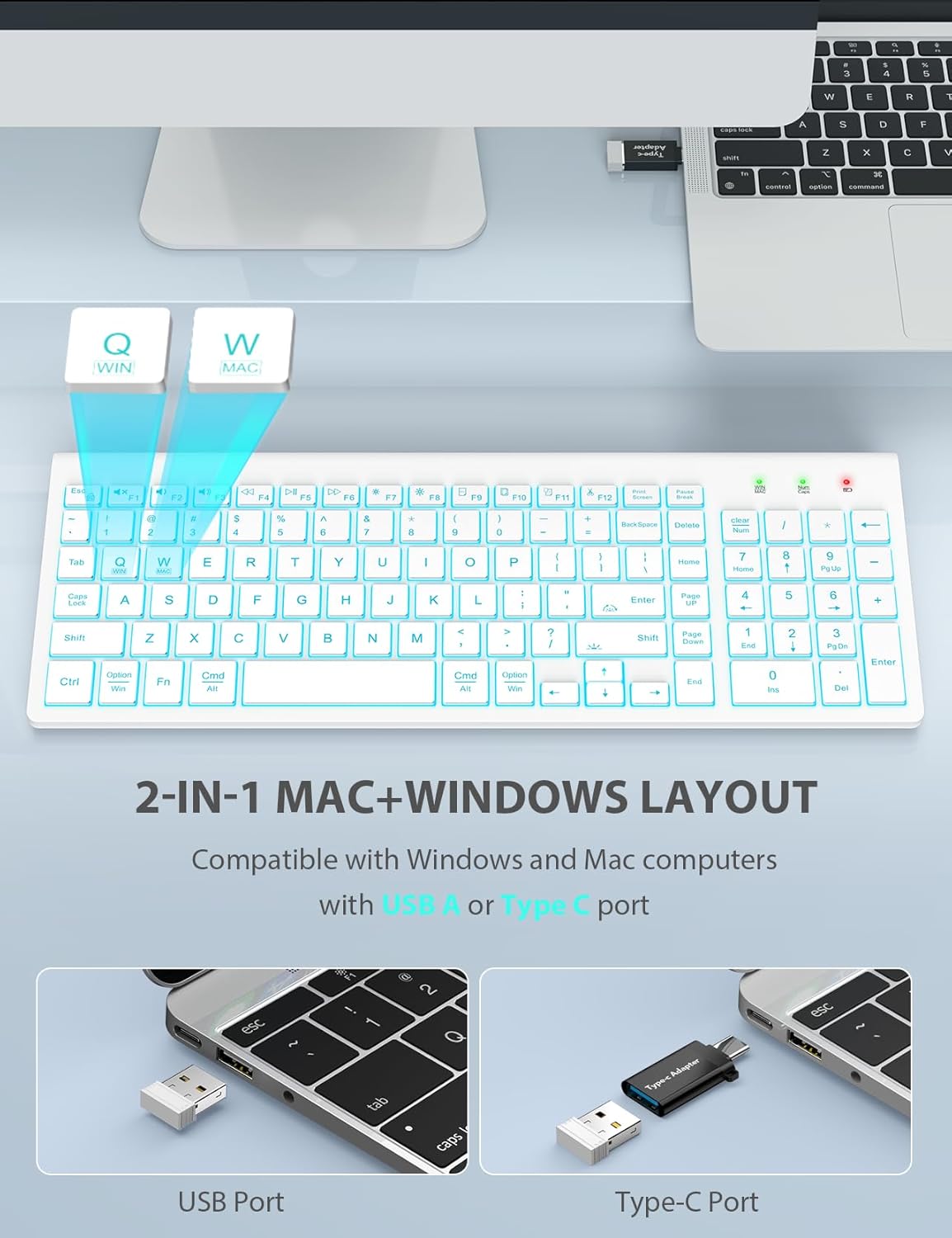
Image: A laptop connected to the wireless keyboard via a USB receiver, demonstrating the use of both USB-A and USB-C ports with the adapter.
2.3 Switching System Layout (Windows/Mac)
The keyboard supports both Windows and Mac layouts.
- Per activar el Disseny de Mac: Premeu Fn + W. A red indicator light will confirm the switch.
- Per activar el Disseny de Windows: Premeu Fn + Q. A green indicator light will confirm the switch.
3. Instruccions de funcionament
3.1 Keyboard Backlight Control
The keyboard features a 7-color switchable backlight with 4 adjustable brightness levels.
- Turn On/Off/Adjust Brightness: Premeu Fn + Shift. Cycle through Off, Low, Mid, and High brightness levels.
- Canvia els colors: Premeu Fn + Intro. Cycle through the 7 available backlight colors.
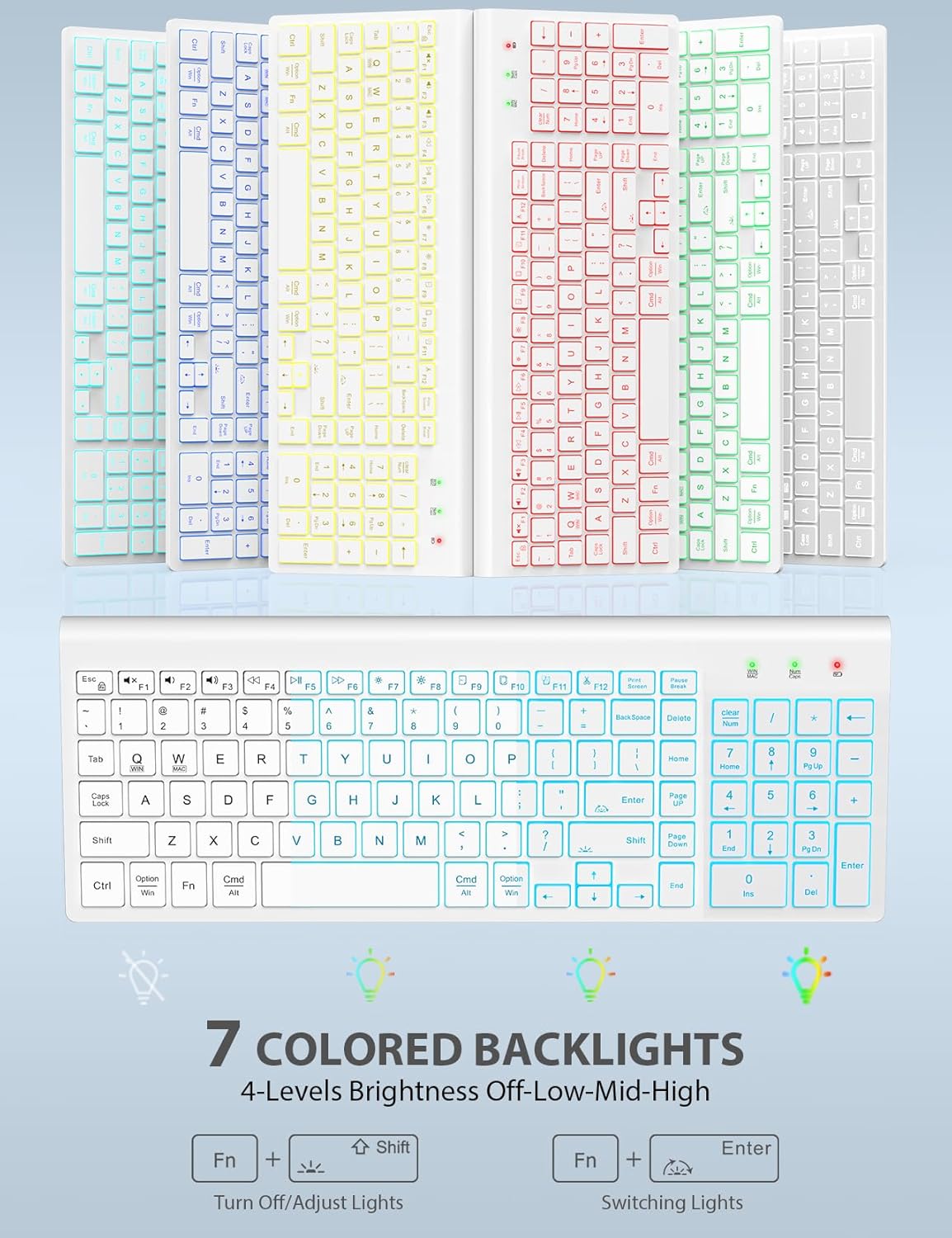
Image: The keyboard displaying various backlight colors, illustrating the 7-color options and brightness levels.
3.2 Mouse RGB Lighting
The mouse features automatic color-changing RGB lighting.
- The RGB lighting changes colors automatically during use.
- To turn the mouse backlight on or off, use the dedicated "backlight switching" button on the mouse.

Image: The wireless mouse showcasing its RGB lighting and highlighting the tracking speed and quiet click features.
3.3 Multimedia Function Hotkeys
The keyboard includes 12 convenient multimedia shortcut keys (F1-F12).
- To enable one-key operation of the F1-F12 multimedia functions, press Fn + ESC. This will toggle the "Fn Lock" feature.

Image: Diagram illustrating the Fn + ESC key combination to enable one-key operation of multimedia functions (F1-F12).
3.4 Funcions del ratolí
- Tracking Speed Button: Located on the top of the mouse, this button allows you to adjust the DPI (sensitivity) for different tracking speeds.
- Botons endavant/enrere: Located on the side of the mouse, these buttons facilitate faster web navegació.
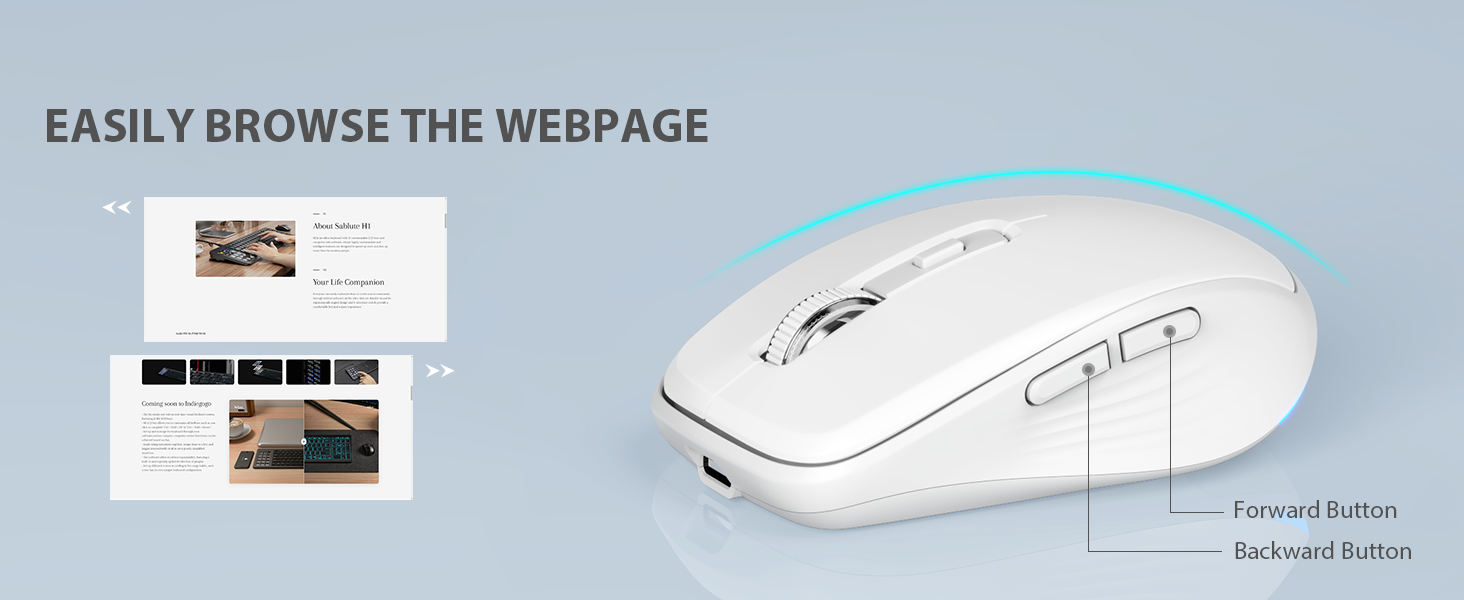
Image: Close-up of the wireless mouse, highlighting the forward and backward navigation buttons for web navegació.
3.5 Smart Sleep Mode
Both the keyboard and mouse feature an automatic sleep function to conserve battery power.
- El teclat entrarà en mode de repòs després de 10 minuts d'inactivitat.
- The mouse will enter sleep mode after 15 minutes of inactivity.
- To wake up either device, simply type any key on the keyboard or click any button on the mouse.
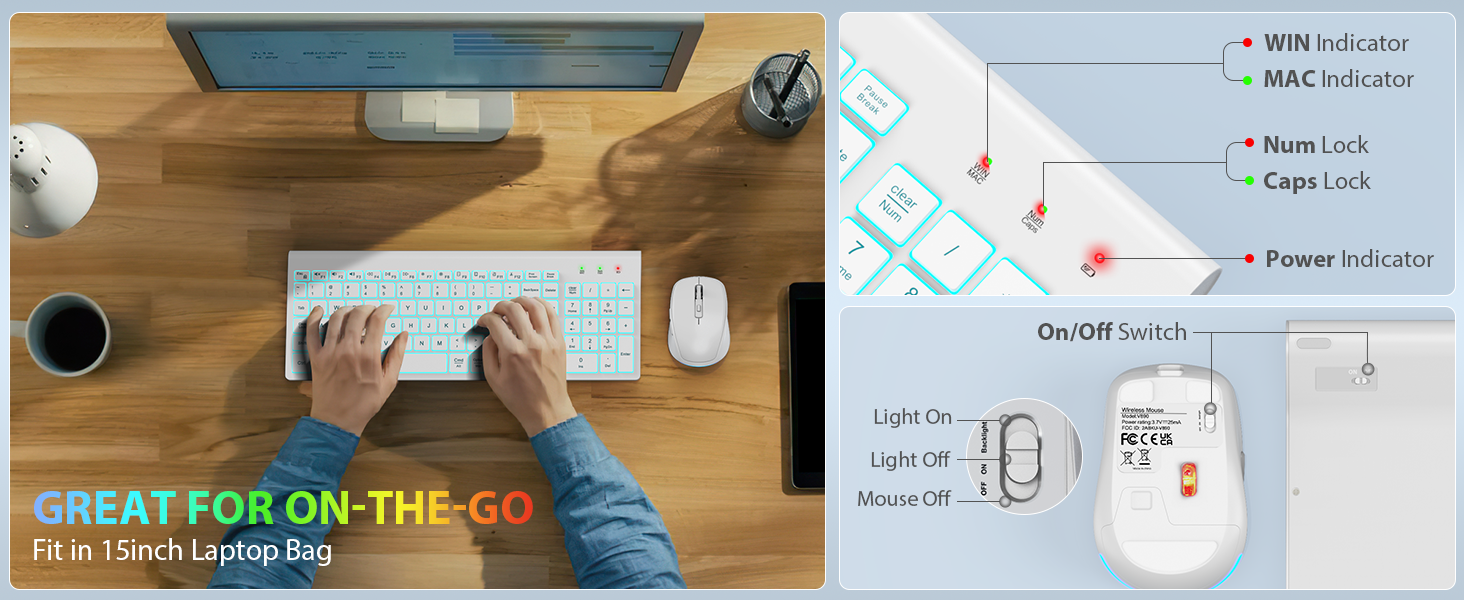
Image: Visual representation of the smart sleep mode feature, indicating idle times for both the keyboard and mouse before entering sleep.
4. Manteniment
4.1 Neteja
- Use a soft, dry cloth to clean the surfaces of the keyboard and mouse.
- Per a la brutícia persistent, lleugerament dampNetegeu el drap amb aigua o una solució de neteja suau. Eviteu l'excés d'humitat.
- No utilitzeu productes químics agressius, netejadors abrasius ni dissolvents.
4.2 Cura de la bateria
- Recharge the devices when the battery indicator lights show low power.
- Avoid fully depleting the battery frequently to prolong its lifespan.
- If storing the devices for an extended period, charge them to about 50% and store in a cool, dry place.
5. Solució De Problemes
5.1 Problemes de connexió
- Sense connexió: Ensure the USB receiver is securely plugged into a working USB port. Try a different USB port.
- Devices not responding: Check if both the keyboard and mouse are powered on. Ensure they are sufficiently charged.
- Interferència: Move the devices closer to the USB receiver. Avoid placing the receiver near other wireless devices or large metal objects that might cause interference.
5.2 Backlight Not Working (Keyboard)
- Assegureu-vos que el teclat estigui carregat.
- Premeu Fn + Shift to cycle through brightness levels and turn the backlight on.
5.3 Keys or Mouse Not Responding
- Recharge the devices.
- Turn the devices off and then on again.
- Traieu i torneu a inserir el receptor USB.
- Test the devices on a different computer to rule out system-specific issues.
6. Especificacions
| Característica | Descripció |
|---|---|
| Dimensions del producte | 14.8 x 5.4 x 0.78 polzades |
| Pes de l'article | 1.52 lliures |
| Bateries | Necessita 1 bateria de ions de liti (inclosa) |
| Tecnologia de connectivitat | Radiofreqüència (2.4 GHz) |
| Característiques especials | Backlit, Lightweight, Portable, Rechargeable, Spill-Resistant, Quiet Operation, Smart Sleep Mode |
| Dispositius compatibles | Chromebook, Notebook, MacBook Pro, MacBook Air, iMac, Tablet, Television, Smartphone, Windows XP/Vista/7/8/10/X |
| Il·luminació de fons del teclat | 7 switchable colors, 4 brightness levels |
| Il·luminació del ratolí | Canvi automàtic de color RGB |
| Keyboard Standby Time | 365 dies |
| Mouse Standby Time | 270 dies |
7. Garantia i Suport
7.1 Informació de la garantia
SABLUTE provides 24 months of support for this product. If you encounter any issues, please contact our customer service team.
7.2 Atenció al client
For technical assistance or warranty claims, please contact SABLUTE USA customer service:
- Telèfon: 1-888-905-9607 (US)
- Horari de funcionament: Monday - Friday, 9:00 AM - 1:00 PM PST and 2:00 PM - 6:00 PM PST

Image: A customer service representative with a headset, indicating available support.


