Introducció
The Jinvocloud WiFi IR Blaster UFO-R6 is a smart home device designed to convert traditional infrared-controlled appliances into smart devices. It allows for remote control via a mobile application and voice commands through compatible smart speakers like Amazon Alexa and Google Assistant. This manual provides essential information for setting up, operating, maintaining, and troubleshooting your device, helping you integrate your existing IR appliances into a modern smart home ecosystem.
Què hi ha a la caixa
- IR Controller (UFO-R6)
- USB Cable (USB 2.0, not USB-C)
- Instrucció per a la instal·lació
Guia de configuració
1. Initial Device Preparation
Connect the Jinvocloud WiFi IR Blaster UFO-R6 to a power source using the provided USB 2.0 cable. Upon powering on, observe the blue indicator light on the device. If the blue light is not flashing, press and hold the reset button located at the bottom of the device until the blue light begins to blink rapidly. This indicates the device is in pairing mode and ready for connection.

Davant view of the Jinvocloud WiFi IR Blaster UFO-R6.

A baix view of the UFO-R6, displaying the model number and the location of the reset button.
2. Instal·lació de l'aplicació i emparellament de dispositius
Download the "Smart Life" application from your mobile device's app store (available for iOS and Android). Once installed, open the app and register or log in to your account. Tap the "+" icon to add a new device. Select "Universal Remote Control" from the device list. Follow the on-screen prompts to connect the device to your 2.4GHz Wi-Fi network. Please note that the device only supports 2.4GHz Wi-Fi connections. Confirm the indicator light is blinking rapidly when prompted. Once successfully added, you can proceed to add and control your appliances.
Official video demonstrating the network distribution operation for the Smart IR blaster, including checking the blue light status, opening the Smart Life APP, adding the universal remote control, and confirming successful access to the network.
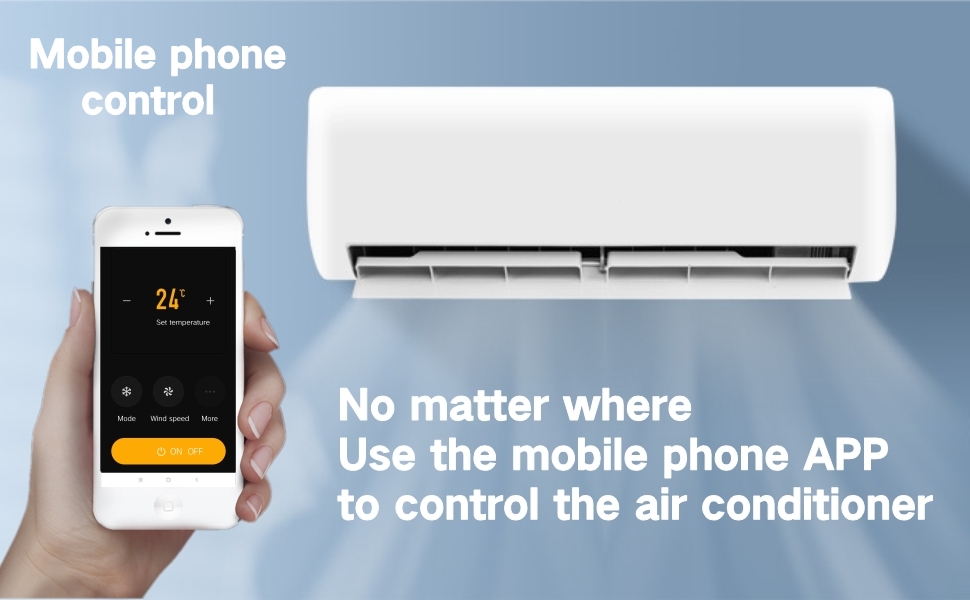
Illustration of controlling an air conditioner using the Smart Life mobile application.
Instruccions de funcionament
1. Adding and Controlling Appliances
Within the Smart Life app, select "Add Remote Control" to begin adding your infrared-controlled appliances. Choose the type of appliance (e.g., TV, Air Conditioner, Fan, DVD, Set-Top Box) and then select the electrical brand from the provided list. If your brand is not listed, you can utilize the "DIY" custom learning function to teach the IR Blaster commands directly from your original remote control. Once an appliance is added, you can control its functions (e.g., power, temperature, mode, volume) directly from the Smart Life app, regardless of your location.

The UFO-R6 supports a wide range of household appliances, including TVs, refrigerators, air conditioners, fans, DVD players, washing machines, range hoods, and IR LED lights.

The device features an extensive IR code base supporting over 4000 global brands, along with a 'DIY' custom learning function for unlisted appliances.
2. Integració del control per veu
The UFO-R6 is compatible with popular smart speakers such as Amazon Alexa and Google Assistant. To enable voice control, link your Smart Life account to your preferred voice assistant app. Once linked, you can use simple voice commands to control your connected appliances, such as "Alexa, turn on the TV" or "Hey Google, set AC to 22 degrees."
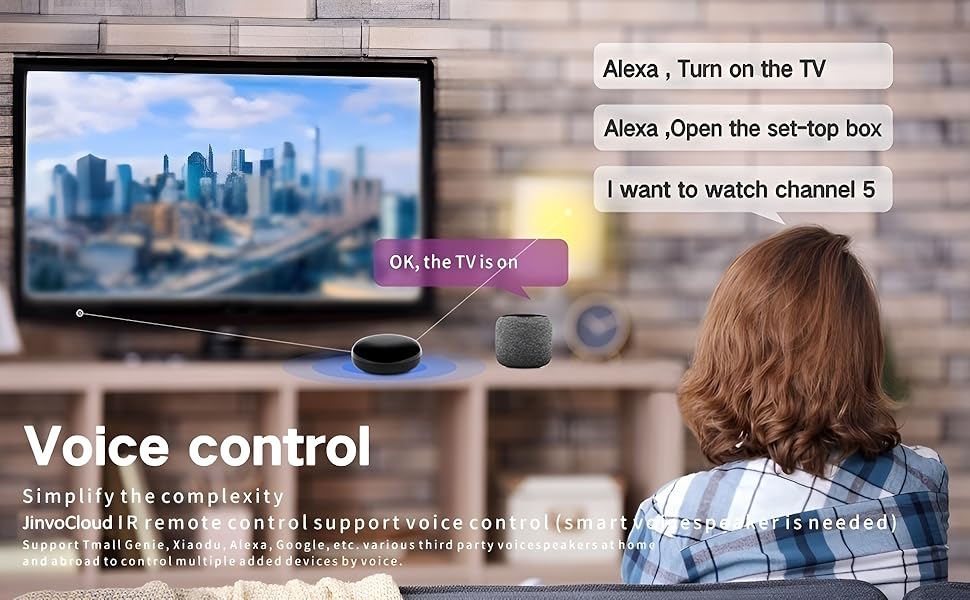
Simplify your experience with voice control, supporting various third-party smart speakers.
3. Compartició de dispositius
The Smart Life app allows for easy device sharing. You can share control of your smart IR blaster with family members, enabling multiple users to manage the same devices simultaneously from their own mobile devices.

By adding family members and sharing the paired device, family members can control the device freely.
4. Signal Coverage and Placement
The UFO-R6 provides 360° all-round infrared signal coverage without dead angles. For optimal performance, ensure the device has a clear line of sight to the appliances it controls, as infrared signals cannot pass through walls. One unit is recommended per room for effective control of infrared household devices.

The UFO-R6 offers 360-degree signal coverage, making smart remote control an integral part of modern living.
Manteniment
To ensure the longevity and optimal performance of your Jinvocloud WiFi IR Blaster UFO-R6, follow these general maintenance guidelines:
- Mantenir sec: Avoid exposing the device to water, moisture, or high humidity, as this can damage internal components.
- Netegeu suaument: Use a soft, dry cloth to clean the exterior of the device. Do not use abrasive cleaners, solvents, or strong chemicals.
- Eviteu temperatures extremes: Do not place the device in environments with extremely high or low temperatures, or in direct sunlight.
- Manejar amb cura: Avoid dropping or subjecting the device to strong impacts. Ensure the USB cable is not bent or damaged to maintain a stable power supply.
Resolució de problemes
If you encounter issues with your Jinvocloud WiFi IR Blaster UFO-R6, refer to the following common problems and solutions:
- Blue Light Not Flashing During Setup: If the blue indicator light is not blinking rapidly, press and hold the reset button on the bottom of the device until it starts blinking.
- Connection Issues (Device Not Found/Offline):
- Assegureu-vos que la vostra xarxa Wi-Fi sigui de 2.4 GHz. El dispositiu no admet Wi-Fi de 5 GHz.
- Check your Wi-Fi password for accuracy during the pairing process.
- Assegureu-vos que el dispositiu estigui dins de l'abast del vostre encaminador Wi-Fi.
- Appliance Not Responding to Commands:
- Verify the IR Blaster has a clear line of sight to the appliance. Obstructions (like furniture or walls) can block the infrared signal.
- Ensure the correct appliance type and electrical brand are selected in the Smart Life app.
- If the brand is not listed or commands are not working, use the "DIY" custom learning function to teach the device the remote commands directly from your original remote.
- Confirm the appliance uses an IR (infrared) signal (38KHZ). The device does not support RF (radio frequency) controlled appliances.
- El control per veu no funciona:
- Ensure your Smart Life account is correctly linked to your Amazon Alexa or Google Assistant app.
- Check your smart speaker's internet connection and ensure it is online.
- Verify the voice commands are correctly phrased as per the app's instructions or the voice assistant's guidelines.
- Limited IR Range/Effectiveness: The effective range of the IR signal can be affected by obstacles and distance. Reposition the IR Blaster closer to the appliances or in a more central location within the room to improve signal transmission.
Especificacions
| Característica | Descripció |
|---|---|
| Dimensions del producte | 2.9 x 2.9 x 1.71 polzades |
| Pes de l'article | 3.2 unces (62 g) |
| Número de model de l'article | OVNI-R6 |
| Marca | Jinvocloud |
| Fabricant | Shenzhen Tuya Cloud Technology Co.,Ltd |
| Color | Negre |
| Nombre màxim de dispositius compatibles | 15 |
| Dispositius compatibles | Fan, Set Top Box, Television, Camera (and other IR-controlled devices like AC, DVD, Projector) |
| Característiques especials | Learning function, Timing function, Device sharing, APP remote control, Voice Search |
| Entrada Voltage | 5V |
| Corrent d'entrada | 1A |
| Estàndard sense fils | Wifi IEEE 802.11b/g/n |
| Freqüència | 2.4 GHz |
| Potència de transmissió | 20dBm |
| Temperatura de funcionament | 0 ~ 50 °C |

Detailed product parameters including dimensions, power, and wireless specifications.
Garantia i Suport
For technical support, warranty information, or further assistance with your Jinvocloud WiFi IR Blaster UFO-R6, please contact the manufacturer, Shenzhen Tuya Cloud Technology Co.,Ltd. You can also refer to the official User Guide PDF for additional details and instructions.
Guia d'usuari oficial (PDF): Feu clic aquí per descarregar


