Introducció
This manual provides detailed instructions for setting up, operating, maintaining, and troubleshooting your GMKtec Mini PC M2 Pro. Please read this guide thoroughly to ensure proper use and to maximize the performance and longevity of your device.
1. Configuració
Follow these steps to set up your GMKtec Mini PC M2 Pro for the first time.
1.1 Desembalatge i components
Traieu amb cura tots els components de l'embalatge. Assegureu-vos de tenir els elements següents:
- GMKtec Mini PC M2 Pro unit
- Adaptador d'alimentació
- Cable HDMI
- VESA Mount Bracket (if included)
- Manual d'usuari (aquest document)

Figure 1.1: The GMKtec Mini PC M2 Pro unit, showcasing its compact design and various ports on the rear.
1.2 Connexió de perifèrics
Connect your display, keyboard, and mouse to the Mini PC.
- Connect your monitor(s) to the HDMI or USB Type-C ports using the provided HDMI cable or a compatible cable. The Mini PC supports up to three 4K displays simultaneously.
- Connect your USB keyboard and mouse to any available USB 3.2 ports.
- For wired network access, connect an Ethernet cable to the RJ45 2.5G port.
- For audio output, connect speakers or headphones to the 3.5mm audio jack.

Figure 1.2: Detailed diagram illustrating the various input/output ports on the GMKtec Mini PC M2 Pro, including USB-A 3.2, Power Button, Audio (3.5mm CTIA), RJ45 (2.5G), HDMI (4K@60Hz), USB Type-C (DP/DATA), and DC power input.
1.3 Encès
Un cop connectats tots els perifèrics:
- Connect the power adapter to the DC-in port on the Mini PC.
- Connecteu l'adaptador de corrent a una presa de corrent.
- Press the power button located on the front of the Mini PC. The power indicator light will illuminate.
- The system will boot up. Follow the on-screen instructions for initial Windows 11 Pro setup.
2. Instruccions de funcionament
This section covers the general operation and key features of your Mini PC.
2.1 Rendiment superiorview
The GMKtec Mini PC M2 Pro is equipped with an Intel Core i7-1195G7 processor, offering robust performance for daily tasks, office applications, and multimedia consumption. It features 4 cores and 8 threads with a maximum turbo frequency of 5.0 GHz.

Figure 2.1: Performance comparison highlighting the Intel Core i7-1195G7 processor's capabilities relative to other CPUs, demonstrating its efficiency for demanding tasks.
2.2 Configuració de la pantalla
The Mini PC supports multiple display outputs, allowing for an expanded workspace or multi-monitor setups.
- Two HDMI ports (4K @ 60Hz)
- One USB Type-C port (4K @ 60Hz)
You can connect up to three independent 4K displays simultaneously for enhanced productivity in office, design, or entertainment scenarios.

Figure 2.2: An illustration of the Mini PC connected to three external monitors, demonstrating its triple display output capability for various applications like office work, film, and design.
2.3 Xarxa i connectivitat
The Mini PC offers comprehensive connectivity options:
- Wi-Fi 6: Per a accés a Internet sense fil d'alta velocitat.
- Bluetooth 5.2: For connecting wireless peripherals such as keyboards, mice, and headphones.
- 2.5G RJ45 Ethernet: Provides ultra-fast wired network speeds for stable and rapid data transfer.
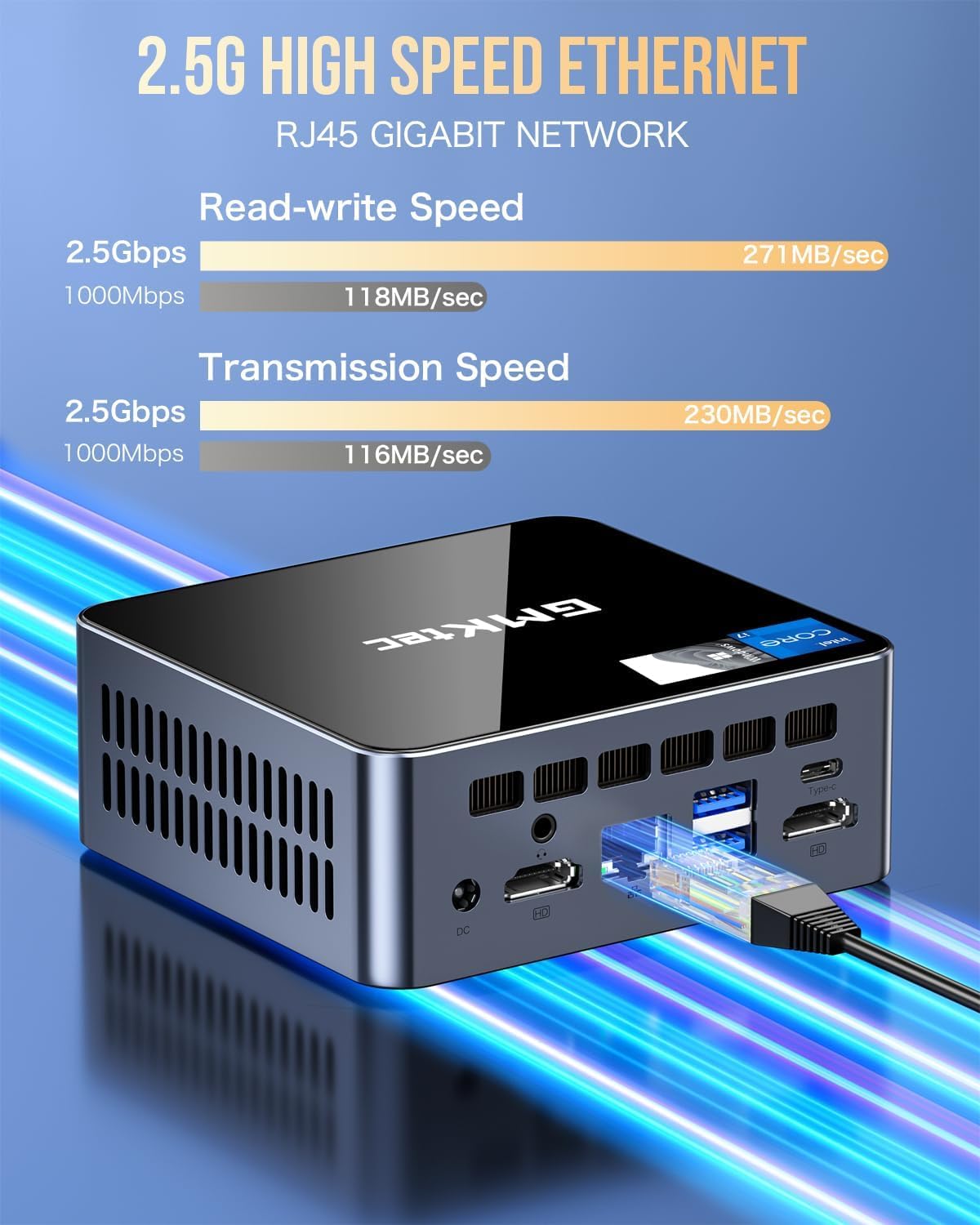
Figure 2.3: Visual representation of the 2.5G high-speed Ethernet port, highlighting its read-write and transmission speeds for efficient network performance.
2.4 Opcions de col·locació
The compact design of the GMKtec Mini PC M2 Pro allows for flexible placement:
- Ubicació d'escriptori: Its small footprint makes it ideal for traditional desktop setups, saving valuable desk space.
- Instal·lació VESA: The included VESA mount bracket allows you to attach the Mini PC to the back of a compatible monitor or to a wall, creating a clean and clutter-free workspace.

Figure 2.4: Demonstrates both desktop placement and VESA installation options for the Mini PC, illustrating how it can be discreetly mounted behind a monitor.
3. Manteniment
Un manteniment adequat garanteix la longevitat i el rendiment òptim del vostre Mini PC.
3.1 Neteja
- Regularly clean the exterior of the Mini PC with a soft, dry cloth.
- Use compressed air to clear dust from ventilation grilles to prevent overheating. Ensure the device is powered off before cleaning.
- Eviteu utilitzar netejadors líquids o materials abrasius.
3.2 Actualitzacions de programari
- Keep your operating system (Windows 11 Pro) updated to the latest version to ensure security and performance improvements.
- Regularly check for driver updates for your Intel graphics and other components from the GMKtec official website or Intel's support pages.
3.3 Expansió d'emmagatzematge
The Mini PC offers flexible storage expansion options:
- The M.2 2280 NVMe (PCIe3.0) SSD can be expanded up to 2TB.
- An additional M.2 2242 SATA slot is available for expansion up to 2TB.
- DDR4 dual-channel RAM supports expansion up to 64GB.
For detailed instructions on upgrading components, please refer to the official GMKtec support resources or consult a qualified technician.
4. Solució De Problemes
Aquesta secció aborda problemes comuns que podeu trobar i ofereix solucions.
4.1 Sense poder
- Assegureu-vos que l'adaptador de corrent estigui connectat correctament tant al Mini PC com a una presa de corrent que funcioni.
- Verifiqueu que la presa de corrent funciona connectant-hi un altre dispositiu.
- Comproveu si l'indicador lluminós de l'adaptador de corrent (si n'hi ha) està encès.
4.2 Sense sortida de pantalla
- Confirm that the monitor is powered on and set to the correct input source (HDMI, USB-C).
- Ensure the HDMI or USB-C cable is securely connected to both the Mini PC and the monitor.
- Try connecting the Mini PC to a different monitor or using a different cable to rule out display or cable issues.
4.3 Problemes de connectivitat de xarxa
- Cablejat (Ethernet): Check if the Ethernet cable is properly connected and if the network lights on the RJ45 port are active. Restart your router/modem.
- Sense fil (Wi-Fi): Ensure Wi-Fi is enabled in Windows settings. Verify you are connected to the correct network and enter the password correctly. Restart your Wi-Fi router.
- Bluetooth: Ensure Bluetooth is enabled in Windows settings and that the device you are trying to connect is in pairing mode.
4.4 Alentiment o bloqueig del sistema
- Tanca les aplicacions innecessàries que s'executen en segon pla.
- Consulteu el Gestor de tasques (Ctrl+Maj+Esc) per veure si hi ha un ús elevat de la CPU, la RAM o el disc.
- Ensure the Mini PC has adequate ventilation and is not overheating. Clean dust from vents if necessary.
- Executeu una anàlisi del sistema per detectar programari maliciós o virus.
5. Especificacions
Detailed technical specifications for the GMKtec Mini PC M2 Pro.
| Característica | Especificació |
|---|---|
| Marca | GMKtec |
| Número de model | GMKtec NUCBOX M2 Pro |
| Processador | Intel Core i7-1195G7 (4 Cores, 8 Threads, up to 5.0GHz) |
| Gràfics | Intel Iris Xe Graphics G7 |
| RAM | 16GB DDR4 3200MHz (Expandable up to 64GB) |
| Emmagatzematge | 512GB PCIe SSD (M.2 2280 NVMe, Expandable up to 2TB) + M.2 2242 SATA slot (Expandable up to 2TB) |
| Sistema operatiu | Windows 11 Pro |
| Sortida de vídeo | 2 x HDMI (4K@60Hz), 1 x USB Type-C (4K@60Hz) - Supports Triple Display |
| Ports USB | 4 x USB 3.2 |
| Xarxa | Wi-Fi 6, Bluetooth 5.2, 1 x RJ45 2.5G Ethernet |
| Àudio | 3.5mm CTIA Audio Jack |
| Dimensions | Aprox. 11.38 x 10.59 x 4.24 cm (4.48 x 4.17 x 1.67 polzades) |
| Color | Negre |
6. Garantia i Suport
GMKtec is committed to providing excellent customer service and product support.
6.1 Informació de la garantia
Your GMKtec Mini PC M2 Pro comes with a Garantia limitada d'1 any from the date of purchase. This warranty covers defects in design and manufacturing. Please retain your proof of purchase for warranty claims.
6.2 Atenció al client
For any technical assistance, troubleshooting, or warranty inquiries, please contact GMKtec's professional after-sales team:
- Correu electrònic: support@gmktec.com
- Assistència en línia: Visit the official GMKtec weblloc web per a preguntes freqüents, descàrregues de controladors i recursos d'assistència addicionals.
Figure 6.1: Contact information for GMKtec customer support, including email for after-sales inquiries.


