1. Introducció
This manual provides detailed instructions for the HOSONGIN Audio Interface P300, a versatile sound card designed for streaming, podcasting, gaming, and recording. It features a pro-preamp, 48V phantom power, voice changer, customizable sound effects, and noise reduction capabilities.
The HOSONGIN Audio Interface P300 is engineered to provide clear and personalized audio for various applications. Please read this manual thoroughly to ensure proper setup and operation.
Contingut del paquet:
- HOSONGIN Audio Interface P300
- Cable de càrrega USB AC
- Two 3.5mm Audio Cables
- Manual d'usuari (aquest document)
2. Producte acabatview
The HOSONGIN Audio Interface P300 is a compact and feature-rich device. Familiarize yourself with its components and controls.

Figura 2.1: Frontal i superior view of the HOSONGIN Audio Interface P300, showing main controls and indicators.
Controls del panell frontal:
- MIC MIN/MAX Knob: Ajusta el volum d'entrada del micròfon.
- Reverb MIN/MAX Knob: Controls the intensity of the reverb effect.
- Treble+, Mid+, Bass+ Knobs: Equalizer controls for microphone input.
- Record+ Knob: Adjusts the recording volume.
- Electric Sound Button: Activates electric sound effects.
- Botó 48V: Toggles 48V phantom power for condenser microphones.
- Botó d'encesa: Encén/apaga el dispositiu.
- Botó de llum: Controls indicator lights.
- Monitor Fader: Adjusts the monitoring volume for headphones.
- Accompany Fader: Adjusts the volume of background music/accompaniment.
- Sound Effect Buttons (A, B, C, D, CUSTOM): Trigger various pre-set and customizable sound effects.
- Voice Effect Buttons (Voice Change, Ducking+, Voice Change+, Eliminate): Controls for voice modulation and background noise reduction.
- Botó MODE: Passa ciclicament per diferents modes de funcionament.
- Botó BT: Activa el mode d'emparellament Bluetooth.
- Internal Play Button: For internal audio playback.
- Denoise Button: Activates AI noise reduction.

Figure 2.2: Rear panel of the HOSONGIN Audio Interface P300, showing connectivity ports.
Ports del panell posterior:
- Charging (5V-1A) Port: Port USB-C per carregar el dispositiu.
- OTG/PC Live Port: USB-C port for connecting to a computer (PC/Mac) or mobile device for live streaming and recording.
- LIVE Ports (x2): 3.5mm audio output ports for connecting to mobile devices for live streaming.
- Port AUX-IN: 3.5mm audio input for external audio sources.
- Port per a auriculars: 3.5mm output for monitoring audio with earphones.
- Port dels auriculars: 3.5mm output for connecting a headset (headphones with microphone).
- Condenser Mic1/Mic2 Ports: 3.5mm input ports for condenser microphones.
- 48V/Dynamic Mic Port: 6.35mm (1/4 inch) input port for dynamic microphones or condenser microphones requiring 48V phantom power (via appropriate adapter).
3. Guia de configuració
Follow these steps to set up your HOSONGIN Audio Interface P300.
3.1 Càrrega inicial
Before first use, ensure the device is fully charged. Connect the USB A-C charging cable to the Charging (5V-1A) port on the rear panel and to a 5V USB power adapter (not included). The device requires approximately 3+ hours for a full charge. The unit will not operate while undergoing its initial charge; it must be sufficiently charged to power on.
3.2 Connecting to a Computer (PC/Mac)
- Ensure the Audio Interface P300 is charged and powered on.
- Connect the USB A-C cable from the OTG/PC Live port on the Audio Interface to a USB port on your computer.
- Your computer should automatically detect the device. You may need to select "HOSONGIN P300" as the input and output audio device in your operating system's sound settings or your recording/streaming software.

Figure 3.1: Connecting the Audio Interface to a mobile device for live streaming or recording.
3.3 Connecting to Mobile Devices (Smartphone/Tablet)
- For direct digital connection, use the USB A-C cable from the OTG/PC Live port to your mobile device (requires an OTG adapter if your device does not have a USB-C port or if using an iPhone).
- For analog connection, use the provided 3.5mm audio cables. Connect one end to a EN VIU port on the Audio Interface and the other end to the 3.5mm audio jack of your mobile device. If your mobile device lacks a 3.5mm jack, an appropriate adapter (e.g., USB-C to 3.5mm or Lightning to 3.5mm) is required.
- You can use up to two LIVE ports simultaneously for multi-device streaming.
3.4 Microphone and Headphone Connections
- Micròfons dinàmics: Connecta't al 48V/Dynamic Mic (6.35mm) port.
- Micròfons de condensador: Connect to either Condenser Mic1 or Condenser Mic2 (3.5mm ports). For condenser microphones requiring 48V phantom power, connect via an appropriate adapter to the 48V/Dynamic Mic (6.35mm) port and activate the 48 V botó.
- Auriculars/Auriculars: Connecta't al Auricular port for monitoring.
- Auriculars: Connect a headset (headphones with integrated microphone) to the Auriculars port.

Figure 3.2: Connecting a microphone to the 48V/Dynamic Mic input.
4. Instruccions de funcionament
4.1 Encès/Apagat
Manteniu premut el botó Botó d'engegada (red button) on the front panel to turn the device on or off.
4.2 Adjusting Microphone Input
- Utilitzeu el gran MIC MIN/MAX Knob to control the overall microphone input volume.
- Fine-tune your microphone's tone using the Treble+, Mid+, i Baix+ equalizer knobs.
- Activar Potència d’espectre de 48V by pressing the 48V button if using a condenser microphone that requires it.
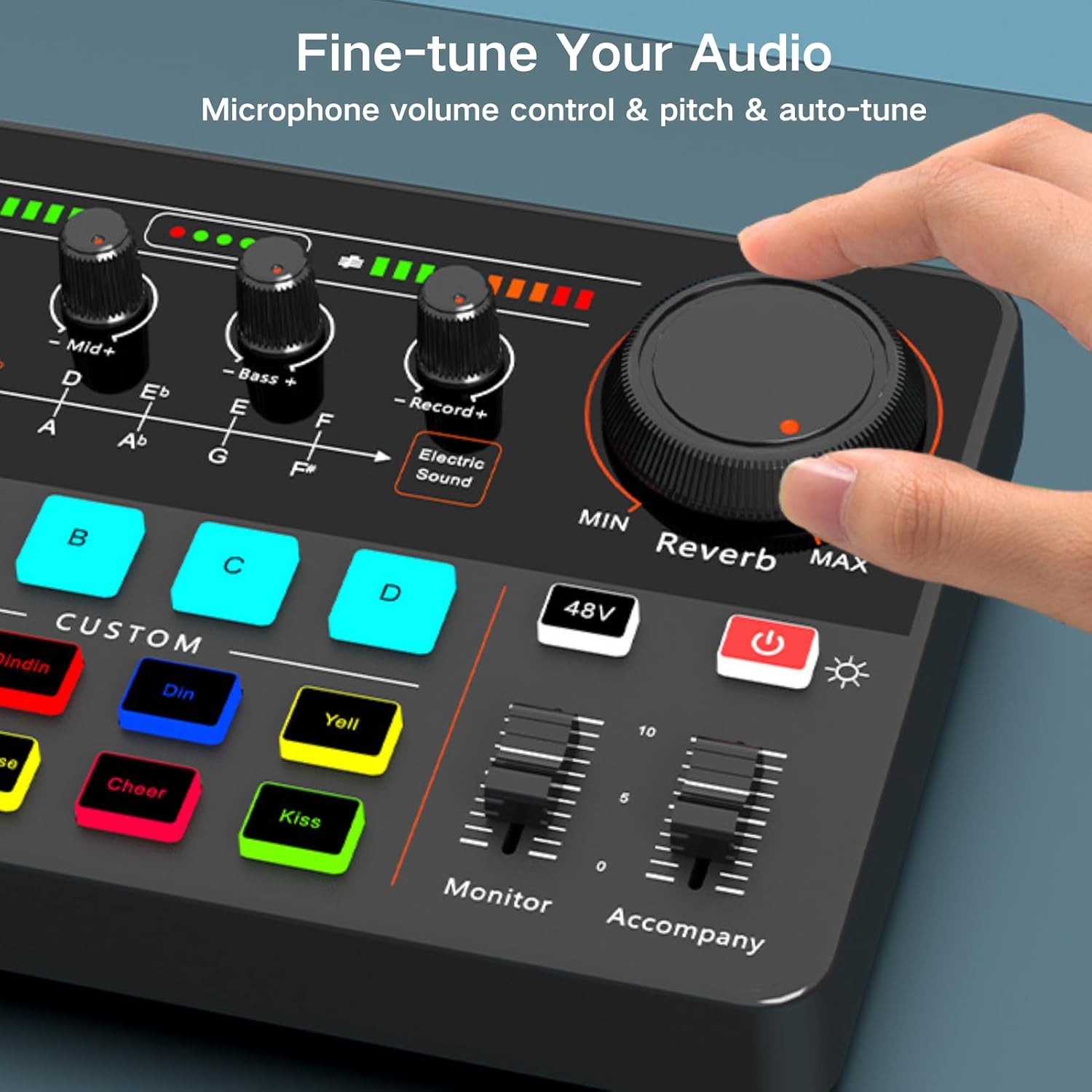
Figure 4.1: Adjusting audio controls on the interface.
4.3 Sound Effects and Voice Changing
- Reverb: Ajusteu el Reverb MIN/MAX Knob to add or reduce reverb to your audio.
- Electronic Sound: Premeu el botó Electric Sound button to activate various electronic tones.
- Custom Sound Effects: Utilitzeu botons A, B, C, D i el PERSONALITZAT section (Giggle, Dindin, Din, Yell, Laughter, Applause, Cheer, Kiss) to trigger pre-recorded or custom sound effects.
- Canvi de veu: Utilitza el Canvi de veu buttons to apply different voice modulation effects.
- De soroll: Premeu el botó Denoise button to activate AI noise reduction, minimizing background noise.
- Ducking: Ús Ducking+ to automatically lower background music when speaking.

Figure 4.2: Customizable sound effect buttons.

Figure 4.3: Dynamic tone options for various audio projects.
4.4 Monitoring and Accompaniment
- Ajusteu el Monitor Fader to control the volume of audio heard through your connected earphones/headphones.
- Ajusteu el Accompany Fader to control the volume of background music or accompaniment playing through the AUX-IN or Bluetooth connection.
5. Connectivitat
5.1 Connexió Bluetooth
- Premeu el botó BT button on the Audio Interface. The Bluetooth indicator light will flash, indicating pairing mode.
- On your mobile device, open Bluetooth settings and search for "P300".
- Select "P300" to connect. The indicator light will become solid once paired successfully.
- You can now stream audio wirelessly from your mobile device to the Audio Interface for accompaniment.

Figure 5.1: Bluetooth pairing instructions.
5.2 OTG/PC Live Connection
As detailed in the Setup Guide, the OTG/PC Live USB-C port allows for direct digital audio transmission to and from computers and compatible mobile devices. This connection is ideal for high-quality recording and live streaming.
5.3 Analog Live Output
Els dos EN VIU 3.5mm ports provide analog audio output for connecting to mobile devices, allowing for broad compatibility with various streaming platforms.
6. Solució De Problemes
If you encounter issues with your HOSONGIN Audio Interface P300, refer to the following common problems and solutions:
- El dispositiu no s'encén:
- Ensure the device is fully charged. The initial charge requires over 3 hours, and the device will not operate during this first charging cycle.
- Verify the USB-C charging cable is securely connected to the Charging (5V-1A) port and a working power source.
- No sound input from microphone:
- Check if the microphone is correctly connected to the appropriate port (6.35mm for dynamic, 3.5mm for condenser).
- For condenser microphones requiring phantom power, ensure the 48 V el botó està activat.
- Ajusteu el MIC MIN/MAX Knob to increase input volume.
- Confirm the microphone is functional by testing it with another device if possible.
- No sound output (monitoring):
- Ensure headphones/earphones are securely connected to the Auricular or Auriculars port.
- Ajusteu el Monitor Fader to increase monitoring volume.
- Check your computer's or mobile device's sound settings to ensure the Audio Interface P300 is selected as the output device.
- Line-in (AUX-IN) not working:
- Verify the 3.5mm audio cable is securely connected to the AUX-IN port and the external audio source.
- Ensure the external audio source is playing and its volume is adequate.
- USB connection to PC/Mac is confusing or not detected:
- Assegureu-vos que el cable USB-C estigui connectat a OTG/PC Live port.
- Restart your computer and the Audio Interface.
- Check your computer's sound settings (e.g., Windows Sound Control Panel, macOS System Settings > Sound) to manually select "HOSONGIN P300" as the input and output device.
- Proveu un port USB diferent a l'ordinador.
- Problemes d'emparellament per Bluetooth:
- Assegureu-vos el BT button is pressed and the indicator is flashing.
- Make sure the Audio Interface is within range of your mobile device.
- Try unpairing and re-pairing the device from your mobile device's Bluetooth settings.
7. Especificacions
| Marca | HOSONGIN |
| Número de model | Sound-Card-P300-Black |
| Pes de l'article | 1.62 lliures (0.74 quilograms) |
| Dimensions del paquet | 11.69 x 6.77 x 2.4 polzades |
| Bateries | Necessita 1 bateria de ions de liti |
| Tipus de bateria | Liti |
| Font d'alimentació | Alimentat per USB |
| Tecnologia de connectivitat | Bluetooth, USB, Type C |
| Nombre de canals | 4 |
| Dispositius compatibles | Laptop, Microphone, Personal Computer, Headphone, Smartphone |
8. Manteniment
- Neteja: Use a soft, dry cloth to clean the surface of the device. Avoid using liquid cleaners or abrasive materials.
- Emmagatzematge: Store the Audio Interface in a cool, dry place away from direct sunlight and extreme temperatures.
- Cura de la bateria: Per allargar la durada de la bateria, eviteu descarregar completament el dispositiu amb freqüència. Carregueu-lo regularment, fins i tot si no l'utilitzeu durant períodes prolongats.
- Gestió de cables: Manipuleu els cables amb cura per evitar danys als connectors i ports.
9. Garantia i Suport
HOSONGIN is committed to providing quality products and customer satisfaction.
- Atenció al client: For any issues or inquiries, our customer service team is available 24 hours a day to assist you. Please refer to your purchase documentation or the HOSONGIN official weblloc per obtenir informació de contacte.
- Informació de la garantia: Specific warranty details may vary by region and retailer. Please retain your proof of purchase for warranty claims.


