Introducció
This manual provides detailed instructions for the setup, operation, maintenance, and troubleshooting of your GMKtec EVO-X1 AI Mini PC. Designed for high performance in gaming, content creation, and everyday computing, the EVO-X1 features the AMD Ryzen AI 9 HX-370 Series processor, advanced graphics, and versatile connectivity options. Please read this manual thoroughly to ensure optimal performance and longevity of your device.

Figura 1: Davant i darrere view of the GMKtec EVO-X1 AI Mini PC, highlighting its compact design and array of ports.
Contingut del paquet
Upon opening the retail packaging, verify that all items listed below are present and in good condition:
- GMKtec Nucbox EVO AMD Ryzen AI 9 HX 370 Mini PC Computer
- Power Supply & Cable
- Cable HDMI
- VESA Mount and Screws
- Manual d'usuari (aquest document)

Figure 2: Contents of the GMKtec EVO-X1 retail package, including the mini PC, power supply, HDMI cable, VESA mount, and user manual.
Guia de configuració
Follow these steps to set up your GMKtec EVO-X1 Mini PC:
- Connecteu els perifèrics: Connect your keyboard, mouse, and monitor(s) to the available USB, HDMI, or DisplayPort interfaces. The EVO-X1 supports triple screen 8K display output via HDMI 2.1 (8K@60Hz), DisplayPort 2.1 (8K@60Hz), and USB 4 40Gbps (supporting PD3.0/DP1.4/DATA).
- Connexió d'alimentació: Connect the power supply to the DC IN port on the rear of the mini PC and then plug it into a power outlet.
- Connexió de xarxa: For wired internet, connect an Ethernet cable to one of the two 2.5G LAN ports. For wireless connectivity, ensure your Wi-Fi network is available; the device supports Wi-Fi 6 and Bluetooth 5.2.
- Arrencada inicial: Press the power button located on the front of the device. The system will boot into the pre-installed operating system (OS Pro).
- Configuració del sistema operatiu: Follow the on-screen instructions to complete the initial setup of the operating system, including language, region, and user account creation.

Figura 3: Detallada view of the EVO-X1's rich interface, including USB 4.0, HDMI 2.1, DP 2.1, USB 3.2, CTIA, Oculink, and dual 2.5G LAN ports.
Instruccions de funcionament
Modes de rendiment
The EVO-X1 AI Mini PC features three adjustable performance modes to suit your needs:
- Quiet Mode (35W): Ideal for light tasks, web browsing, and media consumption. Fan noise is minimized to approximately 35dB.
- Balance Mode (54W): A balanced setting for everyday productivity and moderate workloads.
- Performance Mode (65W): Maximizes CPU and GPU performance for demanding applications, gaming, and intensive tasks.
These modes can be adjusted via the updated UEFI (BIOS) settings. Refer to the BIOS section for detailed instructions on accessing and configuring these settings.
Configuració de la pantalla
The EVO-X1 supports up to three independent displays simultaneously, with resolutions up to 8K. Connect your monitors using the available HDMI 2.1, DisplayPort 2.1, and USB4 ports. Ensure your cables and monitors support the desired resolutions and refresh rates for optimal visual experience.

Figure 4: The EVO-X1 supporting a triple-screen display setup with up to 8K resolution.
Network and Wireless Connectivity
The device features dual Intel i226V 2.5Gbps LAN ports for high-speed wired network connections, suitable for various applications including firewalls and file servers. For wireless connectivity, the integrated Wi-Fi 6 module provides fast and stable internet access, while Bluetooth 5.2 allows for efficient connection to wireless peripherals.

Figure 5: Illustration of the EVO-X1's Wi-Fi 6 and Bluetooth 5.2 capabilities, ensuring fast and stable wireless connections.
Oculink Port for External GPUs
The EVO-X1 is equipped with an Oculink port, which supports external graphics cards with data transfer speeds up to 64 Gbps. This feature provides significant expansion options for high-end gaming and professional graphics workloads, offering higher bandwidth compared to Thunderbolt's x3 speeds.

Figure 6: The Oculink port enabling connection to an external GPU for enhanced graphics performance.
Vídeo oficial del producte
Vídeo 1: Un oficial acabatview of the GMKtec EVO-X1 AI Mini PC, showcasing les seves característiques i capacitats.
Manteniment
Sistema de refrigeració
The EVO-X1 features an upgraded Hyper Ice Chamber 2.0 cooling design with larger top and bottom cooling fans, providing 360-degree airflow. The copper base helps maintain optimal temperatures. To ensure efficient cooling, keep the ventilation areas clear of obstructions. Regularly inspect and gently clean any dust accumulation from the vents using compressed air.

Figure 7: Internal structure of the EVO-X1, illustrating the dual cooling fans and component layout for efficient heat dissipation.
Ampliació d'emmagatzematge
The mini PC includes dual M.2 2280 PCIe 4.0 SSD slots, supporting up to 8TB total storage. If you need to expand storage, ensure you use compatible M.2 NVMe SSDs. Consult a professional if you are unsure about installing additional storage to avoid damaging the device.
Resolució de problemes
This section addresses common issues you might encounter with your GMKtec EVO-X1 Mini PC.
Sense sortida de visualització
- Ensure all display cables (HDMI, DisplayPort, USB4) are securely connected to both the mini PC and the monitor.
- Verifiqueu que el monitor estigui encès i configurat a la font d'entrada correcta.
- Try connecting to a different display port on the mini PC or a different monitor if available.
- Restart the mini PC.
Sense poder
- Check that the power adapter is securely connected to the mini PC and the wall outlet.
- Ensure the wall outlet is functioning by testing it with another device.
- Verify the power adapter is the original one provided with the mini PC.
Rendiment lent
- Check the selected performance mode in the BIOS. Switch to Balance or Performance mode for demanding tasks.
- Ensure the cooling vents are not obstructed and the fans are operating correctly. Overheating can lead to performance throttling.
- Tanca les aplicacions innecessàries que s'executen en segon pla.
- Assegureu-vos que el vostre sistema operatiu i els controladors estiguin actualitzats.
Problemes de connectivitat de xarxa
- For wired connections, ensure the Ethernet cable is properly connected and the router/modem is working.
- For Wi-Fi, check if Wi-Fi is enabled in the operating system settings. Restart your router.
- Ensure Wi-Fi drivers are installed and up to date.
If issues persist after attempting these steps, please contact GMKtec customer support.
Especificacions
| Característica | Detall |
|---|---|
| Processador | AMD Ryzen AI 9 HX-370 Series (Up to 5.1GHz, 12 Cores, 24 Threads) |
| AI NPU | XDNA 2 Architecture, up to 50 TOPS |
| Gràfics | AMD Radeon 890M iGPU (RDNA 3.5) |
| RAM | 64GB LPDDR5X 8000MT/s (Quad Channel) |
| Emmagatzematge | 1TB PCIe 4.0 M.2 2280 SSD (Dual Slots, Max. 8TB) |
| Sortida de visualització | Triple Screen 8K (HDMI 2.1, DisplayPort 2.1, USB4) |
| Treball en xarxa | Dual Intel i226V 2.5Gbps LAN, Wi-Fi 6, Bluetooth 5.2 |
| Ports | USB4 (PD/DP/DATA), Oculink (PCIe 4.0 x4), USB 3.2 (Gen2) x4, 3.5mm Audio, DC IN |
| Sistema operatiu | OS Pro (Compatible with Win 11 Pro, Linux, Ubuntu) |
| Dimensions | Aprox. 7.4 x 7.32 x 5.39 polzades |
| Pes | Aprox. 4.02 lliures |
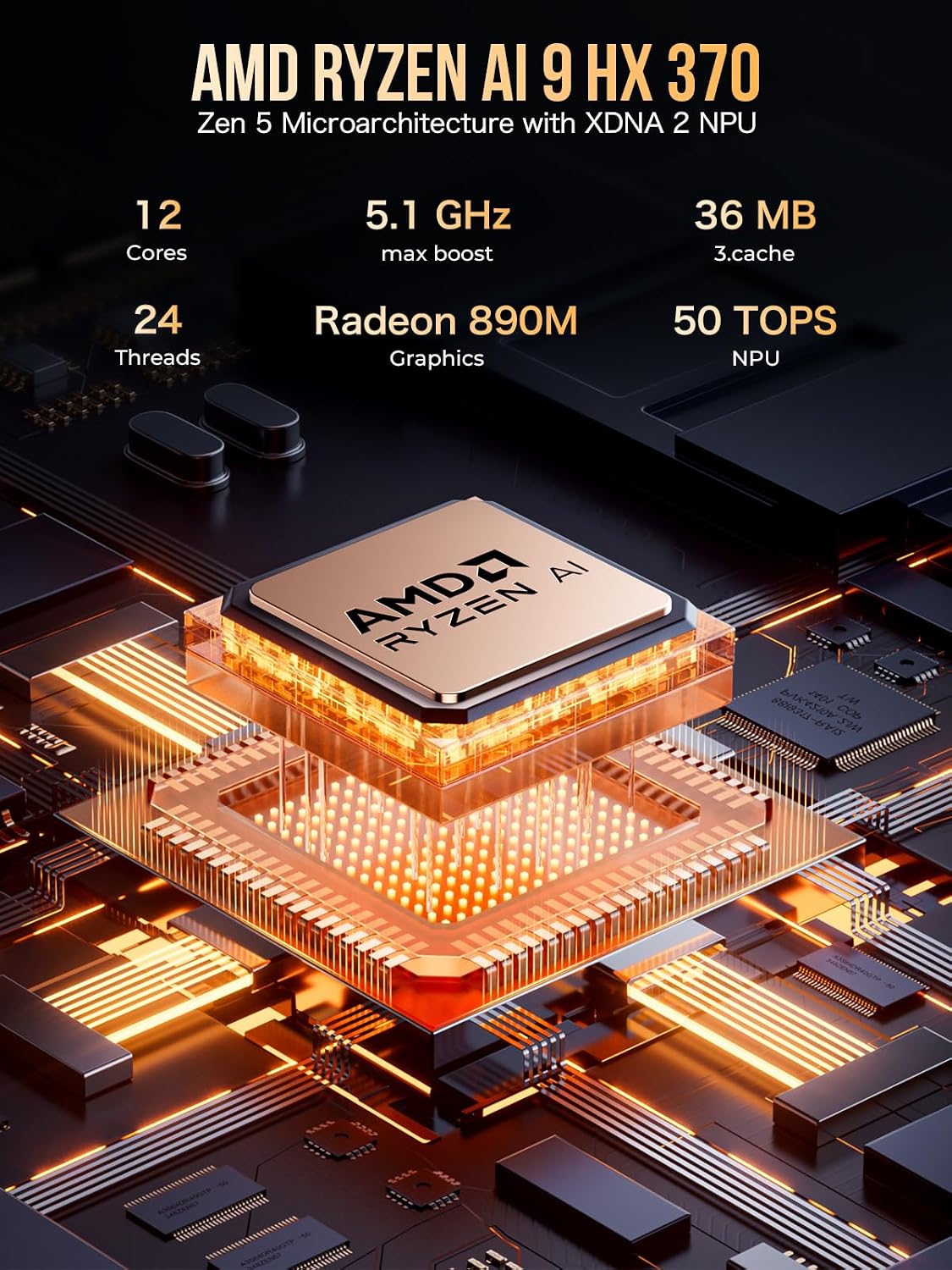
Figure 8: Key specifications of the AMD Ryzen AI 9 HX 370 processor, including cores, threads, max boost clock, cache, Radeon 890M graphics, and NPU TOPS.
Garantia i Suport
GMKtec offers a 1-year limited warranty for each mini PC, starting from the date of purchase. This warranty covers all defects due to design and workmanship. For warranty claims or technical assistance, please use the following contact methods:
- Contacta amb nosaltres a Amazon: Log in to your Amazon account, navigate to "Your Orders," and select "Ask Product Question" for your purchase.
- Send E-mail to After-Sales Team: support@gmktec.com
- Atenció al client 24/7: Disponible per a assistència.
Si us plau, conserveu el comprovant de compra per validar la garantia.


