1. Introducció
The Trust Vaiya Wireless Multi-Device Keyboard is designed for versatile use across various operating systems and devices. It offers both 2.4 GHz wireless and Bluetooth connectivity, allowing you to connect up to four devices simultaneously. This manual provides instructions for setup, operation, maintenance, and troubleshooting to ensure optimal performance of your keyboard.
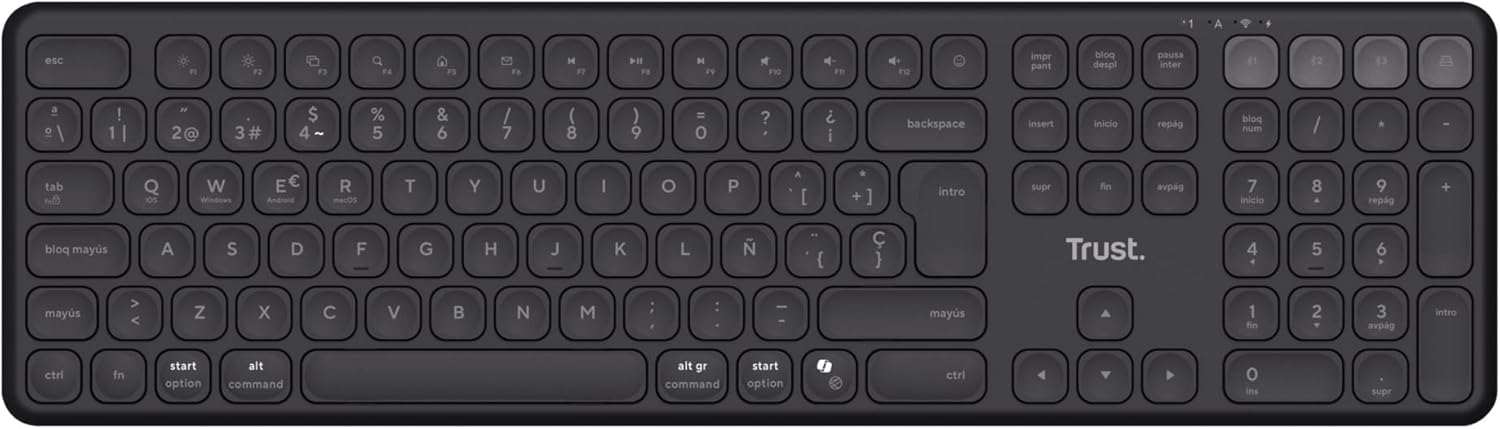
Imatge 1.1: De dalt a baix view of the Trust Vaiya Wireless Multi-Device Keyboard.
2. Què hi ha a la caixa
Please check the contents of your package. It should include the following items:
- Trust Vaiya Wireless Multi-Device Keyboard
- USB Micro-Receiver (for 2.4 GHz connection)
- Cable de càrrega USB
- Manual d'usuari (aquest document)

Image 2.1: Packaging of the Trust Vaiya Wireless Multi-Device Keyboard, showing the keyboard and included accessories.
3. Configuració
3.1. Connecting via 2.4 GHz USB Receiver
- Locate the USB micro-receiver. It may be stored in a compartment on the keyboard.
- Plug the USB micro-receiver into an available USB port on your computer or device.
- Engegueu el teclat amb l'interruptor d'engegada, que normalment es troba al lateral o a la part posterior.
- The keyboard should automatically connect to your device via the 2.4 GHz connection. The indicator light for the 2.4 GHz channel (often labeled '1' or with a USB icon) will illuminate.
3.2. Connexió mitjançant Bluetooth
The keyboard supports up to three Bluetooth connections (channels 2, 3, and 4).
- Enceneu el teclat.
- Manteniu premut el botó Bluetooth channel key (e.g., F2, F3, or F4, often marked with a Bluetooth icon or numbers 2, 3, 4) for approximately 3-5 seconds until the corresponding indicator light starts blinking rapidly. This indicates the keyboard is in pairing mode.
- On your device (PC, laptop, tablet, smartphone), go to the Bluetooth settings.
- Cerca new devices. The keyboard should appear as "Trust Vaiya" or a similar name.
- Select the keyboard to pair. If prompted, enter the pairing code displayed on your screen.
- Once paired, the indicator light will stop blinking and remain solid for a few seconds, then turn off to save power. The keyboard is now connected.
- Repeat these steps for additional Bluetooth devices using different Bluetooth channel keys.
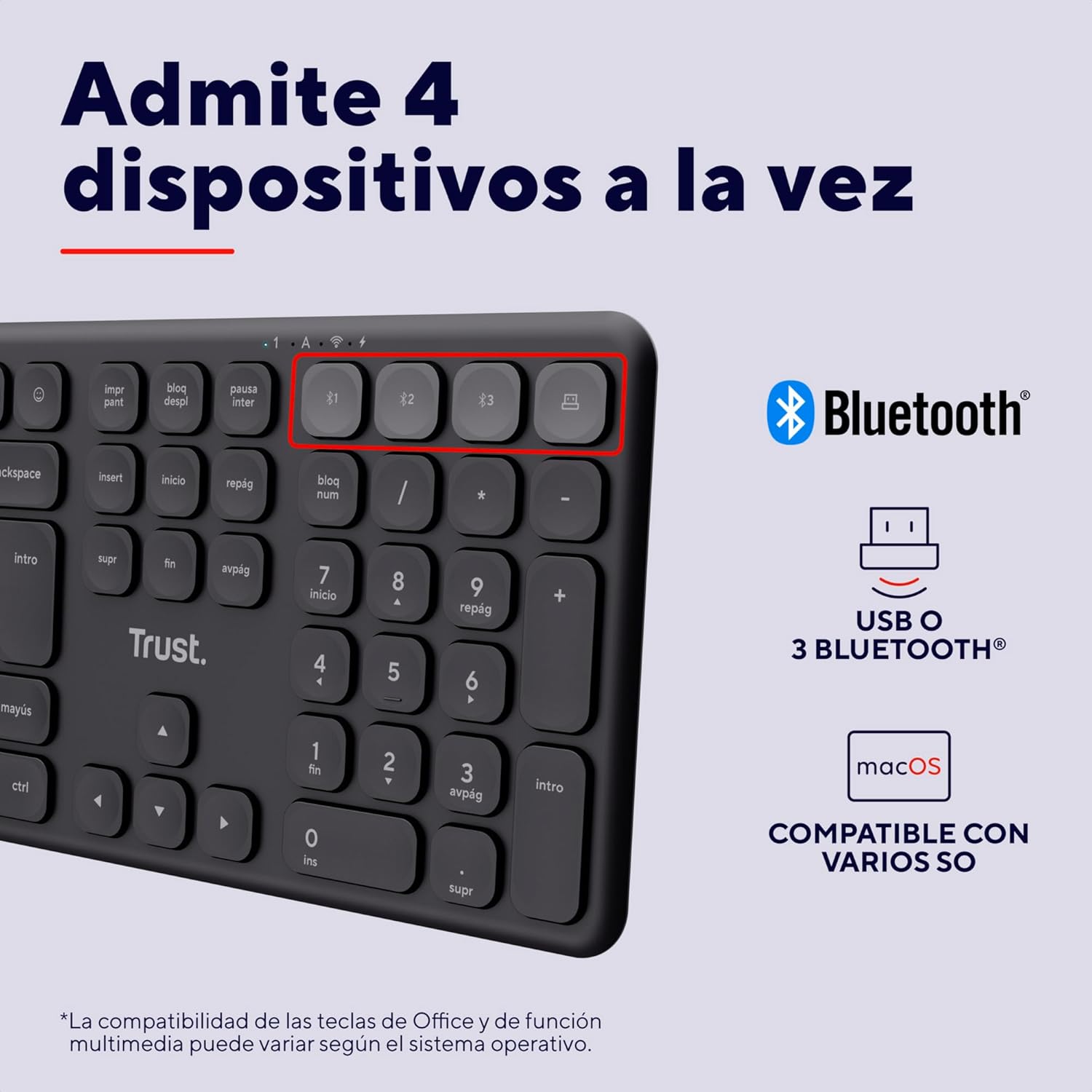
Image 3.1: Close-up of the device switching keys on the Trust Vaiya keyboard.
4. Instruccions de funcionament
4.1. Canviar entre dispositius
To switch between connected devices, simply press the corresponding channel key (F1 for 2.4 GHz, F2, F3, or F4 for Bluetooth). The keyboard will connect to the selected device within a few seconds.
4.2. Tecles multimèdia
The keyboard features 12 multimedia keys (F1-F12) that provide quick access to functions such as volume control, media playback, and more. These functions are typically accessed by pressing the Tecla Fn simultaneously with the desired multimedia key. The specific functionality may vary depending on your operating system.
4.3. Bateria i càrrega
The Trust Vaiya keyboard is equipped with a rechargeable battery. When the battery is low, an indicator light on the keyboard will signal the need for charging.
- Connect the provided USB charging cable to the charging port on the keyboard and to a USB power source (e.g., computer USB port, USB wall adapter).
- El llum indicador de càrrega s'il·luminarà durant la càrrega i s'apagarà quan estigui completament carregat.
- The keyboard can be used while it is charging.
- A full charge provides up to 6 months of battery life, depending on usage.

Image 4.1: Charging the Trust Vaiya Wireless Keyboard.
4.4. Compatibilitat del sistema operatiu
The Trust Vaiya keyboard is compatible with a wide range of operating systems, including:
- Windows
- iOS
- iPadOS
- macOS
- Android
- Chrome OS
Some key functions, particularly multimedia keys, may behave differently across various operating systems. Refer to your device's operating system documentation for specific key mapping details.

Image 4.2: The keyboard is compatible with multiple operating systems.
5. Manteniment
- Neteja: Feu servir un drap suau i sec per netejar el teclat. Per a la brutícia persistent, netegeu lleugeramentampNetegeu el drap amb aigua o una solució de neteja suau. Eviteu productes químics agressius o materials abrasius.
- Emmagatzematge: Guardeu el teclat en un lloc fresc i sec, allunyat de la llum solar directa i de temperatures extremes.
- Cura de la bateria: To prolong battery life, avoid fully discharging the keyboard frequently. Charge it regularly, even if not in constant use.
6. Solució De Problemes
| Problema | Solució |
|---|---|
| Keyboard not connecting via 2.4 GHz |
|
| El teclat no es connecta per Bluetooth |
|
| Keys are not responding or typing incorrectly |
|
| Durada de la bateria curta |
|
7. Especificacions
| Característica | Detall |
|---|---|
| Número de model | 25635 |
| Tecnologia de connectivitat | Bluetooth, 2.4 GHz RF |
| Nombre de dispositius compatibles | Up to 4 (1x 2.4 GHz, 3x Bluetooth) |
| Disposició del teclat | Full-size QWERTY Spanish with Numpad |
| Tipus de clau | Pro baixfile Scissor-type keys |
| Claus multimèdia | 12 (Fn-enabled) |
| Tipus de bateria | Rechargeable Lithium-ion (500 mAh) |
| Durada de la bateria | Up to 6 months (typical usage) |
| Port de càrrega | USB-C (cable inclòs) |
| Sistemes operatius compatibles | Windows, iOS, iPadOS, macOS, Android, Chrome OS |
| Dimensions (L x A x A) | 44.4 x 12.9 x 1.8 cm |
| Pes | 560 g |
| Material | Plàstic 55% reciclat |
| Color | Negre |
8. Producte acabatview Vídeo
Vídeo 8.1: Presentació oficial del producte en vídeoasing the features and multi-device capabilities of the Trust Vaiya Wireless Keyboard. The video demonstrates switching between devices, typing experience, and the keyboard's design.
9. Garantia i Suport
Trust products come with a manufacturer's warranty. For detailed warranty information, please refer to the warranty card included with your product or visit the official Trust website. For technical support, troubleshooting assistance, or to inquire about replacement parts, please contact Trust customer service through their official channels.
Assistència en línia: Visit the Trust support page for FAQs and further assistance.
Informació de contacte: Refer to the product packaging or the Trust weblloc web per obtenir les dades de contacte més actualitzades.