Introducció
This manual provides essential information for the installation, operation, maintenance, and troubleshooting of your Sapphire Nitro+ AMD Radeon RX 9070 XT Gaming OC Graphics Card. Please read this manual thoroughly before installing and using your new graphics card to ensure optimal performance and longevity.

Image: The Sapphire Nitro+ AMD Radeon RX 9070 XT Graphics Card shown alongside its retail packaging.
Contingut del paquet
Verifiqueu que tots els elements siguin presents al paquet del producte:
- Sapphire Nitro+ AMD Radeon RX 9070 XT Graphics Card
- Manual d'usuari (aquest document)
- Suport de la targeta gràfica
- Power Cable Adapter (if applicable)
- Cable de sincronització ARGB
Video: An unboxing video demonstrating the contents of the Sapphire Nitro+ AMD Radeon RX 9070 XT Graphics Card package, including the card and accessories.
Configuració i instal·lació
Follow these steps to properly install your graphics card:
- Preparació: Apagueu l'ordinador i desconnecteu tots els cables. Obriu la carcassa de l'ordinador.
- Traieu la targeta gràfica antiga (si escau): If you are replacing an existing graphics card, carefully remove it by unscrewing its retention bracket and releasing the PCIe slot latch.
- Insert New Graphics Card: Align the Sapphire Nitro+ RX 9070 XT with an available PCI Express x16 slot on your motherboard. Press down firmly until the card is securely seated and the PCIe slot latch engages. This card typically occupies three expansion slots.
- Assegureu la targeta: Use screws to secure the graphics card's retention bracket to your computer case.
- Connecteu els cables d'alimentació: Connect the necessary PCIe power cables from your power supply to the graphics card. Ensure all connections are firm. This model features a hidden power cable design for a cleaner aesthetic.
- Instal·leu el suport: Due to the size and weight of the card, it is recommended to install the included anti-sag support bracket to prevent GPU sag over time.
- Tanca el cas i torna a connectar: Tanqueu la carcassa de l'ordinador, torneu a connectar tots els cables i engegueu el sistema.
- Instal·lació del controlador: Once your operating system loads, install the latest AMD Radeon drivers from the official AMD or Sapphire weblloc.

Image: The rear I/O panel of the graphics card, featuring multiple DisplayPort and HDMI outputs for connecting to monitors.

Imatge: Un diagrama que mostraasing the STEALTH Hidden Power Cable design, which routes power connectors for a cleaner build appearance.
Funcionament de la targeta gràfica
After successful installation and driver setup, your Sapphire Nitro+ RX 9070 XT is ready for use. Connect your display(s) to the available ports (2 x HDMI, 2 x DisplayPort). For optimal performance, ensure your display cables are securely connected and your monitor is set to the correct input source.
Regularly check for driver updates through the AMD Radeon Software application to benefit from performance improvements and bug fixes. You can also utilize Sapphire's Trixx software for advanced monitoring, fan control, and RGB lighting customization.

Image: The graphics card displaying its integrated ARGB lighting, which can be customized for various visual effects.
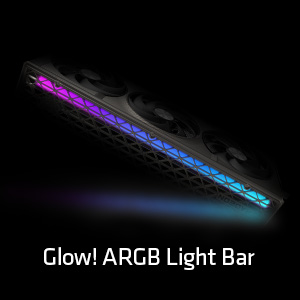
Imatge: Una imatge detallada view of the Glow! ARGB Light Bar, highlighting its customizable illumination capabilities.
Manteniment
To maintain optimal performance and extend the lifespan of your graphics card, periodic cleaning is recommended.
- Eliminació de pols: Use compressed air to gently clear dust from the fans and heatsink fins. Ensure the fans do not spin rapidly during cleaning to prevent damage.
- Inspecció del ventilador: Periodically check the fans for any obstructions or unusual noises. The Quick Connect Fan feature allows for easy removal and cleaning of individual fans.
- Neteja general: Wipe the exterior of the card with a soft, dry, anti-static cloth. Avoid using liquid cleaners directly on the card.

Image: A diagram demonstrating the Quick Connect Fan system, which allows for easy removal and replacement of the cooling fans.
Resolució de problemes
Si teniu problemes amb la targeta gràfica, tingueu en compte les solucions habituals següents:
- Sense sortida de pantalla:
- Assegureu-vos que el cable del monitor estigui connectat correctament tant a la targeta gràfica com al monitor.
- Verify that the graphics card is fully seated in the PCIe slot and the power cables are properly connected.
- Comproveu si el monitor està configurat a la font d'entrada correcta.
- Inestabilitat o errors del sistema:
- Actualitza els controladors gràfics a la versió més recent.
- Assegureu-vos que la vostra font d'alimentació (PSU) compleixi amb el consum mínim d'aiguatage requirements for the graphics card and your system.
- Monitor GPU temperatures using software like AMD Radeon Software or Sapphire Trixx. Overheating can cause instability.
- Rendiment baix:
- Confirma que la pantalla està connectada a la targeta gràfica, no a la targeta gràfica integrada de la placa base.
- Check in-game settings to ensure they are appropriate for your system's capabilities.
- Assegureu-vos que les aplicacions en segon pla no consumeixen massa recursos del sistema.
- Soroll del ventilador:
- Clean the fans and heatsink to remove dust buildup.
- Adjust fan curves using AMD Radeon Software or Sapphire Trixx to find a balance between cooling and noise.
If issues persist, consult the Sapphire support weblloc o poseu-vos en contacte amb el seu servei d'atenció al client.
Especificacions
| Característica | Detall |
|---|---|
| Número de model | 11348-01-20G |
| Coprocessador gràfic | AMD Radeon RX 9070 XT |
| Mida de la memòria | 16 GB GDDR6 |
| Interfície de memòria | 256 bits |
| Velocitat de memòria | 20 GHz |
| Velocitat de rellotge de la GPU | 3060 MHz |
| Resolució de pantalla màxima | 3840 x 2160 |
| Ports de sortida | 2 x HDMI, 2 x DisplayPort |
| Pes de l'article | 5.72 lliures |
| Dimensions del producte (LxWxH) | 13.02 x 5.06 x 0.04 polzades |
Garantia i Suport
Your Sapphire Nitro+ AMD Radeon RX 9070 XT Graphics Card is covered by a manufacturer's warranty. Please refer to the warranty card included in your product packaging or visit the official Sapphire weblloc web per obtenir informació detallada sobre els termes i condicions de la garantia.
For technical assistance, driver downloads, FAQs, and further support, please visit the Sapphire Technology weblloc. You may also find helpful resources and community support through the official AMD Radeon channels.


