1. Introducció
This manual provides essential information for setting up, operating, maintaining, and troubleshooting your HP 24-CB100 All-in-One Desktop PC. Please read these instructions carefully before using your device to ensure proper function and longevity.
The HP 24-CB100 is an All-in-One desktop computer featuring a 23.8-inch Full HD IPS display, powered by an Intel Core i5-1235U processor with Intel UHD Graphics, 8GB DDR4 RAM, and a 512GB M.2 SSD, running Windows 11 Pro.
2. Què hi ha a la caixa
Verifiqueu que tots els components siguin presents a l'embalatge:
- HP 24-CB100 All-in-One Desktop PC
- Cable d'alimentació
- HP White Wired Keyboard
- HP White Wired Mouse
- Unitat flaix USB 3.0 de 32 GB
- Altaveus (integrats)

Image: Contents of the HP 24-CB100 All-in-One Desktop box, including the computer, wired keyboard, and wired mouse.
3. Configuració
- Desempaqueta l'escriptori: Carefully remove the All-in-One PC and all accessories from the packaging. Place the desktop on a stable, flat surface.
- Connecteu el teclat i el ratolí: Plug the USB cables from the HP White Wired Keyboard and HP White Wired Mouse into the available USB ports on the back of the desktop.
- Connectar l'alimentació: Connect the power cord to the power port on the back of the desktop, then plug the other end into a grounded electrical outlet.
- Encesa inicial: Press the power button, usually located on the side or bottom bezel of the display. The system will boot up and guide you through the Windows 11 Pro initial setup process. Follow the on-screen instructions to configure your operating system, network connection, and user accounts.

Imatge: Frontal view of the HP 24-CB100 All-in-One Desktop, illustrating its sleek design and integrated stand.
4. Instruccions de funcionament
4.1 Encès/Apagat
- Per encendre: Premeu el botó d'encesa.
- Per apagar: Feu clic al botó Inici al Windows 11 i, a continuació, seleccioneu Energia > Apagar.
- Per reiniciar: Feu clic al botó Inici i, a continuació, seleccioneu Energia > Reiniciar.
- Per dormir: Feu clic al botó Inici i, a continuació, seleccioneu Energia > Suspensió.
4.2 Pantalla i gràfics
The desktop features a 23.8-inch Full HD (1920 x 1080) IPS Anti-glare display. Adjust display settings through Windows 11 settings (Right-click on desktop > Display settings).
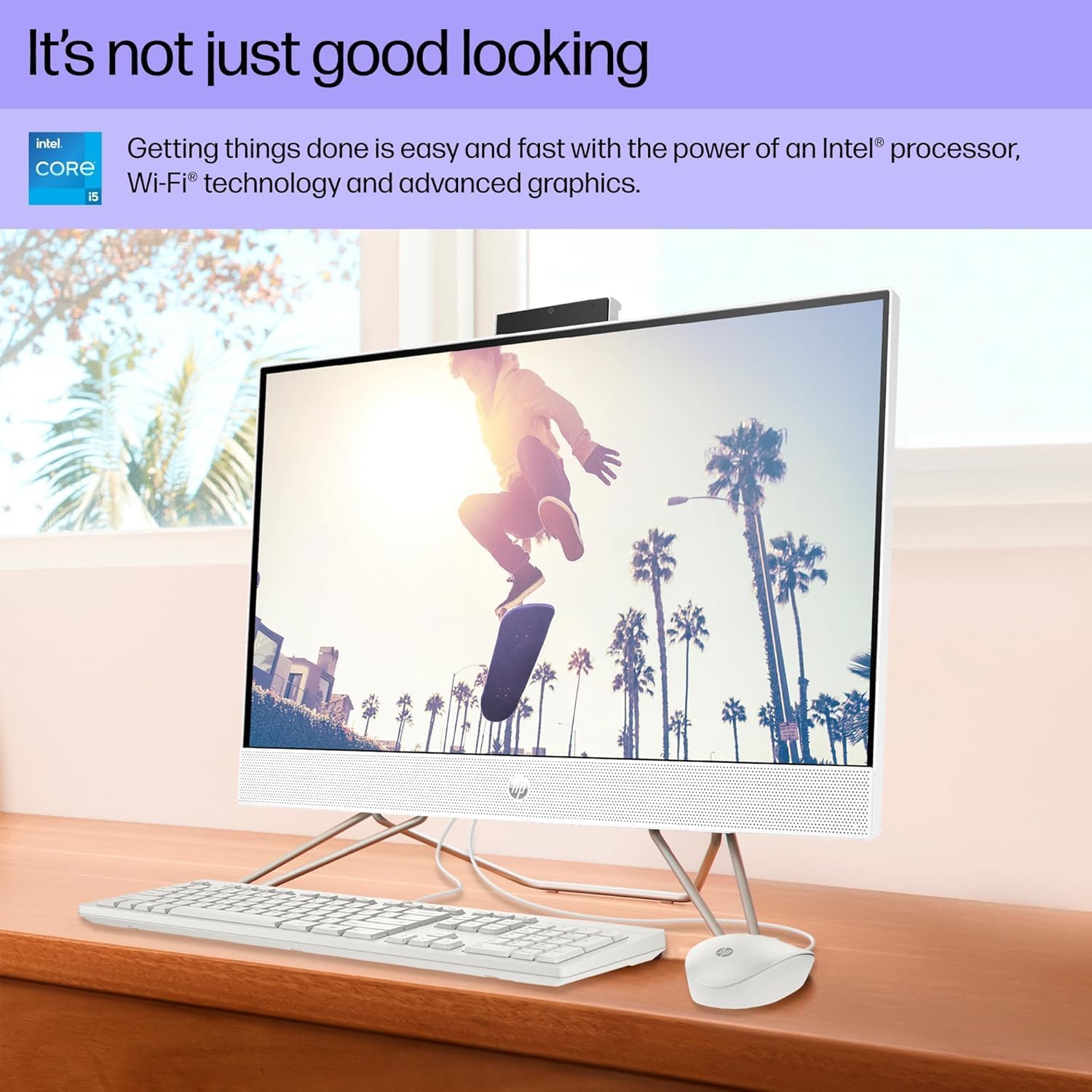
Image: The HP 24-CB100 All-in-One Desktop displaying a vibrant image, showcasing its Full HD IPS screen quality.
4.3 Privacy Camera
The integrated 720p HD camera features a privacy shutter. The camera and microphone are only enabled when the shutter is open and in use by an application.

Image: The HP 24-CB100 All-in-One Desktop during a video call, illustrating the pop-up camera and microphone privacy feature.
4.4 Connectivitat
- Wi-Fi: Connect to wireless networks using Realtek Wi-Fi 6 (2x2). Access Wi-Fi settings via the Windows 11 taskbar network icon.
- Bluetooth: Pair Bluetooth devices using Bluetooth 5.3. Manage Bluetooth devices in Windows 11 Settings > Bluetooth & devices.
- Ports: Utilize the available ports for peripherals and external displays.
5. Manteniment
- Neteja: Use a soft, lint-free cloth to clean the screen and exterior surfaces. Avoid abrasive cleaners or solvents. For the screen, use a specialized screen cleaner if necessary.
- Actualitzacions de programari: Comproveu i instal·leu regularment si hi ha actualitzacions de Windows i de controladors HP per garantir un rendiment i una seguretat òptims.
- Ventilació: Ensure the desktop's vents are clear of obstructions to prevent overheating.
- Còpia de seguretat de dades: Feu còpies de seguretat periòdiques de les dades importants en un disc dur extern o en un emmagatzematge al núvol per evitar la pèrdua de dades.
6. Solució De Problemes
- Sense energia: Ensure the power cord is securely connected to both the desktop and the electrical outlet. Test the outlet with another device.
- Problemes de visualització: If the screen is blank, ensure the desktop is powered on. If an external monitor is connected, check its power and cable connections.
- Sense connexió a Internet: Verify Wi-Fi is enabled and connected to the correct network. If using an Ethernet cable, ensure it is securely plugged into the RJ-45 port.
- Perifèric no funciona: Ensure USB devices (keyboard, mouse) are properly connected to the correct ports. Try connecting them to a different USB port.
- Alentiment del sistema: Tanqueu les aplicacions innecessàries. Comproveu si hi ha processos en segon pla al Gestor de tasques. Assegureu-vos que hi hagi prou espai lliure a l'SSD.
Per obtenir més ajuda, consulteu el servei d'assistència d'HP weblloc o contacteu amb el servei d'atenció al client.
7. Especificacions
| Característica | Especificació |
|---|---|
| Nom del model | 24-CB1210NISS |
| Processador | Intel Core i5-1235U (Up to 4.4 GHz, 10 Cores, 12 Threads) |
| RAM | 8 GB de DDR4 a 3200 MHz |
| Emmagatzematge | SSD M.512 de 2 GB |
| Mostra | 23.8-inch FHD (1920 x 1080) IPS Anti-glare |
| Gràfics | Gràfics Intel UHD (integrats) |
| Sistema operatiu | Windows 11 Pro |
| Connectivitat sense fil | Realtek Wi-Fi 6 (2x2), Bluetooth 5.3 |
| Ports | 2x USB 3.2 Gen 1, 2x USB 2.0, 1x HDMI 1.4, 1x RJ-45, 1x Headphone/microphone combo |
| Càmera | Càmera HD de 720p amb obturador de privacitat |
| Dimensions (L x P x A) | 21.28" x 7.23" x 16.50" polzades |
| Pes | 11.84 lliures |
| Color | Starry White |
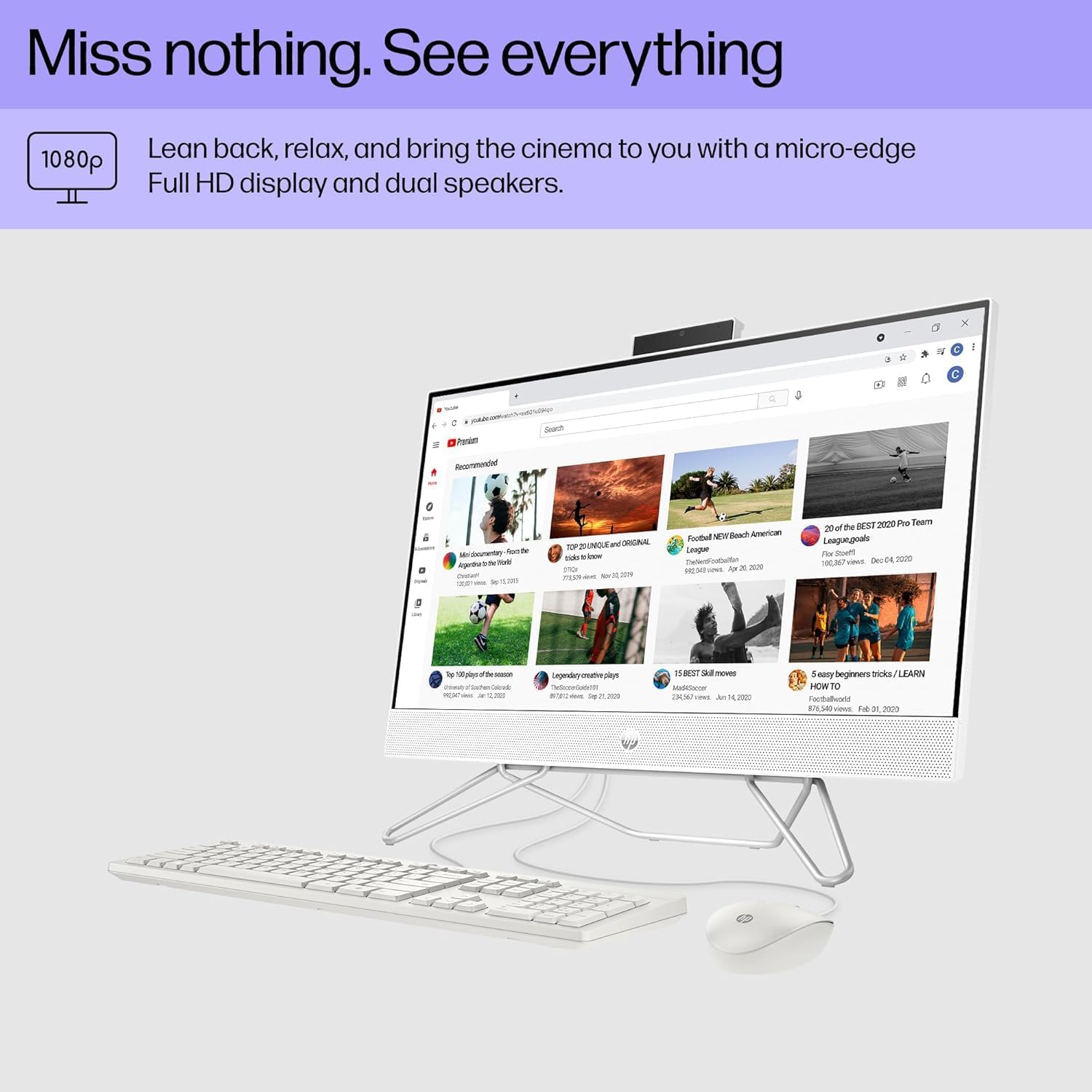
Image: Dimensions of the HP 24-CB100 All-in-One Desktop.
8. Garantia i Suport
Your HP 24-CB100 All-in-One Desktop is covered by HP's standard warranty. For detailed warranty information, including terms and conditions, please refer to the warranty documentation included with your product or visit the official HP support weblloc.
For technical support, driver downloads, and troubleshooting resources, please visit the Suport d'HP Weblloc o poseu-vos en contacte directament amb el servei d'atenció al client d'HP.