Introducció
This manual provides detailed instructions for the setup, operation, and maintenance of your sktome V8s for 2 Voice Changer with BM-800 Podcast Microphone Bundle. This comprehensive studio equipment is designed for podcasting, recording, singing, streaming, and gaming, offering a range of features to enhance your audio experience. Please read this manual thoroughly before use to ensure optimal performance and longevity of your device.
Contingut del paquet
Before proceeding with the setup, please verify that all items listed below are included in your package.
- 1 x V8S Sound Board
- 2 x Condenser Microphones
- 2 x Desktop Microphone Stands
- 2 x 3.5mm Earphones
- 2 x Microphone Shock Holders
- 2 x Microphone Pop Filters
- 2 x Microphone Head Cover Foams
- 2 x XLR to 3.5mm Cables
- 1 x cable de càrrega USB
- 2 cables d'àudio de 3.5 mm
- 1 x Manual d'usuari (aquest document)

Image: All components included in the sktome V8s for 2 Podcast Microphone Bundle, including the sound card, two microphones, stands, cables, and accessories.
Instruccions de configuració
Follow these steps to set up your podcast equipment bundle.
-
Carregueu la targeta de so: Before initial use, fully charge the V8S sound board using the provided USB charge cable. Connect the USB cable to the 5V-1A PCLIVE port on the sound card and a compatible USB power source.
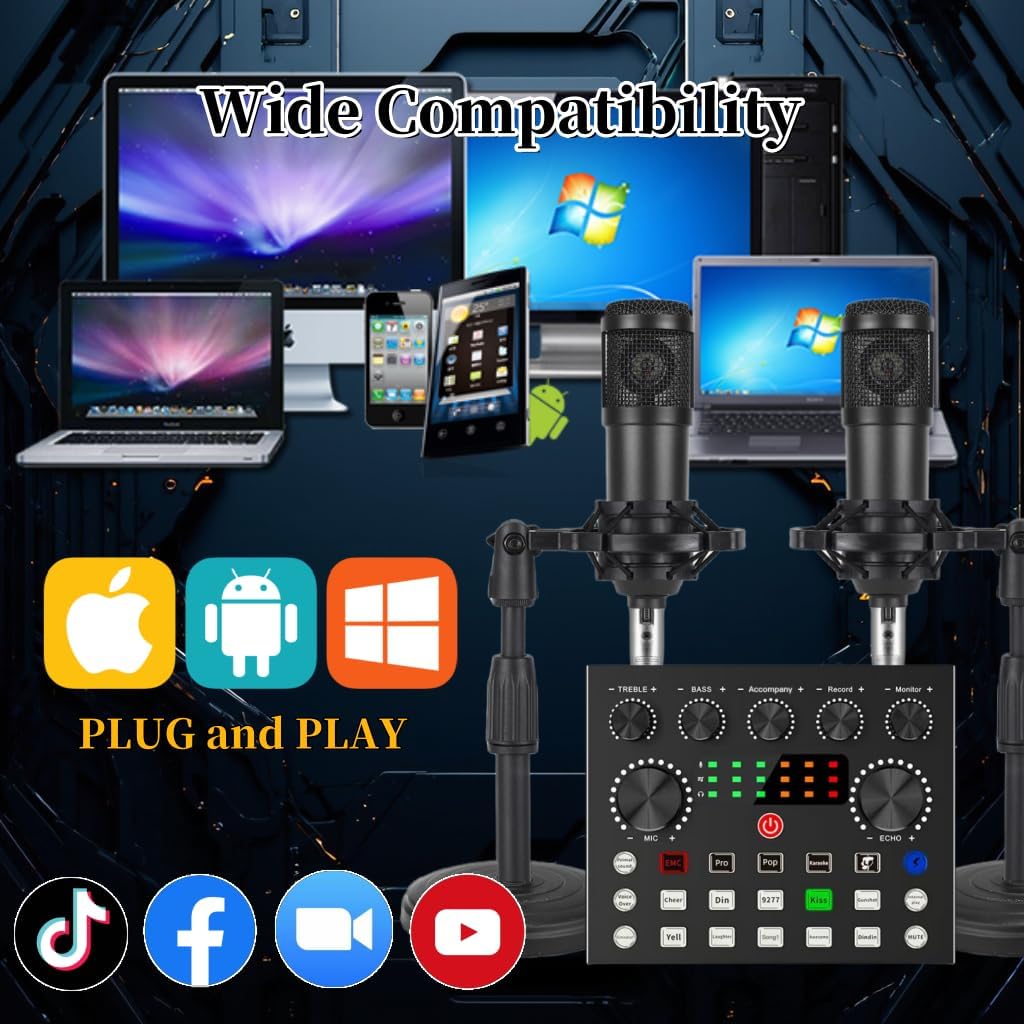
Image: The V8s sound card's rear panel, highlighting the 5V-1A PCLIVE port for charging and data transfer.
-
Assemble Microphones:
- Attach each condenser microphone to its shock holder.
- Mount the shock holder onto the desktop microphone stand.
- Place a pop filter in front of each microphone and secure it.
- Place a foam head cover over each microphone.
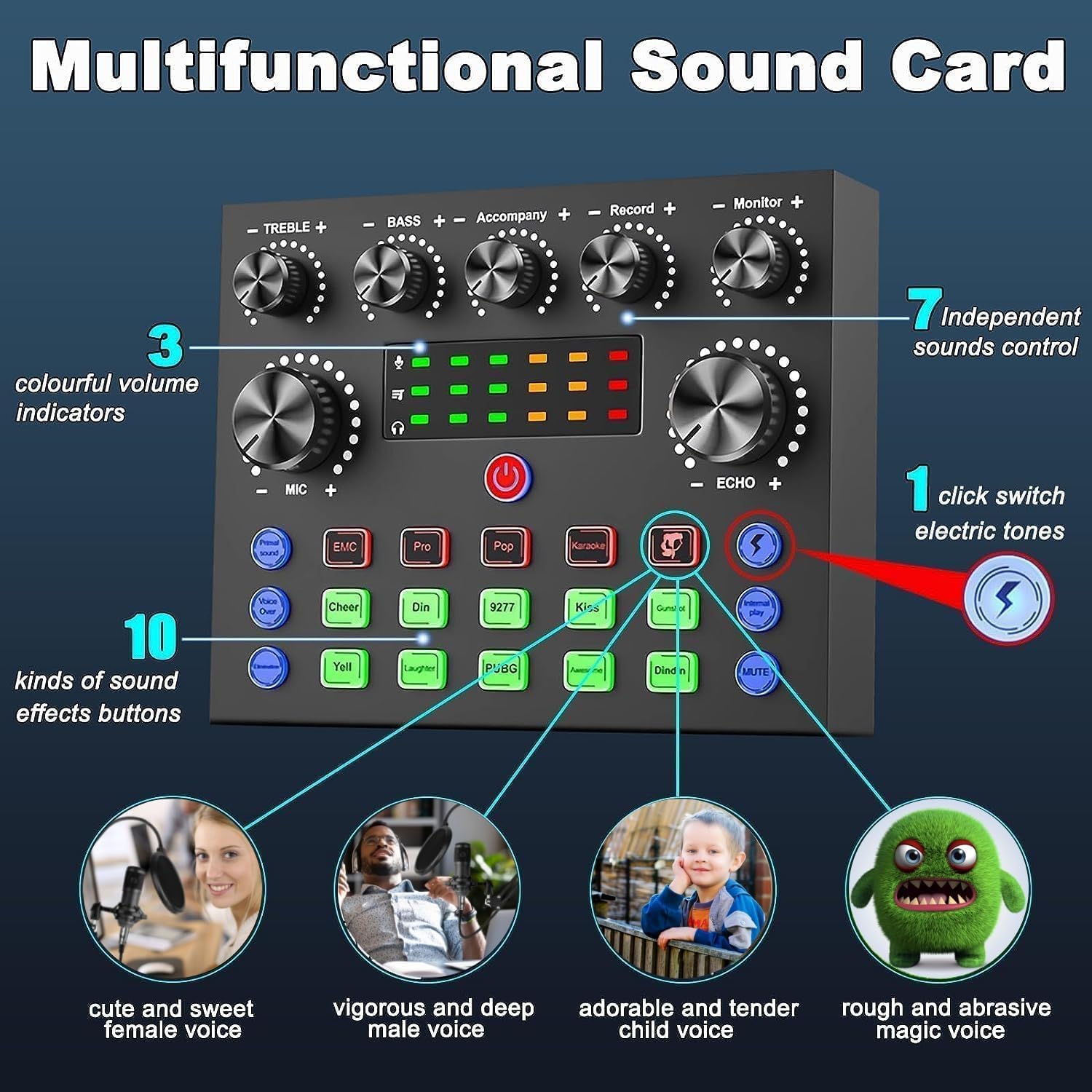
Image: Two assembled condenser microphones with their respective shock mounts, pop filters, and desktop stands, ready for use.
- Connect Microphones to Sound Card: Use the provided XLR to 3.5mm cables. Connect the XLR end to each condenser microphone and the 3.5mm end to the "Condenser mic 1" and "Condenser mic 2" input ports on the V8S sound board.
- Connect Earphones/Headphones: Plug your 3.5mm earphones into the "Headset" or "Monitor" output ports on the sound card for real-time audio monitoring.
-
Connect to Device (Smartphone/PC):
- Per a telèfons intel·ligents: Use the 3.5mm audio cables to connect your smartphone(s) to the "LIVE1" and "LIVE2" ports on the sound card.
- Per a PC/ordinador portàtil: Connect the USB charge cable from the sound card's 5V-1A PCLIVE port to a USB port on your computer. This provides power and allows the computer to recognize the sound card as an audio device.

Image: A detailed diagram illustrating the various input and output connections on the V8s sound card for microphones, headphones, smartphones, and computers.
- Optional: Connect Backing Track Device: If you wish to play background music, connect a device (e.g., another smartphone or MP3 player) to the "Backing Track" input using a 3.5mm audio cable.
Instruccions de funcionament
The V8S sound card offers a range of controls and effects to customize your audio.
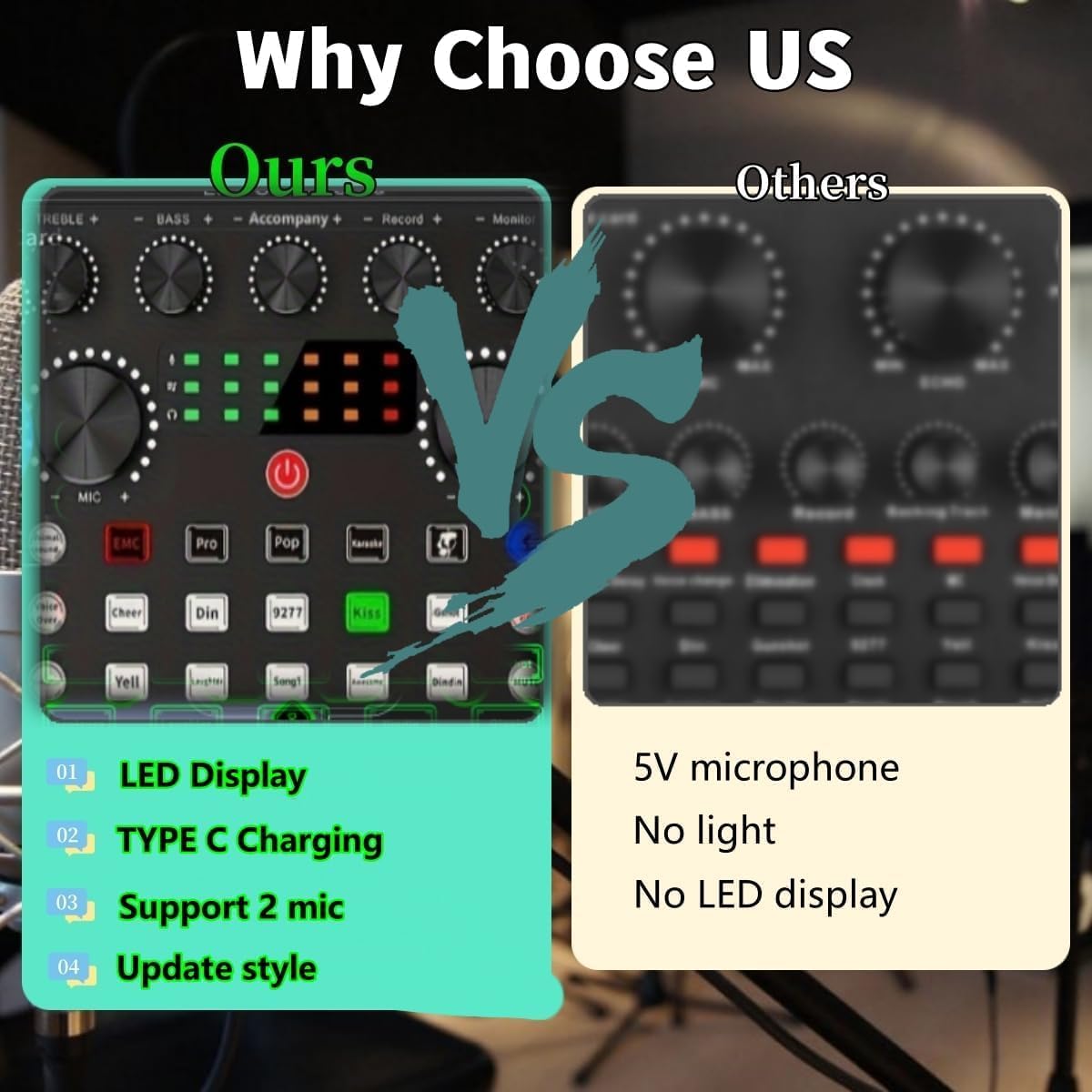
Image: The control panel of the V8s sound card, displaying all knobs and buttons for audio adjustment and effects.
- Encès/apagat: Press and hold the power button (usually centrally located) to turn the sound card on or off.
- Microphone Volume (MIC): Adjust the "MIC" knob to control the input volume of your microphones.
- Aguts i greus: Use the "TREBLE +" and "BASS +" knobs to fine-tune the high and low frequencies of your voice.
- Echo/Reverb: The "ECHO +" knob controls the reverberation effect, adding depth to your vocals.
- Volum d'acompanyament: Adjust the "Accompaniment +" knob to control the volume of any background music connected via the "Backing Track" input.
- Record Volume: The "Record +" knob adjusts the output volume of your recording.
- Volum del monitor: The "Monitor +" knob controls the volume heard through your connected earphones/headphones.
- Efectes de so: The sound card features 12 kinds of electric sounds and 12 kinds of sound effects. Press the dedicated buttons (e.g., "EMC", "Pro", "Pop", "Karaoke", "Cheer", "Din", "9277", "Kiss", "Yell", "Laughter", "PUBG", "Awesome", "Dindin") to activate various effects.
-
Canviador de veu: The sound card includes 4 voice changer modes. Press the "Voice Changer" button (often labeled with a lightning bolt or similar icon) to cycle through different voice effects such as female, male, child, or monster voices.

Image: Illustration of the voice changer function, detailing the available voice types.
- Reducció de soroll: Activate the noise reduction feature (if available, often labeled "Denoise" or similar) to minimize background noise.
- Connectivitat Bluetooth: If your sound card has Bluetooth, activate it to connect wirelessly to a device for accompaniment.
Manteniment
Proper care ensures the longevity and performance of your equipment.
- Keep the sound card and microphones clean by wiping them with a soft, dry cloth.
- Eviteu exposar l'equip a la humitat, a temperatures extremes o a la llum solar directa.
- Store the components in a dry, dust-free environment when not in use.
- Manipuleu els cables amb cura per evitar danys als connectors i al cablejat.
Resolució de problemes
Si teniu problemes, consulteu les solucions habituals següents.
| Problema | Solució |
|---|---|
| No hi ha so del micròfon. |
|
| No sound from headphones/monitor. |
|
| La qualitat del so és deficient o distorsionada. |
|
| Sound card not recognized by computer. |
|
| Sound card not charging. |
|
Especificacions
- Número de model: V8S for 2
- Pes de l'article: 4.53 lliures (2.06 quilograms)
- Dimensions del paquet: 11.38 x 8.43 x 6.81 polzades
- Bateries: Necessita 1 bateria de polímer de liti (inclosa)
- Dispositius compatibles: Gaming Console, Laptop, PC, Smartphone
- Tipus de connector: USB Type-C (for charging/PC connection), 3.5mm audio jacks, XLR
- Tipus de material: Metal (microphones)
- Font d'alimentació: Elèctric amb cable (via USB)
- Nombre de canals: 1
- Tecnologia de connectivitat: USB
- Patró de captació del micròfon: Cardioide
- Sound Card Features: 12 electric sounds, 12 sound effects, 4 voice changer modes, reverberation, treble-bass adjustment, noise reduction.
Garantia i Suport
sktome is committed to product improvement and user experience.
- Període de servei: Up to two years of service.
- Atenció al client: If you encounter any product or usage problems, please contact sktome customer service. Our team of experts is available to help and will provide a reply within 12 hours.
- Informació de càrrega: Please use the USB charging cable included in the package to charge the device. The supply voltage és DC 5V.
For further assistance, refer to the official sktome brand store on Amazon: sktome Store.


