1. Introducció
This manual provides essential information for the setup, operation, and maintenance of your EVICIV Portable Monitor 18.5" 1080P 120HZ. Please read this manual thoroughly before using the product to ensure proper function and to prevent damage.
2. Què hi ha a la caixa
Verifiqueu que tots els elements que s'enumeren a continuació s'inclouen al vostre paquet:
- EVICIV Portable Monitor 18.5"
- Mini HDMI Cable (40-inch)
- Type-C to Type-C Cable (47-inch) (x2)
- Power Adapter (PD30W 5V/3A)
- Manual d'usuari
- Smart Stand Case
- VESA M4 x 4mm Screws (x4)

Image: All components included in the EVICIV Portable Monitor package.
3. Característiques del producte
- Mida de la pantalla: 18.5 inches with ultra-thin bezels for an expansive viewzona d'ing.
- Resolució: Full HD 1920 x 1080 pixels.
- Freqüència d'actualització: 120Hz for smooth visuals, ideal for gaming and fast-paced content.
- Temps de resposta: 1ms, minimizing motion blur and ghosting.
- Gamma de colors: 125% sRGB, providing accurate and vibrant color reproduction.
- Brillantor: 350 Nits, ensuring clear visibility in various lighting conditions.
- Sincronització adaptativa: FreeSync technology for tear-free and stutter-free gaming.
- Alt rang dinàmic (HDR): Supports HDR for enhanced contrast and color depth.
- Connectivitat: Features USB-C and HDMI ports for broad compatibility.
- Opcions de muntatge: VESA 75x75mm compatible for flexible installation.
- Suport integrat: 360° adjustable bracket for versatile positioning.
- Portabilitat: Lightweight design (5.48 pounds) with a protective sleeve case for travel.
- Àudio: Altaveus duals estèreo integrats.
- Cura dels ulls: Professional low blue light mode for reduced eye strain.
- Superfície: Matte screen to minimize reflections and glare.

Image: The 18.5-inch display offers a larger screen area compared to smaller portable monitors.

Image: Visual representation of the 120Hz refresh rate and 1ms response time for ultra-smooth gaming.
4. Guia de configuració
Follow these steps to connect your EVICIV Portable Monitor to various devices:
4.1 Connexió d'alimentació
Connect the provided Power Adapter to the monitor's USB-C power input port. Ensure the adapter is plugged into a functional power outlet.
4.2 Connecting to a Laptop/PC (USB-C)
- Ensure your laptop's USB-C port supports video output (DisplayPort Alternate Mode) and power delivery.
- Connect one end of the USB-C to USB-C cable to your laptop's compatible USB-C port.
- Connect the other end of the USB-C to USB-C cable to the monitor's full-function USB-C port.
- The monitor should automatically detect the signal. If not, manually select the input source via the OSD menu.
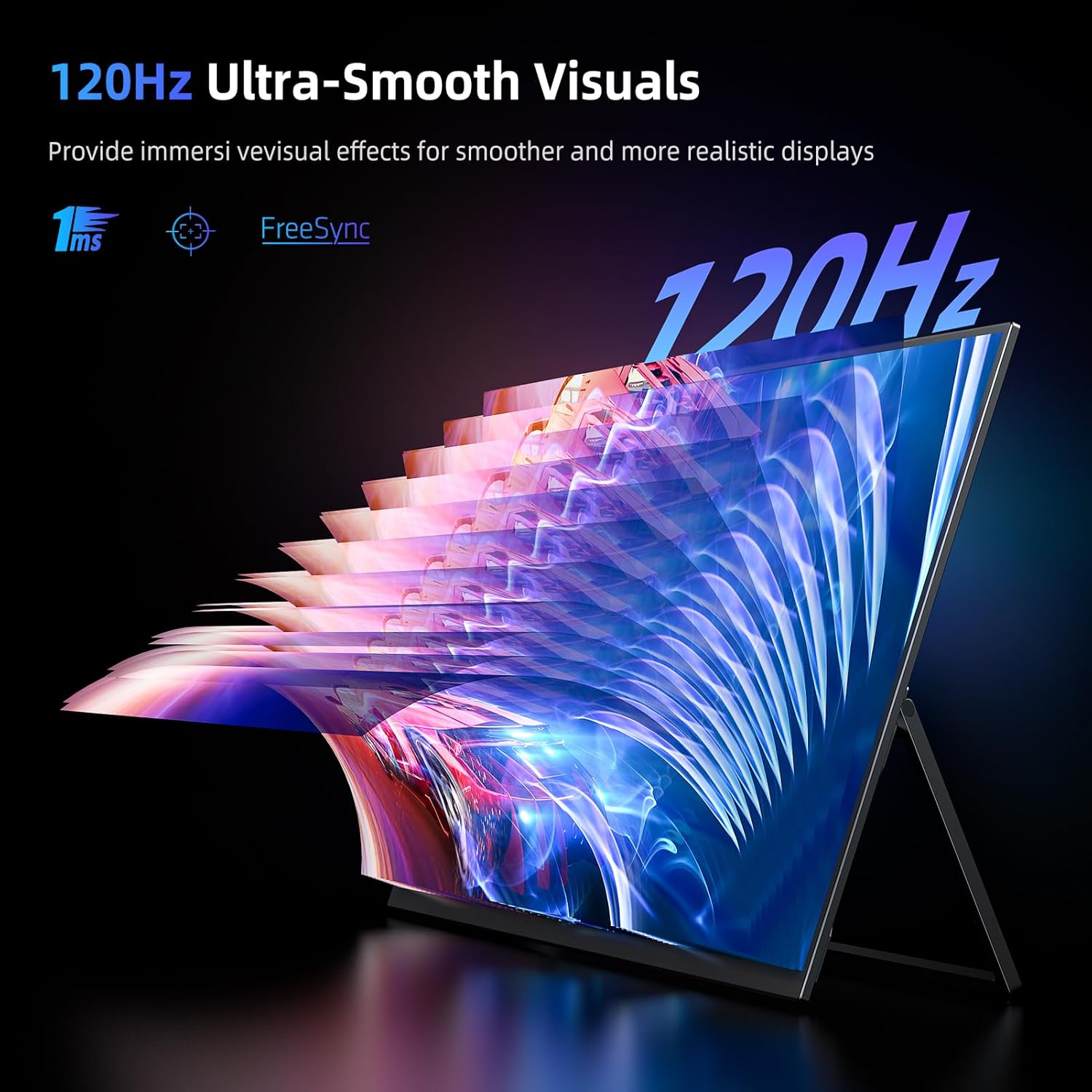
Image: Portable monitor extending a laptop's display for increased productivity.
4.3 Connexió a un ordinador portàtil/PC (HDMI)
- Connect one end of the Mini HDMI to HDMI cable to the monitor's Mini HDMI port.
- Connect the other end of the HDMI cable to your laptop's or PC's HDMI output port.
- Ensure the monitor is powered via its USB-C power input.
- Select the HDMI input source on the monitor via the OSD menu.
4.4 Connecting to Game Consoles (e.g., PS5, Xbox, Switch)
- Connect the monitor to your game console using the Mini HDMI to HDMI cable.
- Power the monitor using the USB-C power adapter.
- Select the HDMI input source on the monitor.

Image: Portable monitor used for gaming with a Nintendo Switch.
4.5 Connecting to Smartphones (USB-C)
- Ensure your smartphone's USB-C port supports video output (DisplayPort Alternate Mode).
- Connect one end of the USB-C to USB-C cable to your smartphone.
- Connect the other end to the monitor's full-function USB-C port.
- The monitor may draw power from your phone; for prolonged use, connect the monitor to external power.

Image: Portable monitor mirroring a smartphone's display.
5. Instruccions de funcionament
The monitor features an On-Screen Display (OSD) menu for adjusting various settings. Use the joystick/buttons on the side of the monitor to navigate and select options.
5.1 Navegació pel menú OSD
- Premeu el joystick/botó per obrir el menú OSD.
- Move the joystick up/down to navigate through menu options.
- Premeu el joystick per seleccionar una opció o confirmar una configuració.
- Move the joystick left/right to adjust values or move back/forward in sub-menus.
5.2 Key Settings
- Brillantor/Contrast: Adjust these settings to optimize visual comfort and clarity.
- Mode de joc: Select from various preset game modes (e.g., FPS, RTS) for optimized display settings for different game genres.
- Efecte de color: Fine-tune saturation, hue, and sharpness.
- Ultra HDR Mode: Enable or disable HDR for enhanced dynamic range.
- Protecció ocular: Activate low blue light mode to reduce eye strain during extended use.
- FreeSync: Enable FreeSync for a smoother, tear-free gaming experience with compatible graphics cards.
- Volum: Ajusteu el volum dels altaveus integrats.
- Font d'entrada: Seleccioneu manualment entre les entrades USB-C i HDMI.
Vídeo: Un overview of the EVICIV Portable Monitor's features and connectivity options, demonstrating its use with various devices.
6. Connectivitat
The EVICIV Portable Monitor offers versatile connectivity options:
- USB-C (Full-Function): Two USB-C ports support both power delivery and video signal transmission, allowing a single cable connection for compatible devices.
- Mini HDMI: One Mini HDMI port for video input from devices like game consoles, cameras, and older laptops.
- Conector d'àudio de 3.5 mm: Per connectar auriculars o altaveus externs.

Imatge: Detallada view of the monitor's input/output ports for universal compatibility.
6.1 Muntatge VESA
The monitor is equipped with VESA 75x75mm mounting holes, allowing it to be securely attached to monitor arms, wall mounts, or other VESA-compatible stands. Four M4 x 4mm screws are included for installation.

Image: The monitor's VESA compatibility allows for various mounting solutions.
7. Manteniment
- Neteja de la pantalla: Utilitzeu un drap suau i sense pelusa lleugerament dampened with water or a screen cleaner. Avoid harsh chemicals or abrasive materials.
- Neteja de la Casing: Netegeu la part c del monitorasinamb un drap suau i sec.
- Emmagatzematge: When not in use, store the monitor in its protective sleeve case to prevent scratches and dust accumulation.
- Eviteu condicions extremes: Do not expose the monitor to extreme temperatures, humidity, or direct sunlight for prolonged periods.
8. Solució De Problemes
| Problema | Causa possible | Solució |
|---|---|---|
| Sense senyal / Pantalla negra | Incorrect input source selected; loose cable connection; device not outputting signal; insufficient power. |
|
| Flickering / Unstable Display | Faulty cable; refresh rate mismatch; interference. |
|
| Sense àudio | Monitor volume too low; audio output not routed to monitor; external speakers/headphones not connected properly. |
|
| Problemes d'alimentació | Power adapter not connected; insufficient power from USB-C source. |
|
9. Especificacions
| Característica | Detall |
|---|---|
| Número de model | PM185 |
| Mida de la pantalla | 18.5 polzades |
| Resolució | 1920 x 1080 píxels (1080p) |
| Freqüència d'actualització | 120 Hz |
| Temps de resposta | 1 ms |
| Relació d'aspecte | 16:9 |
| Brillantor de la imatge | 350 Candela (Nits) |
| Gamma de colors | 125% sRGB |
| Superfície de la pantalla | Mat |
| Voltage | 5 Volts |
| Dimensions del producte | 0.27 x 16.7 x 10 polzades |
| Pes de l'article | 5.48 lliures |
| Connectivitat | USB-C (x2), Mini HDMI (x1), 3.5mm Audio Jack (x1) |
| Compatibilitat VESA | 75x75mm |
10. Garantia i Suport
For warranty information and technical support, please refer to the official EVICIV weblloc web o contacteu directament amb el servei d'atenció al client. Conserveu el rebut de compra per a reclamacions de garantia.
Per a més ajuda, podeu visitar el EVICIV Store on Amazon.


