1. Introducció
This manual provides detailed instructions for the setup, operation, and maintenance of your Itari M102 Label Maker Machine. Please read this manual thoroughly before using the device to ensure proper function and longevity.
2. Contingut del paquet
Verifiqueu que tots els elements siguin presents al vostre paquet:
- Itari M102 Label Maker Machine
- 3 Rolls of Thermal Labels (1.57" x 1.18" / 40mm x 30mm)
- Cable de càrrega USB tipus C
- Manual d'usuari (aquest document)

Image 2.1: The Itari M102 Label Maker Machine shown with the included label rolls.
3. Producte acabatview
Familiarize yourself with the components of your label maker.
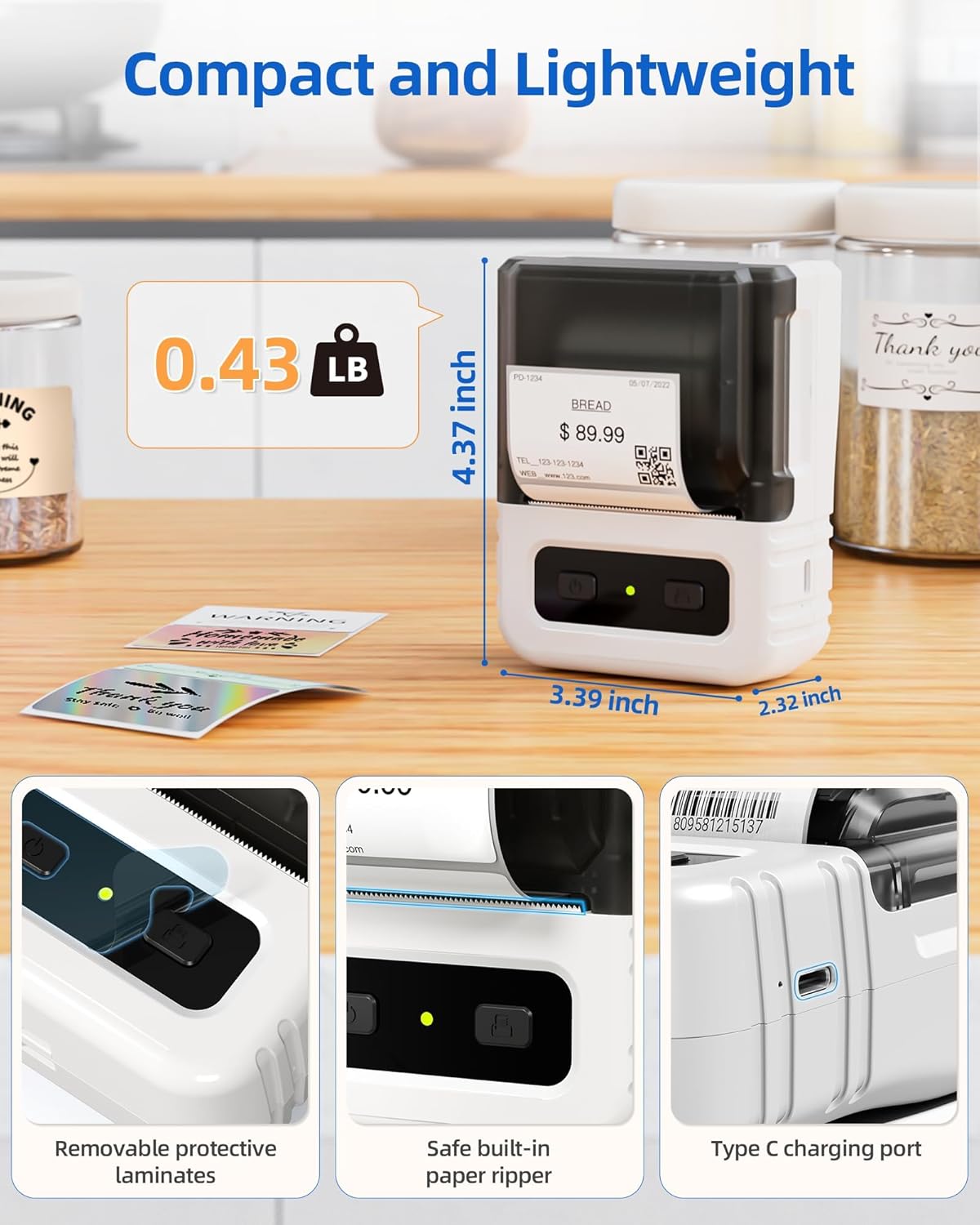
Imatge 3.1: Detallada view highlighting the dimensions, safe built-in paper ripper, removable protective laminates, and Type-C charging port.
Característiques principals:
- Botó d'encesa: S'utilitza per encendre/apagar el dispositiu.
- Label Compartment: Sosté el rotlle d'etiquetes.
- Adjustable Guide: Ensures proper alignment for various label widths (supports 20-50mm wide labels).
- Ranura de sortida de paper: On emergeixen les etiquetes impreses.
- Built-in Paper Ripper: Per desenganxar netament les etiquetes impreses.
- Port de càrrega tipus C: Per recarregar la bateria interna.
4. Configuració
4.1. Càrrega del dispositiu
Before first use, fully charge the label maker. Connect the provided USB Type-C cable to the charging port on the device and a compatible USB power adapter (not included). A full charge takes approximately 2 hours and provides up to 1 month of typical usage.
4.2. Carregant etiquetes
- Obriu la tapa del compartiment d'etiquetes.
- Insert a roll of thermal labels into the compartment, ensuring the labels feed from the bottom and the printing side faces upwards.
- Adjust the label guides to fit the width of your label roll snugly. The device supports labels from 20mm to 50mm wide.
- Pull a small portion of the label paper out through the paper exit slot.
- Tanqueu bé la tapa del compartiment d'etiquetes.

Image 4.1: The label compartment open, illustrating how to insert a label roll and adjust the width guides.
4.3. App Installation and Connectivity
The Itari M102 Label Maker connects wirelessly via Bluetooth to your smartphone or tablet, and via USB to computers. Download the dedicated label editing application from your device's app store (e.g., Apple App Store for iOS, Google Play Store for Android).
- Per a la connexió Bluetooth:
- Engegueu l'etiquetadora.
- Activa el Bluetooth al teu dispositiu mòbil.
- Open the Itari label app and follow the in-app instructions to search for and pair with your M102 device. Pairing typically takes less than 2 seconds.
- Per a la connexió USB:
- Connect the label maker to your computer using the USB Type-C cable.
- Install the necessary drivers or software for your operating system (Windows, macOS, Chrome OS, Linux) as prompted or available on the Itari support weblloc.

Image 4.2: Illustrates wireless Bluetooth connectivity for iOS and Android, and USB connectivity for Chrome OS, Windows, Mac OS, and Linux.
5. Instruccions de funcionament
5.1. Creating and Customizing Labels
The Itari label app provides extensive customization options:
- Plantilles: Access over 300 free label templates for various uses (address, price, food, clothing, cable, jewelry, folder labels, etc.).
- Fonts & Symbols: Choose from over 100 fonts and 1000 symbols to personalize your labels.
- Imatges: Embed images into your label designs.
- Edició de text: Adjust text size, style, alignment, and add multiple lines.
- Codis de barres i codis QR: Generate and print various types of barcodes and QR codes.
5.2. Impressió d'etiquetes
- Ensure the label maker is powered on and connected to your device (Bluetooth or USB).
- Open the Itari label app and create or select your desired label design.
- Confirm the label size in the app matches the loaded label roll.
- Tap the 'Print' button in the app.
- The label maker will print the label. Use the built-in paper ripper to cleanly detach the label from the roll.
6. Manteniment
6.1. Neteja
To maintain print quality and device longevity:
- Turn off the label maker before cleaning.
- Gently wipe the print head with a soft, lint-free cloth moistened with isopropyl alcohol. Allow it to dry completely before use.
- Netegeu l'exterior del dispositiu amb un drap suau i sec. No utilitzeu productes químics agressius ni netejadors abrasius.
6.2. Label Storage
Store thermal labels in a cool, dry place away from direct sunlight and heat to prevent premature fading or damage to the thermal coating.
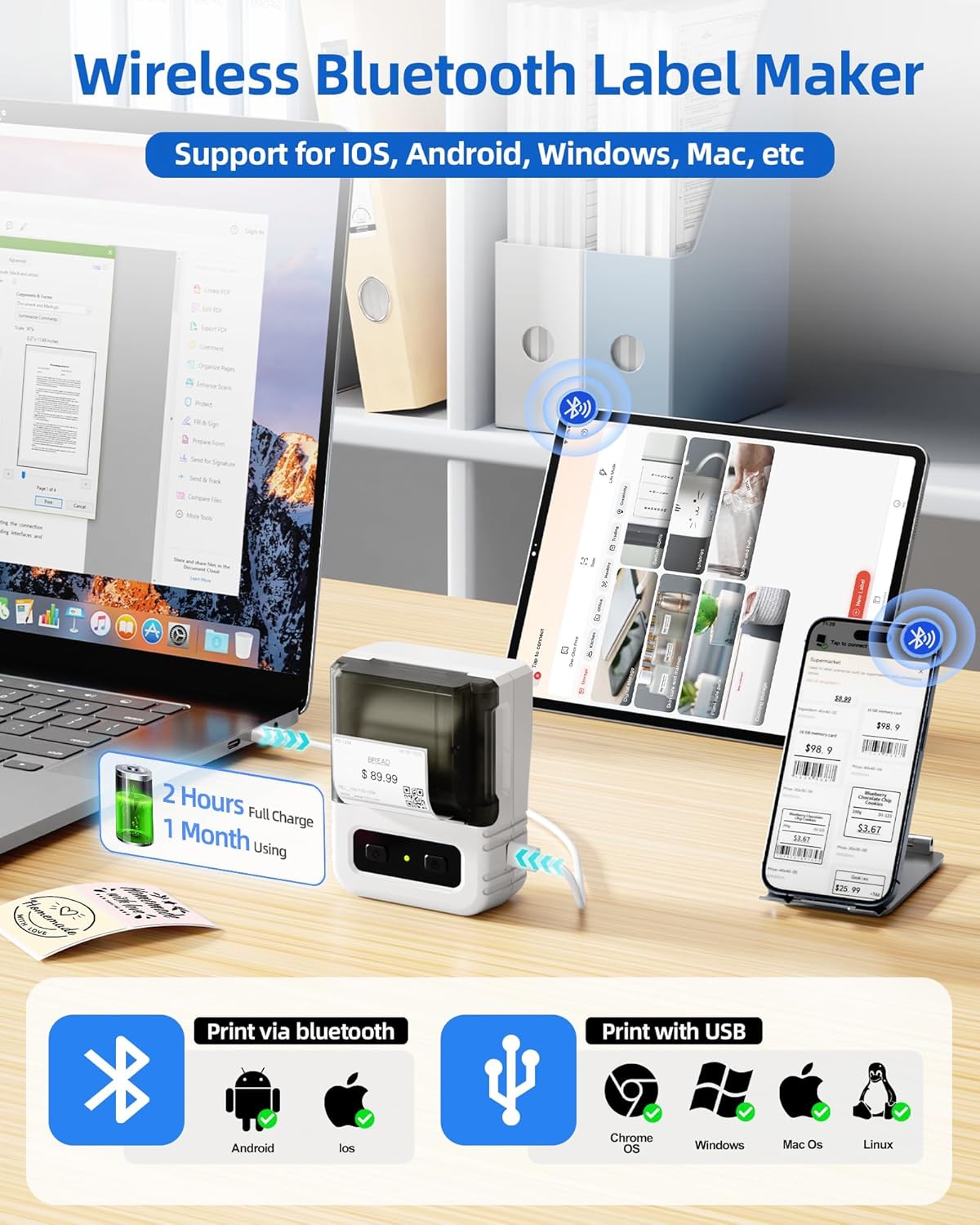
Image 6.1: Itari thermal label rolls, highlighting the 1.57" x 1.18" (40mm x 30mm) size, 230 sheets per roll, and high-quality thermal paper.
7. Solució De Problemes
If you encounter issues with your Itari M102 Label Maker, refer to the following common problems and solutions:
| Problema | Causa possible | Solució |
|---|---|---|
| El dispositiu no s'encén | Bateria baixa | Carregueu el dispositiu amb el cable USB tipus C proporcionat. |
| No print or faint print |
|
|
| Error de connexió Bluetooth |
|
|
| Labels jam |
|
|
8. Especificacions
- Model: M102
- Tecnologia d'impressió: Tèrmica (sense tinta)
- Supported Label Width: 20 mm - 50 mm
- Included Label Size: 1.57" x 1.18" (40 mm x 30 mm)
- Connectivitat: Bluetooth, USB tipus C
- Durada de la bateria: Up to 1 month of typical use (2 hours full charge)
- Dimensions: Aproximadament 4.37 cm (alçada) x 3.39 cm (amplada) x 2.32 cm (profunditat)
- Pes: Aproximadament 0.43 lliures (0.195 kg)
9. Garantia i Suport
For warranty information and technical support, please refer to the contact details provided with your purchase or visit the official Itari weblloc web. Conserveu el rebut de compra com a comprovant de compra per a reclamacions de garantia.


