1. Introducció
Aquest manual proporciona instruccions essencials per a la configuració, el funcionament i el manteniment adequats del vostre escàner de codis de barres portàtil sense fil Zebra TC72 per a Android. Llegiu atentament aquest manual abans d'utilitzar el dispositiu per garantir un rendiment i una longevitat òptims.
2. Dispositiu acabatview
El Zebra TC72 és un ordinador mòbil robust de classe empresarial dissenyat per a diverses aplicacions de captura de dades. Compta amb un sistema operatiu Android, connectivitat sense fil i un escàner de codis de barres 2D/1D/QR integrat.
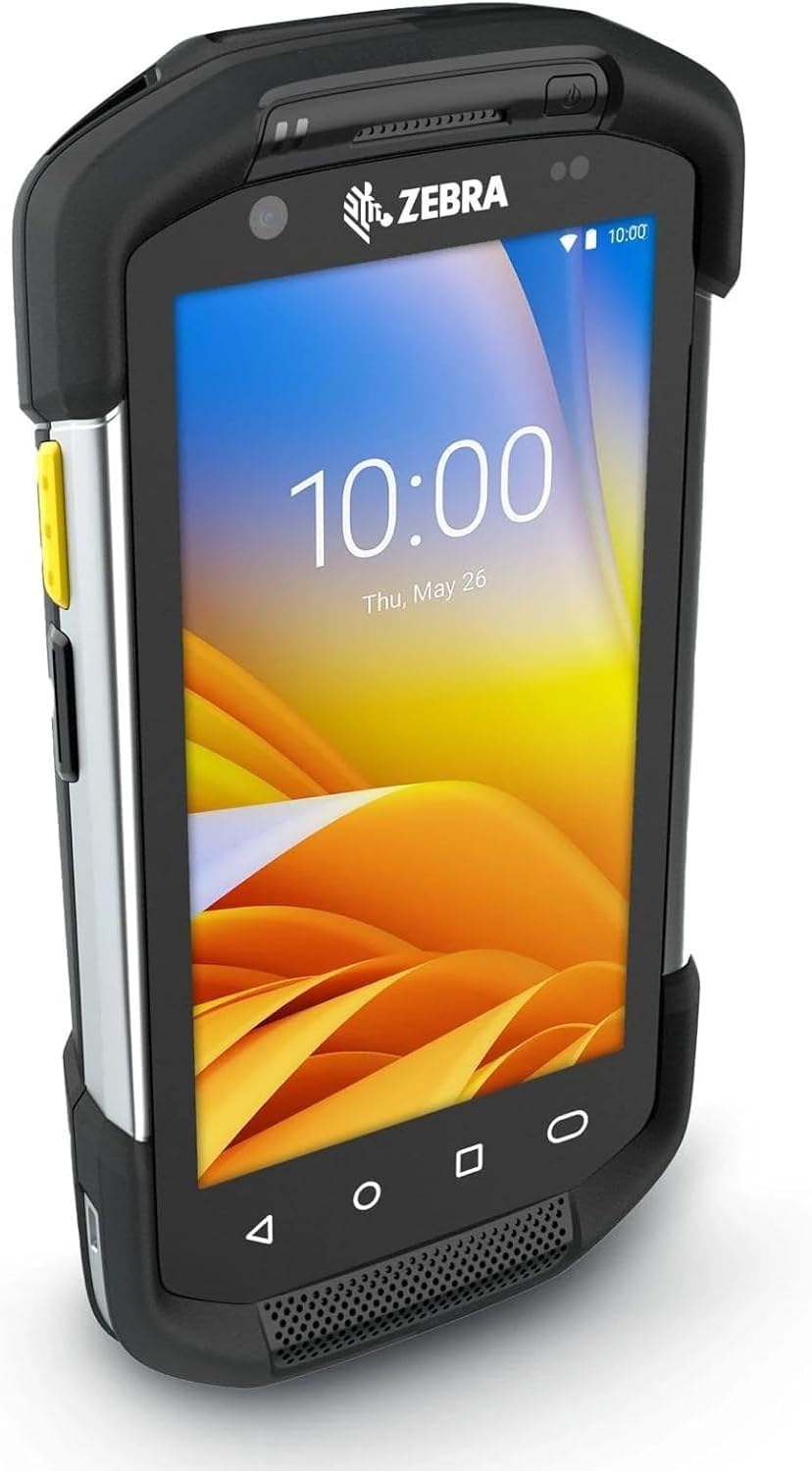
Figura 2.1: Escàner de mà Zebra TC72. Aquesta imatge mostra el dispositiu des d'una perspectiva angular, destacant el seu disseny robust i la pantalla.
3. Configuració
3.1 Desembalatge i inspecció inicial
Desembaleu amb cura tots els components. Verifiqueu que el paquet contingui el dispositiu Zebra TC72, la bateria i el carregador. Inspeccioneu tots els elements per detectar qualsevol signe de dany. Si falta algun component o hi ha algun dany, poseu-vos en contacte immediatament amb el vostre proveïdor.
3.2 Instal·lació i càrrega de la bateria
- Localitzeu el compartiment de la bateria a la part posterior del dispositiu.
- Introduïu la bateria, assegurant-vos que els contactes estiguin correctament alineats.
- Tanqueu bé la tapa del compartiment de la bateria.
- Connecteu el carregador al port o base de càrrega del dispositiu. Endolleu el carregador a una presa de corrent. El dispositiu indicarà l'estat de càrrega.
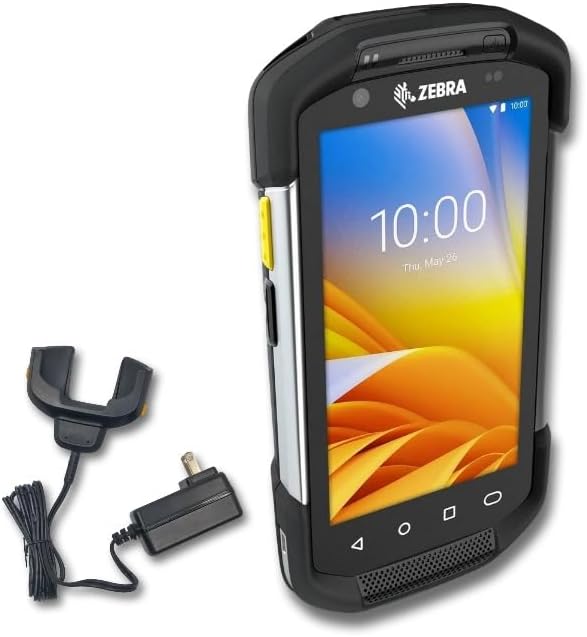
Figura 3.1: Zebra TC72 amb carregador. Aquesta imatge mostra el dispositiu TC72 juntament amb la base de càrrega i l'adaptador d'alimentació, i il·lustra els components necessaris per a la gestió de l'energia.
3.3 Engegada/apagada
- Per encendre: Premeu i manteniu premut el botó d'engegada (normalment al lateral) fins que aparegui el logotip de Zebra a la pantalla.
- Per apagar: Premeu i manteniu premut el botó d'engegada fins que aparegui el menú d'opcions d'engegada. Seleccioneu "Apagar".
3.4 Configuració inicial
En engegar-lo per primera vegada, seguiu les instruccions que apareixen a la pantalla per completar la configuració inicial, inclosa la selecció d'idioma, la connexió a la xarxa Wi-Fi i la configuració del compte de Google (opcional).
4. Instruccions de funcionament
4.1 Navegació bàsica (sistema operatiu Android)
El TC72 funciona amb la plataforma Android. Navegueu per la interfície mitjançant gestos tàctils: toqueu per seleccionar, feu lliscar el dit per desplaçar-vos i pessigueu per ampliar. La barra de navegació a la part inferior de la pantalla ofereix les funcions "Enrere", "Inici" i "Aplicacions recents".

Figura 4.1: Frontal de la Zebra TC72 ViewAquesta imatge mostra la part frontal del dispositiu amb la pantalla activa, il·lustrant la interfície d'usuari d'Android.
4.2 Escaneig de codis de barres
El TC72 compta amb un escàner de codis de barres integrat de classe industrial capaç de llegir codis 1D, 2D i QR.

Figura 4.2: Escàner de codis de barres integrat. Una imatge detallada view del mòdul d'escàner de codis de barres integrat situat a la part superior del dispositiu.
- Obriu l'aplicació d'escaneig al vostre dispositiu.
- Apunteu la finestra de l'escàner (situada a la part superior del dispositiu) cap al codi de barres.
- Premeu el botó disparador d'escaneig (normalment al lateral) per activar l'escàner.
- Assegureu-vos que el patró d'apuntament vermell cobreixi tot el codi de barres per a una lectura òptima. Un escaneig correcte normalment s'indica amb un bip audible i/o una confirmació visual a la pantalla.
4.3 Captura i transferència de dades
Les dades escanejades normalment s'introdueixen al camp actiu d'una aplicació. Les dades es poden transferir mitjançant una connexió Wi-Fi, Bluetooth o USB, segons l'aplicació específica i la configuració de xarxa.
5. Manteniment
5.1 Instruccions de neteja
- Pantalla: Utilitzeu un drap suau i sense pelusa lleugerament dampNetegeu amb aigua o un netejador de pantalles homologat. No utilitzeu materials abrasius ni productes químics agressius.
- Finestra de l'escàner: Netegeu suaument la finestra de l'escàner amb un drap net i suau. Assegureu-vos que no hi hagi pols ni restes que obstrueixin la ruta d'escaneig.
- Dispositiu Casing: Esborra amb anunciamp drap. Eviteu la humitat excessiva.
5.2 Cura de la bateria
Per maximitzar la durada de la bateria, eviteu temperatures extremes. Carregueu la bateria regularment i no deixeu que es descarregui completament durant períodes prolongats. Substituïu la bateria si el seu rendiment es degrada significativament.
5.3 Actualitzacions de programari
Comproveu i instal·leu regularment si hi ha actualitzacions de programari per garantir un rendiment òptim, seguretat i accés a noves funcions. Normalment, les actualitzacions es poden trobar al menú de configuració del dispositiu, a "Actualitzacions del sistema".
5.4 Directrius d'emmagatzematge
Quan guardeu el dispositiu durant períodes prolongats, assegureu-vos que estigui apagat i guardeu-lo en un lloc fresc i sec, allunyat de la llum solar directa i de temperatures extremes. Es recomana carregar la bateria aproximadament al 50% abans de guardar-lo.
6. Solució De Problemes
- El dispositiu no s'encén: Assegureu-vos que la bateria estigui correctament instal·lada i carregada. Connecteu el dispositiu al carregador i torneu-lo a engegar.
- Problemes d'escaneig: Verifiqueu que la finestra de l'escàner estigui neta i sense obstruccions. Assegureu-vos que el codi de barres no estigui danyat i que estigui dins del rang òptim de l'escàner. Comproveu la configuració de l'aplicació d'escaneig.
- Sense connectivitat Wi-Fi: Comproveu si el Wi-Fi està activat a la configuració. Verifiqueu la contrasenya de la xarxa i assegureu-vos que esteu dins de l'abast d'una xarxa coneguda. Reinicieu el dispositiu i l'encaminador Wi-Fi si cal.
- El dispositiu no respon: Si el dispositiu deixa de respondre, feu un restabliment suau prement i mantenint premut el botó d'engegada durant aproximadament 10-15 segons fins que es reiniciï.
7. Especificacions
| Característica | Descripció |
|---|---|
| Número de model | TC72 |
| Sistema operatiu | Android |
| Capacitat d'escaneig | Lector de codis de barres 2D, 1D, codi QR |
| Connectivitat | Sense fil |
| Accessoris inclosos | Carregador |
| Nota de compatibilitat | No és compatible amb el programari de Walmart o Fedex. |
| Fabricant | Símbol (zebra) |
| UPC | 611393758937 |
8. Garantia i Suport
Per obtenir informació sobre la cobertura de la garantia i l'assistència tècnica, consulteu la documentació proporcionada amb la compra o poseu-vos en contacte amb el vostre punt de venda. Per obtenir assistència específica del fabricant, visiteu el lloc web oficial de Zebra Technologies. weblloc.


