1. Introducció
This manual provides detailed instructions for the JOMAA 20-Key Macro Programmable Numeric Gaming Keyboard. This device is designed to enhance your gaming and productivity experience with its customizable features and robust construction. Please read this manual thoroughly to ensure proper setup and operation.
Característiques principals:
- Hot-Swappable Keys: Customize your typing feel by easily changing switches.
- Cos d'aliatge d'alumini: Ofereix durabilitat i una estètica premium.
- Il·luminació RGB: Features 12 distinct lighting modes for personalized ambiance.
- Interfície tipus C: Ensures versatile and reliable connectivity.
- Detachable Cable Design: Enhances portability and simplifies storage.
- Programació de macros: Supports macro definitions for 19 keys, optimizing workflow and gaming efficiency.
- Estructura de la junta: Contributes to a responsive and comfortable typing experience.

Image 1.1: The JOMAA 20-Key Macro Programmable Numeric Gaming Keyboard, showcasinel seu disseny compacte i la disposició de les tecles.
2. Configuració
Follow these steps to set up your JOMAA 20-Key Macro Programmable Numeric Gaming Keyboard:
- Desembalar: Traieu amb cura el teclat i el cable USB-C de l'embalatge.
- Connecteu el cable: Insert the USB-C end of the provided cable into the Type-C port on the keyboard.
- Connexió a l'ordinador: Plug the standard USB-A end of the cable into an available USB port on your computer (PC, Laptop, or Gaming Console).
- Reconeixement del sistema: Your operating system (Windows XP/Vista/7/8/10, Mac) should automatically detect the device. No additional drivers are required for basic functionality.

Image 2.1: The detachable USB-C cable connecting the keyboard to a laptop, highlighting the keyline separation design for portability.
3. Funcionament del teclat
The JOMAA 20-Key keyboard functions as a standard numeric keypad out of the box. It also features dedicated keys for mode switching and lighting control.
Canvi de mode:
- The keyboard supports switching between different operational modes, such as 'Game Mode' and 'Office Mode'.
- Locate the dedicated 'Mode Switching Key' (often marked with a gear or sun icon) on the keyboard.
- Press this key to cycle through available modes. Each mode may have different key assignments or lighting profiles.
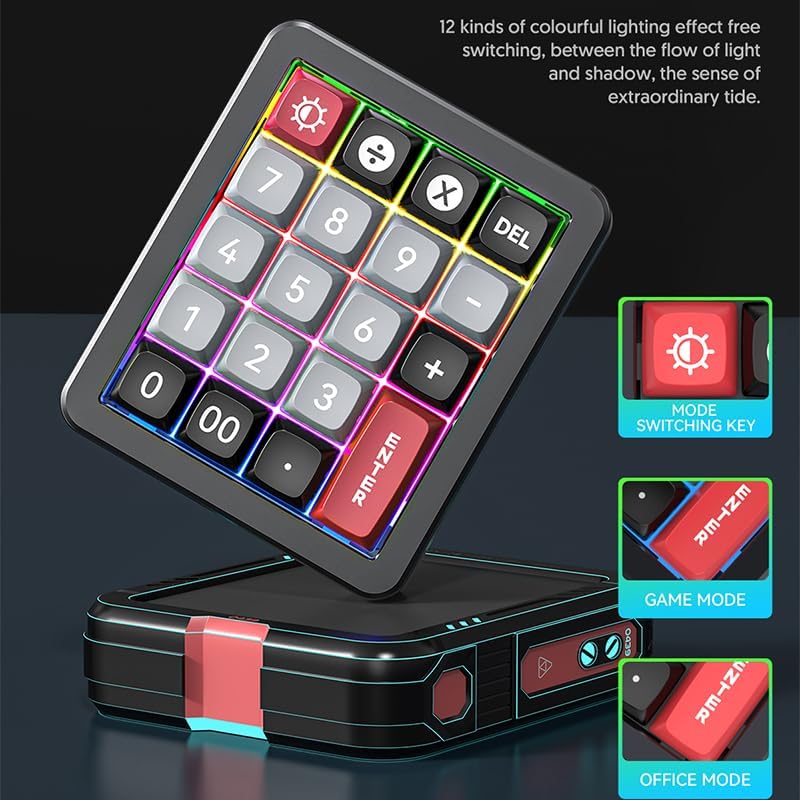
Image 3.1: Illustration of the mode switching key and visual indicators for Game Mode and Office Mode.
4. Programació de macros
The JOMAA 20-Key keyboard allows for macro definition on 19 of its keys, significantly enhancing efficiency for complex tasks or gaming commands.
- Requisit de programari: To program macros, you must use the dedicated driver software. This software is compatible with Windows operating systems only.
- Descàrrega de programari: Consulteu el servei oficial del fabricant website for the latest driver software download.
- Passos de programació:
- Install and launch the driver software on a Windows computer.
- Connect the keyboard to the Windows computer.
- Within the software interface, select the key you wish to program.
- Define your desired macro sequence or key remapping.
- Save the settings to the keyboard's onboard memory.
- Cross-System Use: Once programmed on a Windows system, the keyboard will retain its macro settings when connected to other compatible systems, including Mac.

Image 4.1: A visual representation of the macro programming software interface, showing options for key assignment.
5. Il·luminació RGB
The keyboard features dynamic RGB lighting with 12 distinct modes to personalize your setup.
- Modes de cicle: Use the dedicated lighting control key (often marked with a sun or lightbulb icon) to cycle through the 12 available lighting effects.
- Brillantor/velocitat: Some lighting modes may allow for adjustment of brightness or animation speed through key combinations (refer to the software or quick guide for specific commands).
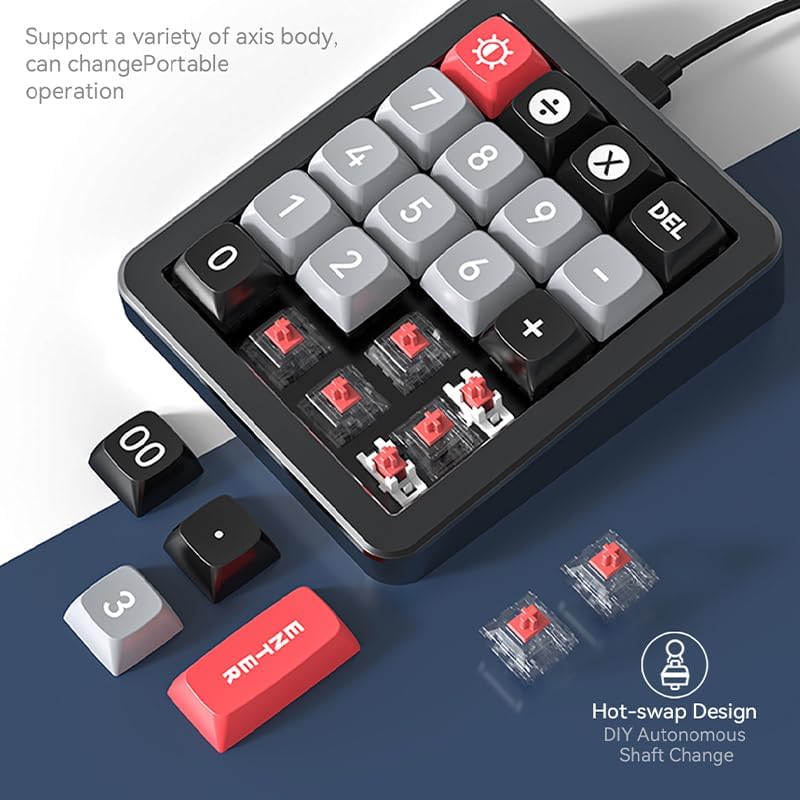
Image 5.1: The keyboard illuminated with various RGB lighting effects, demonstrating the 12 available modes.
6. Hot-Swappable Keys
The hot-swappable design allows you to easily change mechanical switches without soldering, offering a personalized typing experience.
- Treure la tapa de les tecles: Feu servir un extractor de tecles per treure suaument la tecla desitjada.
- Treure l'interruptor: Use a switch puller to carefully extract the mechanical switch from its socket.
- Insereix un nou interruptor: Align the pins of the new mechanical switch with the holes on the PCB. Gently press the switch into place until it clicks securely. Ensure pins are not bent.
- Substitueix la tapa de les tecles: Place the keycap onto the new switch.

Image 6.1: An illustration demonstrating the hot-swap design, showing how switches can be easily changed.
7. Estructura de la junta
The keyboard incorporates a gasket structure, which provides a more flexible and cushioned typing feel compared to traditional mounting styles. This design helps to reduce typing noise and offers a more consistent keypress experience.

Image 7.1: A cross-section diagram detailing the components of the gasket structure, including wear-resistant keycaps, superstructure, red shaft, positioner plate, PCB board, and bottom cover.
8. Manteniment
Un manteniment adequat garanteix la longevitat i el rendiment òptim del teclat.
- Neteja: Use a soft, dry cloth to wipe the keyboard surface. For deeper cleaning, gently remove keycaps and use compressed air to clear dust and debris from between switches. Avoid using harsh chemicals or abrasive materials.
- Cura del cable: When detaching the USB-C cable, always pull from the connector head, not the cable itself, to prevent damage. Store the cable neatly to avoid kinks or bends.
- Emmagatzematge: Quan no l'utilitzeu durant períodes prolongats, guardeu el teclat en un lloc net i sec, allunyat de la llum solar directa i de temperatures extremes.
9. Solució De Problemes
If you encounter issues with your JOMAA keyboard, refer to the following common solutions:
- El teclat no respon:
- Assegureu-vos que el cable USB-C estigui connectat correctament tant al teclat com a l'ordinador.
- Prova de connectar el teclat a un port USB diferent de l'ordinador.
- Prova el teclat en un altre ordinador per descartar problemes específics del sistema.
- Les tecles no funcionen correctament:
- If using hot-swappable switches, ensure the switches are fully seated and their pins are not bent.
- If macros are programmed, verify the settings in the driver software.
- Problemes d'il·luminació RGB:
- Press the lighting control key to cycle through modes.
- Assegureu-vos que el teclat rebi prou energia del port USB.
- Macro Programming Software Issues:
- Ensure you are running the software on a Windows operating system.
- Download the latest version of the driver software from the official JOMAA weblloc.
10. Especificacions
| Característica | Detall |
|---|---|
| Marca | JOMAA |
| Model | B0DZ24X11F |
| Les claus | 20-Key Numeric Pad |
| Connectivitat | USB-C (cable desmuntable) |
| Material del cos | Aliatge d'alumini |
| Tipus de canvi | Hot-Swappable Mechanical |
| Il·luminació | RGB (12 modes) |
| Suport macro | 19 tecles programables |
| Compatibilitat del sistema | Windows XP/Vista/7/8/10, Mac (Driver for Windows only) |
| Dimensions del paquet | 6.3 x 4.72 x 1.97 polzades |
| Pes de l'article | 15.5 unces |
11. Garantia i Suport
JOMAA products are manufactured to high-quality standards. For warranty information, please refer to the documentation included with your purchase or visit the official JOMAA weblloc.
If you require further assistance or encounter issues not covered in this manual, please contact JOMAA customer support through their official weblloc web o el venedor on es va comprar el producte.