1. Introducció i finalview
The ASUS NUC 15 Pro Slim Mini PC is a compact and powerful computing solution designed for various applications, from business productivity to everyday personal use. This model (RNUC15CRKI3063CU) comes fully configured with an Intel Series 1 Core 3 100U processor, 16GB DDR5 RAM, a 512GB PCIe G4x4 NVMe SSD, and Windows 11 Pro. It offers extensive connectivity options including Thunderbolt™ 4, Wi-Fi 7, and Bluetooth 5.4, all within a tool-less chassis for easy upgrades.
This manual provides essential information for setting up, operating, maintaining, and troubleshooting your ASUS NUC 15 Pro Slim Mini PC.
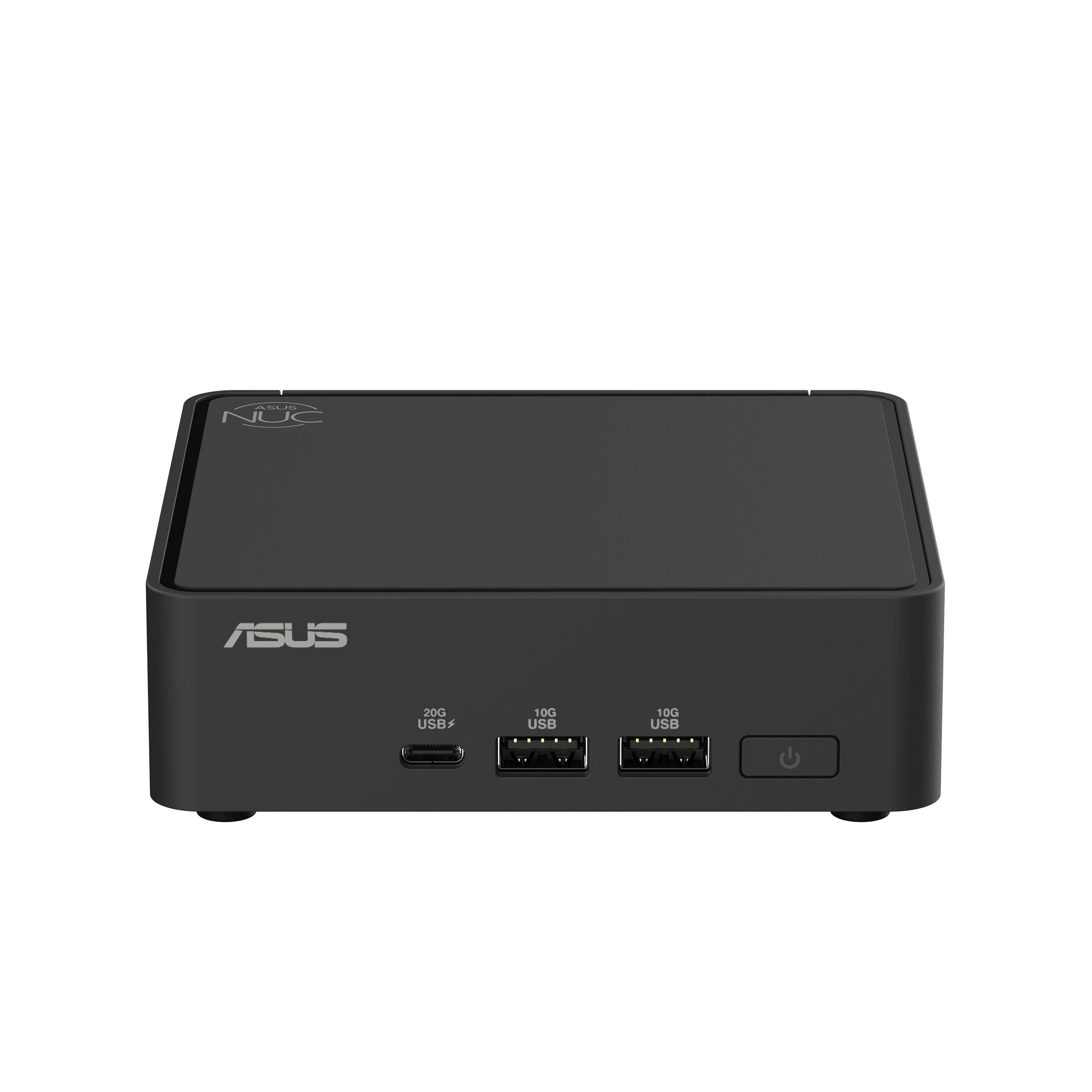
Figure 1: ASUS NUC 15 Pro Slim Mini PC, a compact and powerful computing device.
2. Què hi ha a la caixa
Carefully unpack your ASUS NUC 15 Pro Slim Mini PC and ensure all items are present:
- ASUS NUC 15 Pro Slim Mini PC (Model: RNUC15CRKI3063CU)
- Kit de muntatge VESA
- Adaptador de corrent alterna
- Cable d'alimentació
3. Instruccions de configuració
3.1 Connexió de perifèrics
Before powering on your Mini PC, connect all necessary peripherals:
- Connecta la pantalla: Use an HDMI 2.1 or Thunderbolt 4 cable to connect your monitor(s) to the corresponding ports on the Mini PC. The device supports up to four 4K displays.
- Connecteu el teclat i el ratolí: Connecteu el teclat i el ratolí USB als ports USB 3.0 o USB 2.0 disponibles.
- Connecta la xarxa (opcional): For a wired internet connection, connect an Ethernet cable to the 2.5Gb Ethernet port. For wireless, ensure your Wi-Fi network is available during initial setup.
- Connectar l'alimentació: Plug the AC Power Adapter into the DC-in port on the Mini PC, then connect the power cord to an electrical outlet.

Figure 2: Front ports including USB 3.2 Gen 2x2 Type-C, 2x USB 3.2 Gen2 Type-A, and Power button.

Figure 3: Rear ports including Security mechanism for power cable, HDMI 2.1, 2.5Gb Ethernet, USB 3.2 Gen2 Type-A, USB 2.0 Type-A, and Thunderbolt 4 ports.
3.2 Instal·lació del suport VESA (opcional)
The included VESA mount allows you to attach the Mini PC to the back of a compatible monitor or to a wall, saving desk space. Follow the instructions provided with the VESA mount kit for proper installation.

Figure 4: Flexible configuration with VESA mounting for space-saving setup.
4. Instruccions de funcionament
4.1 Engegada/apagada
- Per encendre: Premeu el botó d'engegada que es troba a la part frontal del Mini PC.
- Per apagar: From Windows 11 Pro, click the Start button, then Power > Shut down. Alternatively, you can press and hold the power button for 4 seconds to force a shutdown (use only when necessary).
4.2 Configuració inicial de Windows 11 Pro
Upon first boot, follow the on-screen instructions to complete the Windows 11 Pro setup, including region, keyboard layout, network connection, and user account creation.
4.3 Connectivitat de xarxa
- Connexió per cable: If an Ethernet cable is connected, the system will automatically detect and use the wired network.
- Connexió sense fil: During Windows setup or via the Windows Settings menu, select your Wi-Fi network and enter the password. The Mini PC supports Intel Wi-Fi 7 for fast wireless speeds.
4.4 Using Thunderbolt™ 4 Ports
The Thunderbolt™ 4 ports offer versatile connectivity for high-speed data transfer, video output, and power delivery. You can connect external displays, storage devices, or docking stations.
5. Manteniment
5.1 Neteja
Regularly clean the exterior of the Mini PC with a soft, dry cloth. Avoid using liquid cleaners or solvents. Ensure ventilation openings are free from dust and obstructions to maintain optimal cooling.
5.2 Actualitzacions de programari
Keep your Windows 11 Pro operating system and device drivers updated to ensure optimal performance and security. Windows Update can be accessed via Settings > Windows Update.
5.3 Hardware Upgrades (Tool-less Access)
The ASUS NUC 15 Pro Slim features a tool-less chassis design, allowing for easy access to internal components for upgrades such as RAM or storage. Refer to the detailed upgrade guide on the ASUS support weblloc per obtenir instruccions específiques.

Figure 5: Tool-less integration allows for easy and quick hardware upgrades.
6. Solució De Problemes
This section addresses common issues you might encounter with your Mini PC.
| Problema | Possible solució |
|---|---|
| Sense poder | Ensure the power adapter and cord are securely connected to both the Mini PC and a working electrical outlet. Test the outlet with another device. |
| Sense pantalla | Verify that the monitor is powered on and the display cable (HDMI or Thunderbolt) is securely connected to both the Mini PC and the monitor. Try a different display cable or monitor if possible. |
| Sense connexió a Internet | For wired connections, check the Ethernet cable and router status. For Wi-Fi, ensure Wi-Fi is enabled in Windows settings, you are connected to the correct network, and the password is correct. Restart your router/modem. |
| System Slowdown / Overheating | Ensure the Mini PC's ventilation openings are clear. Close unnecessary applications. Check for background processes consuming high resources via Task Manager. Ensure drivers and Windows are up to date. |
7. Especificacions
Detailed technical specifications for the ASUS NUC 15 Pro Slim Mini PC (RNUC15CRKI3063CU):
| Característica | Detall |
|---|---|
| Processador | Intel Series 1 Core 3 100U (1.2 GHz) |
| RAM | 16 GB de DDR5 (5600 MHz) |
| Emmagatzematge | 512 GB PCIe G4x4 NVMe SSD |
| Coprocessador gràfic | Gràfics Intel integrats |
| Sistema operatiu | Windows 11 Pro |
| Resolució de pantalla màxima | 3840 x 2160 píxels (4K) |
| Sortida de vídeo | HDMI 2.1, Thunderbolt™ 4 (supports up to four 4K displays) |
| Connectivitat sense fil | Intel Wi-Fi 7 (802.11.be), Bluetooth 5.4 |
| Ports USB | 1x USB 3.2 Gen 2x2 Type-C, 2x USB 3.2 Gen2 Type-A, 1x USB 2.0 Type-A (front); 1x USB 3.2 Gen2 Type-A, 1x USB 2.0 Type-A (rear) |
| Ethernet | 2.5 Gb Ethernet |
| Dimensions (LxWxH) | 4.61 x 4.41 x 1.45 polzades |
| Pes de l'article | 12.6 unces |
| Chassis Access | Tool-less 2.0 |
| Muntatge | VESA Mount Included |
| Fiabilitat | 24/7 reliability, MIL-STD-810H certification |
8. Garantia i Suport
Per obtenir informació sobre la garantia, assistència tècnica i recursos addicionals, visiteu el lloc web d'assistència oficial d'ASUS. weblloc web. Hi podeu trobar controladors, preguntes freqüents i informació de contacte per al servei d'atenció al client.
Suport ASUS Weblloc: www.asus.com/support/