1. Introducció
This manual provides essential information for setting up, operating, and maintaining your Dell Alienware AW3425DWM-A 34-inch curved gaming monitor. Please read these instructions carefully to ensure optimal performance and longevity of your device.

Davant view of the Dell Alienware AW3425DWM-A 34-inch curved gaming monitor, showcasing its curved screen and Alienware branding.
2. Instruccions de configuració
2.1. Desembalatge i muntatge
Traieu amb cura tots els components de l'embalatge. Assegureu-vos que hi hagi totes les peces abans de continuar amb el muntatge.
- Col·loqueu la base del suport a l'elevador del suport.
- Attach the assembled stand to the monitor panel. Ensure it clicks securely into place.
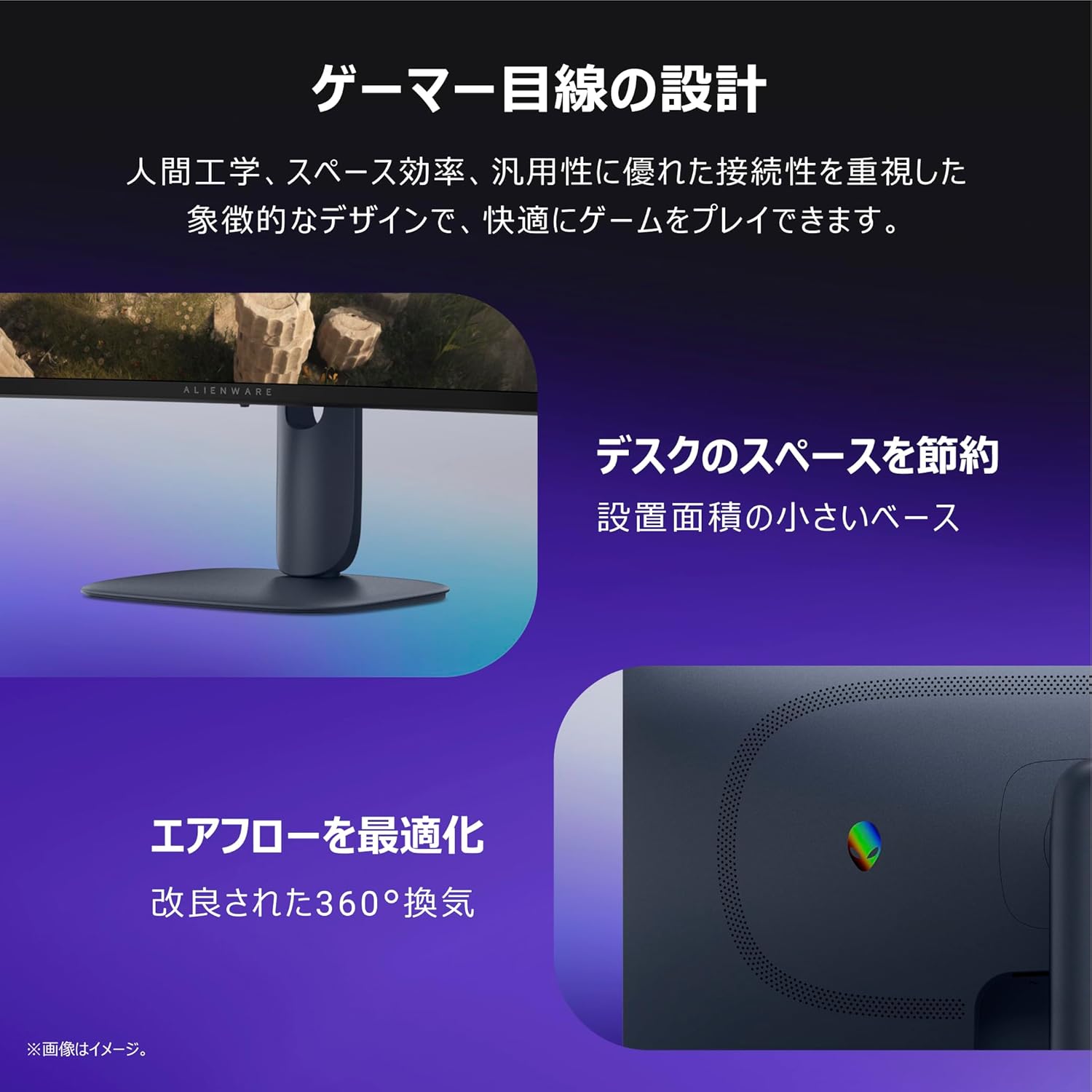
posterior view of the monitor, illustrating the stand attachment point and the integrated cable management slot for a tidy setup.
2.2. Connexió del monitor
Connect the necessary cables to your monitor and computer/devices. Refer to the port diagram for correct connections.
- Cable de corrent: Connecteu el cable d'alimentació al monitor i a una presa de corrent.
- Cables de vídeo: Use either a DisplayPort 1.4 cable (1 included) or an HDMI 2.1 cable (2 included) to connect your computer to the monitor.
- Cable USB de pujada: Connect the USB-B (UP) port on the monitor to a USB-A port on your computer to enable the monitor's USB downstream ports.

Detallada view of the monitor's rear ports, including power connector, security lock slot, joystick, HDMI 2.1 (x2), DisplayPort 1.4 (x1), USB 5Gbps Type-B upstream, and USB 5Gbps Type-A downstream ports (one with Battery Charging 1.2 support).
3. Instruccions de funcionament
3.1. Encendre/apagar
Press the power button, usually located on the bottom or rear of the monitor, to turn it on or off.
3.2. Menú de visualització en pantalla (OSD).
The OSD menu allows you to adjust various monitor settings. Navigate the menu using the joystick located on the rear of the monitor.
- Palanca de joystick amunt/avall: Navegueu per les opcions del menú.
- Joystick esquerra/dreta: Ajusta els valors o mou-te entre els submenús.
- Premsa del joystick: Seleccioneu una opció o confirmeu una configuració.
3.3. Ajustaments físics
The monitor stand offers ergonomic adjustments for comfortable viewing.
- Ajust d'alçada: Adjust the monitor height between 444.69mm and 554.69mm.
- Inclinació: Tilt the screen forward or backward for optimal viewangle de ing.
- Muntatge VESA: The monitor supports VESA 100x100mm mounting for alternative stands or wall mounts.

Illustrations demonstrating the monitor's adjustable features: height adjustment, forward/backward tilt, and swivel.
4. Característiques clau
- WQHD High-Resolution Display: Experience immersive visuals with a WQHD (3440x1440) resolution on a 34-inch ultrawide 1500R curved VA panel. This resolution ensures detailed and expansive views for gaming and other content.
- Rendiment suau: Enjoy fluid gameplay with a 180Hz refresh rate and a rapid 1ms (GtG) response time. AMD FreeSync Premium and VESA AdaptiveSync technologies minimize screen tearing and stuttering for a seamless experience.
- Visuals nítids: Benefit from vibrant and accurate colors with 95% DCI-P3 color gamut coverage and VESA DisplayHDR 400 certification, providing enhanced contrast and brightness.
- Extended Gameplay Comfort: A dedicated console mode and hardware-based blue light reduction (ComfortView Plus) help reduce eye strain during long gaming sessions, maintaining color accuracy.
- Gamer-Centric Design: The monitor features an ergonomic design with a space-saving base and optimized 360-degree ventilation for improved airflow, ensuring comfort and efficiency.

Davant i posterior views of the monitor, highlighting its WQHD resolution and 1500R curvature for an immersive experience.
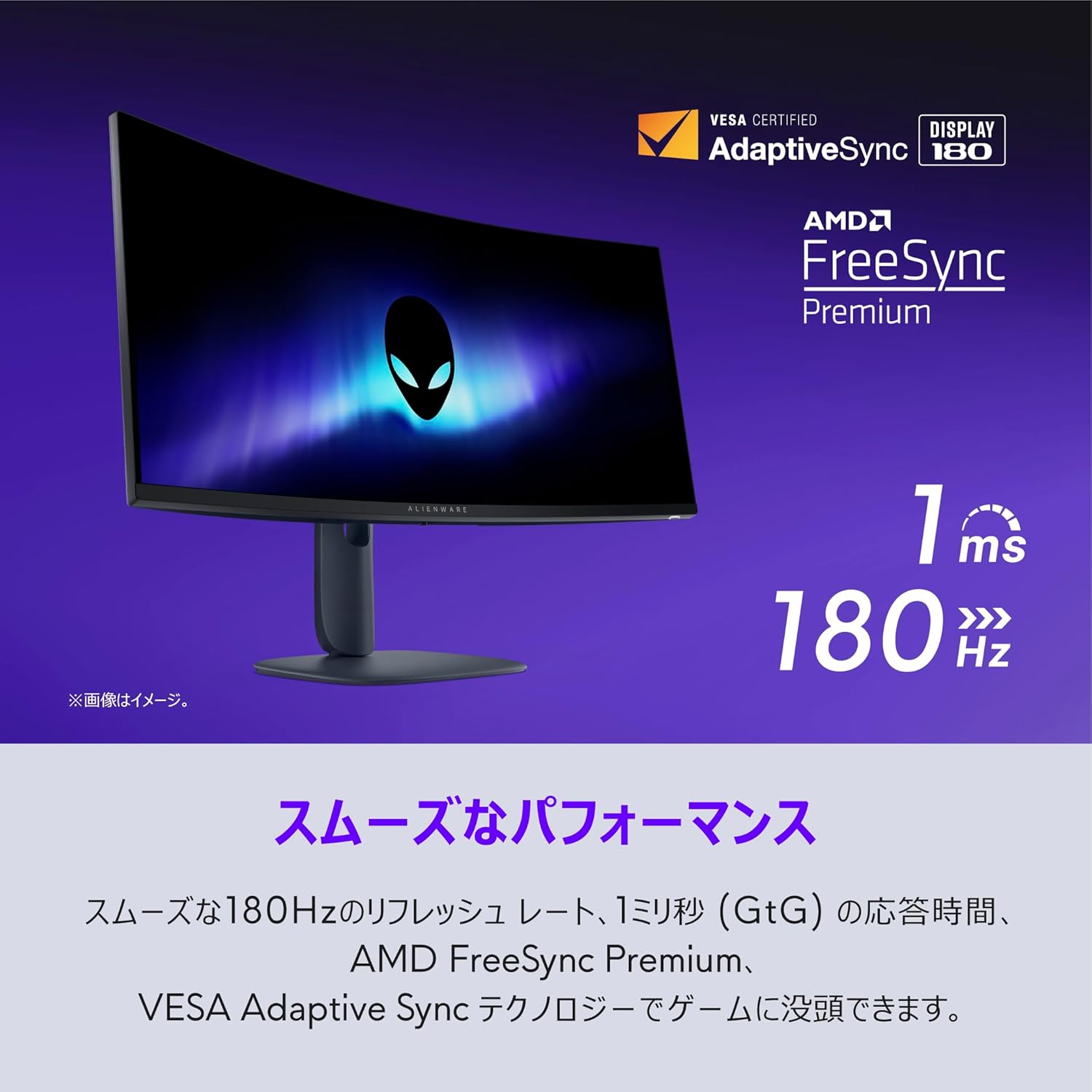
The monitor in action, demonstrating smooth performance with its 180Hz refresh rate and 1ms response time, supported by AMD FreeSync Premium.

The monitor displaying sharp visuals, emphasizing its DCI-P3 95% color coverage and VESA DisplayHDR 400 certification.
5. Especificacions
| Característica | Especificació |
|---|---|
| Mida de la pantalla | 34 polzades |
| Tipus de panell | VA, Anti-glare, 1500R Curved |
| Resolució màxima | 3440 x 1440 (WQHD) |
| Relació d'aspecte | 21:9 |
| Relació de contrast | 3000:1 |
| Brillantor | 400 cd/m² |
| Profunditat de color | 1.07 milions de colors |
| Gamma de colors | DCI-P3 95% |
| Temps de resposta | 1 ms (GtG) |
| Freqüència d'actualització | 180 Hz |
| Ports d'entrada de vídeo | DisplayPort 1.4 x1, HDMI 2.1 x2 |
| Ports USB | USB-A (downstream, 1 with BatteryCharge) x2, USB-B (upstream) x1 |
| Ajustaments | Height, Tilt, VESA Mount (100x100mm) |
| Dimensions (A x A x P) | 554.69mm-444.69mm x 805.45mm x 232mm |
| Pes (amb suport) | 9.51 kg |
| Accessoris inclosos | Power cable, DP-DP cable (1.8m), HDMI 2.1 cable (1.8m), USB A-to-B cable (1.8m) |
6. Manteniment
6.1. Neteja del monitor
To ensure clear display and prevent damage, follow these cleaning guidelines:
- Desendolleu sempre el monitor de la presa de corrent abans de netejar-lo.
- Utilitzeu un drap suau i sense pelusa dampRenteu-ho amb aigua o un netejador de pantalles no abrasiu.
- No ruixeu líquid directament sobre la pantalla o el monitor.asing.
- Avoid using benzene, thinner, ammonia-based cleaners, or abrasive materials, as these can damage the surface.
6.2. Emmagatzematge
If storing the monitor for an extended period, ensure it is powered off, unplugged, and stored in a cool, dry place away from direct sunlight and extreme temperatures. Use original packaging if available for best protection.
7. Solució De Problemes
Si teniu problemes amb el monitor, consulteu els problemes i solucions més comuns següents:
- Sense energia:
- Comproveu si el cable d'alimentació està ben connectat tant al monitor com a la presa de corrent.
- Verifiqueu que la presa de corrent funciona connectant-hi un altre dispositiu.
- Sense senyal:
- Ensure the video cable (DisplayPort or HDMI) is firmly connected to both the monitor and your computer's graphics card.
- Seleccioneu la font d'entrada correcta mitjançant el menú OSD.
- Prova un cable o port de vídeo diferent si està disponible.
- Flickering or Unstable Image (especially with multiple HDMI connections at high refresh rates):
- Assegureu-vos que els controladors de la vostra targeta gràfica estiguin actualitzats.
- If using multiple monitors or devices via HDMI, try reducing the refresh rate for the HDMI connection in your display settings.
- Consider using a DisplayPort to HDMI adapter if connecting a device that primarily uses HDMI but experiences issues with direct HDMI connections at higher refresh rates.
- Check if Dolby Vision is enabled in your system settings; disabling it might resolve some display inconsistencies.
- Problemes de qualitat d'imatge (colors borrosos, distorsionats o incorrectes):
- Adjust resolution and refresh rate settings on your computer to match the monitor's native resolution (3440x1440) and supported refresh rates.
- Perform a factory reset via the OSD menu.
- Assegureu-vos que el cable de vídeo no estigui danyat.
For persistent issues, please contact Dell Technical Support as detailed in the Warranty and Support section.
8. Garantia i Suport
8.1. 5-Year Exchange Warranty
Your Dell Alienware AW3425DWM-A monitor is covered by a 5-year exchange warranty, which includes the LCD panel and backlight. If a product failure occurs under normal use and environment, and Dell Technical Support determines a fault by 4 PM on a weekday, a replacement unit will be delivered free of charge on the next business day (Monday-Friday, excluding holidays and year-end/New Year period from December 30th to January 3rd).
Customers are required to replace the product unit themselves and return the faulty unit to Dell. Delivery times for replacement products may vary by region.
8.2. Premium Panel Guarantee (Bright Pixel Guarantee)
The Premium Panel Guarantee ensures that if even one 'bright pixel' defect is found on the LCD panel, Dell will replace the product free of charge. The validity period for this guarantee is the same as the monitor's main warranty period.
A 'bright pixel' is defined as a pixel that remains permanently lit in a color (white, red, blue, green, purple, light blue, yellow) against a black background. Dark pixels (permanently black pixels against a white background) are not covered by this guarantee.
If you suspect a bright pixel defect, please contact Dell Technical Support for diagnosis.
8.3. Manufacturer Support Contact
When contacting support, please have the 'Express Service Code' attached to your product ready.
- Chat (LINE) Support: https://page.line.me/391vsisb (LINE Account Name: Dell Technologies / LINE ID: @dell / Hours: 9:00-21:00, Monday-Sunday, including holidays)
- Suport telefònic: https://www.dell.com/support/incidents-online/ja-jp/contactus/Dynamic
Note: Manufacturer support is applicable only to products sold and shipped by Amazon.co.jp. For products sold by other sellers, please contact the respective seller for support.


