1. Introducció
This manual provides detailed instructions for the installation, operation, maintenance, and troubleshooting of your GIGABYTE B550M Gaming X WIFI6 AMD AM4 mATX Motherboard. Please read this manual thoroughly before beginning installation to ensure proper setup and optimal performance.

Figure 1: GIGABYTE B550M Gaming X WIFI6 Motherboard Overview
2. Configuració
2.1 Contingut del paquet
Before proceeding, verify that all items are present in your motherboard package:
- GIGABYTE B550M Gaming X WIFI6 Motherboard
- Cable SATA
- Magnetic WiFi Antenna
- Guia d'instal·lació multilingüe
- Motherboard Driver CD/USB (if included)
Video 1: GIGABYTE B550M Gaming X WIFI6 Unboxing. This video demonstrates the contents of the motherboard package and initial handling.
2.2 Motherboard Layout and Connectors
Familiarize yourself with the motherboard's layout and various connectors before installation.
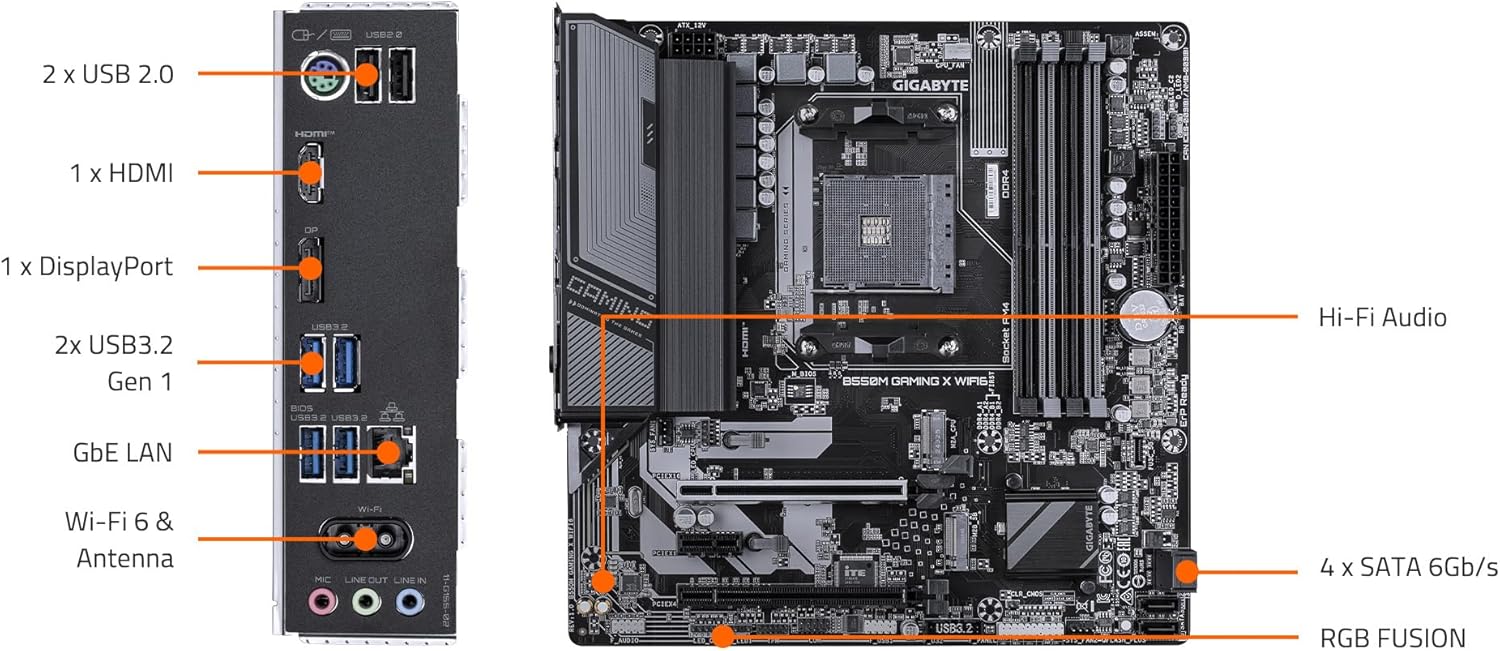
Figura 2: Disposició dels components de la placa base
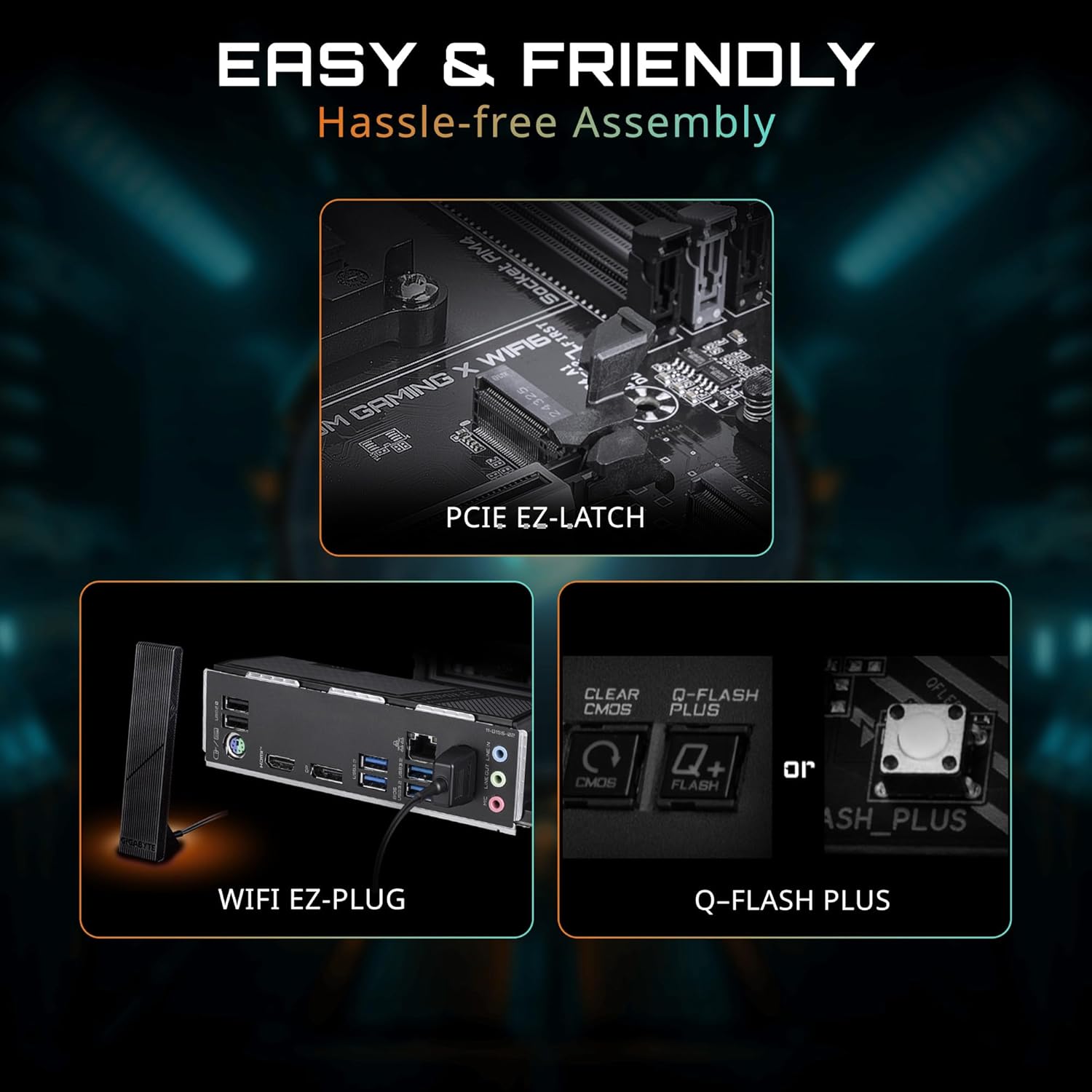
Figura 3: Panell d'E/S posterior
2.3 Instal·lació de components
Follow these steps for installing essential components:
- Instal·lació de la CPU: Carefully open the CPU socket lever. Align the triangular mark on the CPU with the mark on the socket. Gently place the CPU into the socket without force. Close the lever to secure the CPU.
- Instal·lació del refrigerador de CPU: Instal·leu el refrigerador de la CPU segons les instruccions del fabricant. Assegureu-vos d'aplicar la pasta tèrmica correctament.
- RAM (Memory) Installation: Open the clips on the DDR4 memory slots. Align the notch on the memory module with the key in the slot. Press down firmly on both ends of the module until the clips snap into place. For dual-channel performance, refer to your motherboard manual for specific slot pairing.
- Instal·lació SSD M.2: Locate the M.2 slots. Remove the M.2 screw/standoff. Insert the M.2 SSD at an angle into the slot. Push it down gently and secure it with the screw/standoff. The motherboard features PCIe EZ-Latch for tool-less M.2 installation.
- Instal·lació de la targeta gràfica (PCIe): Open the retention clip on the PCIe 4.0 x16 slot. Align your graphics card with the slot and press down firmly until it is seated. The PCIe EZ-Latch simplifies removal. Secure the card to your chassis with screws.
- Instal·lació de dispositius SATA: Connect SATA data cables from your storage devices (HDDs/SSDs) to the SATA ports on the motherboard. Connect SATA power cables from your power supply to the devices.
- Connexions de la font d'alimentació: Connecteu el connector d'alimentació ATX de 24 pins i el connector d'alimentació de la CPU de 8 pins (o 4+4 pins) de la font d'alimentació als ports corresponents de la placa base.
- Connexions del panell frontal: Connect the power button, reset button, HDD LED, power LED, and front panel USB/audio headers to their respective pins on the motherboard. Refer to the motherboard manual for pin assignments.
- WiFi Antenna Connection: Screw the magnetic WiFi antenna onto the designated connectors on the rear I/O panel. The WiFi EZ-Plug design ensures easy connection.

Figure 4: Easy Assembly Features (PCIe EZ-Latch, WiFi EZ-Plug, Q-Flash Plus)
3. Funcionament
3.1 Arrencada inicial i configuració de la BIOS
After assembling your system, connect a monitor, keyboard, and mouse. Power on your PC. Press the designated key (usually DEL or F2) during startup to enter the BIOS/UEFI setup. Here you can configure boot order, system time, and other advanced settings. The motherboard supports Q-Flash Plus for BIOS updates without a CPU, memory, or graphics card installed.
3.2 Instal·lació del controlador
Once your operating system is installed, install the necessary drivers for your motherboard components. These can typically be found on the included driver CD/USB or downloaded from the official GIGABYTE website. Essential drivers include chipset, LAN, audio, and Wi-Fi drivers.
3.3 Utilitats de programari
GIGABYTE provides various software utilities to enhance your user experience:
- Fusió RGB: Customize the RGB lighting effects on your motherboard and connected compatible devices.
- Ventilador intel·ligent 6: Monitor and control your system's fan speeds and temperatures for optimal cooling and noise levels.
- App Center: A centralized platform to manage and update GIGABYTE utilities and drivers.
Video 2: GIGABYTE B550 Motherboards - OverviewAquest vídeo ofereix una visió generalview of the features and capabilities of GIGABYTE B550 series motherboards.
4. Manteniment
El manteniment regular ajuda a garantir la longevitat i el rendiment estable de la placa base.
- Neteja: Periodically clean dust from your PC case and motherboard components using compressed air. Ensure the system is powered off and unplugged before cleaning. Avoid using liquids.
- Actualitzacions de la BIOS: Comproveu els GIGABYTES website for the latest BIOS updates. BIOS updates can improve compatibility, stability, and performance. Use the Q-Flash or Q-Flash Plus utility for safe updating.
- Actualitzacions de controladors: Keep your drivers updated to ensure optimal performance and compatibility with new software and hardware. Download drivers only from the official GIGABYTE weblloc.
5. Solució De Problemes
Si teniu problemes amb la placa base, tingueu en compte els passos següents per resoldre'ls:
- Sense alimentació/Sense arrencada:
- Check all power connections (24-pin ATX, 8-pin CPU, GPU, SATA).
- Assegureu-vos que la font d'alimentació estigui encesa.
- Try booting with minimal components (CPU, one RAM stick, graphics card if no integrated graphics).
- Sense pantalla:
- Verify monitor cable connections and monitor input selection.
- Torneu a col·locar la targeta gràfica i els mòduls de memòria.
- Test with a different monitor or graphics card if possible.
- Inestabilitat/Avaries del sistema:
- Comproveu les temperatures de la CPU i la GPU. Assegureu-vos que hi hagi una refrigeració adequada.
- Executeu eines de diagnòstic de memòria per comprovar si hi ha errors de RAM.
- Actualitzeu la BIOS i tots els controladors a les versions més recents.
- Network Connectivity Issues (Wired/Wireless):
- Ensure LAN cable is properly connected or WiFi antenna is securely attached.
- Install or update LAN/WiFi drivers.
- Comproveu la configuració de xarxa al vostre sistema operatiu.
If issues persist, consult the GIGABYTE support weblloc web o poseu-vos en contacte amb el seu servei d'assistència tècnica.


